

 English
 Lietuvių
 Latviešu
 Eesti
 Русский
 Polski
 Українська
 Deutsch
 Italiano
 Español
 Français
 Português
 Čeština
 Magyar
 Română
 Ελληνικά
 Türkçe
 日本語
 العربية
 हिन्दी
 Bahasa Indonesia
 Bahasa Melayu
 ไทย
 Tiếng Việt
 বাংলা
PostRSS Keyword Filters and Hashtags: Posting Only What Fits
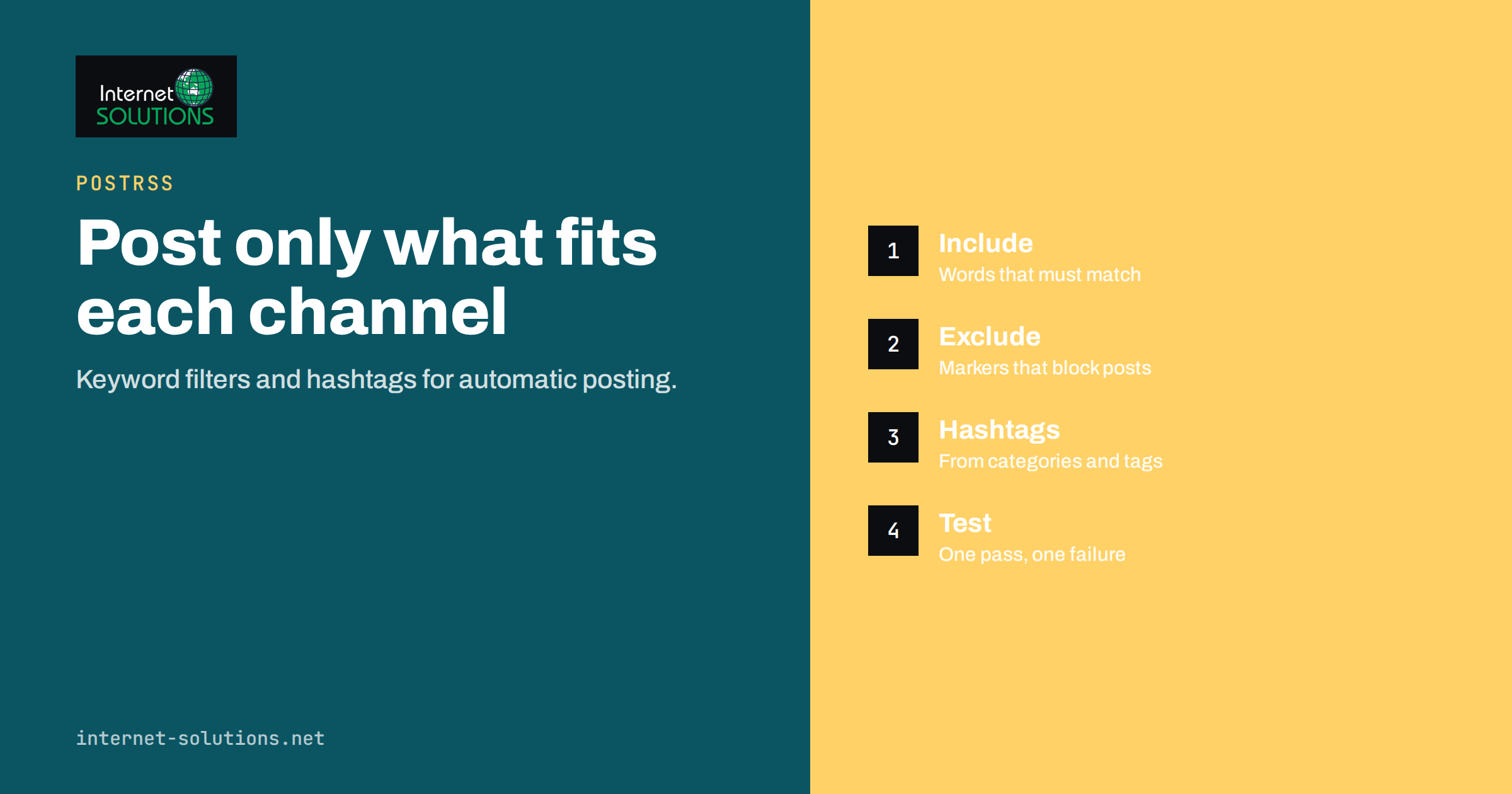
Automatic posting saves hours, but it raises a fair worry: what if the wrong article goes out to the wrong audience? A recruitment announcement does not belong on a customer support channel, an internal update should never reach the public, and a long technical post may not suit a casual account. PostRSS keyword filters and hashtags are the two settings that answer this worry. Filters decide which feed items are published at all, and hashtags decide how the published posts are labelled for discovery on networks where hashtags make sense.
This guide explains what these settings do, how to design include and exclude lists, how to prepare your categories and tags so that hashtags look right, how to test the result and what mistakes to avoid. It is based on the behaviour described on the live PostRSS features page and in the step-by-step setup guide, and it fits into the wider approach on our PostRSS page. Plans, limits and supported networks change over time, so confirm current details in your dashboard.
What Keyword Filters and Hashtags Do in PostRSS
PostRSS reads a feed, takes each new item and turns it into a native post on the networks you connected. Two optional settings sit between the feed and the post.
- Keyword filters (include and exclude). For each source you can list words to include or exclude. PostRSS matches them in the item title and description and posts only the items that fit.
- Hashtags from categories and tags. PostRSS can turn the categories and tags of each feed item into hashtags, up to a set limit, on social networks where hashtags make sense.
Both settings work on information that already exists in your feed. You do not need to write extra code, and you do not need to change your website, but you do need to be deliberate about the words in your titles, descriptions, categories and tags, because those words are the raw material.
Each target, such as a Facebook Page or a LinkedIn Page, has its own settings, so two channels can use the same feed and still behave differently. That is the foundation of the idea in the title of this article: post only what fits each channel.
When Filters Are Worth Using
Filters are not necessary for every site. If every article you publish is suitable for every channel, leave them off and keep the setup simple. They become valuable in situations like the following.
| Situation | Filter approach | Example words | Risk to watch |
|---|---|---|---|
| One blog serves several audiences | Include only items about the channel’s topic | “wholesale”, “installation”, “careers” | Items that never use the keyword will never be posted |
| Some posts are internal or unfinished | Exclude a marker word | “internal”, “draft”, “private” | Forgetting to add the marker to a new item |
| Sponsored or affiliate posts need special handling | Exclude, then publish those manually with a disclosure | “sponsored”, “partner” | Skipping a legally required disclosure |
| Seasonal or event content | Include during a campaign, then change the list | “black friday”, “webinar” | Leaving an old rule in place after the event |
| Different languages in one feed | Include or exclude language markers, or use separate feeds | Language names in titles | Markers missing from some items |
| A press-style account that should only show news | Include news-type words | “announces”, “launch”, “update” | Missing important items with different wording |
Designing Include and Exclude Lists
The most reliable lists are short, specific and based on how your content is actually written. Follow these principles.
- Start from the question “which items must never go out?” Exclude lists are safer than include lists, because they only remove known problems. An include list silently drops everything that does not use your chosen words.
- Use words that you control. The best filter words are ones that you add on purpose, such as a short marker in the title or in the first line of the description. Natural words in the text are less predictable.
- Prefer distinctive words. A common word like “new” will match almost everything. A specific word like “careers” will match only what you intend.
- Think about variations. Plurals, different spellings and synonyms can all appear in real titles. If your include list contains “install”, ask whether “installation” and “installing” are also needed.
- Keep a written list. Record each filter word, the reason and the date. Months later, nobody remembers why a rule exists, and an unexplained rule is often the cause of a missing post.
Because matching is done on the item title and description, filtering by a category that does not appear in those fields may not work as you expect. If you want to separate content by category, a good alternative is a separate feed for each category. WordPress, for example, offers feeds per category, and each of those feeds can be connected to a different target. Check the behaviour with a test item before relying on it.
Preparing Titles and Descriptions So Filters Work
If you plan to filter, make the feed filter-friendly. This is a small editorial habit rather than a technical task.
- Use consistent marker words in titles or the opening of the description, such as a short topic label.
- Write descriptions that summarize the article accurately, since PostRSS matches words there as well. A feed that publishes only a truncated excerpt gives the filter less to work with.
- Agree on an exclusion marker for internal content and put it in the editorial checklist.
- Avoid putting a common exclusion word into articles that you do want to share, for example an article that discusses “private” data policy but should be posted.
If you want to refine the full message format as well, remember that PostRSS can build each post from the item title, the item description, the page title or your own static text. Filters decide whether the item is posted; the format decides what the post says.
How Hashtags Are Built From Categories and Tags
PostRSS can turn the categories and tags of each feed item into hashtags, up to a limit, on networks where hashtags are useful. That means your hashtags are only as good as your taxonomy. Many websites have messy tags: dozens of near-duplicates, very long phrases and tags created once for a single post. Those become messy hashtags.
Before switching hashtags on, review your taxonomy.
- Merge near-duplicates. “SEO”, “seo-tips” and “search engine optimization” should become one tag.
- Prefer short, meaningful names. One or two words are easier to read as a hashtag than a long phrase.
- Check how multi-word names appear. Publish a test item and see how a tag such as “Email Marketing” is turned into a hashtag, then adjust names if the result is awkward.
- Keep a brand tag. A consistent tag that appears on your own content helps people find the rest of what you publish.
- Remove unhelpful tags. Administrative labels like “uncategorized” or “news-2024” do not help readers and should not become hashtags.
Hashtags should help people who do not know you yet to find relevant content. A handful of precise ones usually works better than a long string of general ones. Networks differ in how much they value hashtags and in how they display them, so look at the accounts you admire on each channel and set your own limits accordingly.
Combining Filters, Hashtags and Link Tracking
These features work best together with two other settings from the same group. The first is the message format, which controls whether the post uses the title, the description or your own text. The second is link tracking: PostRSS lets you add your own query parameters, such as utm_source=postrss, to every link, so your analytics shows what each network brought. Our guide to UTM parameters for auto-posted social traffic explains a sensible naming convention. If you filter content into different targets, give each target its own medium or campaign value, and you will be able to compare channels cleanly.
A Safe Rollout Plan
Because filters can hide posts, introduce them gradually.
- Write the rule on paper. Which target, which items should pass, which should not.
- Test with a pair of items. Publish one item that should pass and one that should be blocked, then watch the result at the next feed check.
- Review after a week. Compare the list of items published on your site with those that appeared on the channel. Any item that is missing should have a reason you can name.
- Adjust slowly. Change one rule at a time so you can tell what caused each effect.
- Re-check after site changes. A theme change, a new SEO plugin or a new editor can change what appears in titles and descriptions.
If a post does not appear, the setup guide’s checklist is a good starting point: confirm the item is in the feed, the route is active, the filters are not too strict and the image source is correct. Our longer article on troubleshooting RSS feeds goes through the typical causes, and the PostRSS setup guide shows how to reach a first published post.
Common Mistakes
- Using an include list as a safety net. It also blocks every article that happens to use different words.
- Filters that are too strict. The very post you use for testing may be excluded by your own rule.
- Old rules left in place. A seasonal filter that stays on after a campaign ends hides normal content for months.
- Hashtags from a messy taxonomy. Poor tags make poor hashtags.
- Treating filters as a legal control. Filters help with routing, not with compliance. Content that needs a disclosure or approval should go through a human step.
- Not telling the team. Writers should know which words trigger or block posting.
If you would like help planning feeds, filters and channels for a more complex website, you can contact us.
Frequently Asked Questions
Where does PostRSS look for filter keywords?
PostRSS matches the keywords you list in the item title and description. If a word appears only in the full article body or in a category that is not part of the title or description, it is not guaranteed to be matched, so test with a sample item.
Is it better to use include or exclude keywords?
Exclude lists are usually safer, since they remove only what you name. Include lists are useful for dedicated channels, but they block every item that does not use your words, so make sure those words appear consistently.
Can I send different articles to different channels from one feed?
Yes. Each target has its own settings, and you can also use separate feeds, such as one feed per category. Use filters when articles share a feed, and separate feeds when your categories are clear and stable.
Do hashtags appear on every network?
PostRSS turns categories and tags into hashtags on social networks where hashtags make sense, up to a set limit. It does not add them everywhere, so check the result on each connected channel.
How can I stop a single article from being posted?
Add an agreed exclusion marker to its title or description and include that marker in your exclude list. Make sure the marker is part of your editorial checklist so it is applied before publication.
Why did my test post not appear after I added a filter?
The most common reason is that the filter excluded it, for example because the test title did not contain an included word or contained an excluded one. Check the feed, the filter list and whether the route is active.
The Bottom Line
PostRSS keyword filters and hashtags give you control without giving up automation. Use filters to keep internal, off-topic or sensitive items away from the wrong channels, prefer short exclude lists built from markers you control, and test every rule with real items. Clean up your categories and tags so the hashtags generated from them are short, relevant and consistent, and keep the limit modest. Remember that settings belong to each target, so each channel can have its own rules. With a simple written list, a test routine and a quick review after site changes, the system keeps posting what fits each channel and quietly skips the rest.