

 English
 Lietuvių
 Latviešu
 Eesti
Eesti Русский
 Polski
 Українська
 Deutsch
 Italiano
 Español
 Français
 Português
 Čeština
 Magyar
 Română
 Ελληνικά
 Türkçe
 日本語
日本語 العربية
 हिन्दी
 Bahasa Indonesia
 Bahasa Melayu
 ไทย
ไทย Tiếng Việt
 বাংলা
বাংলাMulti-Factor Authentication and Password Managers for Small Teams
Most small business security incidents do not start with sophisticated hacking. They start with a reused password, a convincing phishing email or an old account nobody remembered to close. Once an attacker is inside a mailbox, they can reset passwords for other services, send invoices with changed bank details or quietly read everything for months.
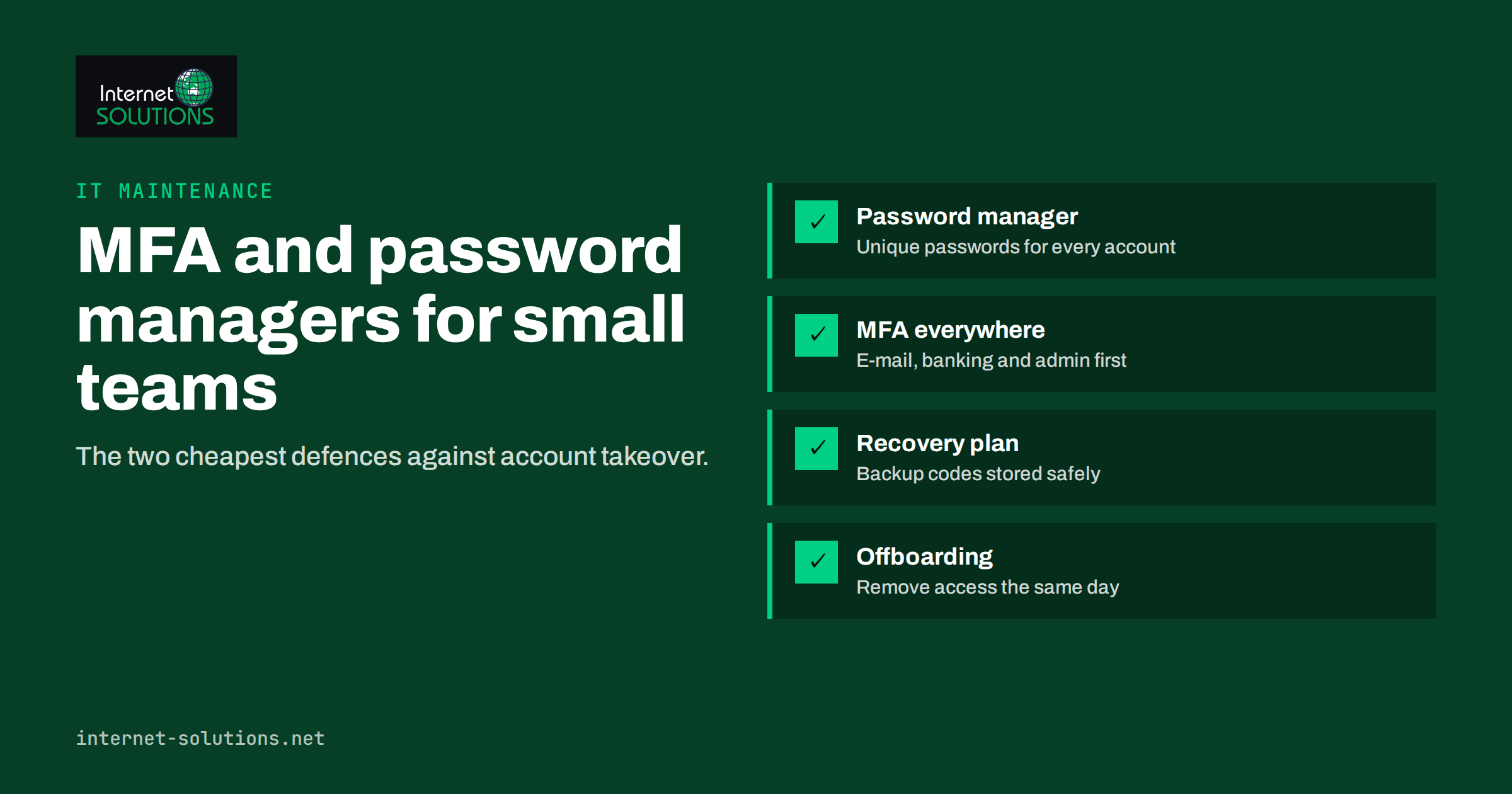
Two measures stop the majority of these attacks and cost very little: multi-factor authentication and a password manager. Multi-factor authentication makes a stolen password insufficient on its own. A password manager makes it practical for every person to use a unique, strong password for every account. This guide explains how both work, which options are stronger, and how to roll them out in a team of five or fifty without a revolt.
Why Passwords Alone No Longer Protect You
Passwords fail in predictable ways.
- Reuse. When any website suffers a breach, its list of emails and passwords is traded and tried automatically against other services. If a team member used the same password for a hobby forum and the company mailbox, the mailbox is at risk.
- Phishing. A fake login page that looks like your email provider collects the password directly. No amount of password complexity helps once the password is typed into the wrong site.
- Guessing. Short or predictable passwords, such as a company name followed by the year, are guessed quickly by automated tools.
- Sharing. Passwords written in spreadsheets, chat messages and sticky notes spread far beyond the people who need them.
Modern guidance has moved away from forcing frequent password changes and complex character rules. The US National Institute of Standards and Technology, in its digital identity guidelines (SP 800-63B), favours longer passwords, checking new passwords against lists of known breached ones, and changing them when there is evidence of compromise rather than on a fixed schedule. The practical conclusion for a small team is simple: long, unique passwords stored in a manager, plus a second factor.
What Multi-Factor Authentication Is
Multi-factor authentication, often called MFA or two-step verification, requires two or more different kinds of proof when you sign in:
- something you know, such as a password or PIN;
- something you have, such as a phone, an authenticator app or a hardware key;
- something you are, such as a fingerprint or face scan, usually used to unlock a device or passkey.
The point is that an attacker who steals one factor still cannot sign in. A password bought from a breach list is useless without the phone or key. The UK National Cyber Security Centre recommends turning on 2-step verification on your email first, because email is the key to resetting everything else.
MFA Methods Compared
Not all second factors are equally strong. The table ranks the common options from the weakest to the strongest against today’s typical attacks.
| Method | How it works | Resists phishing? | Convenience | Best use |
|---|---|---|---|---|
| SMS or voice code | A code is sent to your phone number | No | High | Better than nothing; replace where possible |
| Email code | A code is sent to your mailbox | No | High | Low-risk services only; useless if the mailbox is compromised |
| Authenticator app (time-based codes) | An app generates a new six-digit code every 30 seconds | Partly | Good | Solid default for most business accounts |
| Push approval with number matching | Approve a prompt on your phone and type the number shown on screen | Partly | Very good | Company email and cloud suites |
| Passkeys | A cryptographic key stored on your device, unlocked with fingerprint, face or PIN | Yes | Very good | Every service that supports them |
| Hardware security key | A physical key that you plug in or tap | Yes | Good | Administrators, finance and domain registrar accounts |
Why phishing resistance matters
Codes from SMS or apps can be phished: a fake login page asks for the password and then for the code, and passes both to the real site within seconds. Passkeys and hardware keys are tied to the real website’s address, so they simply do not work on a fake one. For the accounts that could hurt the business most, such as administrator accounts, banking, the domain registrar and the main email admin, choose phishing-resistant methods.
Beware of prompt fatigue
Some attackers who already have a password send repeated push approval requests, hoping the victim taps “approve” to make them stop. Number matching, where you must type the number shown on the login screen, largely defeats this. Teach everyone one rule: if you get a sign-in prompt you did not start, deny it and tell whoever manages IT.
Password Managers: How They Work and Why They Help
A password manager is an encrypted vault that stores passwords and fills them in for you. You remember one strong master password, protected by MFA, and the manager remembers the rest.
What a business password manager gives you
- Unique passwords everywhere. The manager generates long random passwords, so reuse disappears without anyone having to memorise anything.
- Phishing protection. Autofill only works on the real domain. If the manager does not offer to fill your password, that is a warning sign that the site may be fake.
- Safe sharing. Shared vaults let a team use the same social media or supplier account without pasting passwords into chat. Access can be removed centrally.
- Breach alerts. Many managers warn when a stored password appears in a known breach or is weak or reused.
- Offboarding. When someone leaves, removing them from the vault removes access to shared credentials, and you can see which passwords they had access to and should change.
Choosing one
For a business, choose a product with a team or business plan, not individual free accounts. Look for central administration, shared vaults with permissions, enforced MFA on the vault itself, recovery options for when someone forgets their master password, and an export function so you are not locked in. Browser-built-in password storage is convenient for individuals but usually lacks team sharing and central control.
Rolling Out MFA and a Password Manager in a Small Team
Technology is the easy part. Adoption is where rollouts fail. A phased plan avoids most of the pain.
- List critical accounts. Email and cloud suite, domain registrar and DNS, website administration, hosting and server panels, banking and payment providers, accounting software, social media and advertising accounts. These get MFA first.
- Start with administrators. Protect every account with admin rights using the strongest available method, ideally hardware keys or passkeys. Server logins deserve the same care; our guide to server security hardening covers SSH keys and admin access.
- Turn on MFA for email for everyone. Most business email suites let you enforce it centrally. Give people a week’s notice and a short guide with screenshots.
- Deploy the password manager. Set up shared folders by team or function, move shared credentials out of spreadsheets, and delete the old spreadsheet.
- Ask everyone to fix their top ten. Each person replaces reused passwords on their most important work accounts with generated ones.
- Enable MFA on the rest. Go through the remaining services and switch on MFA wherever it is offered.
- Review quarterly. Check who has access to what, remove old accounts and read the manager’s security report.
If you would rather not run this project yourself, it fits naturally into ongoing IT maintenance, where account security is checked together with updates and backups.
Shared Accounts: Social Media, Advertising and Suppliers
Shared logins are where good intentions usually break down. A marketing team shares one login for a supplier portal, three people post to the company’s social media, and the agency that runs the ads has had the password for years. Each of these deserves a deliberate setup.
- Prefer individual access where the platform allows it. Social networks, advertising platforms and analytics tools mostly let you add people to a business account with their own login and role. That gives each person their own MFA and lets you remove one person without changing anything for the others.
- Put truly shared credentials in a shared vault. When a service has only one login, store it in a shared folder of the password manager, restricted to the people who need it, rather than in a chat thread.
- Handle the MFA device for shared logins. If a shared account requires MFA, store its authenticator secret in a password manager that supports time-based codes, or use a service that allows several registered methods, so the account does not depend on one person’s phone.
- Give agencies and freelancers their own access. External partners should have separate accounts or partner access that you can remove when the contract ends, not the owner’s password.
Recovery: Plan for the Lost Phone
MFA introduces a new risk: being locked out of your own accounts. Plan recovery before you need it.
- Backup codes. Most services provide one-time recovery codes. Store them in the password manager or in a sealed envelope in a safe place, not in the same phone that holds the authenticator.
- Two keys for critical accounts. If you use hardware keys, register at least two and keep the spare somewhere secure.
- More than one administrator. Never let a single person be the only admin of the email system, domain registrar or password manager.
- A written procedure. Document how a team member regains access if they lose their phone, including how their identity is verified. Attackers pose as locked-out employees too.
Offboarding: The Step Everyone Forgets
Former employees and contractors who still have working accounts are a common cause of incidents, usually by accident rather than malice. When someone leaves:
- Disable their email and cloud suite account on the last day, and transfer their mailbox and files to a manager.
- Remove them from the password manager and change any shared passwords they could see.
- Remove them from social media, advertising, analytics, hosting and website admin accounts.
- Revoke their MFA devices and any API keys or app passwords they created.
- Collect company hardware and security keys.
A checklist kept alongside your other IT documentation makes this a ten-minute task instead of a guessing game. For a broader view of who should own these routines, see our comparison of managed IT support and an in-house IT person.
Common Objections and How to Answer Them
“It slows me down”
Most services remember trusted devices, so MFA prompts appear only occasionally. Password managers are usually faster than typing passwords. Passkeys are quicker still: a fingerprint instead of a password and a code.
“I do not want work apps on my personal phone”
That is a fair concern. Offer a hardware security key as an alternative, or a company phone for people who need one. Authenticator apps do not give the employer access to the rest of the phone.
“We are too small to be a target”
Most attacks are automated and indiscriminate. Breached password lists are tried against every mailbox, regardless of company size. Small businesses are often targeted precisely because they are less protected.
Frequently Asked Questions
What is the difference between two-factor and multi-factor authentication?
Two-factor authentication uses exactly two factors, typically a password and a code. Multi-factor authentication means two or more. In everyday use the terms describe the same protection.
Is SMS-based multi-factor authentication safe enough?
It is much better than a password alone, but codes can be phished and phone numbers can be hijacked. Use an authenticator app, passkeys or hardware keys where possible, especially for admin accounts.
Are password managers safe if they store all my passwords?
Reputable managers encrypt the vault so the provider cannot read it, and the vault itself is protected by a strong master password and MFA. The risk is far lower than reused or written-down passwords.
What are passkeys?
Passkeys replace passwords with a cryptographic key stored on your device and unlocked with a fingerprint, face scan or PIN. They cannot be phished or reused and are supported by a growing number of services.
Which accounts should get MFA first?
Email and cloud suite accounts first, then the domain registrar, hosting and website admin, banking and payments, accounting, and social media and advertising accounts.
What happens if someone loses the phone with their authenticator app?
They use stored backup codes or a second registered method, or an administrator resets their MFA after verifying their identity. Plan and document this before rolling out MFA.
The Bottom Line
Multi-factor authentication and a password manager are the two cheapest, most effective security improvements a small team can make. Start with email and admin accounts, choose phishing-resistant methods such as passkeys or hardware keys where the stakes are highest, and move shared credentials into a business password manager. Plan recovery before anyone loses a phone, and make offboarding a checklist rather than a memory test. A week of setup removes the most common route attackers use into small businesses.