

 English
 Lietuvių
 Latviešu
 Eesti
Eesti Русский
 Polski
 Українська
 Deutsch
 Italiano
 Español
 Français
 Português
 Čeština
 Magyar
 Română
 Ελληνικά
 Türkçe
 日本語
日本語 العربية
 हिन्दी
 Bahasa Indonesia
 Bahasa Melayu
 ไทย
ไทย Tiếng Việt
 বাংলা
বাংলাBusiness Email Hosting: Workspace, Microsoft 365 or Self-Hosted?
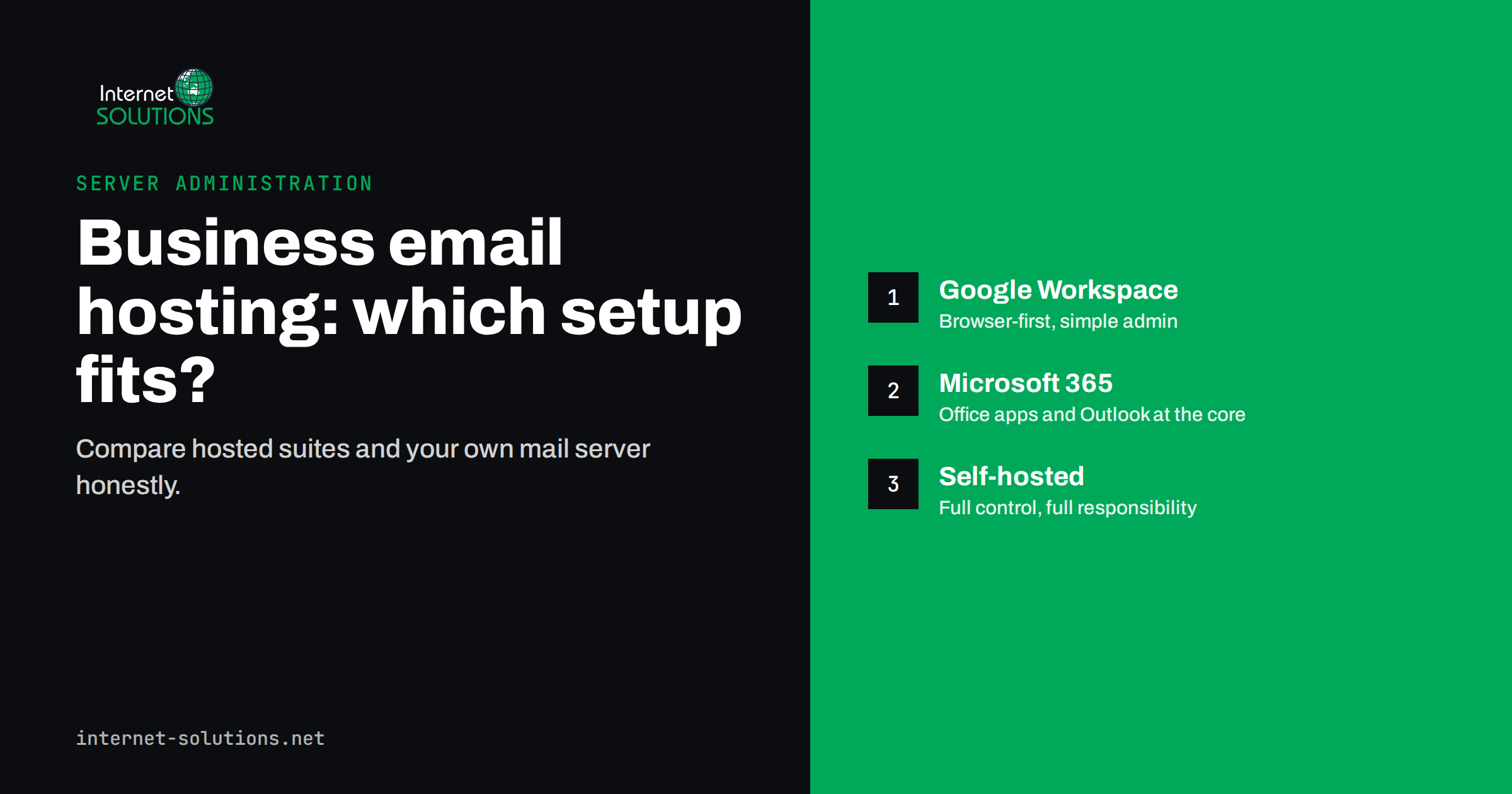
Email is still the system most businesses cannot work without. Quotes, invoices, contracts, password resets and customer questions all pass through it. Yet the choice of business email hosting is often made by accident: whatever came with the web hosting package, or whatever the first employee happened to know. Years later the company finds itself with full mailboxes, messages landing in spam, no proper archive and nobody sure where the passwords are.
This guide compares the realistic options for a small or medium business: Google Workspace, Microsoft 365, email bundled with web hosting, and a self-hosted mail server. It explains what each one does well, what it costs you in effort rather than just in subscription fees, and how to move between them without losing mail. We are a company that runs servers for clients, so we will be honest about when self-hosting makes sense and when it does not.
What Business Email Hosting Actually Includes
Before comparing providers, it helps to separate the pieces. A business email service is more than a mailbox.
- Your own domain. Addresses like name@yourcompany.com instead of a free webmail address. The domain belongs to you, which means you can move providers without changing addresses.
- Sending and receiving servers. The infrastructure that accepts incoming mail, filters spam and malware, and delivers your outgoing messages.
- Authentication. SPF, DKIM and DMARC records that prove your mail is genuine. Without them, a growing share of your messages will be rejected or sent to spam.
- Clients and apps. Webmail, mobile apps and support for desktop programs.
- Administration. Creating and removing users, shared mailboxes, aliases, security policies, MFA enforcement and audit logs.
- Retention and backup. What happens to mail when someone deletes it, leaves the company or a legal request arrives.
Every option covers the first two. The differences appear in the last four, and those are the ones that cause pain later.
Option 1: Google Workspace
Google Workspace provides Gmail on your own domain, together with Calendar, Drive, Docs, Sheets and Meet. It is browser-first: most people use it through the web interface and the mobile apps, although desktop email programs are supported.
Strengths
- Very strong spam filtering and a familiar interface for anyone who has used Gmail.
- Simple administration console suited to companies without a dedicated IT person.
- Real-time collaboration on documents is built in, and sharing is straightforward.
- Works equally well on any operating system, because almost everything happens in the browser.
Things to consider
- Teams that live in desktop Word and Excel files, with complex macros or formatting, may find the switch uncomfortable.
- Retention and legal hold features depend on the plan; check what yours includes before you need them.
- Labels instead of folders take some getting used to for people coming from Outlook.
Option 2: Microsoft 365
Microsoft 365 business plans provide hosted Exchange mailboxes, Outlook, Teams, OneDrive and SharePoint, and on many plans the desktop Office applications. It is the natural choice for companies built around Word, Excel and Outlook.
Strengths
- Outlook with shared calendars, shared mailboxes and room booking is mature and widely understood.
- Deep integration with the Office applications many businesses and their clients use daily.
- Extensive security and compliance options, including retention policies and device management on higher plans.
- Many accounting, CRM and industry applications integrate with it directly.
Things to consider
- The admin centre is powerful but complex; it is easy to leave important security settings at their defaults.
- Licensing has many tiers and add-ons, so compare plans carefully rather than buying the largest one.
- Collaboration happens across several apps (Outlook, Teams, SharePoint, OneDrive), which needs some structure to avoid chaos.
Option 3: Email Included With Web Hosting
Most web hosting packages include email accounts managed through a control panel. For a sole trader or a very small team with modest needs, this can be perfectly adequate.
Strengths
- Usually no extra cost beyond the hosting package.
- Standard IMAP and SMTP work with any email program and phone.
- Simple to set up alongside the website.
Things to consider
- Spam filtering and deliverability vary widely between hosting companies. If the server’s IP address shares reputation with many other customers, one of them sending spam can affect you.
- Mailbox sizes are often small, and calendars, contacts and shared mailboxes are basic or missing.
- Website and email live on the same server, so a problem with one can affect the other, including when the site is hacked.
- Backups of mail may not be included or may be difficult to restore for a single mailbox.
Option 4: A Self-Hosted Mail Server
Running your own mail server, on a virtual or dedicated server, with open-source software for sending, receiving, filtering and webmail, gives you complete control over data, storage and configuration.
Strengths
- Full control over where data is stored, how long it is kept and who can access it.
- No per-user licence fees, which can matter for organisations with many mailboxes and light usage.
- Flexibility for unusual needs such as many domains, special routing or integration with internal systems.
Things to consider
- Deliverability is the hardest part. New server IP addresses have no reputation, and large mailbox providers are cautious with them. Reverse DNS, SPF, DKIM, DMARC, rate limits and constant monitoring of blocklists are all your job.
- Security updates, spam filter tuning, backups, storage growth and certificate renewals never stop.
- When it breaks at night, somebody has to fix it.
Self-hosting makes sense when you have a clear reason, such as strict data residency requirements, very many mailboxes or integration needs, and a person or partner responsible for running it. It rarely makes sense as a way to save money for a ten-person company. If you do go this way, it should be treated as a production service with monitoring and maintenance, which is what our server administration service provides.
Side-by-Side Comparison
| Criteria | Google Workspace | Microsoft 365 | Hosting-bundled email | Self-hosted server |
|---|---|---|---|---|
| Best for | Browser-first teams, collaboration | Office and Outlook users | Sole traders, very small teams | Specific control or scale needs |
| Spam filtering | Excellent | Very good | Varies by host | As good as your configuration |
| Deliverability | Strong provider reputation | Strong provider reputation | Depends on shared server reputation | Must be built and maintained |
| Calendars and shared mailboxes | Yes | Yes, very mature | Basic or missing | Depends on software |
| Admin effort | Low | Medium | Low | High |
| Data control | Provider-managed | Provider-managed | Host-managed | Full |
| Cost model | Per user | Per user | Included in hosting | Server plus staff or partner time |
Deliverability: The Same Rules Apply Everywhere
Whichever option you choose, your domain’s reputation is your responsibility. Major mailbox providers now require bulk senders to authenticate their mail and keep complaint rates low; see Google’s email sender guidelines and Yahoo’s sender best practices. The essentials:
- SPF lists which servers may send mail for your domain. Include every service that sends on your behalf: your email provider, newsletter tool, CRM and website.
- DKIM signs messages cryptographically so receivers can verify they were not altered.
- DMARC, defined in RFC 7489, tells receivers what to do with mail that fails those checks and sends you reports. Start with monitoring, then move to stricter policies once all legitimate senders pass.
- Separate marketing from personal mail. Sending newsletters from the same domain and servers as everyday correspondence means a bad campaign can hurt invoice delivery. Many businesses use a subdomain for bulk mail.
Our explainer on SPF, DKIM and DMARC goes through each record with examples.
Security Settings to Turn On From Day One
A new email platform is the best moment to fix security habits, because everyone is already changing how they sign in. Whichever provider you choose, set these up before the first message arrives.
- Enforce multi-factor authentication for every mailbox, starting with administrators. A stolen password on its own should never be enough to read company mail.
- Separate admin accounts. Administrators should use a dedicated admin login for configuration work and a normal account for daily email, so a phishing message cannot hijack full control.
- Disable legacy sign-in methods that bypass MFA, such as old protocols some platforms still allow for compatibility, unless a specific device truly needs them.
- Block automatic forwarding to outside addresses. Attackers who get into a mailbox often set up a hidden rule that copies all mail elsewhere. Alerts on new forwarding rules catch this early.
- Use shared mailboxes for shared addresses. Addresses like info@ or invoices@ should be shared mailboxes with individual access, not one password passed around the office.
- Decide on retention and backup. Hosted providers keep your mail available, but deleted messages are only recoverable for a limited time. If you need longer history, configure retention or a separate backup.
How to Choose: Five Questions
- Which documents do you work with every day? If most files are Word and Excel shared with clients, Microsoft 365 is usually the smoother path. If you collaborate on shared documents in the browser, Google Workspace fits well.
- How many people, and how will that change? Per-user pricing scales linearly. Hosting-bundled mail is fine for two people and painful for twenty.
- Do you need shared mailboxes, calendars and room booking? If yes, bundled hosting mail will feel limited quickly.
- Are there legal or contractual requirements for data location, retention or archiving? Check the provider’s options against them before migrating, not after.
- Who will administer it? Be realistic. A powerful platform that nobody configures properly is less secure than a simple one managed well.
Migrating Without Losing Mail
Changing email providers is routine if you plan it, and chaotic if you do not.
- Inventory. List every mailbox, alias, shared mailbox, forwarding rule and every system that sends mail from your domain, such as the website contact form, invoicing and CRM.
- Lower DNS TTLs on the MX records a day or two before the switch so changes take effect quickly.
- Create accounts and copy mail. Use the new provider’s migration tool or an IMAP copy to move existing messages, calendars and contacts.
- Switch MX records at a quiet time, then run a final sync from the old system to catch messages that arrived during propagation.
- Update SPF, DKIM and DMARC for the new provider, and remove the old provider from SPF only when nothing sends through it any more.
- Reconfigure devices. Give everyone a short guide for phones and desktop programs.
- Keep the old service for a few weeks in case something was missed.
DNS is where most migrations go wrong. If records like MX, SPF and CNAME are unfamiliar, our guide DNS explained for business owners gives the background.
Frequently Asked Questions
What is the best business email hosting for a small company?
There is no single best option. Google Workspace suits browser-first teams, Microsoft 365 suits companies built around Office and Outlook, and hosting-bundled mail can be enough for one or two people.
Can I keep my email addresses if I change provider?
Yes, as long as you own the domain. You create the same addresses at the new provider, copy existing mail and change the domain’s MX records.
Is it cheaper to run my own mail server?
Rarely for small teams. Licence fees disappear, but server costs, security updates, deliverability work and monitoring take ongoing skilled time, which usually costs more than per-user subscriptions.
Why do my emails go to spam after switching providers?
Usually because SPF, DKIM or DMARC were not updated for the new provider, or because another sending service was not added to SPF. Check each record and test with a mail tester.
Should newsletters be sent from the same domain as normal email?
It is safer to use a dedicated subdomain and a proper email marketing service for bulk mail, so a poorly performing campaign does not damage the reputation of everyday business correspondence.
How long does an email migration take?
For a small team, preparation takes a few days and the switch itself a few hours. Copying large mailboxes can run in the background for longer, which is why a final sync after the MX change matters.
The Bottom Line
Business email hosting is a long-term decision, so choose it deliberately. Google Workspace and Microsoft 365 both provide excellent, low-maintenance email with strong deliverability; pick the one that matches how your team works with documents. Hosting-bundled mail is fine for the smallest teams but shows its limits quickly. Self-hosting gives complete control at the price of constant care and is worth it only with a clear reason and a responsible administrator. Whatever you choose, set up SPF, DKIM and DMARC properly, keep marketing mail separate and plan migrations around DNS.