

 English
 Lietuvių
 Latviešu
 Eesti
Eesti Русский
 Polski
 Українська
 Deutsch
 Italiano
 Español
 Français
 Português
 Čeština
 Magyar
 Română
 Ελληνικά
 Türkçe
 日本語
日本語 العربية
 हिन्दी
 Bahasa Indonesia
 Bahasa Melayu
 ไทย
ไทย Tiếng Việt
 বাংলা
বাংলাSmall Business Network Setup: Wi-Fi, Switches and Guest Access
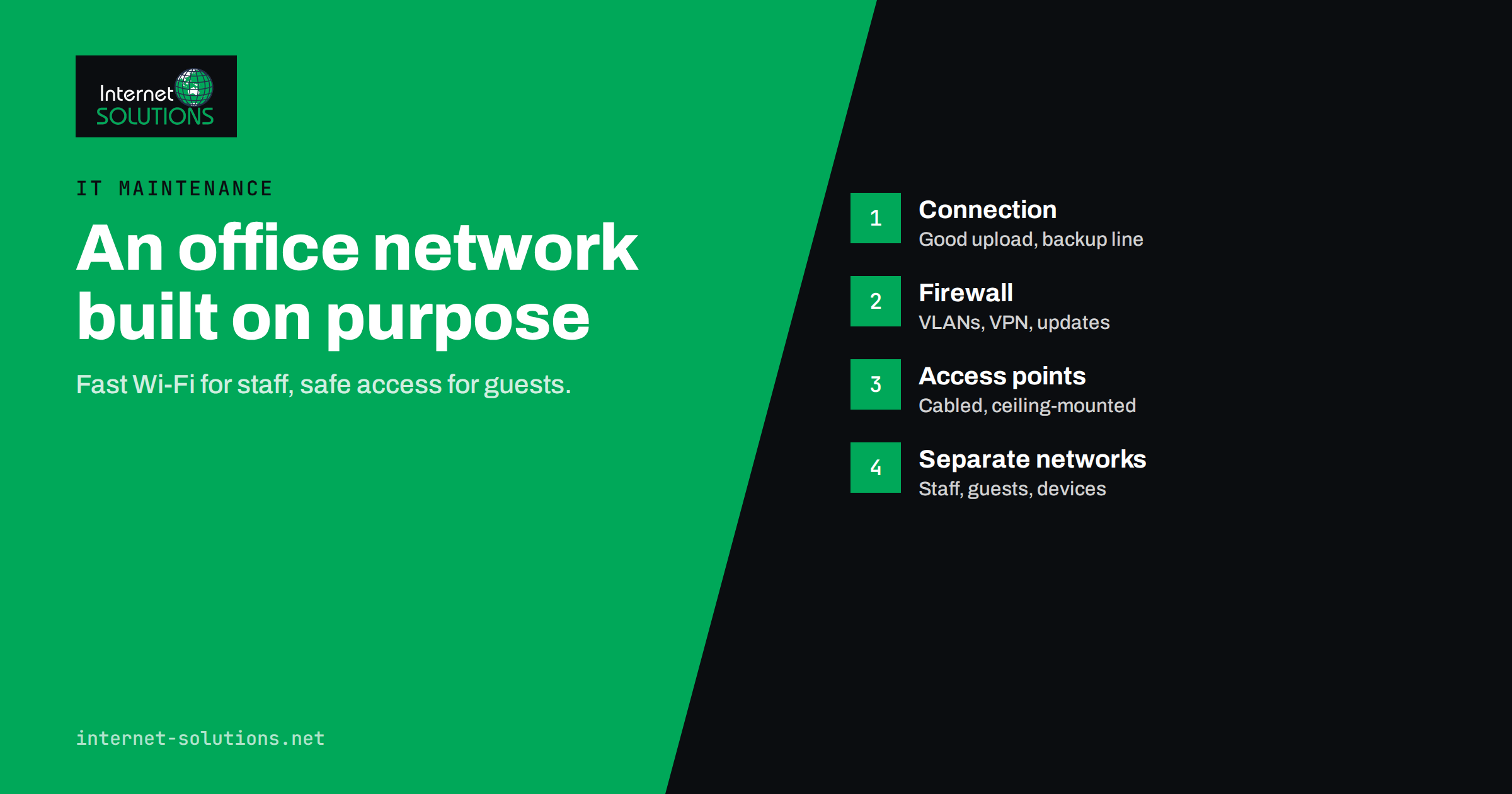
Most small offices never design their network. It grows: a router from the internet provider, a switch bought when the desk count went up, a Wi-Fi extender for the meeting room, a printer someone plugged in years ago. It works until it does not, and then nobody knows how it is put together, where the passwords are or why the video calls drop every afternoon. A planned small business network setup costs little more than an accidental one and saves a great deal of lost time and risk.
This guide explains how to set up an office network that is fast, reliable and reasonably secure: the internet connection, the router and firewall, switches, Wi-Fi coverage, separating guests and devices, and the documentation and maintenance that keep it working. It is aimed at offices of roughly five to fifty people, without a dedicated IT department.
Start With What the Network Must Do
Before buying anything, list what the network needs to support. The answers shape every later decision.
- People and devices: how many staff, laptops, phones, printers, screens, cameras and other connected devices, now and in two years.
- Critical applications: video calls, cloud software, a phone system, card terminals, file transfers, remote access for staff working from home.
- Space: floor plan, walls, number of floors, where people sit and where meetings happen.
- Guests: do visitors or customers need Wi-Fi?
- Tolerance for downtime: can the business work for a day without internet, or does every hour cost money?
An accounting firm with ten staff and cloud software has different needs from a shop with card terminals and security cameras, or a design studio moving large files every day. Write the answers down; they become the brief for the setup and the basis for its documentation.
The Internet Connection
Speed and symmetry
Video calls and cloud backups use upload bandwidth, which many business connections have far less of than download. If the team works heavily in the cloud, choose a connection with good upload speed, ideally fibre with symmetric speeds where it is available.
A backup connection
If downtime is expensive, add a second connection from a different provider or a mobile data backup. Many business routers can switch to the backup automatically when the main line fails. This is often the cheapest insurance an office can buy.
A business service agreement
Consumer connections can take days to repair. Business contracts usually include faster repair times and a fixed public IP address, which is useful for remote access and some security setups.
Router, Firewall and Switches
Replace or bypass the provider’s box when needed
The router supplied by the internet provider is designed for homes. It usually works, but it often lacks proper network separation, logging and management. For a growing office, a business-grade router or firewall behind the provider’s device, which is then set to pass traffic through, gives far more control.
What the firewall should do
- Block all unsolicited incoming connections by default.
- Support separate networks, known as VLANs, for staff, guests and devices.
- Provide a secure VPN for remote access, if staff need to reach office resources.
- Receive regular firmware updates from the manufacturer.
- Keep logs that can be reviewed when something goes wrong.
Switches
Wired connections remain faster and more reliable than Wi-Fi for desks that do not move, printers, servers and access points. Use managed switches if you plan to separate networks, and choose models with Power over Ethernet if they will power Wi-Fi access points, phones or cameras. Label every cable at both ends. Future you will be grateful.
Wi-Fi That Covers the Whole Office
Most complaints about office networks are really complaints about Wi-Fi. The fix is rarely a stronger single router; it is several access points placed properly and managed together.
Access points instead of extenders
Wireless extenders repeat the signal and cut the available speed. Access points connected by cable to the switch give each area its own full-speed connection. A central controller or cloud dashboard lets them share one network name, so devices move between them without dropping calls.
Placement
Mount access points on ceilings or high on walls, in the middle of the areas they serve, away from metal cabinets and thick walls. Plan by where people sit and meet, not by where a network socket happens to be. A simple walk-around with a Wi-Fi analyser app shows weak spots before and after installation.
Standards and bands
Current equipment supports Wi-Fi 6 or newer, which handles many devices at once far better than older standards. Use the 5 GHz band, and 6 GHz where devices support it, for most traffic; the 2.4 GHz band has longer range but is crowded and slower.
Security settings
Use WPA3 where all devices support it, or WPA2 and WPA3 together during a transition, with a long, unique passphrase. The Wi-Fi Alliance’s security overview explains the differences. Turn off WPS, the push-button pairing feature, which has a history of weaknesses. For larger offices, enterprise authentication, where each person signs in with their own account, removes the problem of a shared password that every former employee still knows.
Separating Staff, Guests and Devices
Putting everything on one flat network is the most common and most dangerous shortcut. A visitor’s infected laptop, a cheap smart camera with outdated software or a compromised printer should never be able to reach the accounting computer or the file server. Separation limits the damage any single device can do.
| Network | Who or what connects | What it can reach | Typical settings |
|---|---|---|---|
| Staff | Company laptops and desktops | Internet, printers, internal servers, shared files | WPA3 or enterprise sign-in; wired where possible |
| Guest | Visitors, customers, personal phones | Internet only | Client isolation; bandwidth limit; password changed regularly |
| Devices | Printers, screens, cameras, smart devices | Only what each device needs | No internet access unless required; firmware kept current |
| Payments | Card terminals, point of sale | Payment provider only | Strictly isolated, as payment card rules expect |
| Management | Switches, access points, firewall | Accessible only to administrators | Strong unique passwords; no guest access |
Personal phones belong on the guest network, not the staff network, unless they are managed company devices. It is a simple rule that closes a large gap.
Security Basics Around the Network
A good network design is one layer of protection. The rest comes from how devices and accounts are managed. The UK National Cyber Security Centre’s small organisations guide to cyber security sets out the essentials in plain language. For the network, the most important points are:
- Change default passwords on every router, switch, access point, printer and camera on day one.
- Update firmware on network equipment regularly; manufacturers fix serious vulnerabilities through these updates.
- Turn off remote management from the internet unless it is needed, and protect it with strong authentication if it is.
- Use multi-factor authentication for the VPN, cloud management dashboards and all business accounts. Our guide to multi-factor authentication and password managers for small teams explains how to roll it out.
- Remove access when people leave, including shared Wi-Fi passwords if individual accounts are not in use.
Common Problems and Their Usual Causes
When an existing office network misbehaves, the same few causes appear again and again. Checking them first saves a lot of guesswork.
- Video calls freeze in the afternoon: the upload bandwidth is saturated, often by cloud backups or large file syncs running during working hours. Schedule them for the evening or limit their bandwidth.
- Wi-Fi is fine at the desk but drops in meeting rooms: coverage gaps or too many people on one access point. Add or move an access point rather than raising transmit power.
- Everything slows down at random: a looped cable, a failing switch or a device flooding the network. Managed switches with loop protection and logs make this much easier to find.
- The printer keeps disappearing: it changes its address after restarts. Give printers and other shared devices fixed addresses or reservations.
- Nobody can reach the internet but Wi-Fi shows connected: the problem is upstream, at the router, firewall or provider. Check there before touching laptops.
Documentation and Maintenance
Write it down
Every network needs a short document that answers the questions asked in an emergency: who the internet provider is and how to reach support, where the equipment is, what each device does, the network ranges, how the guest network is configured and where administrator credentials are stored. Credentials belong in a password manager, not on a sticker under the router.
A simple maintenance routine
- Monthly: check for firmware updates on the firewall, switches and access points; review any alerts.
- Quarterly: change the guest Wi-Fi password, review connected devices and remove unknown ones, test the backup connection.
- Yearly: review whether equipment is still supported by the manufacturer, whether coverage still matches the office layout, and whether the connection speed still fits the team.
Equipment that no longer receives security updates should be replaced, just like computers. Our article on planning a hardware replacement cycle covers how to budget for that.
Do It Yourself or Bring in Help
A very small office with a handful of staff can often manage with a good all-in-one business router, a couple of access points and the practices above. Once there are several networks, remote access, card payments, cameras or more than one floor, the configuration becomes easy to get subtly wrong. A misconfigured guest network that can reach the file server looks exactly like a correctly configured one until the day it matters.
Many businesses have the network designed and installed once by a professional and then either maintain it themselves with clear documentation or include it in an ongoing support contract. Network setup, monitoring and updates are part of our IT maintenance service, alongside computer support and security.
A Checklist for a New Office Network
- Requirements written down: users, devices, applications, space, guests and downtime tolerance.
- Business internet connection with adequate upload speed, plus a backup line if downtime is costly.
- Business-grade router or firewall with VLAN support and regular updates.
- Managed switches with Power over Ethernet where needed; every cable labelled.
- Ceiling-mounted access points on cable, managed together, covering all work and meeting areas.
- WPA3 or enterprise authentication; WPS off; strong, unique passphrases.
- Separate networks for staff, guests, devices, payments and management.
- Default passwords changed and credentials stored in a password manager.
- Network documentation that someone other than the installer can follow.
- A monthly, quarterly and yearly maintenance routine with a named owner.
Frequently Asked Questions
What equipment does a small business network setup need?
At minimum: a business internet connection, a router or firewall, a switch for wired devices and one or more Wi-Fi access points. Larger offices add managed switches, several centrally managed access points and a backup internet connection.
Is the router from my internet provider good enough for an office?
For a very small office it can be, but it usually lacks network separation, detailed logs and good management. Growing offices benefit from a business-grade firewall, with the provider’s device set to pass traffic through.
Why should guests have a separate Wi-Fi network?
A separate guest network gives visitors internet access without letting their devices reach your computers, printers or files. If a guest device is infected, the damage stays outside your business network.
Are Wi-Fi extenders a good idea in an office?
Generally not. Extenders reduce speed and add unreliable links. Access points connected by cable to the switch provide much better coverage and performance.
How often should network equipment be updated?
Check for firmware updates at least monthly and apply security updates promptly. Replace equipment that the manufacturer no longer supports with updates.
Should printers and cameras be on the same network as staff computers?
Preferably not. Printers, cameras and smart devices often have weak security, so placing them on a separate network limits what an attacker could reach through them.
The Bottom Line
A good small business network setup is planned rather than accumulated. Start from what the business needs, choose a reliable connection with a backup if downtime is costly, use a business-grade firewall, cabled access points and managed switches, and separate staff, guests, devices and payments into their own networks. Change default passwords, keep firmware current, document everything and give the network an owner. The result is an office where calls do not drop, visitors get Wi-Fi without risk, and a single compromised gadget cannot put the whole business at stake.