

 English
 Lietuvių
 Latviešu
 Eesti
Eesti Русский
 Polski
 Українська
 Deutsch
 Italiano
 Español
 Français
 Português
 Čeština
 Magyar
 Română
 Ελληνικά
 Türkçe
 日本語
日本語 العربية
 हिन्दी
 Bahasa Indonesia
 Bahasa Melayu
 ไทย
ไทย Tiếng Việt
 বাংলা
বাংলাWordPress Staging Site: Testing Changes Before They Go Live
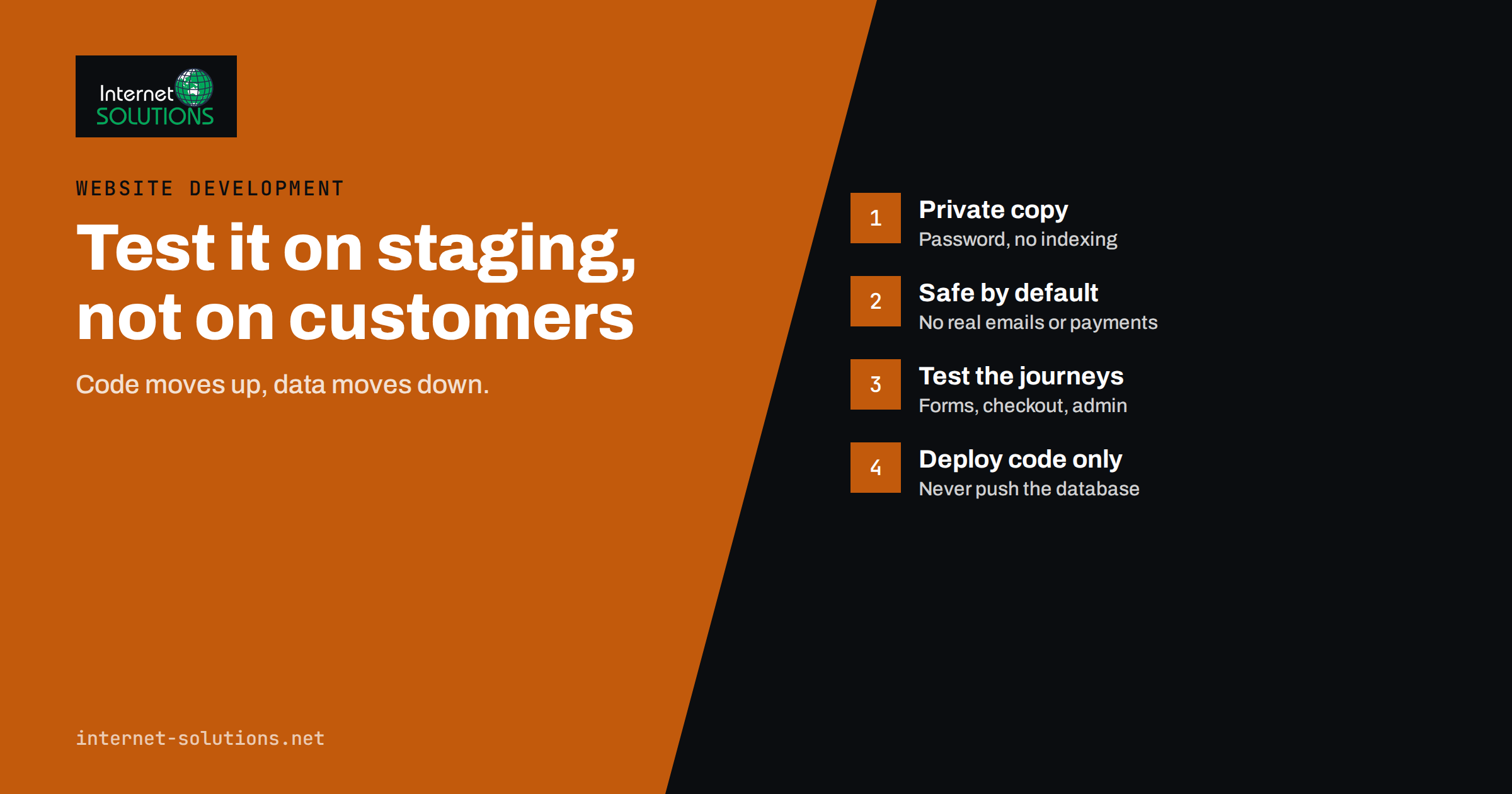
Every WordPress site eventually breaks after an update. A plugin conflicts with a new version of WooCommerce, a theme update overwrites a layout, a PHP upgrade exposes old code. On a brochure site that means an embarrassing afternoon; on a shop it means lost orders. A WordPress staging site is the simple, unglamorous habit that prevents most of these moments: a private copy of your website where changes are tested first, and only moved to the live site once you know they work.
This guide explains what a staging site is, the different ways to create one, how to keep it private and harmless, a practical testing routine, and the part most teams get wrong: moving changes back to production without overwriting new orders, form entries or comments.
What a Staging Site Is (and What It Is Not)
A staging site is a copy of your production website, running on the same or a very similar server setup, at a separate private address such as staging.example.com. It has the same theme, plugins, settings and, at the moment it is created, the same content and database.
It is useful to separate it from two related environments:
- Local or development environment. A copy on a developer’s own computer, used for writing new code. It is fast and safe, but the server rarely matches production exactly.
- Staging environment. A copy on a server that mirrors production: same PHP version, same web server, similar caching. This is where you confirm that changes behave the way they will on the live site.
- Production. The live website your customers use. Ideally, nothing is changed here that has not passed through staging first.
WordPress itself recognises these environments. Since version 5.5 you can set the WP_ENVIRONMENT_TYPE constant to local, development, staging or production, and plugins can read it through wp_get_environment_type() to change their behaviour, for example to stop sending real emails.
When You Actually Need Staging
Not every change needs a full staging cycle. Fixing a typo in a blog post does not. A sensible rule is to use staging for anything that changes code or configuration:
- WordPress core major updates and PHP version upgrades;
- plugin and theme updates, especially for page builders, WooCommerce and its extensions, membership and booking plugins;
- new plugins, and removing old ones;
- design changes, template edits and custom code;
- changes to caching, security, redirects or SEO plugin settings;
- payment, shipping and tax configuration in an online shop.
For security patches that fix an actively exploited vulnerability, speed can matter more than a full test cycle. Even then, a quick update on staging followed by a smoke test usually takes less than half an hour. Our article on patch management without breaking production covers how to balance the two.
Ways to Create a WordPress Staging Site
There are three common approaches, and the right one depends on your hosting and how often you make changes.
| Approach | How it works | Good for | Watch out for |
|---|---|---|---|
| Host’s one-click staging | The hosting panel copies the site to a staging address and can push it back | Small sites on managed WordPress hosting | Push options vary; some overwrite the whole database |
| Staging plugin | A plugin clones the site into a subfolder or subdomain | Quick tests on shared hosting | Runs on the same server and database user as production |
| Separate server or vhost, managed with Git and WP-CLI | Code is deployed from a repository; the database is copied with scripts | Shops, custom themes, sites changed weekly | Needs technical setup, but gives full control |
For a business site that is changed regularly, the third approach pays for itself quickly. Code (theme, custom plugins) lives in version control and is deployed the same way to staging and production; the database is copied from production to staging when needed, never the other way round. Tools such as WP-CLI search-replace update the site address inside the copied database while handling serialized data safely, which a plain SQL find-and-replace would corrupt.
Keeping Staging Private and Harmless
A staging site is a full copy of your website, including customer data. Treat it with the same care as production, and make sure it cannot cause damage.
Keep it out of search engines
A public staging copy is duplicate content and can even outrank the real site. Protect it with HTTP basic authentication (a password prompt at server level), and additionally tick “Discourage search engines from indexing this site” in Settings, Reading. The password is the real protection; the setting is a backup.
Stop it from emailing customers
A copied shop still holds every customer’s address. Order reminders, abandoned cart emails or newsletter plugins on staging can send real emails to real people. Route all outgoing mail on staging to a mail catcher or disable sending entirely.
Disconnect payments and integrations
Switch payment gateways to sandbox or test mode, and disconnect or point elsewhere any integration that acts in the real world: shipping label creation, accounting exports, CRM syncs, stock updates to marketplaces, and social auto-posting.
Watch scheduled tasks
WordPress cron jobs copied from production will run on staging too. Review them, and disable any that call external services.
Limit access and personal data
Give staging access only to the people who test. For larger shops, consider anonymising customer data in the staging copy; under GDPR, a test copy of personal data is still personal data.
A Practical Testing Routine
A staging site only helps if someone checks the right things. A short written checklist, adapted to your site, works better than ad-hoc clicking.
- Refresh staging from production so you test against current content and settings.
- Apply the change: the update, new plugin or code deployment.
- Check for errors: enable debug logging on staging and look at the PHP error log after browsing key pages.
- Click through critical journeys: homepage, main service pages, contact form submission, search, and for shops the full path from product to checkout with a test payment.
- Check the admin side: editing a page, saving settings, the order list, and anything your team uses daily.
- Compare visually: look at key templates on desktop and mobile. Visual regression tools can automate this for larger sites.
- Check performance: a page that suddenly takes twice as long to load is a regression too.
- Write down what changed and what was tested, so the production deployment repeats exactly the same steps.
Moving Changes to Production Without Losing Data
This is where most staging setups fail. While you were testing, the live site kept working: new orders, form entries, comments, user registrations. If you push the whole staging database to production, all of that is overwritten and lost.
The safe principle is: code moves up, data moves down.
- Code and files (themes, plugins, custom code) are deployed from staging, or better from version control, to production.
- Content and transactional data are never pushed from staging to production. They flow only from production to staging when you refresh it.
- Settings changes are repeated on production by hand from your notes, or exported and imported with a tool designed for that specific plugin.
- Database changes required by updates are usually handled by the plugin itself: when you update WooCommerce on production, it runs its own database migration, just as it did on staging.
Before any production deployment, take a fresh backup of files and database, and know exactly how you would restore it. Deploy at a quiet time, run the same smoke test you ran on staging, and keep the backup until you are confident nothing is wrong.
Staging for WooCommerce Shops
Online shops gain the most from staging and are also the easiest to get wrong. A few points deserve special attention:
- Test the whole checkout, not just the cart. Use the gateway’s sandbox mode and complete real test orders with each payment method, coupon types and shipping zones you use.
- Check transactional emails. Order confirmations, invoices and status updates are often customised; with outgoing mail captured, you can open each one and confirm it still looks right.
- Review extension compatibility. WooCommerce extensions often declare which versions they have been tested with. Updating the core plugin ahead of its extensions is a common source of checkout errors.
- Mind the data size. Large order tables make database copies slow. For refreshes, some teams copy only recent orders or anonymise customer records; whatever you choose, make sure staging still has enough real-looking data to test reports and admin screens.
- Test under realistic load where it matters. Before a big sale, a basic load test on staging can reveal slow queries that never appear with one tester clicking around. Our guide to WooCommerce database optimisation covers what to look for.
Who Does What: A Simple Release Routine
Staging works best when it is part of a predictable routine rather than something remembered occasionally. For most business sites a monthly cycle is enough, with urgent security fixes handled in between:
- Week one: refresh staging, apply all pending updates there, run the checklist.
- Same week: the person who knows the business, not only the developer, clicks through the key journeys and confirms nothing looks wrong.
- Deployment day: back up production, deploy, purge caches, repeat the smoke test, note the date and versions.
- Next day: check error logs and conversion figures for anything unusual.
Writing this down once, with names next to each step, removes most of the “I thought you had updated it” moments.
Common Staging Mistakes
Staging drifts away from production
A staging site refreshed once a year no longer represents the live site. Different plugin versions or settings mean the test proves little. Refresh it before each significant round of testing.
Different server configuration
A PHP or database version mismatch between staging and production hides exactly the problems you want to find. Keep the stack identical; that is a large part of good server administration.
Hard-coded URLs
Absolute links to the staging domain inside content, or to production inside staging, cause confusion and broken images after deployment. Search for the staging hostname in the production database after any content migration.
Forgetting the caches
Page caches, object caches and CDNs can serve old files after a deployment. Purge them as part of the release checklist.
Frequently Asked Questions
Does a WordPress staging site affect SEO?
Only if search engines can reach it. Protect staging with a password at server level and enable the discourage indexing setting, and it will not compete with your live site.
Can I use a staging plugin on shared hosting?
Yes, for simple sites a staging plugin is a reasonable start. Keep in mind it usually runs on the same server and account as production, so it does not test server-level changes and shares the same resources.
How often should I refresh the staging site?
Before every significant round of testing, such as a monthly update cycle or a new feature. A stale copy tests a website that no longer exists.
Is it safe to push the staging database to production?
For a shop or any site that receives orders, entries or registrations, almost never. Pushing the database overwrites everything that happened on the live site since staging was copied. Deploy code and repeat settings changes instead.
What should never run on staging?
Real payments, real customer emails, and integrations that act in the outside world, such as shipping labels, accounting exports, marketplace stock updates and social media posting.
Do small brochure websites need staging?
A small site with few plugins can often manage with backups and careful updates. Once the site generates leads or sales every day, or uses a page builder and many plugins, staging becomes worth the modest effort.
The Bottom Line
A WordPress staging site turns updates from a gamble into a routine. The setup does not need to be elaborate: a private copy on a matching server, protected from search engines and from emailing customers, a short testing checklist, and the discipline of moving code up and never pushing data down. If you would like a staging and deployment workflow set up for your site, or someone to run the monthly update cycle for you, our website development team can help.