

 English
 Lietuvių
 Latviešu
 Eesti
Eesti Русский
 Polski
 Українська
 Deutsch
 Italiano
 Español
 Français
 Português
 Čeština
 Magyar
 Română
 Ελληνικά
 Türkçe
 日本語
日本語 العربية
 हिन्दी
 Bahasa Indonesia
 Bahasa Melayu
 ไทย
ไทย Tiếng Việt
 বাংলা
বাংলাPHP Version Upgrades: Moving WordPress to a Newer PHP Safely
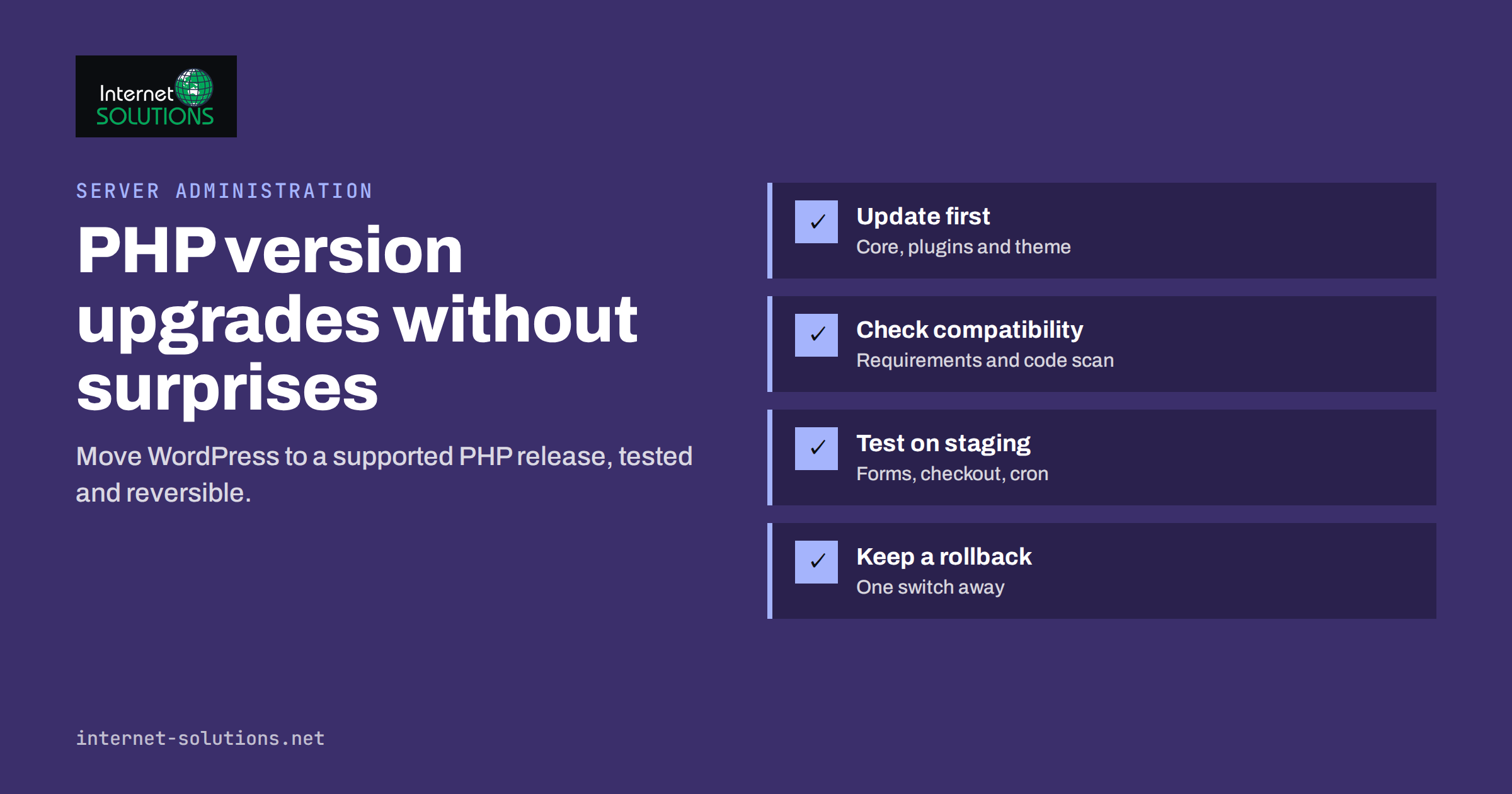
A PHP version upgrade is one of those maintenance tasks that is easy to postpone. The website works, nobody complains, and the hosting panel still lets you choose the old version. Then a security advisory appears, a plugin update refuses to install, or the hosting provider announces that the old version will be switched off next month. Suddenly an upgrade that could have been planned calmly has to happen under pressure.
WordPress, WooCommerce and almost every plugin run on PHP, so the PHP version on your server affects security, speed and compatibility across the whole site. This guide explains why staying on a supported version matters, how to check compatibility before switching, how to run the upgrade on a staging copy first, and how to roll back if something goes wrong. It follows the process our server administration team uses when moving client sites to newer PHP releases.
Why the PHP Version Matters
Security Support Ends
Each PHP release branch receives active support, with bug and security fixes, for a limited time, followed by a period of security-only fixes. After that it reaches end of life and receives no fixes at all. The official PHP supported versions page shows the dates for every branch. At the time of writing, PHP 8.2 receives security fixes only until the end of 2026, while 8.3, 8.4 and 8.5 remain supported for longer.
Running an unsupported version does not mean the site will be hacked tomorrow, but any vulnerability discovered in that version will stay open permanently. Some hosting environments backport fixes, but you should not rely on that without confirmation from your provider.
WordPress Recommends Recent Versions
The WordPress requirements page currently recommends PHP 8.3 or greater. WordPress still runs on much older versions for compatibility, but the project itself notes that those versions have reached end of life. Plugins and themes increasingly require recent PHP versions too, and some updates will not install on older ones.
Performance Improves
Newer PHP releases generally execute code more efficiently. The gain varies by site, but upgrading from an old version often reduces server response times, which helps both visitors and Core Web Vitals. It is rarely a reason to upgrade on its own, but it is a welcome side effect.
What Can Break During a PHP Upgrade
Most WordPress core code is tested against current PHP versions. Problems usually come from somewhere else:
- Old or abandoned plugins that use functions removed or changed in newer PHP versions.
- Custom themes and child themes with code written years ago and never updated.
- Custom snippets added to functions.php or must-use plugins.
- Bundled libraries inside plugins, such as old PDF, image or payment libraries.
- Server extensions that are not installed for the new PHP version on the server, for example image processing, internationalisation or caching extensions.
- Configuration differences, such as memory limits, upload sizes and execution times that were set for the old version only.
Some issues produce a fatal error and a blank page. Others are quieter: deprecation warnings filling the logs, a form that stops sending, or a scheduled task that no longer runs. That is why testing needs to cover functions, not only whether the homepage loads.
Step 1: Take Stock Before You Change Anything
- Record the current PHP version and settings. Note memory limit, maximum upload size, execution time and enabled extensions.
- List plugins and themes with their versions and last update dates. Anything not updated in a long time deserves extra attention.
- Update everything first on the current PHP version: WordPress core, plugins and themes. Many compatibility fixes are already in the latest releases.
- Make a full backup of files and database, and confirm you know how to restore it.
- Agree on a maintenance window with low traffic, and make sure someone who can roll back is available.
If updates themselves are not yet a routine, our article on patch management for servers and WordPress describes a sustainable update process.
Step 2: Check Compatibility
Read Plugin and Theme Requirements
Plugin pages in the WordPress directory list the tested and required PHP versions. Commercial plugins usually publish compatibility notes in their changelogs. Plugins that have not been updated for years are the most likely to cause problems, and they are also a security risk regardless of PHP.
Scan the Code
Static analysis tools for PHP compatibility can scan themes and plugins for functions and syntax that changed between versions. They are not perfect and may report false positives, but they quickly highlight the files worth reviewing. Run them against custom code in particular, because no one else is testing it for you.
Check Server Extensions
On servers where several PHP versions are installed side by side, each version has its own set of extensions and configuration. Confirm that the extensions your site uses are available for the target version before switching.
Step 3: Test on a Staging Copy
The safest way to upgrade is to switch PHP on a copy of the site first. Our guide to WordPress staging sites explains how to set one up. On the staging copy:
- Switch the PHP version to the target release.
- Enable error logging to a file, not to the screen, so you can see warnings and deprecations.
- Browse the main page types: homepage, service pages, blog posts, archives, search and the 404 page.
- Test every form, including contact, quote and newsletter forms, and confirm emails arrive.
- On stores, go through product pages, cart, checkout with a test payment method, account pages and order emails.
- Log in to the dashboard and open the screens of important plugins.
- Trigger scheduled tasks, imports, backups and any integration that sends or receives data.
- Review the error log and fix or replace anything that produces errors.
Deprecation notices are not failures, but they are warnings about the next upgrade. Note them and plan fixes before they become fatal errors in a future version.
Step 4: Upgrade Production
When staging is clean, repeat the change on the live site during the agreed window:
- Make a fresh backup immediately before the switch.
- Change the PHP version in the hosting panel or server configuration.
- Apply the same settings you recorded earlier, such as memory and upload limits.
- Clear any opcode, object and page caches so old compiled code is not served.
- Run the same functional tests as on staging, starting with forms and checkout.
- Watch error logs and uptime monitoring closely for the next 24 to 48 hours.
Step 5: Know How to Roll Back
A rollback plan turns a risky change into a routine one. In most hosting environments, switching back to the previous PHP version takes a minute. Write down exactly where the setting is and who can change it. If the problem is caused by one plugin, it is often better to keep the new PHP version and temporarily disable or replace that plugin, rather than staying on an unsupported version indefinitely.
Comparison: Upgrade Approaches
| Approach | Effort | Risk | Suitable for |
|---|---|---|---|
| Switch directly on the live site | Very low | High: errors are seen by visitors first | Only very simple sites with recent plugins and a tested backup |
| Staging test, then live switch | Moderate | Low: most issues found before going live | Most business websites and blogs |
| Staging test plus code scan and full functional test plan | Higher | Very low | Online stores, membership sites, sites with custom code |
| Staying on the old version | None now | Grows every month; unpatched vulnerabilities | Not recommended |
Special Cases: Stores, Multisite and Shared Hosting
WooCommerce and Other Online Stores
For stores, the upgrade is only as safe as the checkout test. Payment gateway plugins, shipping calculators, invoice generators and product feed exporters often contain their own libraries and are worth testing one by one. Place a test order with every payment and shipping method you offer, check that order and invoice emails are generated correctly, and confirm that stock levels update. If the store syncs with an accounting system, warehouse or marketplace, test that the sync still runs after the switch.
WordPress Multisite
On a multisite network, every site shares the same PHP version, plugins and themes, but individual sites may use different combinations of them. Test a representative sample of sites, including the ones with the most plugins activated and any site using an unusual theme.
Shared Hosting and Managed Platforms
On shared hosting, the provider may schedule PHP changes for all customers at once. Read their announcements, ask whether you can switch earlier on your own schedule, and run your staging test before their deadline. On managed WordPress platforms, the provider often tests core compatibility, but your plugins, theme and custom code remain your responsibility.
Several Sites on One Server
If you manage several sites on one server, modern control panels can usually assign a PHP version per site. Use this to upgrade sites one at a time, starting with the simplest, instead of switching the whole server in one step.
How Often to Upgrade PHP
A practical rhythm for most business sites is to move to a new PHP branch some months after its release, once major plugins have confirmed compatibility, and well before the current branch loses security support. That usually means one planned upgrade every year or two. Point releases within the same branch, such as security updates, should be applied as part of regular server maintenance and rarely cause compatibility problems.
Planning the upgrade into the maintenance calendar, rather than waiting for a deadline from the hosting provider, keeps it calm and predictable. It also gives you time to replace plugins that are no longer maintained.
Common Mistakes to Avoid
- Upgrading without a tested backup. A backup that has never been restored is only a hope.
- Testing only the homepage. Forms, checkouts and scheduled tasks fail more often than page rendering.
- Showing errors on screen. Displaying PHP errors publicly can leak paths and other details. Log them instead.
- Forgetting the command-line PHP version. Cron jobs and command-line tools may run on a different PHP version than the website itself.
- Keeping abandoned plugins because they “still work”. They are the most common source of both upgrade failures and security incidents.
- Skipping several versions at once without testing each change. Large jumps are possible, but they need more thorough testing.
Frequently Asked Questions
Which PHP version should my WordPress site use?
Use a version that still receives security support and that your plugins and theme support. WordPress currently recommends PHP 8.3 or greater; check the official PHP supported versions page for exact dates.
Will upgrading PHP make my website faster?
Often, yes. Newer PHP versions generally execute code more efficiently, so server response times can improve. The size of the gain depends on the site, plugins and hosting.
What should I do if a plugin is not compatible with the new PHP version?
Check for an update first. If the plugin is abandoned, look for a maintained alternative or replace its function with a small piece of maintained code. Staying on an unsupported PHP version for one plugin is rarely a good trade.
Can I switch back if something breaks?
In most hosting panels, yes, within a minute or two. Make sure you know where the setting is before you start, and keep a fresh backup in case database changes were made after the switch.
Do deprecation warnings mean my site is broken?
No. Deprecations warn that a function will change or disappear in a future version. The site still works, but the warnings should be fixed before the next upgrade.
Does the PHP version affect SEO?
Indirectly. A supported, faster PHP version helps response times and reduces the risk of security incidents that can lead to malware warnings or downtime, both of which affect search visibility.
The Bottom Line
A PHP version upgrade is a small change with a wide reach. Done in a hurry, it can take a site offline; done with a plan, it is a routine maintenance task. Update everything first, check compatibility, test thoroughly on staging, upgrade during a quiet window, keep a rollback ready and watch the logs afterwards. Repeat the process before each version loses security support. If you would rather have this handled for you, our IT maintenance service includes planned PHP and server upgrades for WordPress and WooCommerce sites.