

 English
 Lietuvių
 Latviešu
 Eesti
Eesti Русский
 Polski
 Українська
 Deutsch
 Italiano
 Español
 Français
 Português
 Čeština
 Magyar
 Română
 Ελληνικά
 Türkçe
 日本語
日本語 العربية
 हिन्दी
 Bahasa Indonesia
 Bahasa Melayu
 ไทย
ไทย Tiếng Việt
 বাংলা
বাংলাCron Jobs and Scheduled Tasks: Reliable Automation on a Server
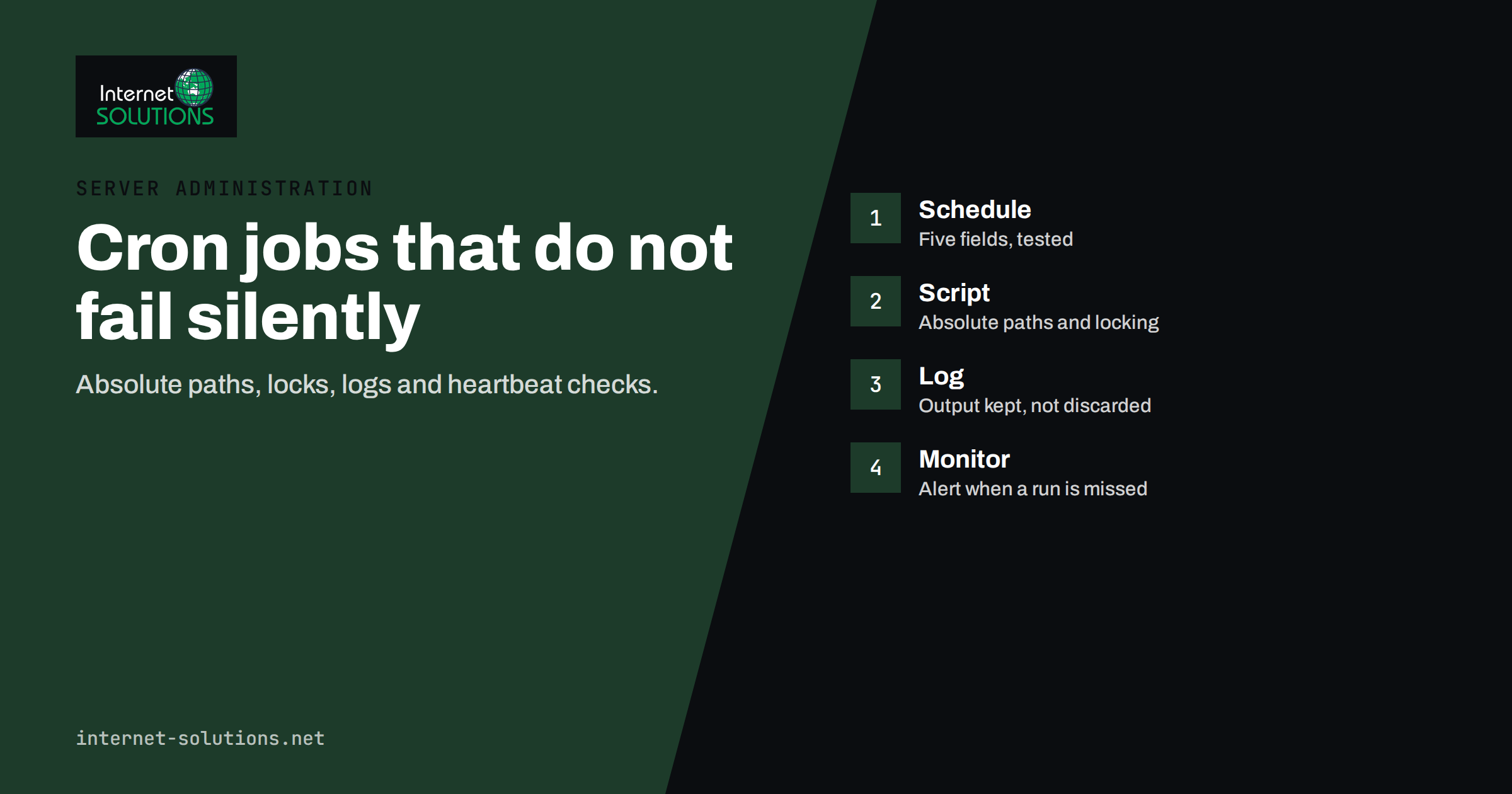
Cron jobs are the oldest and most widely used way to run tasks on a schedule on a Linux or Unix server: nightly backups, certificate renewals, report generation, cache clearing, queue workers, database maintenance and dozens of other small jobs that keep a business system healthy. Cron is simple, and that simplicity is why it is reliable, but it is also why mistakes are easy to make. A job that runs with the wrong user, a missing path or an overlapping start can silently fail for weeks until somebody notices that the nightly backup has not run since March.
This guide explains how cron works, how to write schedules, how to avoid the common pitfalls and how to monitor scheduled tasks so failures do not stay hidden. It is written for developers, site owners and administrators, and it complements our server administration service and our guide to uptime, backups and monitoring.
How Cron Works
Cron is a background service, usually called crond or cron, that wakes up every minute and checks whether any scheduled command is due. Schedules are stored in files called crontabs. Each user can have a personal crontab, edited with the command crontab -e and listed with crontab -l. There are also system-wide locations, such as /etc/crontab and the /etc/cron.d directory, where each line includes an extra field for the user that runs the command, and directories such as /etc/cron.daily for simple scripts run once a day.
Each line in a crontab describes one job: five time fields followed by the command. The exact rules are in the crontab(5) manual page. The five fields are, in order:
- Minute (0 to 59)
- Hour (0 to 23)
- Day of the month (1 to 31)
- Month (1 to 12)
- Day of the week (0 to 7, where both 0 and 7 mean Sunday)
An asterisk means “every value”, a comma separates a list, a hyphen defines a range, and a slash defines a step. For instance, a line with the fields 30 2 * * * runs at 02:30 every day, and */15 * * * * runs every fifteen minutes. A tool such as crontab.guru translates an expression into plain language, which is a good way to check what you wrote before saving it.
Common Schedule Patterns
The table shows patterns that cover most needs.
| Expression | Meaning | Typical use |
|---|---|---|
| */5 * * * * | Every five minutes | Queue processing, lightweight health checks |
| 0 * * * * | At minute zero of every hour | Hourly sync or cache refresh |
| 30 2 * * * | Every day at 02:30 | Nightly backup |
| 0 6 * * 1-5 | At 06:00 on weekdays | Morning report before the team starts |
| 0 3 * * 0 | Every Sunday at 03:00 | Weekly maintenance, log cleanup |
| 15 4 1 * * | On the first day of each month at 04:15 | Monthly archive or invoice export |
| @reboot | Once, when the system starts | Starting a small service for a user |
Avoid putting every job at minute zero. If dozens of jobs start on the hour, they compete for the same resources at once. Spread them: use 7, 23 or 41 minutes past the hour for jobs that do not need exact times.
Why Cron Jobs Fail
Most “cron is broken” reports are really environment problems. A command that works in your terminal can fail under cron because cron runs with a minimal environment.
- Different PATH. Cron provides a short default PATH, so commands that your shell finds may not be found. Use absolute paths to programs, for example /usr/bin/php, or define PATH at the top of the crontab.
- Different working directory. A job starts in the home directory of the user, not in your project folder. Change directory explicitly in the command or script, and use absolute file paths.
- Different user and permissions. A job may run as a user that cannot read the file or write to the target folder. Test as that user.
- Missing environment variables. Variables set in your login profile are not loaded. Set what the script needs inside the script or crontab.
- Percent signs. In a crontab line, an unescaped percent sign is treated as a newline. A date format such as +%Y-%m-%d must be written with backslashes before each percent sign, or moved into a script.
- Different shell. Cron usually uses the basic sh shell, so features specific to bash may not work unless you set SHELL or run the command through a script that starts with the right interpreter line.
- Time zone confusion. Cron uses the system time zone by default. A server set to UTC runs jobs at different local times than you expect, and daylight saving changes can skip or repeat jobs scheduled in the hour of the switch.
The fix for most of these problems is to put the real work in a script, test that script manually under the same user, and keep the crontab line short.
Writing a Safe Job Script
A reliable scheduled task follows several habits.
- Start with strict settings. In shell scripts, stop on errors and on unset variables so a failing step does not allow the next one to do damage.
- Use absolute paths everywhere. For commands, input files, output files and logs.
- Prevent overlapping runs. If a job can run longer than its interval, a second copy will start while the first one is still working. Use a lock, for example with the flock utility, so only one instance runs at a time.
- Make the task idempotent. Running it twice should not duplicate data or break anything. This makes retries and manual reruns safe.
- Log output. Redirect standard output and errors to a log file with a timestamp, or send them to the system logger, instead of throwing them away.
- Return meaningful exit codes. Zero for success and non-zero for failure, so monitoring can tell the difference.
- Clean up. Remove temporary files, and rotate logs so they do not fill the disk.
- Limit run time. Use a timeout for jobs that might hang, such as network transfers.
Getting Notified When Something Goes Wrong
By default, cron sends any output of a job by local email to the user, which is often not configured on modern servers, so errors disappear. Choose a clearer approach.
- Set MAILTO at the top of the crontab to a monitored address, provided the server can really send mail. Test this.
- Write logs and watch them. Send logs to a central place and alert on the words “error” or “failed”. Our guide to server log analysis describes useful habits for reading logs.
- Use heartbeat monitoring. At the end of a successful run, request a unique address from a monitoring service. If the request does not arrive within the expected time, the service raises an alert. This catches the worst failure of all: a job that never ran.
- Alert on stale results. For backups and reports, monitor the age of the newest file, not only whether the script exited normally.
- Record last success. Writing a timestamp file after success gives you an easy status to check.
Treat the absence of a signal as a failure. A silent server is not necessarily a healthy one.
Cron, systemd Timers and Hosted Schedulers
Cron is not the only option. The right tool depends on what you need.
- Cron is available everywhere, easy to read and ideal for simple recurring commands.
- systemd timers offer logging through the journal, dependencies, randomized delays, resource limits and the ability to catch up on missed runs after downtime. They are useful for more important system jobs on modern distributions.
- Application schedulers inside frameworks run tasks defined in code, usually triggered by a single cron entry that runs every minute.
- Queue workers and job runners are better for tasks triggered by events rather than by time.
- Hosted schedulers and services remove the need to maintain a server for the schedule. For example, if your only goal is to publish new website content to social networks, PostRSS runs its own schedule and can check your feed as often as every minute, so you do not need a cron script for that. See our article on RSS auto-posting schedules.
On laptops and machines that are not always on, anacron-style tools run missed jobs when the machine starts. On servers that run all the time, standard cron is normally enough.
WordPress and Other Pseudo-Cron Systems
Some applications have their own scheduler that does not depend on the system cron. WordPress is the best-known example. Its built-in scheduling, described in the WordPress cron documentation, is triggered by visitors loading pages. That has two consequences: on a quiet site, scheduled posts and tasks can run late, and on a busy site, the check runs on many requests, adding load.
A common improvement is to disable the visitor-triggered mechanism in the configuration and call the WordPress cron file from a real system cron job every few minutes. This gives predictable timing, removes work from page loads and makes failures easier to see. Test after the change by scheduling a post a few minutes ahead and confirming that it publishes on time.
A Checklist for Production Cron Jobs
- Document each job: purpose, schedule, owner, user, script location, log location and what a failure looks like.
- Keep crontab files under version control or in your configuration management, and back them up.
- Test the script manually as the target user with a minimal environment.
- Add locking, logging and non-zero exit codes on failure.
- Set up heartbeat or freshness monitoring with an alert to a person who will see it.
- Check how the job behaves at daylight saving changes and month ends.
- Review the list quarterly and remove jobs that are no longer needed.
- Include a restore test for backup jobs, as discussed in our article on patch management, where updates and backups work together.
If you would like help auditing the scheduled tasks on your servers or setting up monitoring that catches silent failures, you can contact us.
Frequently Asked Questions
How do I check if a cron job ran?
Look at the job’s own log, the system log entries for the cron service and any output mail. Better still, set up heartbeat monitoring so you are told when an expected run does not happen.
Why does my command work in the terminal but not in cron?
Cron runs with a minimal environment: a short PATH, no login profile and a different working directory. Use absolute paths, set the variables you need and test the command as the same user with a clean environment.
How do I stop cron jobs from overlapping?
Use a lock so a new run exits or waits if the previous one is still active. The flock utility is commonly used for this. Also make sure the schedule interval is longer than the typical run time.
What time zone does cron use?
By default, the system time zone of the server. Many servers use UTC, which can differ from local time and does not follow daylight saving. Some cron implementations allow a time zone variable, but check your documentation.
Should I use cron or systemd timers?
Cron is fine for simple tasks and is available everywhere. Systemd timers add better logging, dependencies and catch-up of missed runs, so they suit more critical jobs on systems that use systemd.
How often is too often for a cron job?
The smallest cron interval is one minute. Running heavy jobs that frequently can overload a server. Choose the longest interval that meets the business need, and consider a queue worker for continuous processing.
The Bottom Line
Cron jobs are dependable when they are treated as production software. Learn the five time fields and verify expressions before saving them, use absolute paths and explicit users, and keep the crontab line short by moving logic into tested scripts. Prevent overlapping runs, log output, return honest exit codes and make tasks safe to repeat. Most importantly, monitor for missing runs with heartbeats or freshness checks, because the dangerous failure is the one nobody sees. Document every job, review the list regularly and choose systemd timers, application schedulers or hosted services where they fit better. A modest amount of discipline turns a pile of fragile scripts into automation you can trust.