

 English
 Lietuvių
 Latviešu
 Eesti
Eesti Русский
 Polski
 Українська
 Deutsch
 Italiano
 Español
 Français
 Português
 Čeština
 Magyar
 Română
 Ελληνικά
 Türkçe
 日本語
日本語 العربية
 हिन्दी
 Bahasa Indonesia
 Bahasa Melayu
 ไทย
ไทย Tiếng Việt
 বাংলা
বাংলাWebsite Caching Explained: Browser, Page, Object and CDN Caches
Most slow websites are not slow because the server is weak. They are slow because the server repeats the same work for every visitor: it runs code, queries the database, builds the page and sends the same images and scripts again and again. Caching removes that repetition. It stores the result of work already done and reuses it, so the next visitor gets an answer in milliseconds instead of waiting for the whole process to run again.
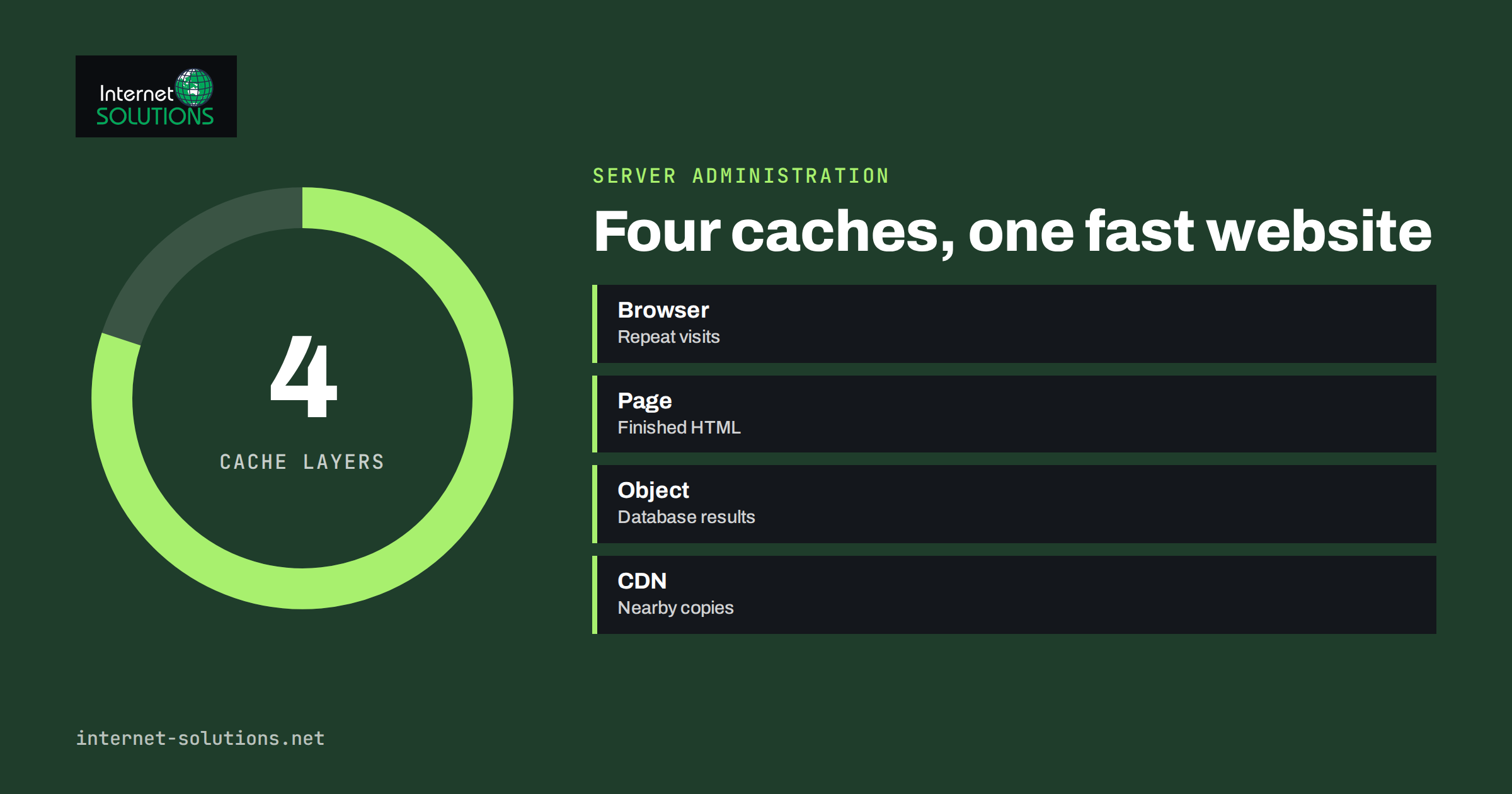
The word “cache” covers several different things, which is where confusion starts. A browser cache, a page cache, an object cache and a CDN cache each sit at a different point between the visitor and the database, and each solves a different problem. This guide explains the four in plain language, shows what each speeds up, describes a sensible setup for a WordPress business site, and covers the part that causes the most trouble: how to clear caches and avoid showing visitors stale content. It supports our broader guide to website speed and Core Web Vitals.
The Idea Behind Caching
When someone opens a page on a dynamic site, a chain of events takes place. The web server receives the request, hands it to the application, which runs code, asks the database for content and settings, assembles the HTML and returns it. The browser then requests images, stylesheets and scripts. Much of this work gives the same result for every visitor. A blog post does not change between two readers a second apart, yet by default it may be rebuilt for both.
A cache is a stored copy of a result that is reused until it expires or is cleared. Every cache involves a trade-off between speed and freshness. The longer something is kept, the faster the site, but the longer it can show outdated information. Good caching chooses sensible lifetimes for different kinds of content and has a reliable way to refresh them when something changes.
The Four Layers of Caching
| Layer | Where it lives | What it stores | What it speeds up |
|---|---|---|---|
| Browser cache | The visitor’s device | Images, stylesheets, scripts, fonts | Repeat visits and page-to-page navigation |
| Page cache | Your server or hosting layer | Complete HTML pages | The time to build each page, especially for anonymous visitors |
| Object cache | Server memory | Results of database queries and computed values | Dynamic pages that cannot be fully cached, such as carts and admin screens |
| CDN cache | Servers around the world | Static files and sometimes whole pages | Distance between visitor and server, plus load on your origin |
Each layer works independently, and they can be combined. The following sections look at each one.
Browser Cache
The browser cache keeps files on the visitor’s device. After the first visit, the logo, stylesheet and scripts do not need to be downloaded again, so later pages load faster and use less data. Your server controls this with HTTP headers, mainly Cache-Control, which tells the browser how long a file may be reused. The details are documented in the MDN guide to HTTP caching and the web.dev article on the HTTP cache.
A good practice is to give static files a long lifetime, such as months, and to change the file name when the content changes. This is called versioned or fingerprinted assets: style.4f2a1c.css becomes style.9b7e30.css after an edit, and the browser treats it as a new file. That gives you the speed of long caching without the risk of visitors seeing old styles. HTML pages normally get short lifetimes or a revalidation rule, since their content changes more often.
Most WordPress themes and caching plugins add browser caching headers, and many servers can be configured to do so. If a speed test says “serve static assets with an efficient cache policy”, this layer needs attention.
Page Cache
A page cache stores the finished HTML of a page and serves it directly, skipping PHP and the database. On a WordPress site, this is usually the single biggest improvement for anonymous visitors. A page that took half a second or more to generate can be returned in a few milliseconds, and the server can handle far more simultaneous visitors with the same hardware.
Page caching works well for content that is the same for everyone: blog posts, service pages, the home page and landing pages. It must be handled carefully for content that is personal or changing: shopping carts, checkout, account pages, forms with security tokens and anything shown only to logged-in users. A well-configured cache excludes these pages or varies the cache by user state. A badly configured one can show one customer’s basket to another, which is both a bug and a privacy incident, so test logged-in and cart behaviour whenever you set up or change caching.
Page caching can be done at several places: by a WordPress plugin, by the web server itself (for example through FastCGI or a reverse proxy) or by a managed hosting layer. Server-level caching is generally faster than plugin-level caching because it avoids starting PHP at all, but a plugin is often the easiest option on shared hosting.
Object Cache
Dynamic pages cannot always be cached as a whole, but they still repeat many small operations: loading settings, fetching menu data, reading product information. An object cache keeps the results of such operations in memory, commonly using systems such as Redis or Memcached, so that WordPress does not ask the database the same questions again and again.
This layer helps most where page caching cannot: logged-in users, WooCommerce carts and checkout, membership sites, search results and the administration area. If your admin screens feel slow, or product pages take long when the cache is bypassed, an object cache is a likely remedy. It needs memory on the server and a service running, so it is usually a feature of VPS, dedicated or specialised hosting rather than the cheapest shared plans. Our guide to WordPress database optimization covers the database side of the same problem.
Keep in mind that an object cache is not a substitute for fixing slow queries or heavy plugins. It hides repeated cost; it does not remove it. Use it together with regular cleanup and plugin discipline.
CDN Cache
A content delivery network keeps copies of your files on servers distributed around the world and serves each visitor from a nearby location. This reduces the delay caused by distance and takes load off your own server. For most business sites, the CDN caches static assets such as images, scripts and stylesheets. Many CDNs can also cache full HTML pages, which gives the fastest result for anonymous traffic but requires careful rules for cookies, logged-in users and updates. The Cloudflare documentation gives a useful overview of how CDN caching works.
A CDN also provides protection features, such as filtering of malicious traffic. We discuss these in our article on CDN and web application firewall for small business websites. When you add a CDN, the number of layers increases, so you must remember that clearing the cache in WordPress does not necessarily clear the CDN copy.
A Sensible Setup for a WordPress Business Site
For a typical company website with a blog and a contact form, the following arrangement covers most needs:
- Page caching for anonymous visitors, preferably at the server or hosting level, with a plugin as a fallback.
- Browser caching for static files with long lifetimes and versioned file names.
- A CDN for images and assets, especially if your audience is spread across countries.
- Image optimisation and compression to reduce what must be cached and transferred, as covered in our guide to image SEO and modern formats.
- Object caching if you run WooCommerce, a membership area or heavy administration, and your hosting supports it.
Use only one page-caching mechanism at a time. Running two caching plugins, or a plugin on top of a server cache with overlapping features, produces conflicts and hard-to-diagnose behaviour. Choose one layer to own each job.
What You Should Not Cache
Some content must stay fresh or private. Exclude or handle separately:
- Cart, checkout, account and order pages.
- Pages with forms that use one-time security tokens, unless the system refreshes them through scripts.
- Pages that depend on a user’s login state, language choice or location, unless the cache varies by those factors.
- Search result pages with unlimited query combinations, which fill the cache with little benefit.
- REST API endpoints and admin screens.
- Pages with time-sensitive data, such as stock levels or prices that change by the minute, unless the lifetime is very short.
Most reputable caching tools already ship sensible exclusions, but custom plugins and unusual cookie names can slip through. Test the sensitive flows after every change.
Clearing Caches Without Confusion
The most common caching complaint is “I changed the page but I still see the old version”. The cause is usually that one of the layers still holds a copy. When you publish a change and do not see it, check in this order:
- Your browser. Use a private window or a hard reload to bypass the local copy.
- The page cache. Purge the page, or the whole page cache, in the plugin or hosting control panel.
- The object cache, if settings or database-driven content appear stale.
- The CDN. Purge the specific URLs or the whole zone in the CDN dashboard.
Good setups automate this. Caching plugins purge a post’s cache when it is updated, and some integrate with the CDN to purge there as well. After large changes, such as a theme update or a redesign, purge everything deliberately. Build this into your release routine, ideally tested first on a staging site, because a cache can make a broken deployment look fine to the person who tested it and broken to everyone else.
Testing That Caching Works
Do not assume. Verify with simple checks:
- Response headers. Use the browser’s developer tools (Network tab) or a command-line request to see headers such as
Cache-Control,Ageand anyX-CacheorCF-Cache-Statusheader your cache adds. They show whether a page came from cache. - Time to first byte. A cached page should respond quickly and consistently. Compare cached and uncached responses.
- Speed tools. Run a lab test before and after, and then check real-user data over several weeks.
- Logged-in and cart tests. Confirm that personal pages are never shared.
- Update test. Edit a page and check how long it takes for the change to appear to anonymous visitors.
Common Caching Mistakes
- Stacking multiple page caches that fight each other.
- Caching personal pages, leading to privacy problems.
- Setting very long lifetimes on files that are not versioned, so visitors keep old styles or scripts.
- Forgetting the CDN when purging, then wondering why the site did not change.
- Treating caching as a cure for a heavy site. A page of 6 MB of unoptimised images is still slow on first view.
- Never testing after updates, which lets a broken cache rule run for weeks.
If your site is slow and you are not sure which layer is missing, our server administration team can review the hosting stack, set up the right layers and make sure they are monitored.
Frequently Asked Questions
What is website caching?
Caching stores the result of work already done, such as a built page or a downloaded image, so it can be reused instead of repeated. It makes sites faster and reduces the load on the server and database.
What is the difference between browser cache and page cache?
The browser cache stores files on the visitor’s device and speeds up repeat visits. The page cache stores finished HTML pages on your server so they can be served without running the application each time. They work at different points and are normally used together.
Do I need a CDN if I already have caching?
Not always. Caching on your server reduces build time, while a CDN reduces distance and offloads traffic. It is most useful when visitors come from many countries or the site serves many images and files. For a purely local audience on a fast server, the benefit is smaller.
Why do I still see the old version of my page after an update?
One of the layers still holds a copy. Check your browser first, then the page cache, the object cache and the CDN. Purging the affected URL at each layer usually solves it, and automatic purging on publish prevents the problem.
Can caching break my website?
It can when configured badly, for example by caching carts or logged-in pages, or by serving old scripts. Use tested defaults, exclude dynamic areas, avoid overlapping tools and test forms, logins and checkout after changes.
Is an object cache necessary for WordPress?
Not for a small brochure site that is fully page cached. It helps with WooCommerce, membership sites and other dynamic pages that bypass the page cache, and with slow administration screens. It requires server support such as Redis or Memcached.
The Bottom Line
Caching speeds up a site by reusing work instead of repeating it, and it happens in four layers: the browser keeps files for repeat visits, the page cache serves finished HTML, the object cache remembers database results and the CDN delivers copies from nearby servers. Use one tool per job, give static files long lifetimes with versioned names, keep personal and changing pages out of shared caches and learn the purge order for when something looks stale. Test headers and logged-in behaviour after every change. Done well, caching makes an ordinary server feel fast without any risk of showing visitors the wrong content.