

 English
 Lietuvių
 Latviešu
 Eesti
Eesti Русский
 Polski
 Українська
 Deutsch
 Italiano
 Español
 Français
 Português
 Čeština
 Magyar
 Română
 Ελληνικά
 Türkçe
 日本語
日本語 العربية
 हिन्दी
 Bahasa Indonesia
 Bahasa Melayu
 ไทย
ไทย Tiếng Việt
 বাংলা
বাংলাVPN and Secure Remote Access for Small Teams: What to Choose
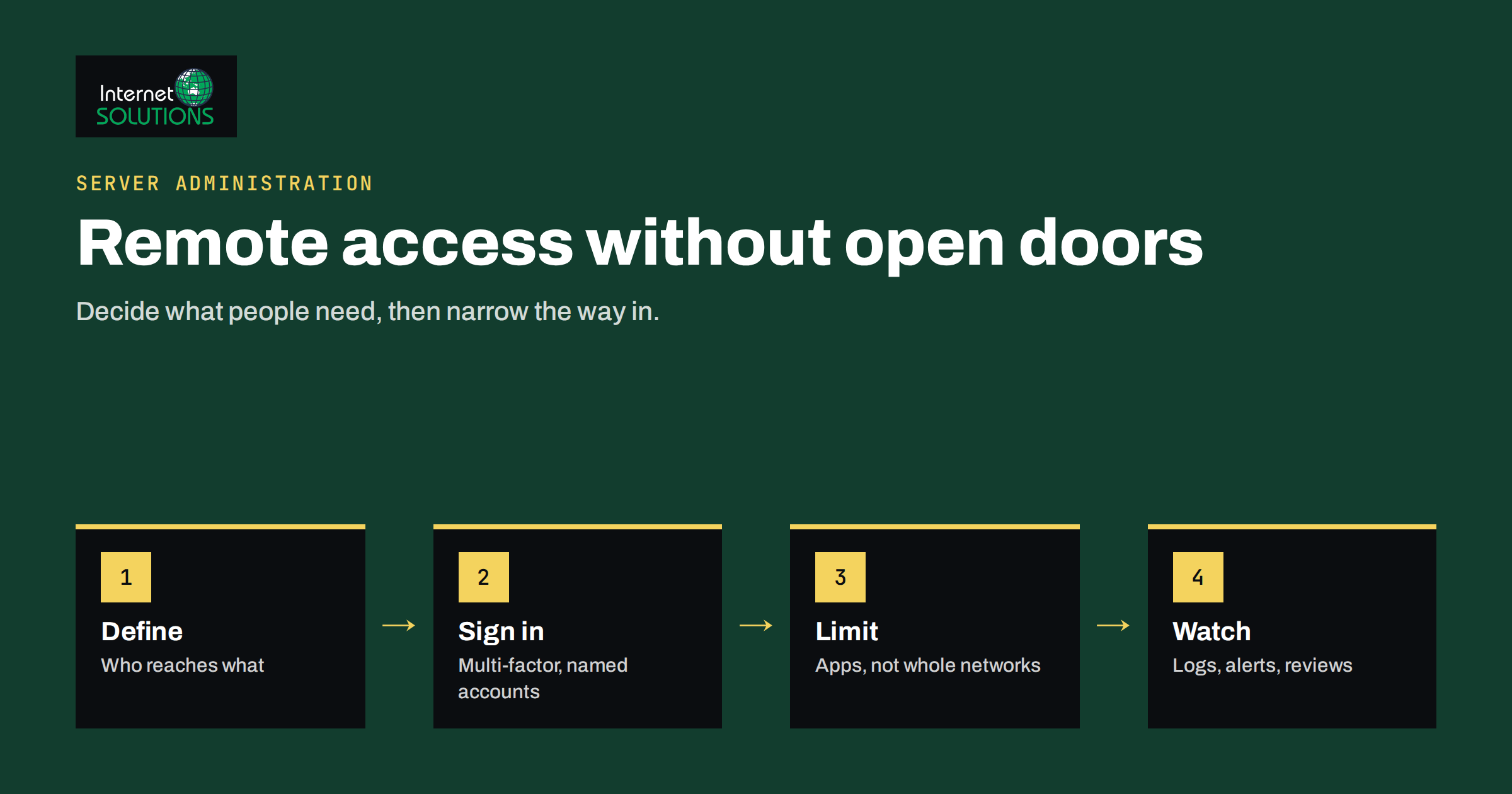
Secure remote access used to be a problem for large companies with branch offices. Today a three-person business may have staff working from home, a contractor on another continent and an accountant who needs to open a folder once a month. Each of them needs to reach something inside the business: a file server, a remote desktop, an admin panel, a database or a web application that was never meant to be public.
The wrong way to provide that access is one of the most common causes of serious incidents: a remote desktop port opened to the internet, a shared password on a router or an old VPN appliance that nobody has updated for years. This guide explains the main options for remote access, how to choose between them, and how to configure them so that a small team gets convenience without leaving the door open. It complements our advice on remote device management and the basics in our guide to server security hardening.
What Problem Are You Solving?
Before you pick a tool, write down what people actually need to reach. The answer drives the design, and many businesses discover that they need far less than a full network connection.
- Files and documents. If everything lives in a cloud service, you may not need a VPN at all. Staff sign in with their account and multi-factor authentication.
- One or two internal web applications. An accounting system, a CRM or an admin panel can be published safely through an identity-aware proxy or a VPN.
- A remote desktop or a specific computer. This is common in offices with legacy software that runs on one machine.
- Servers and network equipment. Administrators need command-line access through SSH or a management interface, which should never face the open internet.
- Whole office network. A site-to-site link between two offices, or access to printers and shared drives, is the classic VPN use.
Also note who needs access, from which devices and how often. A permanent employee on a managed laptop is a different risk from a freelancer using a personal computer for a week.
The Main Options Compared
There is no single best tool. The table summarises the typical choices for a small business.
| Option | How it works | Strengths | Weaknesses |
|---|---|---|---|
| Traditional VPN (IPsec or SSL) | Encrypted tunnel from the device into the office network | Widely supported, good for site-to-site links and legacy apps | Gives broad network access by default and depends on a gateway you must patch |
| Modern VPN (for example WireGuard-based) | Lightweight tunnel with simple configuration and fast connections | Small code base, easy to run on a server or router | Needs careful key management and user onboarding |
| Remote desktop through a gateway | Staff connect to a desktop through a protected gateway | Data stays inside the office, simple for one legacy application | Exposed remote desktop services are a leading target if not protected |
| Zero trust or identity-aware access | Each application is published separately and checks the user and device | Least privilege by design, no full network exposure | More setup and a subscription for most products |
| Bastion host for SSH | One hardened server is the only entrance to administration | Central logging and control for admins | Not suited to non-technical users |
Why a VPN Alone Is Not a Strategy
A VPN encrypts traffic between a device and your network. It does not decide whether the person is who they claim to be, whether the device is healthy or whether they should reach everything on the network. Treating the VPN as a secure tunnel to a trusted network assumes that everything inside is safe, and that assumption fails when a single infected laptop connects.
The approach known as zero trust reverses this idea: do not trust a connection because of where it comes from, and verify the user, the device and the request each time. The UK National Cyber Security Centre publishes zero trust architecture design principles that explain the thinking in plain language. A small business does not need to adopt the entire model, but the principles are practical: give access to applications instead of networks, require strong authentication and keep access as narrow as the job allows.
Start With Strong Authentication
Whatever the technology, the biggest improvement comes from stopping stolen passwords from working. Require multi-factor authentication on every remote access method, for every user, with no exceptions for managers. Prefer authenticator apps or hardware security keys to text messages where possible. If you need guidance on rollout, see our article on multi-factor authentication and password managers, and the NCSC’s guidance on multi-factor authentication for online services.
Use individual accounts. A shared “remote” login makes it impossible to see who did what, and it makes offboarding slow, since changing one password affects everyone. With individual accounts, removing a person takes seconds, and logs show actual users.
Designing the Access Properly
Give access to what is needed, not to everything
Split the network into segments, so that a remote user who needs the accounting system cannot also reach the camera network, the printers and the server management interface. On a VPN, use firewall rules by group: finance reaches the accounting server, support reaches the helpdesk system, administrators reach management interfaces from a separate group with stronger checks.
Never expose management interfaces to the internet
Remote desktop services, database ports, router admin pages, backup consoles and hypervisor panels should not be reachable directly from outside. Attackers constantly scan the internet for these services and try common passwords and known vulnerabilities. Place them behind the VPN or a gateway, and block the direct ports on the firewall.
Choose a protocol and keep it current
Modern, simple protocols have a smaller attack surface than large legacy products. WireGuard, for example, is known for a compact code base and straightforward configuration, and many routers and firewalls now support it. Whichever product you pick, vendors regularly publish security fixes for VPN gateways, and attackers act quickly on them. A gateway that is not updated is a risk, which is why patching belongs in your routine, as explained in our guide to patch management.
Secure the Devices That Connect
A strong tunnel from a weak device is still weak. Set minimum standards for any computer that connects remotely.
- Operating system and browser updates installed automatically.
- Disk encryption turned on, so a lost laptop does not expose data.
- Screen lock after a short period of inactivity.
- Endpoint protection that is active and updated.
- No local administrator rights for everyday work.
- Company-managed devices for staff who access sensitive data, with personal devices limited to low-risk applications.
For contractors and occasional users, consider giving access to a single application through a browser, rather than a full VPN client on a computer you cannot control.
Contractors, Suppliers and Temporary Access
Outside parties are where remote access most often goes wrong, because the access is created in a hurry and never removed. A software supplier asks for a login to fix an urgent problem, an accountant needs a folder for tax season, a freelancer joins for one project. Treat each case as a small project with an end date.
- Create a named account for each external person, never a shared supplier login.
- Set an expiry date when you create it, and put a reminder in the calendar to confirm removal.
- Limit the scope to the one system or folder required, and prefer time-limited sessions that someone on your team starts and watches.
- Record the reason and the approver, so that later reviews can tell whether the account is still justified.
When the work ends, remove the account, revoke any keys and check the logs for the period of access. A short, written procedure makes this routine instead of an afterthought.
Logging, Monitoring and Alerts
Remote access is a favourite entry point, so watch it. Keep logs of successful and failed sign-ins, source locations and the times of connection. Set alerts for events that should be rare, such as sign-ins from a country where you have no staff, many failures followed by a success, or access at three in the morning by someone who works office hours.
Review the list of users and their rights every quarter. Remove accounts of people who left, shrink rights that are no longer needed and check that every active account still has multi-factor authentication. The routine pairs naturally with the steps in our onboarding and offboarding checklist.
Common Mistakes to Avoid
- Opening a remote desktop port on the router because it is the quickest fix. It is also one of the most exploited ones.
- Using the default or a shared password on the VPN gateway, the router or the admin interface.
- Forgetting the old VPN. A former setup that nobody uses but that still accepts connections is a hidden risk.
- Skipping updates on firewalls, routers and VPN appliances because they “just work”.
- Giving full network access to every user because segmenting looks complicated.
- Relying on a consumer router with weak remote access features and no firmware updates.
- No tested way back. If the VPN gateway fails, how will administrators reach the network? Plan an emergency route and test it.
A Practical Setup for a Small Team
For a team of five to thirty people with a mix of cloud services and a few internal systems, a sensible plan looks like this.
- Move what you can to cloud services with single sign-on or at least individual accounts and multi-factor authentication.
- Publish internal applications through a secure gateway or a VPN that supports per-user and per-group rules.
- Keep administration separate. Administrators use a dedicated group, strong authentication and, ideally, a bastion host or a management VPN.
- Block all inbound management ports from the internet and verify with an external scan.
- Set device requirements and give staff a short guide on connecting from home and from public places.
- Log and alert on remote sign-ins, and review them monthly.
- Document the architecture, the owner, the vendor support details and the emergency procedure.
If you do not have in-house expertise, a managed service can design and run this for you. Our server administration service covers firewalls, VPN gateways, patching and monitoring, so that remote access stays reliable and safe as the team changes.
When You Do Not Need a VPN
A VPN is not required for every business. If your applications are all cloud-based and protected by single sign-on, a VPN may add cost and complexity without reducing risk. In that case, effort is better spent on conditional access rules, device checks, a password manager and good backups. Use a VPN where you must reach resources that are not reachable otherwise, such as an internal server, a network device or a legacy application.
Frequently Asked Questions
Is a VPN enough to keep remote access secure?
No. A VPN protects the connection, but you still need strong authentication, device standards, restricted rights, updates and monitoring. Without them, a stolen password or an infected laptop can use the tunnel to reach everything.
Is it safe to use remote desktop over the internet?
Not when it is exposed directly. Place it behind a VPN or a protected gateway, require multi-factor authentication and keep the system patched. Direct exposure invites constant automated attacks.
What is the difference between a VPN and zero trust access?
A VPN usually connects a device to a network, while zero trust access connects a user to a specific application after checking identity and device health. Zero trust follows the least-privilege idea more closely, but a well-configured VPN with segmentation can serve a small business well.
Can staff use personal devices for remote work?
They can, if risks are managed. Limit personal devices to browser-based access for low-risk applications, require updates and screen locks and keep sensitive data on managed devices.
How often should VPN users be reviewed?
Review all remote accounts at least every quarter, and remove access immediately when someone leaves or changes role. Also check that every account still has multi-factor authentication enabled.
Do I need a business VPN service or can I run my own?
Both work. A hosted service reduces maintenance, while running your own gives more control but needs updates, monitoring and key management. Choose based on the skills you have, not only on cost.
The Bottom Line
Secure remote access for a small team is about narrowing exposure. Decide what people need to reach, prefer application-level access to full network access, require multi-factor authentication and individual accounts, keep management interfaces off the internet and set minimum standards for connecting devices. Patch the gateway, log the sign-ins and review rights every quarter. A VPN is a good tool for the right job, but it is the discipline around it that keeps the business safe when people work from everywhere.