

 English
 Lietuvių
 Latviešu
 Eesti
Eesti Русский
 Polski
 Українська
 Deutsch
 Italiano
 Español
 Français
 Português
 Čeština
 Magyar
 Română
 Ελληνικά
 Türkçe
 日本語
日本語 العربية
 हिन्दी
 Bahasa Indonesia
 Bahasa Melayu
 ไทย
ไทย Tiếng Việt
 বাংলা
বাংলাWebsite Forms to CRM: Routing Every Lead Into One Pipeline
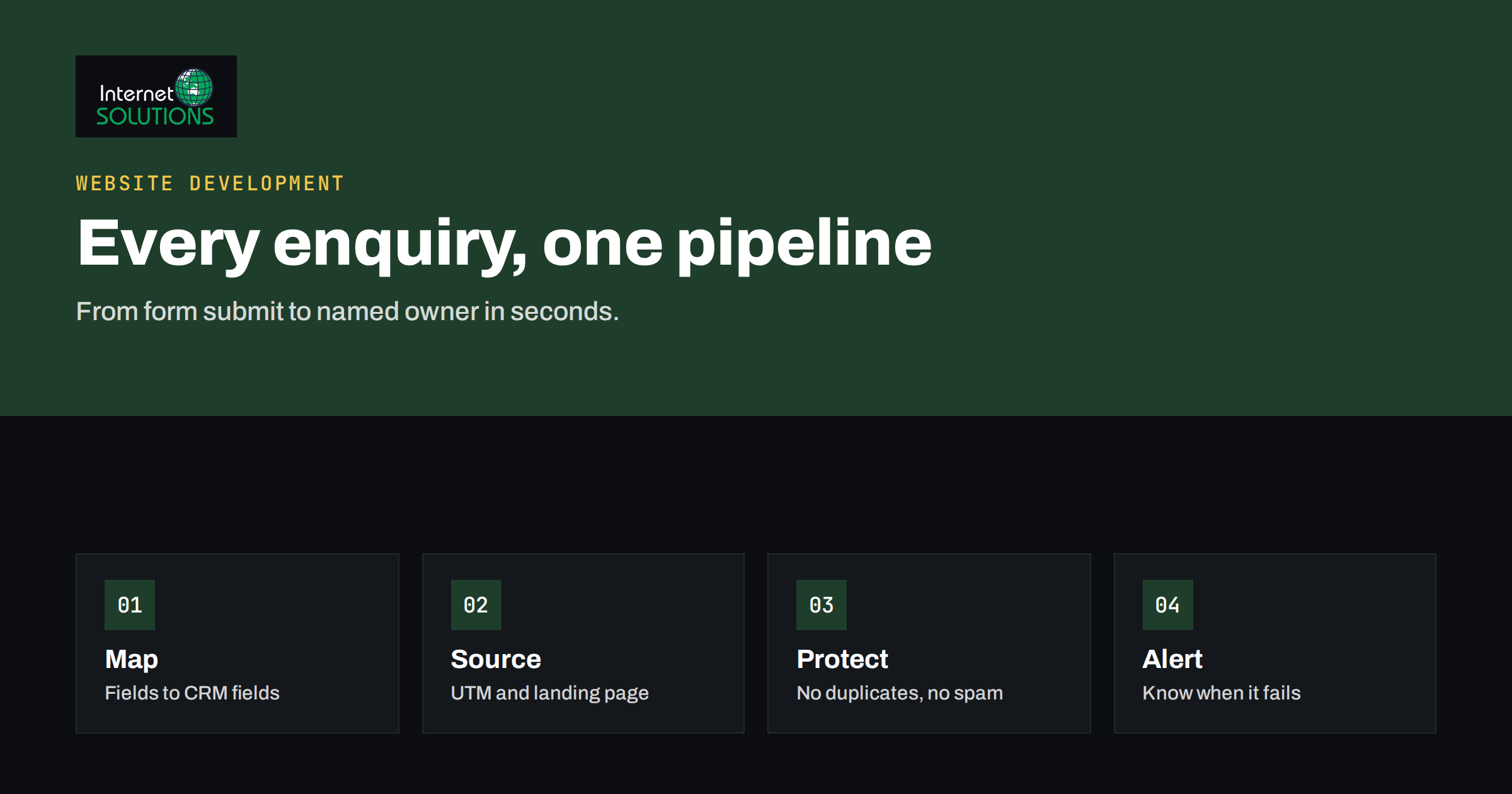
Connecting website forms to CRM software is what turns a contact page from a mailbox into a sales process. Without the connection, every enquiry arrives as an email, someone copies the details into a spreadsheet when they have time, and some leads are never copied at all. With it, each form submission becomes a record in your customer relationship management system within seconds, tagged with where it came from, assigned to a person and followed by a reminder. The difference shows up in response time, in the number of leads that are followed up and in your ability to say which marketing actually produces customers.
This guide explains how form-to-CRM connections work, the options for building them, which fields to capture, how to track the source of each lead, how to prevent duplicates and spam, how to handle personal data properly, and how to bring in leads from other channels such as live chat and email so the pipeline is complete. It suits businesses that already have a website and a CRM, or are choosing one, and want enquiries to reach the right person quickly without manual copying.
What a Form-to-CRM Connection Does
A CRM stores contacts, companies, conversations and deals. A form connection creates or updates those records automatically when a visitor submits an enquiry. In practice it performs five jobs:
- Creates the contact with name, email, phone and any details from the form.
- Records the enquiry, either as a note, a lead or a deal, with the full message.
- Adds context: which page the visitor was on, which campaign brought them, the date and the form used.
- Assigns an owner according to rules, such as region, product or workload.
- Triggers the next step: a notification to the owner, an automatic acknowledgement to the visitor and a follow-up task.
Everything else, from reporting to nurturing, builds on these records being complete and consistent from the start.
Ways to Connect a Form to a CRM
Native integration or plugin
Many CRMs offer a form plugin or an embeddable form. It is the quickest route and needs no code, but the form may look different from the rest of your site and you are limited to what the vendor supports. It suits small sites with one or two forms.
Form builder with a connector
Popular WordPress and website form tools include connectors for common CRMs. You keep your own design and validation, map each form field to a CRM field and test. This is the most common approach for business websites and the one we use most often in our website development projects.
Automation platform
A middle layer receives the form submission and passes it to the CRM, with the option to add steps: look up an existing contact, enrich data, post a message to a team channel, create a task. This is flexible and good for multi-step processes, with the cost of another service to maintain.
Webhook or direct API call
The form sends the data to a webhook address, or your server calls the CRM’s interface directly. This offers complete control, including validation, duplicate checks and retries, and it suits custom sites and high volumes. It needs a developer and proper error handling.
Options Compared
| Approach | Setup effort | Flexibility | Reliability controls | Best for |
|---|---|---|---|---|
| CRM’s own form or plugin | Low | Low | Limited, depends on vendor | One simple contact form |
| Form builder connector | Low to medium | Medium | Basic logs and retries | Typical business sites |
| Automation platform | Medium | High | Run history and alerts | Multi-step routing and notifications |
| Webhook or API integration | High | Very high | Whatever you build, including queues | Custom sites, high volume, special rules |
| Email parsing | Medium | Low | Fragile when email format changes | Legacy forms you cannot change |
Plan the Fields Before You Build
The most common failure in form-to-CRM projects is a mismatch between what the form collects and what the CRM needs. Draw up a mapping table before anyone writes a line of configuration.
- Required identity: name and a valid email address. Phone only if you will actually call.
- Company: for business-to-business forms, company name and, if it helps qualification, size or industry.
- Enquiry type: a dropdown of services or products, which becomes a CRM field you can filter and report on.
- Message: free text, stored in full on the record.
- Consent: a record of what the person agreed to, with date and wording. If marketing consent is separate from the enquiry, keep it as a separate field.
- Source fields: hidden fields that capture campaign data, as covered below.
Keep the visible form short. Each additional field lowers completion rates, and you can ask for more detail in the follow-up conversation. Our guide to web form design explains which fields to cut and how to write clear errors.
Capture the Source of Every Lead
A CRM full of leads with no source tells you little about what works. Add hidden fields to every form that record:
- The UTM parameters from the landing URL: source, medium, campaign, term and content.
- The landing page and the page of the form.
- The referrer, such as a search engine or a social network.
- The ad click identifiers used by advertising platforms, if you want to send conversions back.
The values should be stored when the visitor first arrives and kept for the session, because the visitor may browse several pages before filling in the form. Make sure your naming of campaigns is consistent, or reports will split one campaign into five spellings. Where you advertise, send the outcome back to the platform as an offline conversion, which allows bidding to optimise for real customers instead of form fills; the principle is the same one we describe in our guide to importing offline conversions from a CRM.
Avoid Duplicates and Spam
Duplicates
People submit more than one form, and different forms may collect the same person. Decide the matching rule, normally the email address, and configure the integration to update the existing contact rather than create another. Keep a record of each submission as an activity, so history is preserved even if the contact already exists. Test with the same address twice, and with different capitalisation.
Spam
Public forms attract bots. Use layers: server-side validation, a hidden honeypot field that humans leave empty, rate limiting, and a challenge only when needed. Heavy visible puzzles lower the conversion rate for real users, so prefer invisible checks first. Spam that reaches the CRM wastes sales time and corrupts reports, so filter it before the integration step, not after. Our guide to contact forms, email deliverability and lead notifications covers the details that cause lost leads, including notification emails that land in spam.
Reliability: What Happens When It Fails
Integrations fail quietly. A password changes, a CRM field is renamed, a rate limit is hit, a service is down for an hour. The visitor sees a success message, and the lead vanishes. Protect against this in three ways.
- Keep a copy. Store every submission on your own site, or send a notification email, as a safety net, regardless of the CRM connection.
- Log and alert. Record each attempt and its result, and send an alert on failure. Retry automatically with increasing delays.
- Test regularly. Submit a test lead weekly, or after any change to the form, CRM fields or site, and confirm it arrives complete.
When a CRM field changes name or type, the mapping breaks. Make it a rule that nobody renames fields without checking which integrations use them.
Respond Quickly
The record in the CRM is only the start. The value comes from the follow-up, and speed matters: enquiries answered within minutes convert far better than those answered the next day. Configure notifications to the owner by email and, if appropriate, a team chat message, and send an immediate acknowledgement to the visitor that confirms receipt and says what happens next. Avoid promising specific response times unless you are certain you can meet them. For leads outside working hours, an acknowledgement and a clear next step are enough.
Bring Other Channels Into the Same Pipeline
Forms are only one source. Visitors also arrive through live chat, email, phone calls and social messages. If these end up in separate places, the pipeline is incomplete and nobody sees the whole picture of a customer. Decide how each channel feeds the CRM. A chat conversation that captures a name and email should create or update the same contact; our article on Talkmio integrations describes ways to connect live chat to the tools your team already uses, and our Talkmio page explains how chats and e-mails reach one inbox. AI assistants can help qualify leads before they reach a person, as we explain in the guide to AI and lead qualification. Whatever the channel, the rule is the same: one contact, one history, one owner.
Personal Data and Consent
A form that collects names and emails is collecting personal data, and a CRM that stores them makes you responsible for how they are used. Tell people what you collect and why, link to your privacy policy next to the submit button and keep marketing consent separate from permission to answer an enquiry. Store only what you need and define how long you keep leads that do not become customers. Make it possible to find, export and delete a person’s data on request. If your CRM or automation service is run by another company, check what data it holds and under what terms. The European Commission’s pages on data protection are a reliable starting point, and your own legal adviser should confirm what applies to you.
A Step-by-Step Rollout
- List every form on the site and what each is for.
- Define the CRM fields, the matching rule for duplicates and the owner assignment rules.
- Add hidden source fields and make sure campaign links use consistent tags.
- Choose the connection method that fits your volume and skills.
- Build and map one form first; test with real and edge-case data, including duplicates.
- Add spam protection and a safety copy of every submission.
- Set up owner notifications and the visitor acknowledgement.
- Roll out to the other forms and connect other channels.
- Create a report of leads by source, owner and outcome.
- Test weekly and review mappings whenever the form, site or CRM changes.
Frequently Asked Questions
Can I connect my website form to a CRM without a developer?
Often yes. Many form builders and CRMs offer ready connectors, and automation platforms can bridge the gaps. Custom sites or special rules, such as complex routing or retries, may need a developer.
Which form fields should I send to the CRM?
Name, email, enquiry type, message and consent, plus hidden source fields such as campaign tags and landing page. Add phone or company only if you will use them.
How do I stop duplicate contacts?
Match on the email address and update the existing record instead of creating another one. Keep each submission as an activity on the contact so history is not lost.
What happens if the CRM is down when someone submits a form?
Without safeguards the lead can be lost. Store every submission on your own site or send a notification email, and retry the CRM call automatically with an alert on failure.
How can I tell which marketing channel produced a lead?
Capture UTM parameters, landing page and referrer in hidden form fields and store them on the CRM record. Use consistent campaign naming so reports are clean.
Do I need consent to store form submissions in a CRM?
You need a lawful basis and clear information. Answering an enquiry is usually a different basis from sending marketing, so keep consent for marketing separate and record it with date and wording.
The Bottom Line
A good form-to-CRM connection captures the right fields, records where each lead came from, avoids duplicates and spam, keeps a safety copy and alerts you when something fails. It then puts the lead in front of a named person quickly, with a clear next step for the visitor. Pull chat, email and other channels into the same contact record, handle personal data transparently and test the whole path weekly. The result is a pipeline in which no enquiry is lost, response times fall and you can finally see which marketing brings customers instead of guessing.