

 English
 Lietuvių
 Latviešu
 Eesti
Eesti Русский
 Polski
 Українська
 Deutsch
 Italiano
 Español
 Français
 Português
 Čeština
 Magyar
 Română
 Ελληνικά
 Türkçe
 日本語
日本語 العربية
 हिन्दी
 Bahasa Indonesia
 Bahasa Melayu
 ไทย
ไทย Tiếng Việt
 বাংলা
বাংলাConnecting an Older Blog to Auto-Posting: Catch-Up, Order and Limits
Connecting an older blog to auto-posting sounds like a five-minute job: paste the feed address, link your social accounts and let it run. For a brand-new blog that is almost true. For a blog with years of articles it raises questions that deserve a plan. Should the older articles be posted at all? In what order? How many at a time? What happens to the followers who see forty posts from one page in an afternoon? And what if the feed does not even contain the old articles? This guide uses PostRSS as the example, with the settings described on its features page, and shows how to connect an established blog without flooding your audience or wasting your best content.
The same thinking applies to a shop with a long product feed, a news site with a deep archive or a podcast with many episodes. The principle is simple: decide deliberately what old content goes out, in which order and at what pace, rather than letting the first sync decide for you.
What Happens When You Connect a Feed
By default, an auto-posting service treats the feed as a stream of new items. When you add a source, it notes what is already there and publishes what appears from that moment on. That is the behaviour you want for most blogs. According to the Internet Solutions page about PostRSS, only new items are posted unless you choose to publish older ones. So a first connection does not by itself push your archive onto your pages, and nothing unexpected happens unless you turn something on.
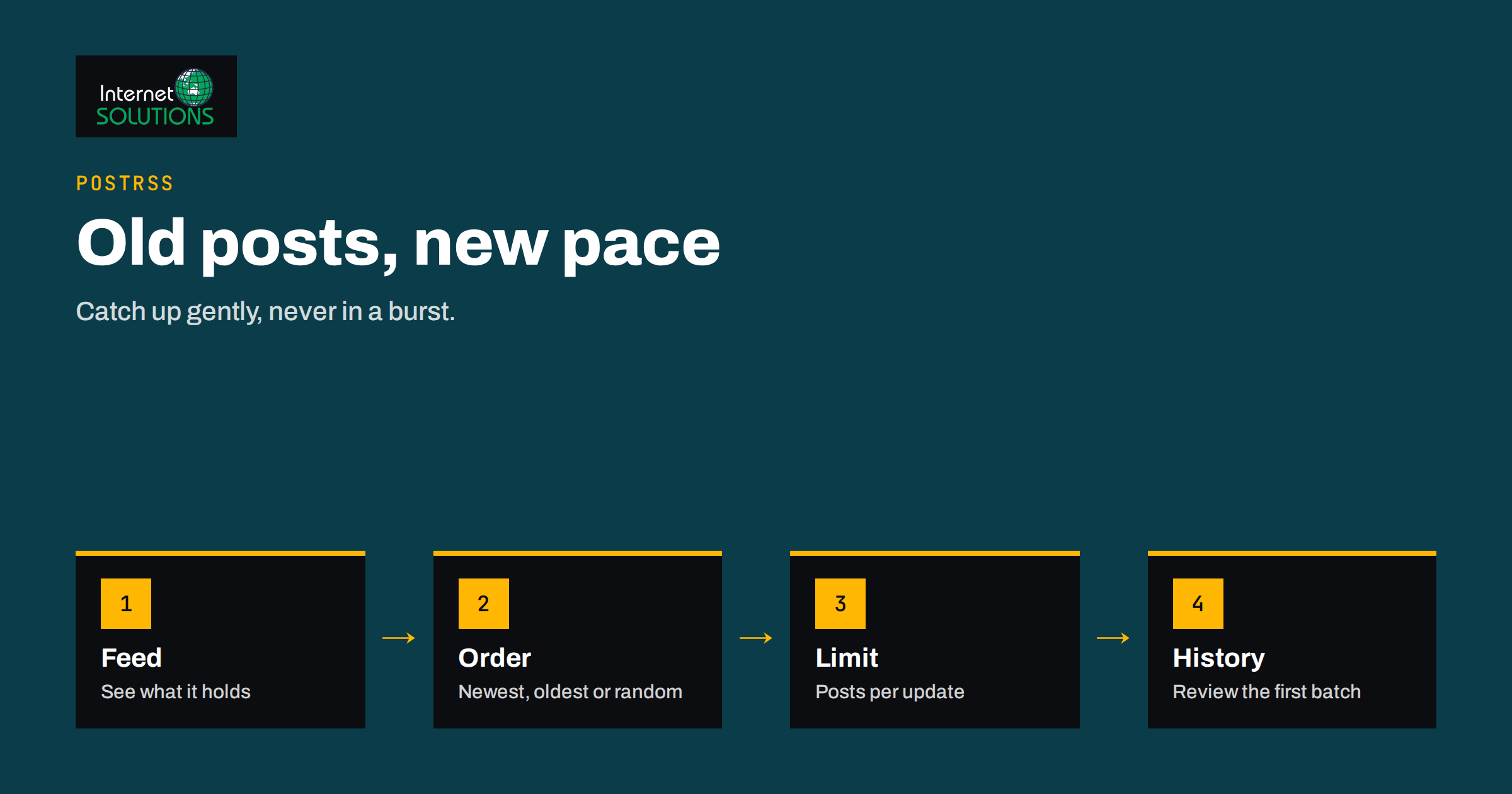
The decision to publish older items is yours, and PostRSS gives you three controls for it: a date to start from with catch-up, the order of publishing, and a limit on the number of posts per update. Used together, they let you rebuild a posting history gently instead of dumping it.
First, Check What Your Feed Actually Contains
Before you plan catch-up, open the feed in a browser and count the items. If you want to see what a clean feed looks like, the RSS 2.0 specification describes the format, and the W3C feed validator checks yours. Many content systems limit the feed to the most recent entries, often ten or twenty by default, and some lists are changed in settings. A feed of ten items cannot deliver an archive of four hundred articles, however you configure the tool. Catch-up posts older feed items that were never published, which means items that are still inside the feed.
You have three options if the archive is longer than the feed:
- Increase the feed length in your content system, for a short period, so that more past articles are included, then reduce it again after catch-up. Check your feed after each change, and note that very large feeds are slow to load.
- Use a category or tag feed to bring forward a particular group of older articles, for example your best guides.
- Use a CSV source for a hand-picked list. PostRSS can use a CSV file as a source on the Professional plan and above, where one row becomes one post. Our guide to publishing social posts from a spreadsheet describes the format.
If you are not sure where your feed lives or what it holds, see our article on finding your RSS feed address.
Should Older Articles Go Out at All?
Not every old article deserves a second life. Posting everything is easy, but it can embarrass you. Use these questions as a filter.
- Is it still accurate? Prices, dates, product names and rules change. Posting outdated content to an audience that trusts you does harm.
- Is it evergreen? A how-to guide ages slowly. A news item from last March ages quickly.
- Does it fit the current brand? If your tone, offer or audience has changed, older posts may no longer represent you.
- Does it have a decent image? Posts with a good image perform better; PostRSS takes the picture from the feed item or from the page’s Open Graph tags, so check that older pages have one.
- Is it useful to your followers today? Choose the best performers and the guides that answer common questions.
It is perfectly valid to post nothing old at all. If you want to share past content, a short, curated batch is better than the whole archive. The article on recycling your best posts without looking repetitive goes deeper into choosing and spacing evergreen posts.
The Three Controls and What They Do
| Control | What it does | When to use it |
|---|---|---|
| Start date with catch-up | Sets the date to post from; with catch-up on, older feed items that were never published are also posted | When you want items from a recent period to go out after connecting |
| Order of publishing | Newer items first, older items first or random order | Newest first for news; oldest first to tell a story in sequence; random to mix a back catalogue |
| Posts per update | Sets the maximum number of posts published in one run | Always, to avoid bursts |
| Check interval | How often the feed is read, from every minute to once a week | Fast for news, slower for a calm blog |
| Posting windows and exact times | Post only between chosen hours, or at exact times on chosen days in your time zone; available on paid plans | To spread posts through the day and avoid night hours |
| Keyword filters | Include or exclude items by words in the title and description | To post only the topics that suit a given network |
Choosing the Order
The order setting decides how a backlog is released. Each choice has a clear use.
Newer items first
This puts your latest and most relevant content in front of followers early, and older items follow as space allows. It suits blogs where freshness matters and where you want the audience to see current work before anything else.
Older items first
This releases the backlog in the order it was written, which works for series, tutorials or a story that builds on itself, and for a shop where the feed order follows a catalogue. The risk is that followers see your oldest content first and may think it is current. Add dates or context in the text if that matters.
Random order
Random order mixes the archive, which keeps the stream varied and prevents a long run of similar posts. It is useful for an evergreen library, but it gives you less control, so combine it with filters and a careful review of what is in the feed.
Whichever you choose, test with a small number of posts first and look at the result on the real network before you release the rest.
Setting a Safe Pace With Post Limits
The most important protection for your audience is the maximum number of posts per update. Without a limit, a feed holding many unpublished items could publish a long run in one go. On most social networks, that is poor etiquette and can look like spam. It may also trigger rate limits or reduce the reach of your page.
A cautious plan for catching up:
- Set a low limit, such as one or two posts per update.
- Set a slow check interval or posting windows, so updates happen at suitable times of day.
- Decide how many posts per day each network can bear. A small business page might handle one to three; a news channel may carry more. Our article on schedule windows, exact times and post limits gives examples of reasonable rhythms for different networks.
- Watch the first few days, then raise or lower the pace.
It helps to compute the duration. If you have fifty older items and allow two a day, the backlog takes twenty-five days, during which new articles also need slots. If new posts are important, give them priority by using newer-first order, or by running the catch-up on a separate target at a quieter time.
Use a Separate Target for the Backlog
PostRSS lets you connect the same feed to several targets, each with its own settings. You can use that to separate your main stream from the backlog. For instance, connect the feed to your main page with only new posts and no catch-up, and connect it to a secondary channel or a test page with catch-up, a low limit and random order. That way, your main audience sees a steady stream of new content, while the secondary target absorbs the archive at its own speed. You can also connect the backlog to a network where an archive is more welcome, such as a Pinterest board, where older content stays discoverable for a long time.
If you manage pages for several clients, repeat the pattern for each one, and keep a record of the settings. Our article on managing client feeds and pages in one account explains how to keep that organised.
Filters and Hashtags for Old Content
Keyword filters help to release only the right part of the archive. For each source, you list words to include or exclude, and PostRSS matches them in the item title and description. To post only the guides, include a word that appears in guide titles; to skip seasonal items, exclude their words. Test the filter by checking which items would match before you turn catch-up on, so that you do not release items you meant to hold back.
PostRSS can also turn the categories and tags of a feed item into hashtags, up to a set limit, on networks where hashtags make sense. Old posts may have messy or inconsistent tags from years of editing; check them first, or the hashtags may look random. A short clean-up of categories on your site is worth the time.
A Step-by-Step Plan for Connecting a Long-Established Blog
- Inspect the feed. Count the items, check titles and images, and note which are outdated.
- Decide the goal. New posts only, or new posts plus a curated selection from the past.
- Connect one network first. Authorise your page or channel and choose the message format, for example title plus link.
- Turn off catch-up and test. Publish a new article and check the post on the network, including the image and link.
- Add UTM parameters. Mark the links so analytics shows which network and which period brought visitors; Google’s campaign URL builder helps.
- Prepare the backlog. Use a filter, a CSV list or a category feed to select the items worth sharing.
- Choose order and limit. Start with a low limit and the order that suits the content.
- Turn on catch-up with a start date. Pick a date that includes the items you want, and no earlier.
- Watch the history. The posting history shows what was posted, where and when, with links; review the first batch before it grows.
- Adjust and extend. Add more networks one at a time, each with its own pace.
If anything does not appear as expected, work through the checks in why new posts do not reach social media and how to fix them. For the product itself, see the PostRSS page.
Common Mistakes When Importing an Archive
| Mistake | Consequence | Prevention |
|---|---|---|
| Setting a start date far in the past with no limit | A burst of old posts | Choose a recent date and a low posts-per-update limit |
| Assuming catch-up reaches the whole archive | Only feed items are posted | Check the feed length or use a CSV source |
| Posting outdated offers | Wrong prices or expired deals shown to followers | Exclude them with filters or a curated list |
| Connecting every network at once | Mistakes are repeated everywhere | Test on one network first |
| Ignoring images on old pages | Plain posts with no picture | Check Open Graph images or add feed images |
| Not tracking the results | No idea what the archive achieved | Use UTM links and review the history |
Frequently Asked Questions
Will PostRSS post all my old articles when I connect the feed?
No. According to Internet Solutions, only new items are posted unless you choose to publish older ones. If you turn on catch-up with a start date, older feed items that were never published are posted as well.
Can catch-up post articles that are not in my feed?
No, it works on items in the feed. If your feed lists only recent articles, increase its length for a while, use a category feed or build a CSV source, which is available on the Professional plan and above.
How do I avoid flooding my followers?
Set a low maximum number of posts per update, use posting windows or exact times on a paid plan, and choose a check interval that matches your pace. Watch the first days and adjust.
Which order is best for a backlog?
Newer first suits news and current content, older first suits series, and random order suits an evergreen archive. Whatever you pick, test with a small batch first.
Can I send the backlog to a different place than new posts?
Yes. The same feed can be connected to several targets, each with its own settings, so you can run catch-up on a secondary target and keep your main page for new posts.
How can I see what has been posted?
PostRSS keeps a history of what was posted, where and when, with links to the posts. Review it after the first batch and each time you change settings.
The Bottom Line
Connecting an older blog to auto-posting works best as a plan, not a switch. Check what the feed really contains, decide which old articles deserve another outing, choose the publishing order, and cap the posts per update so followers see a steady stream rather than a burst. Use separate targets for the backlog, test on one network and follow the posting history as the archive goes out. Done this way, your best older content earns new attention and your audience never notices the machinery.