

 English
 Lietuvių
 Latviešu
 Eesti
Eesti Русский
 Polski
 Українська
 Deutsch
 Italiano
 Español
 Français
 Português
 Čeština
 Magyar
 Română
 Ελληνικά
 Türkçe
 日本語
日本語 العربية
 हिन्दी
 Bahasa Indonesia
 Bahasa Melayu
 ไทย
ไทย Tiếng Việt
 বাংলা
বাংলাWebsite Typography: Fonts, Sizes and Readability for Business Sites
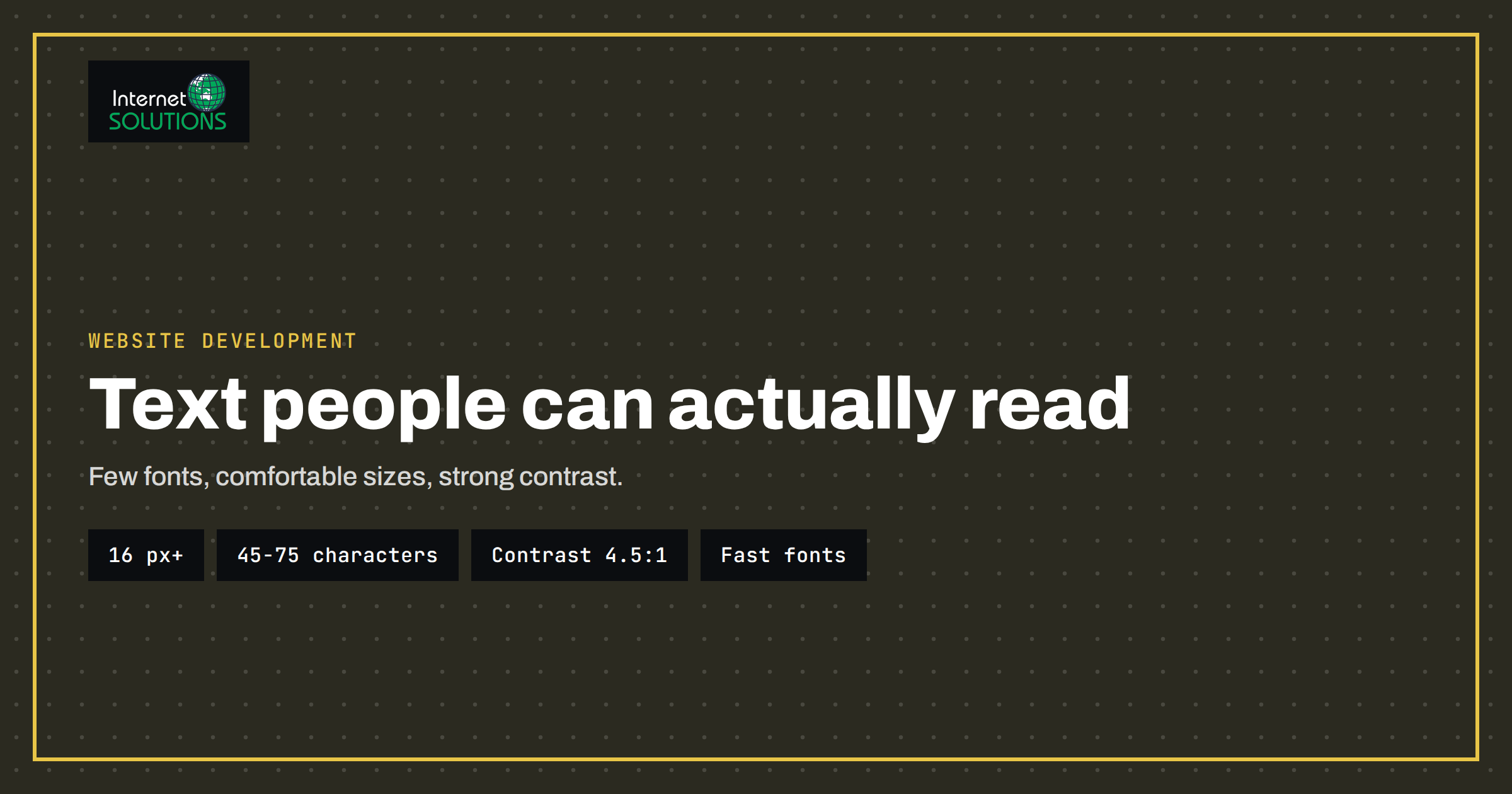
Website typography is the quiet part of web design that decides whether people actually read what you wrote. Visitors rarely praise a good typeface or comfortable line spacing; they simply stay, scroll and understand. They notice only when something is wrong: text that is too small, lines that run across the whole screen, grey words on a white background, or a page that jumps while a custom font loads. For a business site, where text carries prices, instructions, trust and calls to action, those small failures cost enquiries.
This guide covers the practical decisions: how to choose and limit fonts, which sizes and line lengths work, how to keep contrast and spacing accessible, how to load fonts without slowing the page, and how to test the result on real devices. It is written for business owners, designers and developers who want clear rules rather than taste arguments, and it uses measurements that you can check in a browser.
What Good Web Typography Has to Do
Typography has three jobs on a business website, and they are listed here in order of importance. First, it must be readable: every visitor, on any screen, in any light, should be able to read the text without effort. Second, it must create a hierarchy: headings, subheadings, body text, captions and buttons should be recognisable at a glance so that people can scan the page. Third, it must express the brand without getting in the way. A distinctive heading font can help with the third job, but it must never damage the first.
Because most visitors skim rather than read, the structure matters as much as the typeface. Clear headings, short paragraphs and generous spacing let a visitor find the section they need. The reading behaviour studied by usability researchers, such as the Nielsen Norman Group in its research on how people read on the web, shows that the layout of text influences how much is read at all.
Choosing and Limiting Fonts
A common mistake is to use too many typefaces. Each additional family adds download weight, visual noise and decisions that need to be maintained. A safe rule is to use at most two families, often one for headings and one for body text, or just one family in several weights. Pick fonts designed for screens, with open letter shapes, clear differences between similar characters such as I, l and 1, and a range of weights.
- Body text: a neutral, highly legible sans-serif or a screen-friendly serif. Avoid decorative, thin or condensed styles for long reading.
- Headings: may be more characterful, but they should stay legible at small sizes on phones.
- Weights: two or three, usually regular, medium or semibold and bold. Every extra weight is another file to load.
- System fonts: a stack that uses the fonts already installed on each device loads instantly and looks native. It is an excellent choice for text-heavy or speed-critical sites.
- Variable fonts: a single file can contain many weights and widths, which often reduces total download size compared with separate files.
Check the licence before you use a font. Fonts offered for free are not always allowed for commercial use or for embedding, and agency-supplied fonts may be licensed to one domain only.
Sizes, Line Length and Spacing
The following ranges work for most business sites. They are starting points that you should verify on the actual page with real content.
| Element | Recommended range | Why it matters |
|---|---|---|
| Body text size | 16 to 20 px (1 to 1.25 rem) on phones and desktops | Smaller text strains eyes and makes phones zoom or squint |
| Line length | About 45 to 75 characters per line | Very long lines make it hard to find the next line; very short lines break rhythm |
| Line height | 1.4 to 1.6 times the font size for body text | Gives lines room and helps people with dyslexia and low vision |
| Paragraph spacing | At least about 1 line height between paragraphs | Separates ideas and supports scanning |
| Heading scale | Each level clearly larger or heavier than the next; e.g. 1.25 to 1.5 ratio | Builds hierarchy without needing colour or decoration |
| Buttons and links | At least body size, with enough padding to tap comfortably | Small, cramped calls to action are missed or mis-tapped |
Use relative units such as rem and em instead of fixed pixel values for text, because they respect the size preference that a visitor has set in their browser. Many people with limited vision increase the default font size and a site that ignores it is unusable for them. Fluid sizing with CSS functions such as clamp lets headings grow gently with the screen width without breakpoints. Aim for body text that does not shrink on phones; the temptation to reduce text on small screens usually backfires, because the phone is held close but the type still has to be comfortable.
Contrast, Colour and Accessibility
Readable typography also means enough contrast between text and background. The Web Content Accessibility Guidelines set minimum contrast ratios: 4.5 to 1 for normal text and 3 to 1 for large text, explained in the W3C’s page on minimum contrast. Light grey text on white, white text on a pale photograph and coloured text on a similarly bright colour are the usual offenders. Check each combination with a contrast checker, including hover and disabled states, and test text that sits over images in several crops.
- Do not rely on colour alone to show links or errors. Use underlines, icons or text.
- Avoid pure black on pure white for long text if it dazzles; a very dark grey on white is comfortable and still passes.
- Do not justify text on the web without hyphenation, because it creates uneven gaps between words.
- Keep alignment left for left-to-right languages in body text; centre only short headings and slogans.
- Allow text to be resized and spaced. Guidelines expect content to remain usable when line, paragraph, letter and word spacing are increased, as described in the W3C guidance on text spacing.
Typography is one of the most common sources of accessibility problems, and fixing it benefits every visitor. For the broader picture, read our practical guide to website accessibility and WCAG compliance.
Loading Fonts Without Hurting Speed
Custom fonts must be downloaded before they can be used, and this is where typography meets performance. A slow font can cause two ugly effects: the invisible text effect, where words do not appear until the font has loaded, and the layout shift, where text jumps when the fallback font is replaced by the real one. Both damage the user experience and the metrics that search engines observe. Our guide to website speed and Core Web Vitals explains how these are measured.
- Limit the files. Load only the weights and styles you really use and subset the font to the character sets you need.
- Use modern formats. WOFF2 compresses well and is supported by current browsers.
- Set font-display. The CSS property controls what the browser shows while a font loads; the value swap shows fallback text immediately, as described in the MDN page on font-display.
- Preload the critical font. A preload hint for the one or two files used above the fold helps them arrive earlier.
- Match the fallback. Choose a fallback font with similar proportions, and adjust it so that the swap does not move the layout. The guidance on font best practices covers these techniques.
- Self-host where possible. Serving fonts from your own domain avoids an extra connection and gives you control over caching.
Self-hosting also settles a privacy question. When a page loads fonts from a third-party server, the visitor’s address is sent to that server, and some European courts and regulators have treated this as a data transfer that needs a legal basis. Serving the files yourself removes the issue. Our overview of cookie consent and website privacy lists the other third-party resources worth checking.
Typography on Phones
Most business sites receive the majority of their visits on mobile devices, and typography is where mobile design is often weakest. Test the following on a real phone, not only in a resized desktop browser.
- Body text should be readable without zooming, and headings should not wrap onto five lines.
- Long words, such as in German or Finnish, must not overflow their containers. Use hyphenation or allow words to break where needed.
- Tap targets such as links, buttons and menu items need enough size and spacing to avoid accidental taps.
- Avoid text inside images for important information, because it cannot be resized, translated or read by assistive software.
- Check lists and tables, which tend to squeeze text into unreadable columns on narrow screens.
The topic is covered further in our article on mobile-first web design.
Building a Simple Type System
Instead of choosing sizes element by element, define a small set of rules and apply them everywhere. This keeps the site consistent and makes future changes faster.
- Choose the base size, usually 16 to 18 px, and set it as the root.
- Pick a scale with five to seven steps for headings, body text, captions and small print.
- Set line heights for each step; larger sizes need tighter line heights than body text.
- Define the weights and where they are used, for example regular for text, semibold for subheadings, bold for emphasis and buttons.
- Specify the maximum width of text blocks, usually using a measure in characters rather than pixels.
- Write the rules down in the stylesheet and, if you work with others, in a short style guide.
If you manage the site through a theme or page builder, set these values in the theme settings so that editors cannot easily break them. Our website development team builds sites with a clear type system from the start and can review an existing site’s typography as part of a redesign.
Testing Typography Properly
Do not judge typography on a design mockup with ideal text. Test it with real content and in real conditions.
- Paste the longest headline, the longest word and a long product name to see how they behave.
- View the page on at least one small phone, one tablet and one large monitor.
- Test with the browser’s text size increased and with zoom set to 200 percent.
- Check in bright light and with a dark mode if your site supports it.
- Run an automated accessibility check for contrast and ask a colleague who has not seen the page to read a paragraph aloud.
- Measure how long the fonts take to load and whether the layout shifts, using the browser’s developer tools.
Common Typography Mistakes on Business Sites
- Tiny grey captions and footers that hold important legal or contact information.
- Too many styles, such as different fonts, sizes and colours chosen for each page by different people.
- Full-width paragraphs on large monitors with lines over a hundred characters long.
- Light font weights on coloured or image backgrounds.
- Uppercase everywhere, which slows reading, especially in long headings and buttons.
- Heading levels chosen for size instead of structure, which confuses screen readers and search engines.
- Loading five font files for a single heading.
Frequently Asked Questions
What is the best font size for a business website?
For body text, 16 to 20 pixels works well on most sites. Use relative units so that visitors who change their browser’s default size are respected, and make sure small print is still comfortably readable.
How many fonts should a website use?
One or two families are usually enough. A single family with several weights often gives a cleaner result and loads faster than combining several different typefaces.
Are Google Fonts safe to use?
They are widely used, but loading them from a third-party server sends visitor addresses to that server, which some regulators consider a privacy issue. Downloading the files and serving them from your own domain avoids the problem and often improves speed.
Why does my text jump when the page loads?
The browser first shows a fallback font and then swaps in the custom font, which has different proportions. Choose a similar fallback, preload the key font and test the layout shift in developer tools.
Does typography affect SEO?
Indirectly. Readable text keeps visitors engaged, proper heading structure helps search engines understand the page and fast, stable font loading supports the page experience metrics.
Is a system font stack unprofessional?
No. System fonts are designed for readability on each platform, load instantly and look familiar. Many professional sites use them, sometimes with a custom font reserved for headings.
The Bottom Line
Good website typography is mostly discipline: few fonts, comfortable sizes, sensible line lengths, strong contrast and fast, stable loading. Define a small type system, test it on real devices with real content and respect the settings that visitors choose. The result is a site that people can read easily, which is the first condition for them to trust it and act on what it says.