

 English
 Lietuvių
 Latviešu
 Eesti
Eesti Русский
 Polski
 Українська
 Deutsch
 Italiano
 Español
 Français
 Português
 Čeština
 Magyar
 Română
 Ελληνικά
 Türkçe
 日本語
日本語 العربية
 हिन्दी
 Bahasa Indonesia
 Bahasa Melayu
 ไทย
ไทย Tiếng Việt
 বাংলা
বাংলাWindows 11 Upgrade Planning for Business PCs: Checks and Rollout
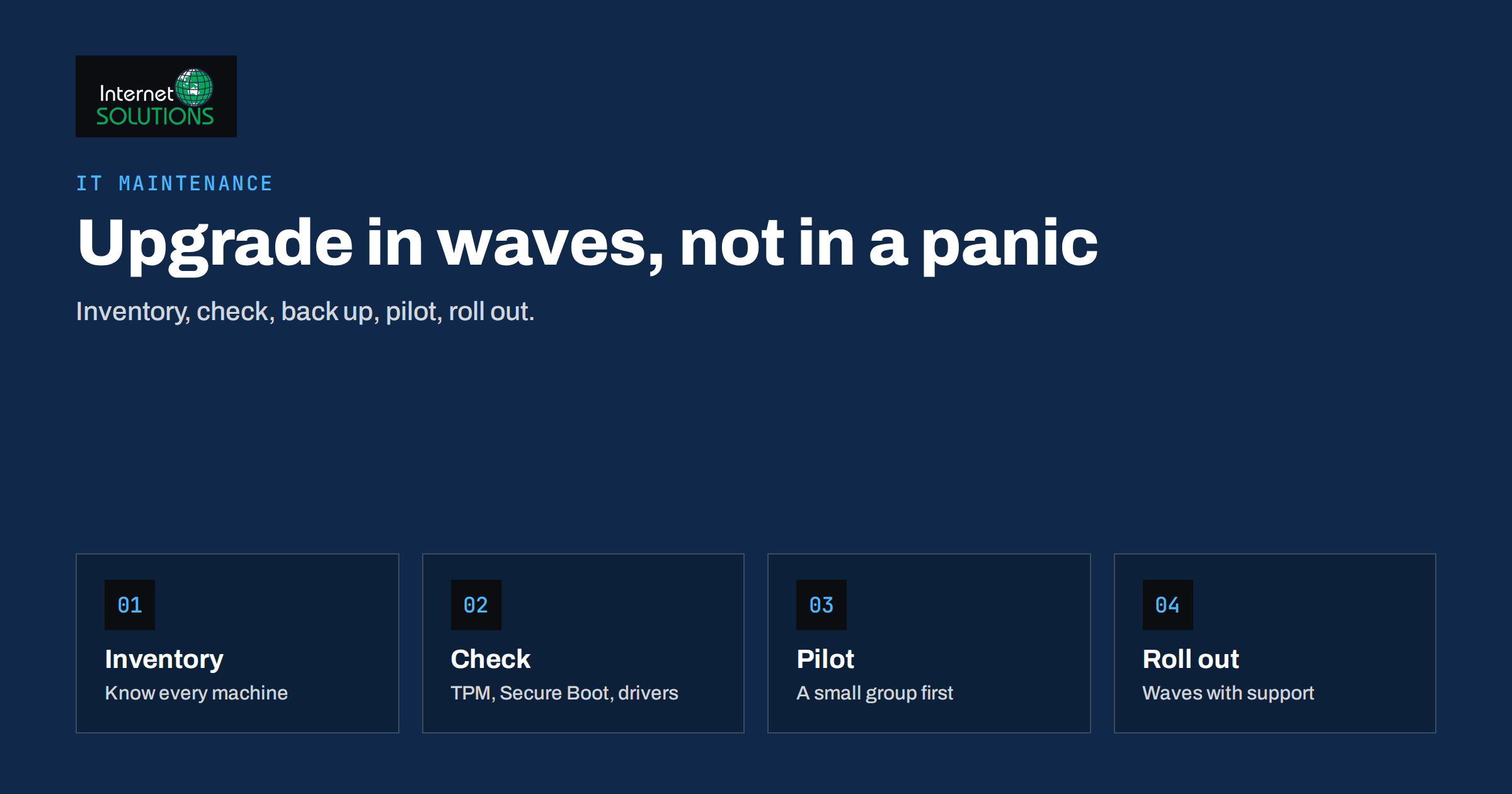
A Windows 11 upgrade is no longer a project to consider next year. Microsoft ended support for Windows 10 on 14 October 2025, which means that any business PC still running it no longer receives regular security updates unless it is covered by a paid extended programme. A year later, the practical question for most small and medium-sized companies is not whether to move, but how to do it without losing a working week, breaking a key application or discovering halfway that half the computers do not qualify.
This guide gives a Windows 11 upgrade plan for business PCs, written for office managers, owners and IT staff in organisations from five to a few hundred computers. It covers how to inventory your machines, check compatibility, decide between upgrading and replacing, prepare backups and encryption, run a pilot, roll out in waves and handle problems afterwards. The advice is vendor-neutral and based on Microsoft’s published requirements, which you should always confirm on the current Windows 11 requirements page before you buy or deploy anything.
Why Staying on Windows 10 Is a Business Risk
Operating system updates are mostly about security. When a vendor stops releasing fixes, every newly discovered weakness stays open on the unsupported computers, while attackers learn it quickly. A business that handles customer data, invoices, banking or email on such machines carries a risk that insurers, auditors and customers increasingly question. Software vendors also drop support for old operating systems over time, so applications, browsers, antivirus products and drivers will gradually stop receiving updates or refuse to install.
Microsoft’s own explanation of the end of Windows 10 support is available on its support page, including information about the paid Extended Security Updates programme. That programme is a bridge for computers that cannot move yet, not a destination; it has a limited duration and costs money per device, so use it only as a stopgap for specific machines while you plan their replacement.
- Security: no regular fixes for new vulnerabilities on unsupported systems.
- Compliance: data protection rules expect appropriate technical measures, and unsupported software is hard to defend.
- Compatibility: new versions of business applications are increasingly built for Windows 11.
- Support: vendors and insurers may ask whether systems are supported.
Step 1: Know What You Have
You cannot plan an upgrade without an inventory. For each computer, record the model, age, processor, memory, storage type and size, current Windows version and edition, installed key applications, the user and the location. Many small companies discover at this stage that they own machines nobody uses, or that the invoice from three years ago does not match the device on the desk. Our guide to an IT asset inventory and software licences explains how to build the list and keep it current.
Group the computers into four categories as the data comes in: ready to upgrade, upgradeable with small changes such as more memory or a firmware setting, not eligible and needing replacement, and not needed. This grouping becomes your budget and schedule.
Step 2: Check Compatibility
Windows 11 has stricter hardware requirements than its predecessor. The main ones are summarised below; the official page lists the exact current wording and the supported processor lists.
| Requirement | What is needed | How to check | Typical fix if missing |
|---|---|---|---|
| Processor | A supported 64-bit processor with at least two cores at 1 GHz or faster | Compare the model with Microsoft’s supported lists or run the PC Health Check app | Usually none; an unsupported processor means replacing the computer |
| Memory | At least 4 GB of RAM | System information or Settings | Add memory, though 8 GB or more is a more comfortable business minimum |
| Storage | At least 64 GB of available storage | Disk management or Settings | Clean up or replace the drive with a larger SSD |
| Firmware | UEFI with Secure Boot capability | System information shows BIOS mode and Secure Boot state | Enable Secure Boot, and convert the disk from legacy to UEFI boot if necessary |
| TPM | Trusted Platform Module version 2.0 | The tpm.msc console or the PC Health Check app | Enable it in firmware settings; some machines call it fTPM or PTT |
| Graphics | DirectX 12 compatible graphics with a WDDM 2.x driver | The dxdiag tool | Update the graphics driver |
A surprising number of machines that appear to fail the check are held back by a firmware setting, such as a disabled TPM or Secure Boot, rather than by the hardware itself. Enabling these takes minutes but should be done carefully, because changing the boot mode on a computer that was installed in legacy mode may stop it from starting. Always back up first and follow the manufacturer’s instructions.
Do not bypass the checks with unofficial tricks. Unsupported installations may not receive updates reliably, can cause problems with security features and leave you without vendor support. For a business, the saving is not worth the risk.
Step 3: Check Your Software and Peripherals
Most modern applications run on Windows 11 without changes, but business environments often contain exceptions. List the applications each team depends on and check each vendor’s compatibility statement. Pay special attention to the following.
- Accounting, payroll and industry software, especially older desktop versions that may need an update or a newer licence.
- Drivers for printers, scanners, label printers, card readers and specialised devices. Check the manufacturers’ websites for Windows 11 drivers before upgrading.
- Security software, including antivirus, endpoint protection and VPN clients, which must support the new version. See our overview of endpoint protection for small businesses.
- Browser-based tools that depend on old plug-ins or on legacy browser modes.
- Macros, scripts and add-ins in office documents that staff use for daily work.
- Remote access and management tools that your IT provider uses.
Test the most important applications on a spare machine or in a virtual machine before the pilot. If a critical program does not work, decide whether to update it, replace it or keep one older computer isolated for it while you plan a permanent solution.
Step 4: Decide Between Upgrading and Replacing
Eligible computers can usually be upgraded in place, keeping files, settings and applications. However, an in-place upgrade on a machine that is four or five years old may be a poor investment if it is slow, nearly full or about to fail. Use your inventory to compare the options.
- Upgrade in place when the machine is eligible, performs well and is within its expected life. It is the cheapest and least disruptive route.
- Upgrade with a component change, such as an SSD or memory, when the cost is small compared with a new machine and the processor is supported.
- Replace when the processor is not supported, the computer is old or unreliable, or the labour of rescue exceeds the price of a modern device.
- Retire machines nobody needs, after wiping and recycling them securely.
When replacing, spread purchases over time and choose business-class models with a warranty and a good support record. Our computer replacement cycle guide and the business laptop buying guide help you set specifications and budgets.
Step 5: Protect Data Before Anything Changes
An upgrade is usually safe, but a failed one can leave a computer unusable, and you want that to be an inconvenience rather than a data loss.
- Back up files and test a restore for at least the important machines. Confirm that user folders, local email stores and application data are included.
- Save disk encryption recovery keys. If a device is encrypted with BitLocker or a similar tool, make sure the recovery key is stored somewhere other than the computer itself before changing firmware settings or upgrading. A missing key can lock a user out.
- Record licences and settings, including software keys, printer settings, mapped drives and browser bookmarks.
- Update firmware and drivers first, because a current BIOS version often avoids upgrade failures.
- Free up disk space, since upgrades need working room and may fail on nearly full drives.
It also helps to know that after an in-place upgrade Windows keeps the previous installation for a limited period so that a user can go back if something is wrong. The length of that period is set by default and can be changed by administrators, so check the current documentation and do not rely on it as a substitute for backups.
Step 6: Run a Pilot
Start with a small group of five to ten percent of users, including at least one person from each department with different applications. Choose people who are patient and good at describing problems. During the pilot, collect information in a simple list: what was upgraded, how long it took, what failed, which workarounds were found and what users thought.
- Upgrade the pilot machines in one session and keep a technician available.
- Ask users to work normally for one to two weeks and report problems immediately.
- Check printing, scanning, shared folders, remote access, video calls and every critical application.
- Fix or document the issues, update the instructions and decide whether to proceed.
Microsoft’s own Windows 11 planning guide describes the same principle of piloting before broad deployment, and it is a useful reference if you manage a larger estate.
Step 7: Roll Out in Waves
After a successful pilot, schedule the rest in groups of manageable size, so that the helper team can respond to calls. Avoid peak periods such as month-end, payroll days, stocktakes or seasonal rushes. Tell people in advance when their computer will be upgraded, how long they will be without it and what they must do beforehand, such as saving open work and leaving the machine switched on.
- Communicate early: a short message with the date, the duration and what will look different reduces calls.
- Prepare a one-page guide to the changes users will notice, such as the centred taskbar, the new Start menu and the settings layout.
- Keep a support routine: a named person, a phone number and a short response target for the first week after each wave.
- Update the inventory as each machine is completed, including the Windows version and the date.
- Handle remote staff separately with clear instructions, a spare time slot and a way to get help by phone or video call.
If you do not have in-house IT staff, our computer repair and IT support team can inventory, upgrade and replace machines and support users during the transition.
Step 8: After the Upgrade
The work does not end when the last computer shows Windows 11. Spend a few days confirming that the new environment is stable and secure.
- Check that Windows Update works on every machine and that no one is postponing updates indefinitely. Our guide to patch management describes a sensible update routine.
- Confirm that the security tools, backups and remote management agents are running and reporting.
- Review the settings for privacy, telemetry, automatic sign-in and cloud sync, and align them with your policies.
- Remove leftover files and old user profiles that are no longer needed, once you are sure that nothing is missing.
- Ask users what is annoying them, because small friction accumulates into lost time.
- Record what you learned for the next big change, such as the next Windows feature update.
Common Mistakes to Avoid
- Waiting for failures. Planning under pressure after a security incident is the most expensive way to migrate.
- Judging eligibility by age. Some older machines qualify and some newer ones do not, so check each model.
- Upgrading without a backup or without the encryption recovery key.
- Skipping the pilot. A problem that affects one machine in the pilot affects every machine in a rollout.
- Forgetting peripherals. A perfectly working PC with no printer driver is not a working workstation.
- Using workarounds to install on unsupported hardware and then losing update reliability.
- Not updating documentation, so that the next person does not know which machine runs what.
Frequently Asked Questions
Is Windows 10 still safe to use?
Microsoft ended regular support on 14 October 2025, so ordinary security updates stopped. A paid extended programme exists for a limited time, but a business should plan to move, as unsupported systems become riskier every month.
How can I tell whether a PC can run Windows 11?
Run Microsoft’s PC Health Check app or compare the processor with the supported lists, then verify memory, storage, TPM 2.0 and Secure Boot. Check the official requirements page, as details can be updated.
Will I lose my files when I upgrade?
An in-place upgrade normally keeps files, settings and applications, but you should still back up first. Problems are rare, though a failed upgrade without a backup can be very costly.
What if a computer is not eligible?
Plan to replace it. You can sometimes cover a short gap with the extended update programme, or restrict the machine to low-risk tasks, but long-term use of unsupported systems for business work is not advisable.
Should small businesses upgrade all at once?
Not usually. Even in a small office, upgrade one or two machines first, learn from them and then move the rest in groups, scheduling around busy periods.
Do I need to buy new software?
Often not, but check each critical application. Some older programmes need an update or a newer licence, and older peripherals may need drivers that exist only for newer systems.
The Bottom Line
A successful Windows 11 upgrade for business PCs is mostly planning: build the inventory, check hardware and software compatibility against the official requirements, decide which machines to upgrade or replace, protect data and recovery keys, pilot with a small group and roll out in waves with clear communication. Done calmly and early, it is a routine maintenance project. Left until something breaks, it becomes a crisis that costs far more.