

 English
 Lietuvių
 Latviešu
 Eesti
 Русский
 Polski
 Українська
 Deutsch
 Italiano
 Español
 Français
 Português
 Čeština
 Magyar
 Română
 Ελληνικά
 Türkçe
 日本語
 العربية
 हिन्दी
 Bahasa Indonesia
 Bahasa Melayu
 ไทย
 Tiếng Việt
 বাংলা
RSS and Atom Feeds Explained: How Feeds Work and Why They Still Matter
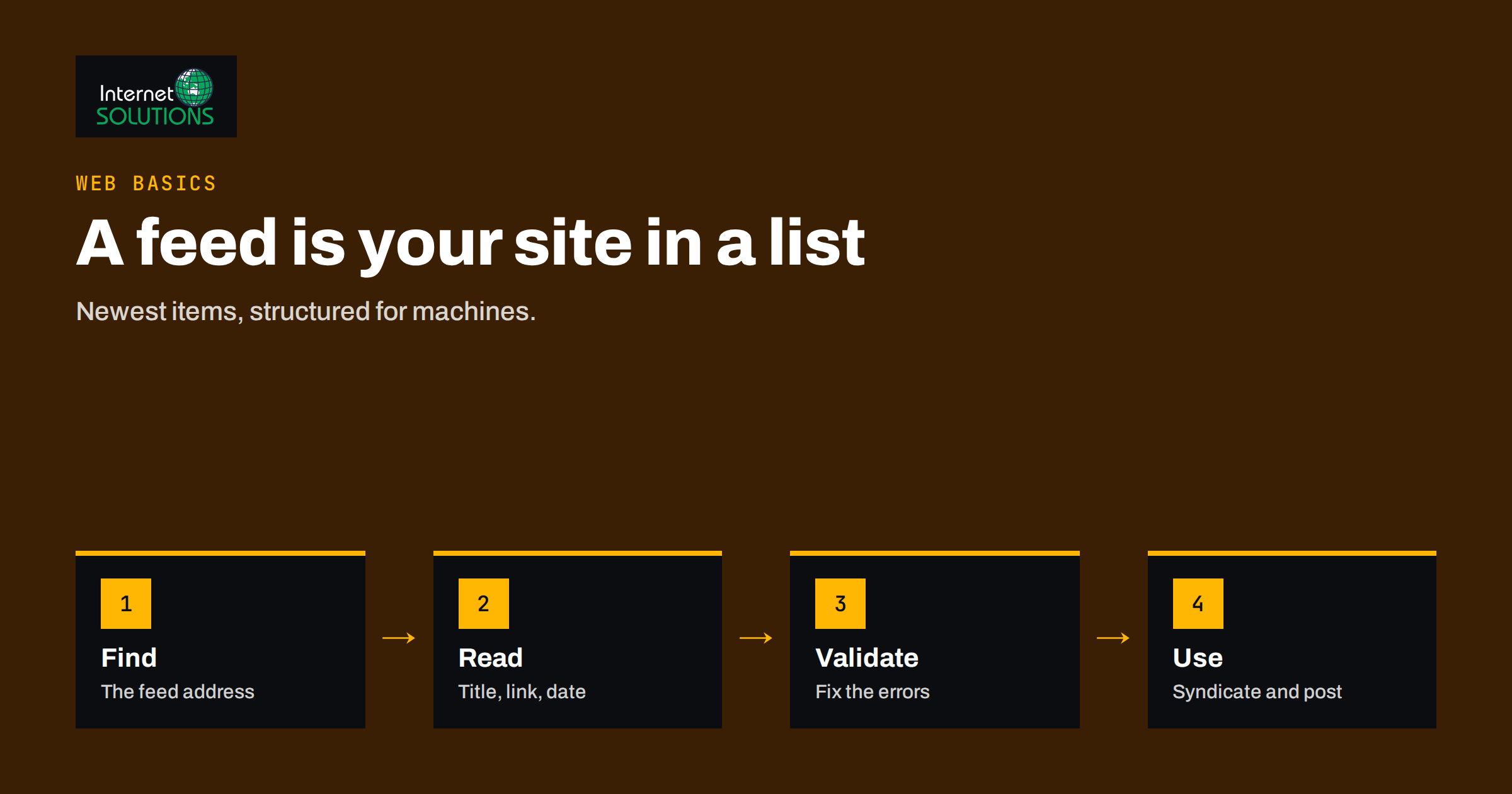
RSS and Atom feeds are among the oldest and most useful building blocks of the web, and most people use them without knowing. A feed is a machine-readable list of the newest items on a website: each entry has a title, a link, a date and often a summary or the full text. Instead of visiting a site to see whether something changed, a program reads the feed and learns about new items immediately. News readers, podcast apps, social media schedulers, search engines and many automation tools all depend on this simple idea.
This guide explains how RSS and Atom feeds work, the differences between the two formats, how to find and check the feed of your own website, what to put in it and what feeds still power today. It is written for site owners and marketers, not developers, but includes enough detail to spot and fix common problems.
What a Feed Contains
A feed is a plain text file written in XML. It starts with information about the site or channel, such as the title, a description and the address of the home page. Then it lists items, usually the most recent ten to fifty. Each item describes one piece of content.
- Title: the headline of the article, product or episode.
- Link: the address of the page on your site.
- Date: when the item was published or updated.
- Unique identifier: a stable code, so that programs recognise an item they have seen before.
- Summary or full content: a short description or the whole text.
- Media: an image, audio or video attached to the item, in some feeds.
- Categories and author: optional labels for topics and the writer.
Because the structure is the same for every site, a program that understands feeds can read any of them. That is why one tool can follow thousands of different websites.
RSS and Atom: Two Formats, One Purpose
The name RSS is commonly used for several versions of a format that began in the late 1990s. The widely used version, RSS 2.0, is documented in a public specification. Atom was created later to fix ambiguities in RSS and was standardised by the Internet Engineering Task Force in 2005. Both do the same job, and almost every feed reader and tool supports both.
| Aspect | RSS 2.0 | Atom |
|---|---|---|
| Origin | Evolved from earlier RSS versions, with a published specification | Created as an internet standard to remove ambiguity |
| Dates | Pubdate in an email-style format | Updated and published in a strict standard format |
| Content type | Description is often a summary; full text through extensions | Summary and content are clearly separated and typed |
| Identifiers | GUID is optional but recommended | ID is required |
| Where you see it | Blogs, podcasts, news sites, many CMS platforms | Many blogs, some platforms and developer tools |
For a site owner, the practical rule is simple: publish whichever your content system produces by default, make sure it is valid and do not worry about the rest. The RSS 2.0 specification and the Atom standard, RFC 4287, are the authoritative sources if you need detail.
How to Find the Feed of a Website
Most content management systems create feeds automatically. WordPress, for example, provides a feed for posts, usually at the address of the site followed by /feed/, and further feeds for categories, tags, authors and comments. Many shop and blogging platforms offer something similar. If you are unsure, try these steps.
- Try the usual addresses. Add /feed/, /rss/, /rss.xml or /atom.xml to the site address.
- Look at the page source. Sites announce their feeds in the page head with a link tag whose type mentions RSS or Atom, which is called autodiscovery.
- Look for the feed icon or link. Some sites show it in the footer or on blog pages.
- Check category and tag pages. Many systems provide one feed per category.
- Ask your developer or hosting provider. Custom sites may need a feed built.
Open the address in a browser. You will see either formatted XML or a plain list of items. If you see an error page, an empty page or your home page, the feed is missing or misconfigured.
Check That Your Feed Is Healthy
A broken feed fails quietly: nothing visible changes on your website, but tools that depend on it stop working. Check the feed when you launch a site, after major changes and every few months.
- Validity. Use a feed validator, such as the W3C Feed Validation Service, to catch XML errors and missing elements.
- Freshness. The newest item in the feed should match the newest post on the site.
- Correct links. Item links should use the final address with the correct protocol, not a staging or test domain.
- Unique identifiers. They must not change when you edit a post, or readers may show duplicates.
- Character encoding. Accents and special characters should display correctly.
- Images. Check that images are included or referenced properly if your tools need them.
- Caching and speed. The feed should load quickly and not be blocked by security rules or caches that serve old content.
Our technical SEO audit guide for WordPress includes a routine that also covers feeds, caching and indexing issues.
Full Content or Summary?
Feeds can contain the full text of each article or just a short excerpt. Both choices are legitimate. Full feeds are convenient for readers and suit podcasts and news readers. Summary feeds encourage a click to your site and reduce the chance that scrapers copy your complete text. For automated social posting, a title, link, short summary and image are usually enough. Decide according to your goals: reach, traffic or protection against copying. If you change the setting, check the feed again to confirm that it behaves as intended.
What Feeds Still Power Today
Feeds are far from obsolete. They sit quietly behind many tools.
| Use | How feeds help |
|---|---|
| News and blog readers | Readers follow many sites in one place without algorithms |
| Podcasts | Every podcast app finds new episodes through a feed |
| Social media automation | Tools read the feed and publish new items to networks |
| Email newsletters | Some services build campaigns automatically from new posts |
| Product catalogs | Shopping platforms read product feeds to list items and prices |
| Monitoring and alerts | Teams track competitors, mentions and vendor updates |
| Website integrations | Sites show headlines from other sites or from their own blog |
For social publishing, a feed is the most reliable source because it exposes new items with dates and links in a standard form. Tools such as PostRSS read your feed from outside, so no plugin is required on your site. Our guide to going from feed to first published post shows the steps, and the article on product feeds and new stock shows how shops use the same idea.
Feeds You Can Create Without Code
If your website has no feed, or you need one from a source that offers none, options exist. Many content systems let you switch on or customise a feed. Some tools generate a feed from a spreadsheet, and our guide to CSV sources for social posts explains one approach. For a custom site, a developer can create a feed template in an hour; give them the required fields and the validator as the acceptance test.
A Worked Example
A building supplies company has a WordPress site with a news section and a product catalog built with a plugin. The marketing manager wants new articles posted automatically to the company’s social pages, but the tool keeps reporting that it cannot read the feed. She opens the feed address and finds an empty page: a security plugin is blocking the feed address. After allowing it, the feed loads, but the validator shows that item links point to a test domain used during development.
The developer corrects the site address setting, and the validator reports a clean feed. The marketing manager checks that the newest article is on top, that special characters show correctly and that every item has a stable identifier. She connects the feed to the posting tool, and the next article goes out within seconds. She adds a quarterly reminder to run the validator, because the previous failure had gone unnoticed for months.
Quick Checks Anyone Can Run in Five Minutes
You do not need technical skills to test a feed. Use this short routine whenever you launch a site, change themes or move to a new host.
- Find the address. Try the site address followed by /feed/ and, if that fails, look in the page source for an alternate link of type RSS or Atom.
- Open it in a browser. You should see a list of items, even if it is raw text. A blank page or an error means the feed is broken or blocked.
- Compare with the site. The top item should be your most recent post. If it is older, a cache may be serving an old copy.
- Click three links. Each should open the correct page on your real domain, not a test address.
- Look for odd characters. Accents, quotes and symbols should look normal.
- Run a validator. Paste the address into a feed validation service and fix errors it reports, starting with the ones that mention dates, links and identifiers.
- Note the result. Write down the date and the outcome so that the next check can compare.
If something fails, tell your developer or host exactly which step failed. “The feed shows an older item than the site” and “item links point to a staging domain” are far more useful descriptions than “the feed is broken”, and they usually lead to a fast fix.
Common Mistakes
- Never opening the feed to see what it contains.
- Leaving staging or test addresses in item links.
- Letting security or cache plugins block or freeze the feed.
- Changing item identifiers when editing posts, creating duplicates.
- Publishing broken characters because of wrong encoding.
- Putting thousands of items in one feed instead of the latest few dozen.
- Assuming that feeds are obsolete and ignoring them.
For historical and technical background, the Wikipedia articles on RSS and Atom summarise how the formats developed.
Frequently Asked Questions
What is the difference between RSS and Atom?
Both are feed formats that list a site’s newest items. RSS 2.0 is older and widely used; Atom is a stricter internet standard. Nearly all tools read both, so you rarely need to choose.
How do I find my website’s RSS feed?
Try adding /feed/ or /rss/ to the site address, check the page source for an autodiscovery link or look for a feed link in the footer. WordPress sites normally provide one by default.
Does my feed affect SEO?
Feeds are not a direct ranking factor, but a clean feed helps content be discovered and syndicated, and a broken feed can break the tools that spread your content.
Should my feed include the full article?
It depends on your goals. Full text is convenient for readers, while summaries encourage visits and make copying less attractive. For social posting, a title, link and short summary are usually enough.
How often should I check my feed?
Check it at launch, after major site changes and at least quarterly, using a feed validator and a comparison of the newest feed item with the newest post on your site.
Can I create a feed for a site that does not have one?
Yes. You can switch on feed features in your content system, build a feed template or use tools that generate feeds from other sources, subject to the rights to use that content.
The Bottom Line
RSS and Atom feeds are simple, stable lists of your newest content, and they quietly power readers, podcasts, automation and shopping platforms. Find your feed, open it, validate it and make sure that links, dates, identifiers and characters are correct. Decide between full text and summaries based on your goals, and review the feed regularly so that failures do not go unnoticed. A healthy feed is a small investment that keeps every tool that relies on your content working.