

 English
 Lietuvių
 Latviešu
 Eesti
Eesti Русский
 Polski
 Українська
 Deutsch
 Italiano
 Español
 Français
 Português
 Čeština
 Magyar
 Română
 Ελληνικά
 Türkçe
 日本語
日本語 العربية
 हिन्दी
 Bahasa Indonesia
 Bahasa Melayu
 ไทย
ไทย Tiếng Việt
 বাংলা
বাংলাBroken Links and 404 Errors: How to Find and Fix Them for SEO
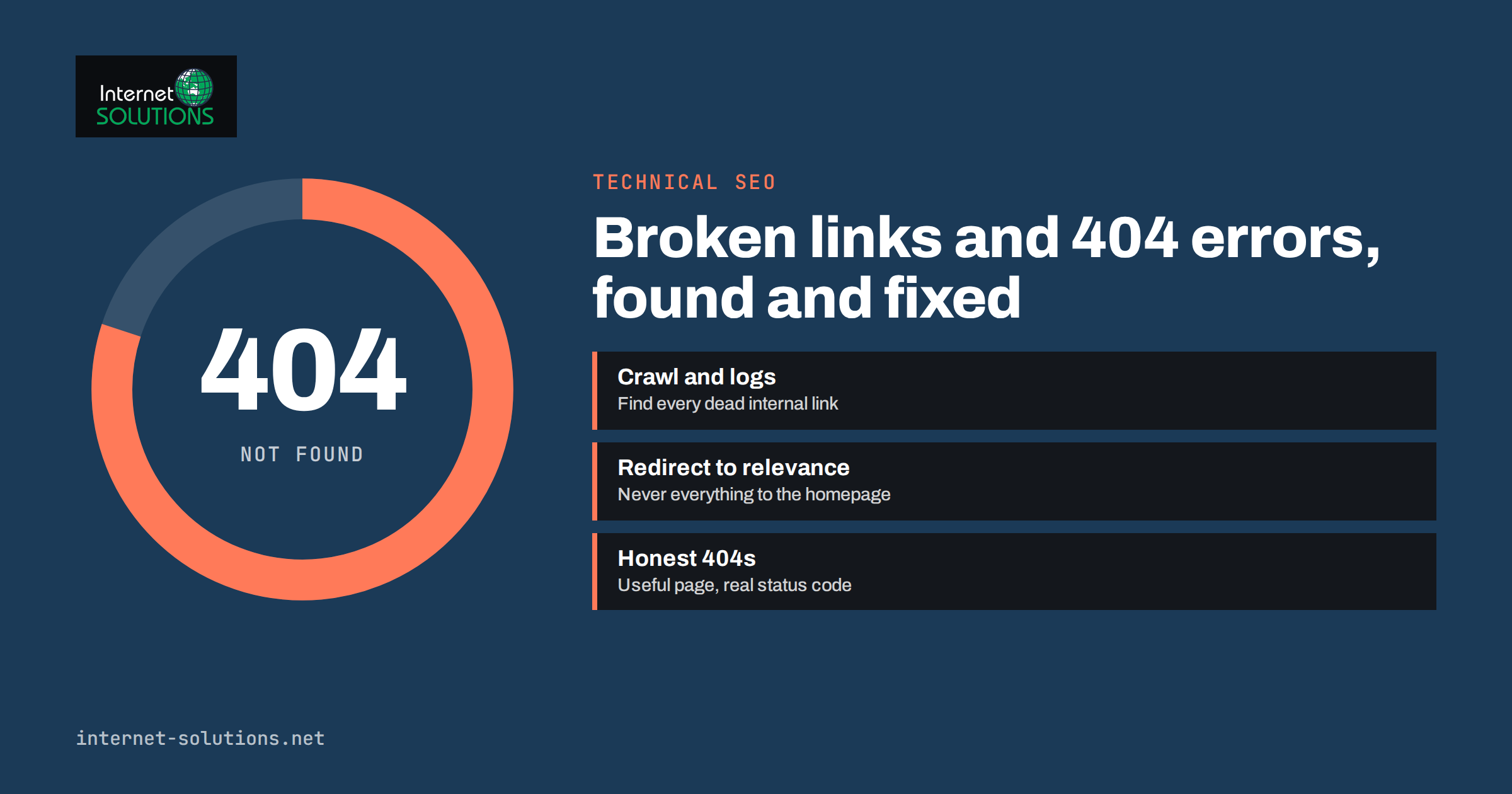
Broken links are one of the quietest ways a business website loses visitors, trust and search performance. A customer clicks a link in a service page, a newsletter or a search result and lands on an error page instead of the answer they expected. Some leave immediately. Others try the navigation, fail again and go to a competitor. Search engines notice the same dead ends: crawl time is spent on URLs that no longer exist, and links that once pointed to valuable pages stop passing any value at all.
The good news is that broken links and 404 errors are among the most fixable problems in SEO. They can be found systematically, sorted by importance and resolved with a small set of decisions: restore, redirect, update or leave as a proper 404. This guide explains how to do that on a typical business website, how to avoid creating new broken links during everyday work, and where the common mistakes are. It is based on the technical checks our SEO team runs when we audit client sites.
What Broken Links and 404 Errors Actually Are
A link is broken when the URL it points to does not return the page the visitor expects. Most often the server answers with a 404 status code, which means “not found”. The HTTP 404 status is a normal part of how the web works: it tells browsers and crawlers that nothing exists at that address. The problem is not the existence of 404 responses, but links on your own site, or important external links, that lead to them.
It helps to separate a few situations that are often lumped together:
- Internal broken links. A link on your own website points to a page on your own website that no longer exists. These are entirely under your control and should be fixed first.
- Outbound broken links. A link on your site points to another website, and that page has moved or disappeared. These do not damage your rankings directly, but they make your content look neglected.
- Inbound broken links. Another website links to a URL on your site that no longer exists. You cannot edit their page, but you can redirect the old URL so the visitor and the link value arrive somewhere useful.
- Soft 404s. The page says “not found” or is essentially empty, but the server returns 200 OK. Search engines treat these as errors, and they are harder to spot because standard link checkers see a successful response.
- Server errors. A 500, 502 or 503 response is not a missing page but a failing one. These usually point to hosting, plugin or code problems and need a different fix.
Why Broken Links Matter for SEO and for Customers
Google has said for years that 404 errors on URLs that should not exist do not harm a site’s rankings. That is true, and it is easy to misread. The harm comes from what broken links represent.
Lost Link Value
When another website links to a page that you later delete or move without a redirect, that link stops helping you. Over the years, a business site can quietly lose a large share of its earned links this way, usually during redesigns and migrations. Redirecting those old URLs to the closest relevant page recovers much of that value.
Wasted Crawling and Slower Discovery
Crawlers follow your internal links. If many of them lead to dead pages, more time is spent on errors and less on the pages you want indexed. On small sites this rarely becomes critical, but on stores with many product and category URLs it can delay how quickly new pages are found. Google’s documentation on how HTTP status codes and network errors affect Search describes how each response is treated.
Broken Journeys
The most direct cost is the visitor who wanted to book, buy or ask a question and could not. A broken link in the main navigation, a pricing table or a checkout flow can cost more in a week than all the SEO effects combined. That is why prioritisation by business importance matters more than the raw number of errors.
How to Find Broken Links on Your Website
No single tool sees everything. A reliable picture comes from combining three sources: a crawl of your own site, search engine data and your server or analytics data.
1. Crawl the Site
A website crawler starts from your homepage, follows every internal link and records the status code of each URL it reaches. The output is a list of broken internal links together with the pages that contain them, which is exactly what you need to fix them at the source. Run the crawl on the live site, include images, scripts and PDF files, and, if the site uses JavaScript navigation, enable rendering so links built by scripts are found too.
2. Check Google Search Console
The Pages report in Search Console lists URLs Google tried to crawl and could not index, including “Not found (404)” and “Soft 404”. This shows errors a crawl of your current site cannot see, because the links come from other websites or from old sitemaps. Our Google Search Console guide explains how to read these reports without getting lost in them.
3. Look at Server Logs and Analytics
Access logs show every request that returned a 404, including those from visitors and bots that never appear in Search Console. Sorting them by frequency quickly reveals old URLs that still receive real traffic. In analytics, a report filtered on the page title of your 404 template shows which missing URLs people actually land on and where they came from.
4. Check Outbound Links Periodically
External pages move without warning. A crawler that also checks outbound links, run every few months, catches citations and resource links that now lead nowhere. For content-heavy sites, schedule this as part of a regular content review rather than a one-off project.
How to Decide What to Do With Each Broken URL
Once you have the list, every URL needs one of a small number of decisions. The table below summarises them.
| Situation | Best action | Why |
|---|---|---|
| Internal link points to a typo or wrong URL | Correct the link at the source | Cheapest fix; no redirect needed |
| Page was moved or renamed | 301 redirect old URL to new URL and update internal links | Keeps link value and bookmarks working |
| Page was removed but a close replacement exists | 301 redirect to the most relevant replacement | Visitor still finds a useful answer |
| Page was removed and nothing similar exists | Return a real 404 or 410 and remove internal links | Honest signal; avoids misleading redirects |
| Page was deleted by mistake | Restore the content at the original URL | Recovers rankings and links fully |
| Outbound link to another site is dead | Replace with a current source or remove it | Keeps content trustworthy |
| Soft 404 on a thin or empty page | Add real content, redirect, or return 404 | Aligns the status code with reality |
Redirect to Relevance, Not to the Homepage
A common shortcut is to redirect every missing URL to the homepage. Search engines tend to treat these as soft 404s, and visitors who expected a specific service or product are left searching again. Redirect to the closest matching page, such as the parent category or the replacement service, and let URLs with no reasonable equivalent return a proper 404. Google’s guide to redirects and Google Search explains which redirect types pass signals.
Fix the Source, Then Redirect
For internal links, a redirect is a safety net, not a fix. Each redirect adds a hop, slows the visitor slightly and makes the site harder to maintain. Update the links in your content, menus and templates so they point directly to the final URL, and keep the redirect only for external links and bookmarks.
Avoid Redirect Chains
After several redesigns, a URL can redirect to another URL that redirects again. Each hop is a chance for something to break. When you add a new redirect, check whether the target itself redirects, and point the old URL straight to the final destination.
Prioritising: Which Broken Links to Fix First
A large site can show hundreds of errors. Not all deserve the same attention. A simple order that works well in practice:
- Navigation, header, footer and templates. One broken link here is repeated on every page.
- Conversion paths. Contact, booking, pricing, cart and checkout pages, and the links that lead to them.
- Old URLs with backlinks or traffic. Use Search Console, link data and logs to find missing pages that external sites still link to or that people still visit.
- Broken links in high-traffic content. Your most-read articles and service pages.
- Everything else. Long-tail internal links, outdated outbound references and old media files.
Working in this order means the first hour of effort often removes most of the real business impact, even if the error count is still high.
Designing a Useful 404 Page
Some 404s are unavoidable: people mistype URLs, old print materials circulate and external sites link incorrectly. A good 404 page turns these moments into recoveries instead of exits.
- Return a real 404 status code. The page can look friendly, but the server response must still say “not found”.
- Explain briefly what happened in plain language, without blaming the visitor.
- Offer a search box and links to your main services, popular articles and contact page.
- Keep the normal site header and navigation so the visitor can continue browsing.
- Track 404 views in analytics, including the requested URL and the referring page, so new problems surface quickly.
On multilingual sites, make sure the 404 page appears in the visitor’s language and links to pages in that language.
Preventing Broken Links in Everyday Work
Most broken links are created during routine changes. A few habits prevent the majority of them.
Change URLs Rarely and Deliberately
Choose clear, stable URLs when a page is created and resist renaming them later for small wording changes. If a URL must change, add the redirect in the same step, not “later”.
Plan Redesigns and Migrations With a URL Map
Before launching a new site or structure, export every existing URL, map each one to its new address and test the redirects on a staging copy. This is the single most effective way to avoid losing years of links in one day. Our technical SEO audit guide for WordPress covers the checks we run before and after such changes.
Be Careful When Deleting Content
Before removing a page, check whether it has backlinks, traffic or internal links pointing to it. Decide on the redirect target before you press delete, and remove or update internal links at the same time.
Watch Media Files and Documents
Replacing a PDF price list or brochure with a new file name breaks every link to the old one. Where possible, keep a stable URL for documents that are linked externally and replace the file behind it.
Schedule Regular Checks
A monthly crawl for active sites, or a quarterly one for smaller sites, keeps the list short. It is far easier to fix five new broken links each month than five hundred after two years of silence.
Broken Links on WordPress Sites
WordPress sites have a few specific patterns worth knowing. Changing the permalink structure in settings changes every post URL at once; WordPress redirects some old addresses automatically, but not reliably in every case, so a crawl after any change is essential. Deleting a category or tag removes its archive URL. Some page builders and plugins create URLs that disappear when the plugin is deactivated. Redirect plugins are convenient, but long lists of redirects should be reviewed occasionally, and at server level a small number of rules is usually faster than thousands of plugin entries.
Testing structural changes on a staging copy first, as described in our article on WordPress staging sites, catches most of these problems before visitors see them.
Common Mistakes to Avoid
- Redirecting everything to the homepage. It hides the problem from you and frustrates visitors.
- Using 302 redirects for permanent moves. Use 301 or 308 when the change is permanent.
- Fixing errors in a tool but not in the content. Redirects without updating internal links leave unnecessary hops everywhere.
- Ignoring soft 404s. Empty category pages and “no results” pages that return 200 confuse search engines.
- Blocking 404 URLs in robots.txt. Crawlers then cannot see that the pages are gone, and the URLs may linger in reports longer.
- Treating the error count as the goal. The aim is working journeys for visitors, not a perfect number in a dashboard.
Frequently Asked Questions
Do 404 errors hurt my Google rankings?
A 404 for a URL that genuinely should not exist is normal and does not harm the rest of the site. Problems arise when important pages return 404, when internal links lead to dead pages, or when pages with backlinks disappear without a redirect.
Should I redirect every broken URL?
No. Redirect URLs that have a clear, relevant replacement, external links or real traffic. If there is no equivalent page, let the URL return a proper 404 or 410 and remove internal links to it.
What is a soft 404?
A soft 404 is a page that looks like an error or is nearly empty but returns a 200 OK status code. Search engines report these as errors. Fix them by adding real content, redirecting, or returning a true 404.
How often should I check for broken links?
Monthly is a good rhythm for sites that publish or change often, and quarterly for smaller sites. Always run a check after redesigns, migrations, permalink changes or large content clean-ups.
Is a 410 status better than a 404?
A 410 says the page was removed on purpose and will not return, which can make search engines drop the URL slightly faster. In practice both work; use 410 when you are certain the content is gone for good.
Can broken outbound links affect my site?
They do not directly lower rankings, but they make content look outdated and send visitors to dead ends. Replace them with current sources or remove them during regular content reviews.
The Bottom Line
Broken links and 404 errors are rarely dramatic, but over time they drain link value, waste crawling and break the journeys that bring in customers. Find them with a crawl, Search Console and server logs; fix internal links at the source; redirect moved and replaced pages to the most relevant destination; and let genuinely removed pages return an honest 404. Add a helpful 404 page, plan URL changes carefully and check regularly, and the problem stays small. If you would like a second pair of eyes on your site, our SEO specialists can run a technical review and prioritise the fixes that matter most.