

 English
 Lietuvių
 Latviešu
 Eesti
Eesti Русский
 Polski
 Українська
 Deutsch
 Italiano
 Español
 Français
 Português
 Čeština
 Magyar
 Română
 Ελληνικά
 Türkçe
 日本語
日本語 العربية
 हिन्दी
 Bahasa Indonesia
 Bahasa Melayu
 ไทย
ไทย Tiếng Việt
 বাংলা
বাংলাChoosing an Auto-Posting Tool: Features, Limits and Support Checklist
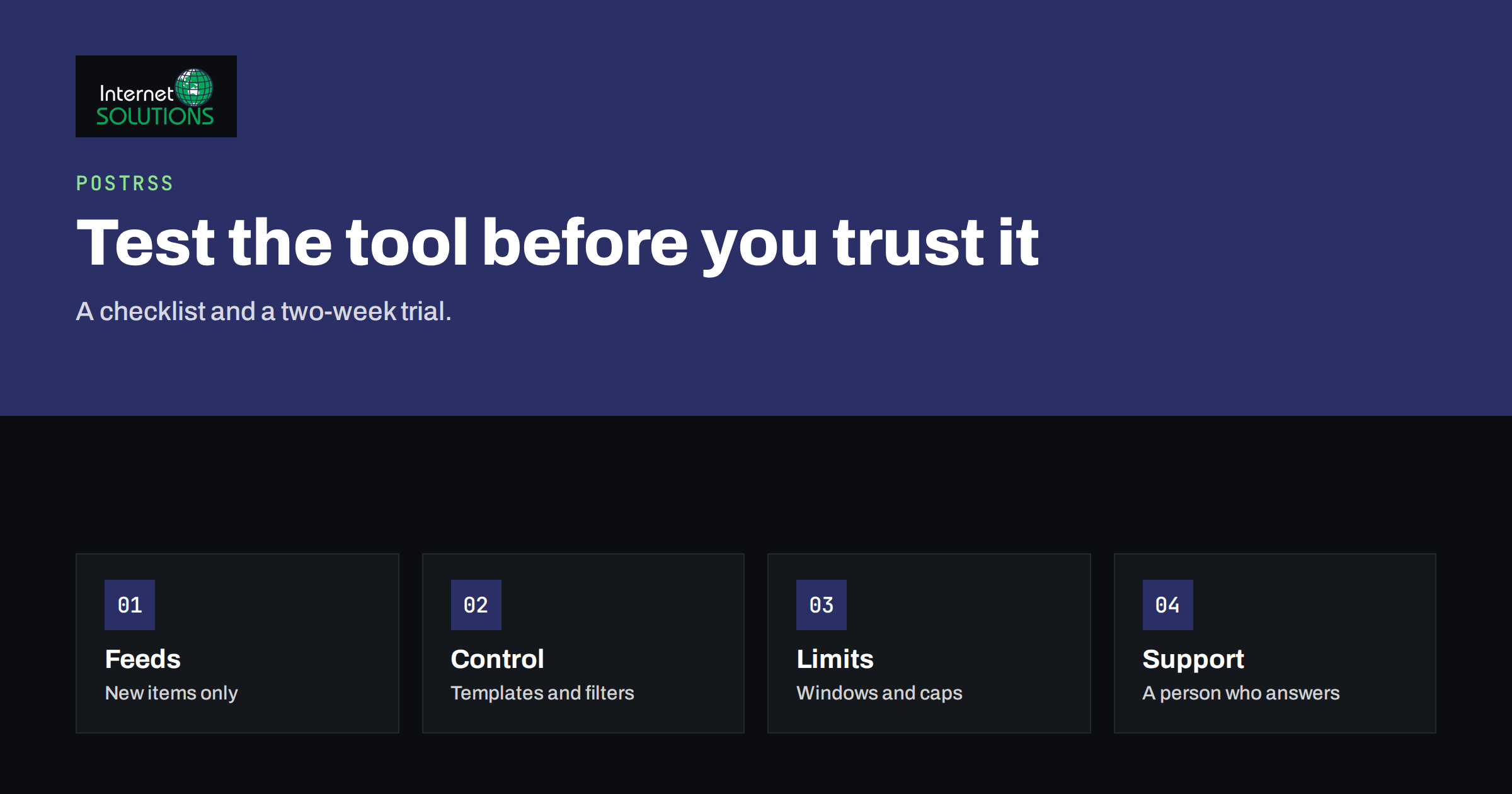
Choosing an auto-posting tool looks easy until you try several of them. Every product promises that your new articles will appear on social networks without effort, and most demonstrations show the happy path: a post goes out, the audience applauds. The differences that matter appear later: which networks are really supported, whether the tool reads your feed reliably, what happens when something fails, how it handles limits, whether you can control the text for each network and who answers when a connection breaks at midnight. This guide is a practical checklist for evaluating an auto-posting tool before you commit, and a test plan to run during a free trial.
It is written for site owners, marketers and agencies that publish regularly and want social distribution to run on its own. PostRSS, our tool for posting new items from RSS feeds to social networks, is used as an example where a concrete case helps, but the questions apply to any product, and you should ask them of ours too.
Start With Your Own Requirements
Before comparing features, write down what you need. A short list prevents you from being impressed by things you will never use.
- Source. Where does the content come from: a WordPress blog, a shop, a news site, a YouTube channel, a spreadsheet? Does it already have an RSS or Atom feed?
- Destinations. Which networks matter to your audience now, and which might next year?
- Volume. How many items per day, and how many accounts or pages?
- Control. Do you need different text for each network, filters, hashtags and schedules?
- People. Is it one person, a team or an agency managing clients?
- Budget and risk. What can you spend, and what happens to your business if posting stops for a day?
Checklist 1: Sources and Feed Handling
The foundation of feed-based posting is how well the tool reads your content.
- RSS and Atom support. Both are standard formats; see the RSS specification and the Atom syndication format in RFC 4287. A tool should read both without fuss.
- No plugin needed. The best arrangement for many sites is that the tool reads the feed from outside, so nothing has to be installed on your website. PostRSS works this way: if your site has a feed, it reads it.
- Check frequency. How soon after publication does the tool notice a new item? For news and time-sensitive content, delays matter.
- Old items. What happens when you connect a feed with a long archive? A good tool posts only new items by default and lets you choose to publish older ones deliberately.
- Media. Does it pick up featured images and video from the feed and size them for each network?
- Feed problems. How does it behave when your feed is malformed, slow or temporarily unavailable? Does it tell you? Our guide to troubleshooting RSS feeds lists the common causes.
Checklist 2: Networks and Accounts
- Real support, not logos. A long list of networks on a sales page is only useful if each one really works for your use. Ask which account types are supported on each network.
- Official connections. Prefer tools that connect through the networks’ official authorisation methods instead of asking for your passwords.
- Limits and rules. Networks change their rules and interfaces, and a tool has to keep up. Ask how the vendor handles it and how quickly. For example, our own article on PostRSS and Facebook Pages explains what automated publishing can and cannot do there.
- Number of accounts. How many pages, profiles and channels can you connect, and how does that affect the price?
- Beyond the obvious. If you want smaller or specialised networks, check that they are included and how they behave.
PostRSS lists more than sixty destinations, including Facebook, Instagram, Threads, X, LinkedIn, Telegram, Pinterest, Tumblr, Bluesky, Mastodon, Discord, Reddit, Matrix, VK, Instapaper and webhooks. The list is not the decision; fit to your audience is.
Checklist 3: Control Over the Message
Posting every article with the same raw title to every network is the quickest way to look robotic. Look for these controls.
- Templates. Can you build the post from title, summary, link, hashtags and your own text, per network?
- Filters. Can you post only items that match a category, keyword or other rule, or skip those that do not?
- Hashtags and mentions. Can they be added in a controlled way?
- Link tracking. Can you add campaign parameters so analytics shows which network sent the visit? See our guide on UTM parameters for auto-posted traffic.
- Preview or test posting. Can you check how a post will look before the real feed starts running?
Checklist 4: Scheduling and Limits
- Spreading posts. Does the tool spread posts across the day, or does everything go out at once when you publish a batch?
- Time windows. Can you choose when posting is allowed, for example not at night in your audience’s time zone?
- Daily caps. Can you limit the number of posts per account per day to avoid flooding followers or triggering network limits?
- Queue and order. What happens when twenty items arrive together?
Our article on schedule windows, exact times and post limits shows how these settings work in practice.
Checklist 5: Visibility and Control After Launch
- History. A log of what was posted, where and when, with links to every post, is essential for diagnosing problems.
- Error reporting. Failed posts should be visible and ideally notified, not hidden.
- Pause and resume. You should be able to stop a feed or an account instantly.
- Edit and delete. Understand what you can change after a post is published, which is often limited by the network.
- Reporting. Basic counts of posts per network are useful even if full analytics live elsewhere.
Checklist 6: Teams, Agencies and Permissions
If several people or clients are involved, look at account structure. Can you manage many client pages from one dashboard, give each feed its own targets and separate their data? PostRSS is built with agencies in mind, and our article on PostRSS for agencies describes the approach. Ask also about user roles, how you remove a person’s access and what happens to connections when an employee leaves.
Checklist 7: Price, Plans and Exit
- A free way to test. A free plan or trial without a card lets you test with a real feed. PostRSS has a free plan to start with no card needed.
- What the price depends on. Feeds, accounts, networks, posts or users? Make sure the unit matches how you grow.
- Cancelling. You should be able to cancel at any time and understand what happens to your data and connections.
- Current prices. Check the vendor’s page, since prices change. For PostRSS, current plans and prices are always on postrss.com.
- Export and portability. Can you leave without losing your configuration knowledge? Keep your own documentation of templates and filters.
Checklist 8: Support and Track Record
- How long has the vendor operated? Longevity matters, because network connections break and need maintenance. PostRSS has been running since 2014.
- How do you reach a person? Test it before buying: ask a question and see how fast and how well it is answered.
- Documentation and status. Is there clear documentation and a place to see known issues?
- Updates. Does the vendor adapt promptly when a network changes its rules?
- Honesty about limits. A vendor who tells you plainly what cannot be done is usually more reliable than one who promises everything.
Scorecard for Comparing Tools
| Area | Question to ask | Good sign | Warning sign |
|---|---|---|---|
| Feed handling | How are new and old items treated? | Only new items by default, clear controls | Floods old posts after connecting |
| Networks | Which accounts really work? | Clear list per network with limits | Long logo list with no detail |
| Message control | Per-network templates and filters? | Flexible templates, filters and hashtags | One fixed format for everything |
| Scheduling | Can posts be spread and capped? | Windows, caps and queue control | All posts at once |
| Visibility | Is there a history and error log? | Complete log with links | No record of what happened |
| Teams | Can I manage several clients? | Separate feeds and targets in one dashboard | Shared logins only |
| Price | Can I test for free and cancel? | Free plan, simple cancel | Card required, hidden limits |
| Support | Who answers and how fast? | Reachable humans, honest answers | No contact details |
A Two-Week Trial Plan
- Days 1 to 2: validate your feed with a feed validator such as the W3C Feed Validation Service so that you are testing the tool and not a broken feed.
- Days 3 to 4: connect one or two accounts you control and write templates. Post a test item and inspect the result on each network.
- Days 5 to 9: run live with a small set of items and watch the history. Check the timing, images, links and text.
- Days 10 to 12: test failures on purpose: pause a feed, disconnect an account and see how the tool reports them. Ask support one real question.
- Days 13 to 14: review results, costs and effort. Decide using your original requirements, not the vendor’s highlights.
Questions to Ask a Vendor Before You Pay
Whatever tool you consider, put a handful of direct questions in writing and keep the answers. Which networks and account types are supported today, and which are planned but not yet available? What happens to my connections if a network changes its rules? How are failed posts reported? Where is my feed data used, and can I delete my account and data? What is included in each plan, and what is the next price step when I grow? How do I reach a person, and what is a typical response time? A vendor that answers plainly and consistently is showing you how it will behave when something goes wrong.
Also consider your own readiness. An auto-posting tool amplifies what you publish, so it works best with a feed that has good titles, clear featured images and clean excerpts. If your content is thin or inconsistent, fix that first. A weak feed posted automatically only produces weak posts more often. Think of automation as a way to distribute good work, not a substitute for it, and plan a short monthly check of the posting history to see what was published and whether the results justify the effort.
Common Mistakes
- Choosing by the number of networks instead of the quality of the ones you use.
- Connecting a feed with a large archive and flooding followers.
- Posting the same text everywhere.
- Testing on your main brand page first.
- Ignoring how failures are reported.
- Forgetting that networks change rules and a vendor must keep up.
Frequently Asked Questions
Do I need a plugin on my website?
Not necessarily. Tools that read your RSS or Atom feed from outside need no installation. If your site has a feed, they can use it.
How many networks should I connect?
Only those where your audience is. More networks mean more to monitor. Start with two or three and add others when you can measure their value.
Will it post my old articles?
A good tool posts only new items unless you choose otherwise. In PostRSS, only new items are posted unless you choose to publish older ones.
Can I use different text for each network?
You should be able to. Look for per-network templates, and test how each post looks.
What if a network changes its rules?
The vendor needs to adapt, and some functions may change or stop. Ask how they communicate such changes and how fast they react.
Is a free plan enough to judge a tool?
Often yes, for connecting a feed and a few accounts and judging reliability and support. Larger needs such as many accounts or networks will need a paid plan, so check the limits.
The Bottom Line
The best auto-posting tool is the one that fits your sources, reaches your audience, gives you control over the message, spreads posts sensibly, shows you what happened and is supported by people who answer. Write down your requirements, work through the checklists, validate your feed and run a two-week trial on a small scale. You can start that trial with PostRSS on the PostRSS page, and you should ask every vendor, including us, the same questions.