

 English
 Lietuvių
 Latviešu
 Eesti
Eesti Русский
 Polski
 Українська
 Deutsch
 Italiano
 Español
 Français
 Português
 Čeština
 Magyar
 Română
 Ελληνικά
 Türkçe
 日本語
日本語 العربية
 हिन्दी
 Bahasa Indonesia
 Bahasa Melayu
 ไทย
ไทย Tiếng Việt
 বাংলা
বাংলাLinux Out-of-Memory Errors: Diagnosing OOM Kills, Swap and Leaks
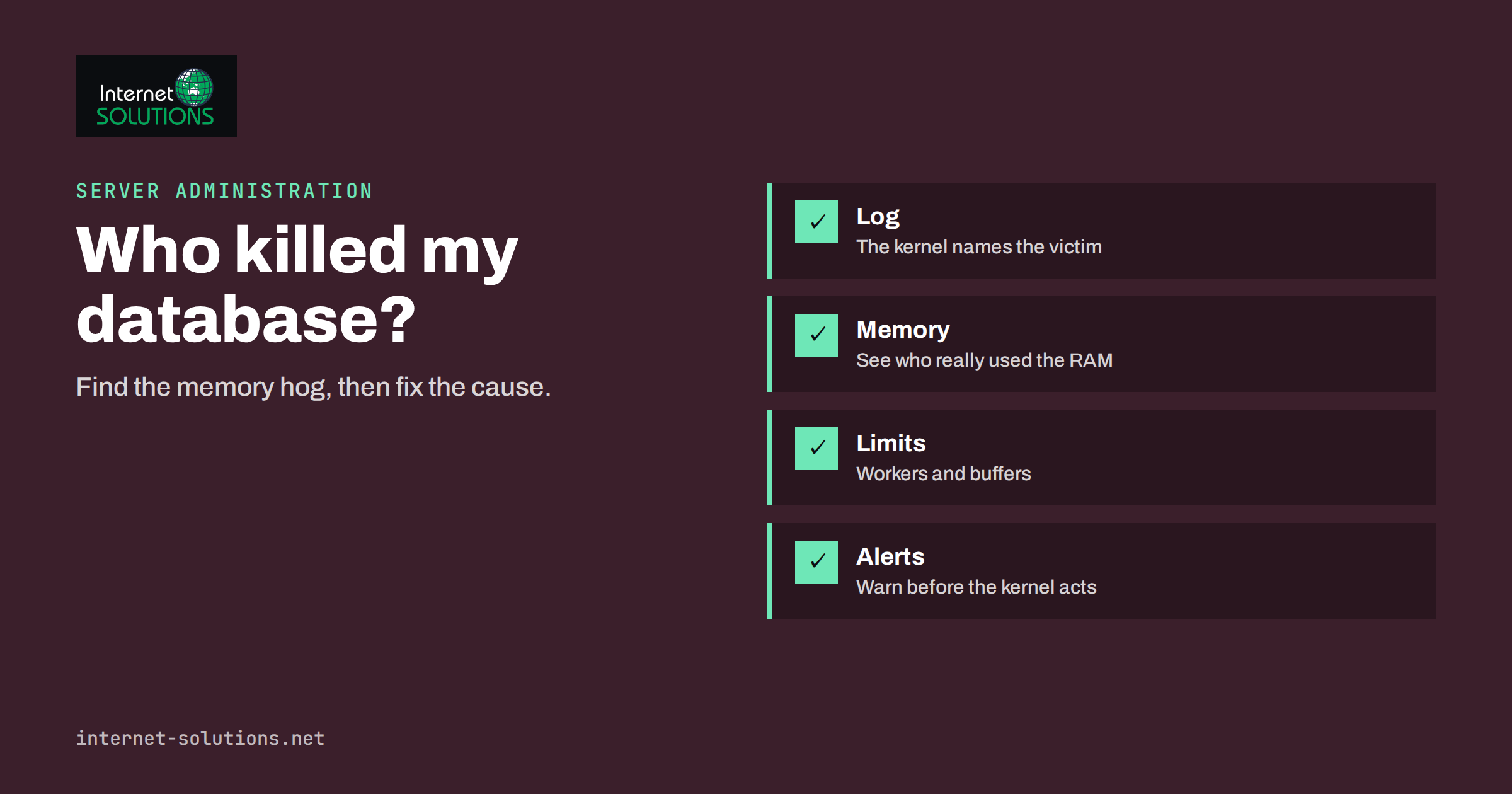
Linux out of memory errors are among the most confusing problems a website owner or server administrator meets. A database that was running yesterday is simply gone. A web site returns errors for five minutes at three in the morning and then recovers by itself. A process disappears with no message in its own log. Often the cause is the kernel’s out-of-memory killer, which chooses a process to terminate when the server has run out of usable memory. It does this to keep the system alive, but from the outside it looks like random failure.
This guide explains how Linux handles memory, how to confirm that an OOM kill has happened, how to read the evidence, what usually causes it on web servers and WordPress hosts, and how to fix the problem properly through limits, configuration, swap and capacity rather than by restarting services and hoping. It assumes basic comfort with the command line, and every command shown only reads information.
How Linux Uses Memory
Understanding a few concepts prevents most misreadings.
- Used versus available. Linux uses spare memory for the page cache, which stores recently read files to speed things up. That memory is released when applications need it. A server showing “only 200 MB free” may be perfectly healthy. The figure that matters is available memory, which includes reclaimable cache.
- Virtual and resident memory. A process can reserve far more virtual address space than it actually uses. Resident set size shows what it holds in physical RAM.
- Swap. Disk space used as an overflow for memory pages that are not in active use. It is far slower than RAM, so heavy swapping makes a server crawl.
- Overcommit. By default, the kernel allows programs to allocate more memory than exists, betting that they will not use it all. When many of them do, the bet fails and the OOM killer steps in.
- Cgroup limits. Containers, systemd services and some hosting panels set memory limits per group of processes. A service can be killed for exceeding its own limit even when the machine as a whole has plenty of memory.
The kernel documentation on memory management concepts describes these ideas in detail, and the manual page for the proc filesystem explains the files that report memory use.
Signs That the OOM Killer Has Struck
Typical symptoms include:
- MySQL or MariaDB stops without a clean shutdown message, and the service manager reports that it was killed;
- PHP-FPM workers or web server processes vanish, and visitors see 502 or 503 errors;
- a node, Java or Python application exits with status 137, which means it received a kill signal;
- the server becomes extremely slow, then recovers when a large process dies;
- monitoring shows memory climbing steadily to 100 percent before a sudden drop.
Exit status 137 is a useful clue. It equals 128 plus 9, the number of the kill signal, and it is common when a process is stopped by the OOM killer or by a container runtime enforcing a memory limit.
Confirming an OOM Kill from the Logs
The kernel writes a clear message whenever it kills a process for lack of memory. Look for it in the kernel log and the system journal.
| Where to look | Example command | What you learn |
|---|---|---|
| Kernel messages | dmesg -T | grep -i -E "out of memory|oom" | Time of the kill, process name and memory table |
| System journal | journalctl -k | grep -i oom | The same kernel messages with timestamps, including earlier boots when the journal is persistent |
| Classic log files | grep -i "killed process" /var/log/syslog or /var/log/messages | Kill events on systems that keep these files |
| Service status | systemctl status mysql | Whether the service was killed by a signal, and when |
| Container runtime | Inspect the container state | An OOM flag when the container hit its limit |
A typical message names the process and its memory use, for example that a process called mysqld was killed with a given amount of resident memory. Just above it, the kernel prints a table of all processes with their memory use at the moment of the decision. Read that table: the victim is not always the cause. The killer picks the process with the highest score, which usually means the largest one. A database is a common victim because it holds a lot of memory, even when a runaway web process or a backup job caused the shortage.
Also check for gaps: logs that go silent for a few minutes around the time of the outage often indicate that the system was thrashing. Our guide to server log analysis shows how to line up access logs with system events.
Finding What Is Using the Memory
Once you know the problem is memory, find who is consuming it.
- Overall picture. Run
free -hand look at the available column and the swap line. Runvmstat 5and watch the columns for swap in and swap out. Constant swapping means the server is short of RAM. - Top consumers. Use
ps aux --sort=-%mem | heador an interactive tool such astoporhtopsorted by memory. - Per-process detail. Check
/proc/PID/statusfor resident memory, and for tools that report proportional use, the smaps summary. - Count the workers. For PHP-FPM, Apache and similar servers, count how many worker processes exist and multiply by their typical size. This is the most common source of surprise.
- History. Install a monitoring tool that records memory over time. A single snapshot rarely catches the moment of trouble, while a graph shows whether usage grows slowly, which suggests a leak, or spikes at specific times, which suggests a scheduled job or traffic burst.
Look especially at the time of the crash. Compare it with cron jobs, backups, log rotation, search indexing, image processing and traffic peaks. Our article on cron jobs and scheduled tasks explains how to see what runs when.
The Usual Causes on Web Servers
| Cause | How it shows | Typical fix |
|---|---|---|
| Too many PHP-FPM or Apache workers | Memory grows with traffic and OOM occurs during peaks | Lower the maximum number of workers to what RAM can support |
| Database buffers too large | MySQL starts fine, then the total exceeds RAM when connections rise | Reduce buffer sizes and per-connection buffers; limit connections |
| Memory leak in an application | Usage rises slowly over days, never falls | Fix or update the application; restart on a schedule as a stopgap |
| Heavy plugin or script | One request type consumes hundreds of megabytes | Raise limits only for that case, or fix the plugin |
| Backups or imports running at peak | Failures at the same hour each day | Move jobs to quiet hours, throttle them, or use lighter tools |
| Bots and crawlers | Traffic spike with many parallel requests | Rate limit, block abusive sources, use caching |
| No swap or too small RAM | Sudden kills with no warning period | Add swap as a buffer, then add RAM if needed |
| Container or service limit too low | Process killed while the server has free memory | Raise the service limit, or tune the application to fit it |
For WordPress, remember that each PHP worker may use 50 to 150 MB or more, depending on plugins, and that WooCommerce and page builders push this higher. Ten workers at 150 MB take 1.5 GB before the database has used anything. That is why server sizing matters; read our guide to server capacity planning for a method of estimating needs.
Fixing the Problem Properly
A restart brings the service back, but it does not remove the cause. Use these steps in order.
- Limit the main consumers. Set a sensible maximum for web workers and database connections. A server that queues requests briefly is better than one that crashes. Calculate: available RAM minus the database and system needs, divided by the average size of a worker.
- Tune the database. Check the main buffer settings against the memory you actually have. Do not copy values from a larger server. Look at slow or heavy queries too, since inefficient queries use temporary memory. See our article on database optimisation for WooCommerce.
- Use caching. Page and object caches reduce the number of PHP processes needed for the same traffic. Our guide to website caching describes the layers.
- Set service limits. With systemd you can give a service a memory limit so that a runaway process is stopped in isolation instead of the kernel choosing a victim. You can also adjust the OOM score of critical services, so the database is less likely to be chosen. Use these settings carefully and test them.
- Configure swap sensibly. A modest swap area gives the system room to move rarely used pages out of RAM and gives you time to react. It is a buffer, not a cure. If the server swaps heavily during normal operation, it needs more memory or less load.
- Control the schedule. Move backups, imports, indexing and updates away from peak traffic, and avoid running several heavy jobs together.
- Add memory when the numbers say so. If tuned settings still leave no headroom, increase RAM or move heavy services to a separate machine.
- Alert before the crash. Monitor available memory and swap activity, and send a warning when they cross a threshold, so that you act before the kernel does.
Avoid disabling the OOM killer or setting memory overcommit to extremes without understanding the consequences. Doing so can turn an occasional killed process into a frozen server that needs a hard reset.
Swap: Friend or Enemy?
Opinions about swap vary, so be practical. On a server with enough RAM, a small swap area is helpful because it lets the kernel park memory that is never used again, such as the initialisation code of a long-running program. It also slows the descent into trouble, which gives monitoring time to alert you. On a server that is genuinely short of memory, swap only delays the failure and makes everything slow in the meantime. The right test is whether swap is being used actively: if the swap in and swap out figures in vmstat stay near zero, you are fine, and if they are constantly high, you are short of RAM. On virtual servers, check whether the provider’s plan allows swap and how it is configured. For related prevention, see our guide to common server administration mistakes that cause downtime.
Preventing a Repeat
- Record memory usage over time and keep at least a few weeks of history.
- Test changes on a staging environment first, especially after plugin or PHP updates.
- Document worker limits, buffer sizes and the reasoning behind them.
- Review memory after traffic growth, a new feature or a move to a larger theme or plugin set.
- Rehearse what you will do if it happens at night: who is alerted, what is checked first and how services are restored.
If you would prefer to have these checks handled for you, our server administration service includes monitoring, tuning and incident response.
Frequently Asked Questions
How can I tell whether my server was hit by the OOM killer?
Search the kernel log with dmesg or the system journal for “out of memory” or “killed process”. A service that exited with status 137 is another strong hint.
Why was my database killed when something else used the memory?
The OOM killer scores processes mainly by size, and a database usually holds the most memory. It may be the victim of a shortage caused by many web workers or a heavy job.
Does having free memory near zero mean there is a problem?
Not by itself. Linux fills spare memory with cache. Look at the available figure and at swap activity instead.
Should I add swap or more RAM?
Add a modest swap area as a safety buffer, but add RAM if the server swaps actively under normal load. Swap cannot replace memory without a big cost in speed.
Can a memory limit on one service protect the rest of the server?
Yes. With cgroup limits, such as those in systemd, a runaway service is stopped within its own limit, and other services keep running. Set the limit high enough for normal operation.
Will restarting a service on a schedule solve a memory leak?
It works as a temporary measure, but the real fix is to update or repair the application. A scheduled restart should be documented and time-limited.
The Bottom Line
An out-of-memory kill is a symptom of a server asked to hold more than it can. Confirm it in the kernel log, read the memory table to see who really used the RAM, and look for patterns in time. Then fix the cause: limit workers and connections, tune the database, add caching, schedule heavy jobs sensibly, set service limits and use swap as a buffer rather than a cure. Monitor available memory so that you receive a warning before the kernel steps in. With those measures in place, memory stops being a nightly surprise and becomes one more resource you plan for.