

 English
 Lietuvių
 Latviešu
 Eesti
 Русский
 Polski
 Українська
 Deutsch
 Italiano
 Español
 Français
 Português
 Čeština
 Magyar
 Română
 Ελληνικά
 Türkçe
 日本語
 العربية
 हिन्दी
 Bahasa Indonesia
 Bahasa Melayu
 ไทย
 Tiếng Việt
 বাংলা
PostRSS for PrestaShop and OpenCart: Posting New Products
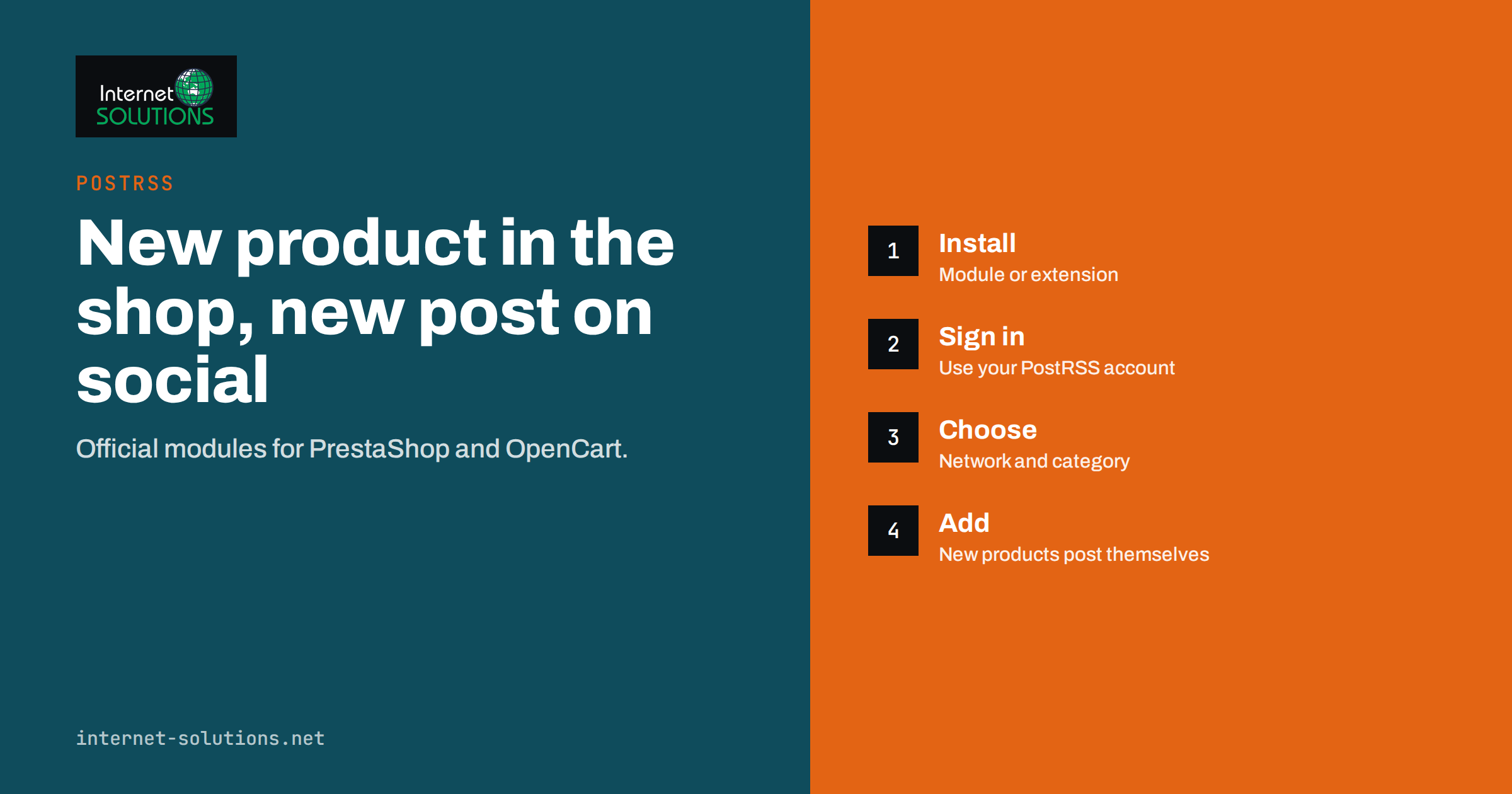
PostRSS for PrestaShop and OpenCart means that a new product in your catalogue can become a social media post without anyone copying a link, writing a caption from scratch or remembering to log in. PostRSS is an RSS auto-posting service that has been running since 2014, and it offers official modules for both platforms: a module for PrestaShop and an extension for OpenCart. Each one builds a products feed for your store and helps you create the posting target from inside the shop’s own back office.
This guide walks through what the modules do, how the setup works on each platform, what to prepare in your catalogue so that posts look good, and how to keep volume under control when you import hundreds of products at once. Every product detail below comes from the live PostRSS integrations and features pages; where a limit depends on your plan, we point you to the pricing page rather than guessing.
Why Product Posts Are Worth Automating
Small online stores usually add products in bursts: a delivery arrives, the owner uploads photographs and prices, and then the day’s real work begins. Announcing the new items on social media is often the first task to be dropped, even though it is one of the cheapest ways to tell existing followers what is new. Done by hand it means opening each product, saving an image, writing a line, pasting the link and repeating the process for every network.
An automated route removes the repetition. The store already knows the name, picture, description and address of every product. A feed packages exactly that information in a standard format, and PostRSS turns each new feed item into a post on the networks you choose. You stay in control of the wording through message formats, filters and schedules, but you no longer type the same facts twice.
Automation does not replace judgement. A catalogue with poor photographs or unclear names will produce poor posts, which is why the preparation section below matters as much as the setup. Our article on auto-posting new stock with PostRSS covers the general approach for any product feed; this guide concentrates on the two official store modules.
What the Modules Do
According to the PostRSS integrations page, the official plugins create the feed and the targets for you, so there is no need to copy feed addresses between systems. For the two store platforms the page describes the following.
| Platform | Type | Compatible versions | Where to find it |
|---|---|---|---|
| PrestaShop | Module | 1.7.6 to 8.x | Back office, Modules, PostRSS |
| OpenCart | Extension (OCMOD zip) | 4.0.2 and newer | Extensions, Installer to upload; then Modules, PostRSS |
In both cases you sign in to your PostRSS account from within the store, choose a network and a category (or all products), and click Add. New products are then posted automatically from the module’s products feed. The OpenCart extension also includes a products RSS feed, available at the route extension/postrss/feed/postrss, which means you can use that address as an ordinary source in PostRSS if you prefer to configure things in the PostRSS web app.
Setting Up the PrestaShop Module
Before you start, confirm that your PrestaShop version is within the supported range, and create a PostRSS account if you do not have one. The Free plan posts to one target, which can be a Facebook Page, a Telegram channel, Bluesky or Mastodon, so you can test the whole chain at no cost. The steps are short.
- Download the module from the PostRSS integrations page and install it through the back office module manager in the usual way.
- Open the module. In the back office go to Modules and choose PostRSS.
- Sign in with your PostRSS account details.
- Choose a network. Pick the destination for the posts, for example a Facebook Page you manage or a Telegram channel. If an account is not yet connected, connect it in the PostRSS web app under Accounts.
- Choose a category or select all products, depending on whether you want every new item or only one range.
- Click Add. The module creates the target, and new products from its feed are posted automatically.
Do a first test with a single new product in a category used only for testing, and check the post on the network. If the text or picture is not what you expected, adjust the message format in the PostRSS web app before you widen the scope to the whole catalogue.
Setting Up the OpenCart Extension
The OpenCart extension follows the same pattern, with one extra step because OpenCart installs extensions from an archive. The integrations page describes the path as Extensions, Installer, upload the OCMOD zip, then Modules, PostRSS. After that the sequence is familiar.
- Upload the OCMOD zip through Extensions and the Installer, and install it.
- Open Modules and choose PostRSS, then sign in with your PostRSS account.
- Choose a network and a category, or all products.
- Click Add to create the target.
Extensions of this kind sometimes need a refresh of the modification cache before changes show, so if the entry does not appear, refresh the modifications list in the OpenCart admin and reload the page. If you only need the feed, you can skip the module sign-in, copy the products feed address and add it as a source in PostRSS yourself.
Prepare the Catalogue Before Posts Go Out
The quality of an automatic post is limited by the quality of the product record. PostRSS takes the picture from the feed item, or from the page’s Open Graph tags, so every post carries a real image. Check these points before you switch automation on for the whole catalogue.
- Main photograph. Use a clean, well-lit image of the actual product, large enough to look sharp on a social network. Our guide to images for RSS auto-posting explains sources, sizes and checks.
- Product name. A clear, specific name reads better in a post than an internal code. Replace titles such as “Item 4471 blue” with something a customer would say.
- Description. The first sentence is often what a post shows. Write it so that it makes sense on its own.
- Price and availability. Make sure a product is not published before its price is entered, because a post that has already gone out has to be removed by hand on the network.
- Page metadata. If a network builds a preview from the page itself, correct Open Graph tags matter; see our Open Graph guide.
Keep unfinished products disabled in the store until they are ready, and check how your store handles them in the feed before you rely on this as a review step.
Control Wording, Volume and Timing
The modules create the target; the rest of the behaviour is set in PostRSS. The features page lists several controls that matter for product posts. You can build each post from the item title, the item description, the page title or your own static text, in nine combinations. You can add UTM parameters, such as utm_source=postrss, to every link so that your analytics shows what each network brought. You can set the order in which items are published, limit the number of posts per update, and, on paid plans, post only within chosen hours or at exact times.
These controls are what keep a bulk import from flooding your followers. If you upload two hundred products on a Monday, you do not want two hundred posts on Monday afternoon. Set a sensible maximum per update and a posting window, and the queue is released at a pace your audience can follow. For the details, read our guides to schedule windows and post limits and to what happens with older feed items.
Keyword filters help when the store has ranges you do not want to promote. You can list keywords to include or exclude for each source, and PostRSS matches them in the item title and description. For example, you might exclude items marked as clearance, or include only a particular brand for one network and a different brand for another.
Choosing Networks for a Store
PostRSS supports 66 networks, but a shop rarely needs more than a few. Think about where your customers already look. A Facebook Page suits stores with an established local audience; remember that PostRSS posts to Pages only, because Meta closed the Groups publishing API in April 2024. Telegram channels suit stores with a loyal group that wants quick updates. Pinterest boards suit visual products. Check the features page for each network’s current status, because some are marked as being tested while their platforms approve the application.
You can connect the same feed to several targets, each with its own settings, so a new product can go to a Facebook Page with a longer caption and to a channel with a short one. Start with one network, learn what works, and add others slowly.
Keep the Store Side Healthy
Automation moves the work from posting to maintenance, so a few routine checks pay off. Update the module when a new version appears, and test it on a copy of the shop first if you run many other extensions. The platforms publish developer documentation that explains how modules and extensions are installed and updated; the PrestaShop developer documentation and the OpenCart documentation are the places to start if something behaves differently after an upgrade.
Also review who has access. The module stores a connection to your PostRSS account, so only trusted administrators should be able to change it. If an employee leaves, remove their back-office access and check which accounts are connected to your PostRSS targets. Finally, write down where each target posts, which category it follows and who approved it. A single page of notes saves hours when a colleague asks why a certain range appears on social media, or when you migrate the store to a new version later.
Check the Results
After the first week, review what went out. The posting history in PostRSS shows what was published, where and when, so you can compare it with your catalogue changes; our guide on auditing the posting history shows how. Look at whether the images are correct, whether links lead to the right product pages and whether the timing matches your plan. Then check your store analytics for visits tagged with your UTM parameters. If a network sends traffic that does not convert, reduce its frequency; if one sends buyers, give it more of your attention.
If you would like help connecting a store to PostRSS or tidying a catalogue before automation starts, see our PostRSS page.
Frequently Asked Questions
Which versions of PrestaShop and OpenCart are supported?
According to the PostRSS integrations page, the PrestaShop module supports versions 1.7.6 to 8.x, and the OpenCart extension supports version 4.0.2 and newer.
Do I have to use the module?
No. The module is a convenience that builds the feed and creates the target. You can also copy a products feed address and add it as a source in the PostRSS web app.
Are the modules free?
The integrations page says that integrations do not cost extra and that you pay only for your PostRSS plan. Check the pricing page for current plan limits.
Can I post only one category of products?
Yes. Both modules let you choose a network and either a category or all products when you add the target.
Will PostRSS post products that already existed before I installed the module?
The module posts new products from its feed. PostRSS also has a catch-up option for older items, with a start date you choose; read how it behaves before enabling it for a large catalogue.
Can I post to Facebook Groups?
No. PostRSS posts to Facebook Pages only, because Meta closed the Groups publishing API in April 2024.
The Bottom Line
The official PrestaShop module and OpenCart extension turn the product records you already maintain into scheduled social posts. Install the module, sign in, choose a network and a category, and click Add. Then prepare your photographs and names, set message formats, limits and windows in PostRSS, and review the posting history after the first week. Start small, test with one category and let the results tell you where to expand.