

 English
 Lietuvių
 Latviešu
 Eesti
Eesti Русский
 Polski
 Українська
 Deutsch
 Italiano
 Español
 Français
 Português
 Čeština
 Magyar
 Română
 Ελληνικά
 Türkçe
 日本語
日本語 العربية
 हिन्दी
 Bahasa Indonesia
 Bahasa Melayu
 ไทย
ไทย Tiếng Việt
 বাংলা
বাংলাRAID Levels Explained: Redundancy, Speed and Why It Is Not a Backup
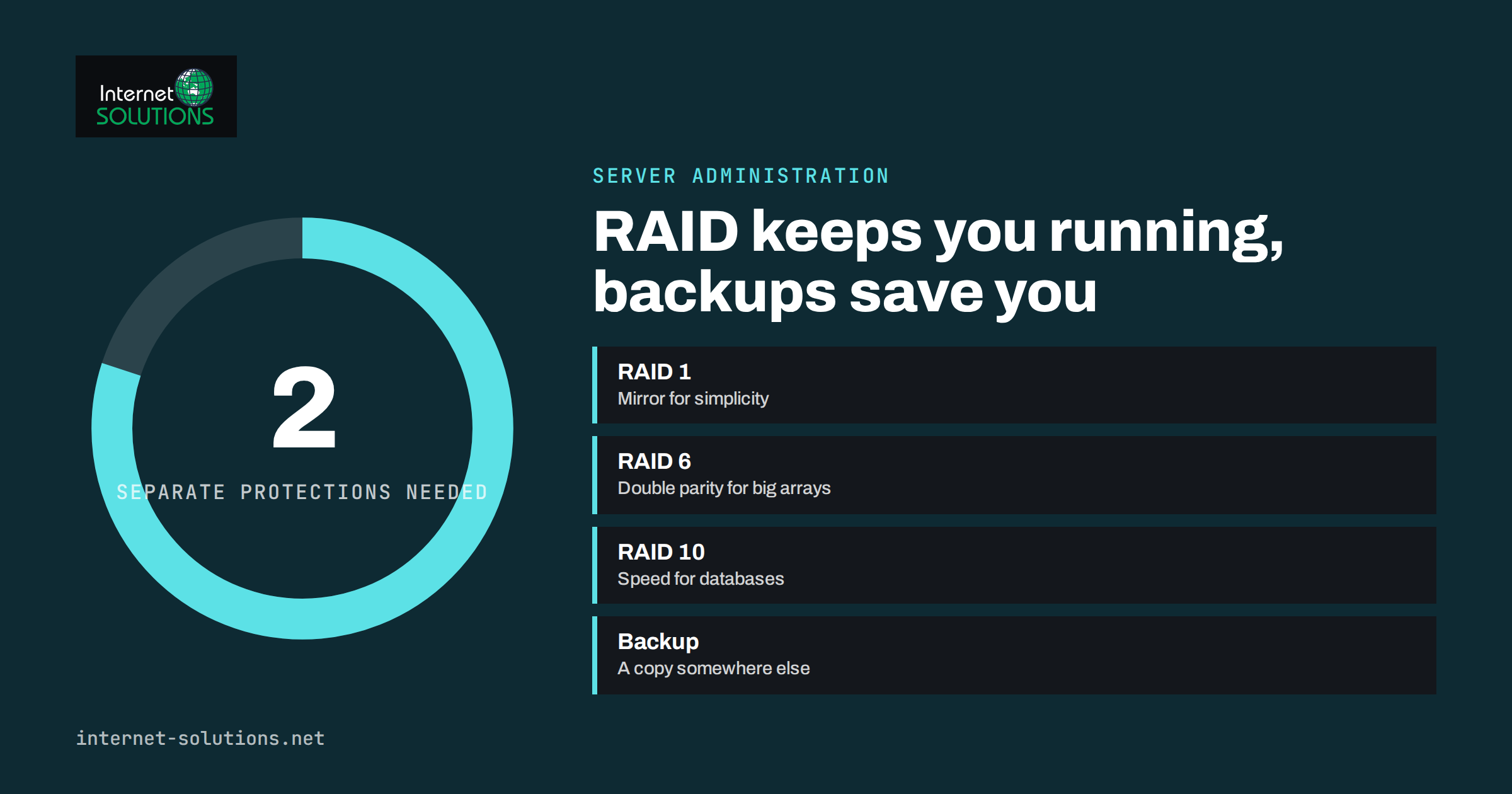
RAID levels are one of those topics that every server owner meets and many misunderstand. RAID, short for redundant array of independent disks, combines several drives so that they act as one volume. Depending on the level you choose, the array can survive the failure of a disk, read and write faster, offer more usable space or some combination of the three. What it cannot do is protect you from deleted files, corrupted data, ransomware, a fire or an administrator’s mistake. That last point is the most important sentence in this article: RAID is not a backup.
This guide explains the common RAID levels in plain language, shows how to compare capacity, speed and risk, covers rebuilds and hot spares, and describes the monitoring and habits that decide whether an array actually saves you when a disk fails. It is written for business owners, developers and administrators who run a file server, a database server or a network storage box and want to choose sensibly instead of by habit.
The Idea Behind RAID
A single disk is a single point of failure. When it dies, the data on it is gone unless you have a copy elsewhere. RAID reduces the chance that one failed disk stops the server by spreading data across several disks in a pattern that allows missing information to be reconstructed. There are three building blocks, and each level is a combination of them.
- Striping splits data into chunks and writes them across several disks in turn. It improves speed and capacity but adds no protection by itself.
- Mirroring writes the same data to two or more disks. If one fails, another has a complete copy.
- Parity stores extra calculated information that allows the array to rebuild the contents of a failed disk from the remaining ones, using less space than a full mirror.
The general overview on Wikipedia lists the standard levels and some less common variants. Vendors also use their own names for similar layouts, so check the documentation before assuming that two products behave identically.
The Common RAID Levels Compared
The table summarises the levels you are most likely to meet. Capacity assumes disks of the same size, and the figures describe how many disk failures the array can survive in the best case, not in every case.
| Level | How it works | Minimum disks | Usable capacity | Failures survived | Typical use |
|---|---|---|---|---|---|
| RAID 0 | Striping only | 2 | All disks | None; one failure loses everything | Scratch space, temporary data, caches |
| RAID 1 | Mirroring | 2 | One disk’s worth | One disk in a pair | Operating system volumes, small servers |
| RAID 5 | Striping with single parity | 3 | Total minus one disk | One disk | File shares and general storage with moderate writes |
| RAID 6 | Striping with double parity | 4 | Total minus two disks | Two disks | Larger arrays, archives, backup repositories |
| RAID 10 | Mirrored pairs that are striped | 4 | Half of the disks | One per mirrored pair, at best | Databases and busy virtual machine hosts |
There are other levels and combinations, such as RAID 50 and RAID 60, and file systems like ZFS offer their own equivalents with mirrors and single-, double- or triple-parity groups. The principles are the same: you trade usable space, write performance and rebuild risk against the number of failures you can tolerate.
Understanding Each Level in Practice
RAID 0: Speed Without Safety
RAID 0 spreads data across disks and offers the highest capacity and speed for the money, but any single disk failure destroys the whole volume. Because the chance of a failure grows with each added disk, an array of four disks is more fragile than one disk. Use it only for data you can recreate quickly, such as render caches or temporary build files.
RAID 1: Simple and Dependable
A mirror of two disks is easy to understand and easy to recover. Reads can be fast because either disk can answer, writes are about as fast as a single disk, and if one disk fails the server keeps running. The cost is that you pay for twice the disk space. For the system volume of a small server, it is often the best choice because it is simple, which means less to go wrong.
RAID 5: Efficient but Showing Its Age
RAID 5 gives good capacity efficiency and survives one failed disk. Its weaknesses are slower small writes, because each write updates parity, and a risky rebuild. During a rebuild, the array reads every remaining disk in full. If a second disk fails, or even a single unreadable sector appears on a surviving disk, the rebuild may fail. With today’s very large disks the rebuild takes many hours or days, which lengthens the window of exposure. Many administrators now avoid RAID 5 for large drives holding important data.
RAID 6: Safer for Large Arrays
RAID 6 stores two parity blocks, so it survives two disks failing at once and tolerates an unreadable sector during rebuild far better. It costs more capacity and write speed than RAID 5, but for arrays of six or more large disks it is generally the safer parity option.
RAID 10: Performance and Fast Recovery
RAID 10 combines mirroring and striping. It performs well on random reads and writes, which is why databases and virtual machine hosts like it, and rebuilding means copying a single mirror partner rather than recalculating from the whole array. The price is that only half the raw capacity is usable. Note that the array survives a second failure only if the second disk belongs to a different mirrored pair.
Why RAID Is Not a Backup
RAID protects against one thing: the loss of a disk. A backup protects against everything else. The difference becomes clear when you list the ways data is really lost.
- Human error: a deleted folder is deleted on every disk in the array at the same instant.
- Software faults and corruption: a bad update, a failing controller or a faulty file system writes damage to all copies.
- Ransomware and malicious changes: encrypted files are faithfully mirrored or striped.
- Physical events: fire, flood, theft or a power surge can destroy every disk in the server together.
- Multiple failures: disks from the same batch with the same age sometimes fail close together.
A proper backup is a separate copy, stored somewhere else, with several versions and tested restores. Our guides to uptime, backups and monitoring and to a disaster recovery plan explain how to set that up. Treat RAID as a way of keeping the server running during a hardware fault and backups as the way of recovering from everything else.
Hardware RAID, Software RAID and Modern File Systems
RAID can be built by a dedicated controller card, by the operating system or by the file system. Each approach has strengths.
- Hardware RAID uses a controller with its own processor and often a cache protected by a battery or flash module. It can be fast and simple to manage from the controller’s tool, but the array may depend on that model of controller. If it fails, you may need an identical or compatible card to read the disks again.
- Software RAID is built into the operating system. On Linux, the md driver and its mdadm tool are widely used. Software arrays are portable between machines and cheap, and modern processors handle the workload easily.
- File-system-level redundancy, as in ZFS or Btrfs, combines the volume manager and the file system. These systems add checksums that detect silent corruption and repair it from a good copy, something classic RAID cannot do on its own.
Whichever you choose, document it. Write down the level, the disks and their serial numbers, the controller model, the configuration backup and the steps to replace a disk. Our article on IT documentation for small businesses lists what else belongs in that record.
Rebuilds, Hot Spares and the Window of Risk
When a disk fails, the array runs in a degraded state. It still works, but it has lost its safety margin, and performance usually drops. The array becomes safe again only when the replacement disk has been rebuilt. That period is the most dangerous part of a RAID array’s life, so the aim is to make it short.
- Hot spares: a spare disk installed in advance starts rebuilding automatically, shortening exposure compared with waiting for someone to notice and fetch a new drive.
- Disk size and level: bigger disks and parity levels take longer to rebuild. Mirrors rebuild fastest.
- Mixed batches: buy disks in staggered batches or from different production runs, so they do not all wear out together.
- Regular scrubbing: a periodic read of the whole array finds unreadable sectors while redundancy is still intact, rather than during a rebuild.
- Spare capacity: keep the array well below full, because a nearly full array rebuilds and performs worse.
Monitoring: A Failed Disk Nobody Notices
The most common real-world RAID disaster is not that a second disk dies during a rebuild, but that the first one failed weeks ago and nobody noticed. The server kept running, no one looked at the controller, and the second failure took the data with it. Monitoring turns RAID from a hidden risk into a managed one.
- Send alerts by email or messaging when an array becomes degraded, when a disk reports errors and when a rebuild starts and ends.
- Collect disk health data, such as SMART attributes for reallocated or pending sectors, and set thresholds for warnings.
- Test the alert path by checking that a simulated alarm reaches a real person.
- Keep a labelled spare disk and the tools to replace it, and write a short runbook.
- Review the array status at least monthly, even if no alerts arrived.
Our guide to server monitoring alerts explains how to choose alerts that matter without drowning in noise. If you run servers for your business and would rather not carry this responsibility alone, our server administration service covers setup, monitoring and recovery planning.
Choosing a Level: Practical Guidance
There is no single best level, only a best fit for the workload and the risk you accept. These rules of thumb help.
- Small server, system disk: RAID 1 with two disks is simple and reliable.
- Database or virtual machines with many small writes: RAID 10, preferably on SSDs, accepting the capacity cost.
- Large file storage or archive: RAID 6, or the equivalent double-parity design, with a hot spare.
- Anything holding data you cannot lose: any level plus independent, tested backups kept off the server.
- Temporary or reproducible data: RAID 0 is acceptable if losing it costs nothing but time.
Also remember that SSDs change the equation slightly: they wear out through write volume rather than moving parts, and identical SSDs in the same array can reach their endurance limits at similar times. Monitor wear indicators and plan replacements before they fail.
What to Do When a Disk Fails
- Do not panic and do not pull disks at random. Identify which disk failed from the controller or operating system, and confirm its physical slot.
- Check that your latest backup is recent and readable before you touch the array. If anything goes wrong during the rebuild, you will need it.
- Replace the failed disk with one of equal or greater size, following the vendor’s instructions, and start the rebuild.
- Watch the rebuild, keep the server’s load low if possible and look for errors on the other disks.
- When the array is healthy again, review why the disk failed, check the remaining disks’ ages and update your records.
If an array collapses and data is unreachable, stop writing to the disks and read our advice on what to do first after a drive failure. Continued attempts to rebuild can make recovery harder.
Frequently Asked Questions
Is RAID 1 a backup because the data is on two disks?
No. A mirror copies every change immediately, including deletions and corruption. It protects against a failed disk, not against mistakes, malware or loss of the whole machine.
Which RAID level is the fastest?
RAID 0 is fastest but has no protection. Among redundant levels, RAID 10 usually performs best for mixed and random workloads, while RAID 5 and 6 are slower for small writes because of parity calculations.
Is RAID 5 still safe to use?
It can be acceptable for small arrays of modest disks with good backups, but rebuilds on large disks are risky. For large disks holding valuable data, RAID 6 or RAID 10 is usually a better choice.
Do I need RAID if I have good backups?
Backups protect your data, while RAID keeps the server available when a disk fails. Many businesses want both, because restoring from backup takes time and RAID can avoid that downtime.
Can I mix disk sizes in an array?
Most traditional arrays use the capacity of the smallest disk for every member, wasting the extra space. Some file systems and storage products handle mixed sizes better, but mixing makes planning harder.
How often should I test a RAID array?
Check status monthly, scrub the array on a regular schedule and rehearse a disk replacement at least once, ideally on a test machine, so that the real event is not your first attempt.
The Bottom Line
RAID levels trade capacity, speed and risk, and choosing among them is a matter of matching the workload: mirrors for simplicity, RAID 10 for busy databases, double parity for large arrays and striping only for disposable data. Whatever you pick, monitor it, keep spares, document the steps and never confuse redundancy with backup. A tested copy of your data stored somewhere else is what saves a business when the array itself is not enough.