

 English
 Lietuvių
 Latviešu
 Eesti
Eesti Русский
 Polski
 Українська
 Deutsch
 Italiano
 Español
 Français
 Português
 Čeština
 Magyar
 Română
 Ελληνικά
 Türkçe
 日本語
日本語 العربية
 हिन्दी
 Bahasa Indonesia
 Bahasa Melayu
 ไทย
ไทย Tiếng Việt
 বাংলা
বাংলাSlow Computer Troubleshooting: A Checklist to Run Before You Call IT
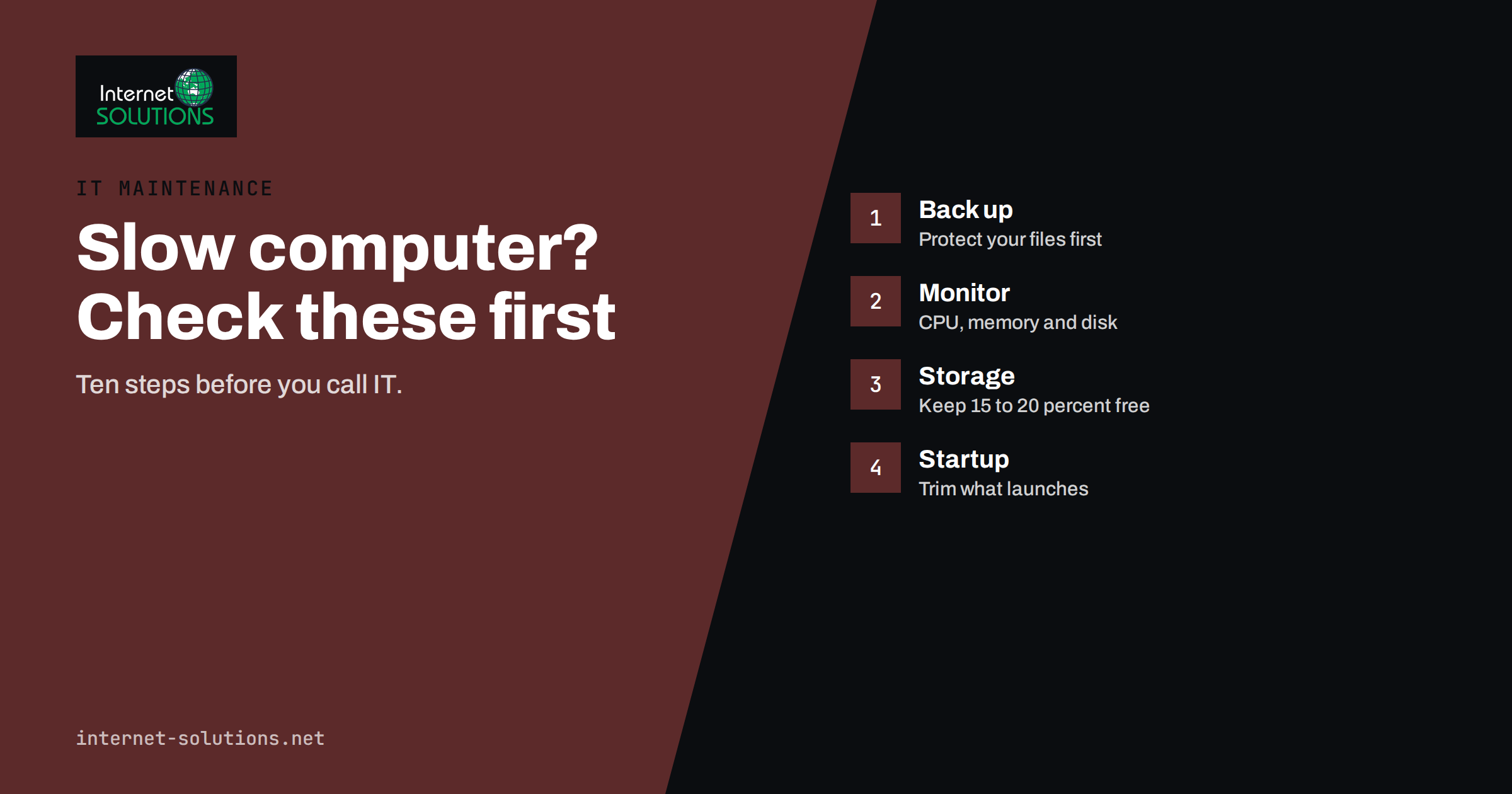
Slow computer troubleshooting is one of the most common requests that reach any IT support desk, and one of the most misdiagnosed. People assume the machine is “old” and start shopping for a replacement, or they blame a virus after a single freeze. In reality, most slowdowns come from a short list of causes: too little free storage, too many programs starting with the system, a nearly full memory, a failing drive, overheating, outdated software or a browser buried under extensions. Many of these can be checked in ten minutes without special tools.
This guide gives you a structured checklist to run before you call IT or a technician. It works for Windows and Mac laptops and desktops, explains what each symptom usually means and shows which findings are signs that you need professional help. It will not replace a proper repair, but it will save time, avoid unnecessary spending and give a technician better information if you do need one. For hands-on assistance, see our computer repair service.
Step 0: Protect Your Data Before You Troubleshoot
Before changing anything, make sure the important files exist somewhere else. A slow computer can be an early sign of a failing drive, and troubleshooting steps that stress the drive can bring a failure forward. If you do not have a recent backup, copy your critical documents to an external drive or a cloud folder first. If the computer already makes clicking noises, shows disk errors or refuses to start, stop and read our guide to what to do first after a drive failure instead of running further tests.
Step 1: Describe the Problem Precisely
“It is slow” can mean several different things, and each points to a different cause. Spend two minutes noting the following.
- When is it slow? Only at startup, only after hours of use, only in one program, or all the time?
- What exactly is slow? Starting up, opening files, switching windows, loading websites or video calls?
- Did it change suddenly? A sudden change after an update, a new program or a power cut suggests a specific cause. A gradual change over months points to accumulation.
- Is it one computer or everyone? If several devices on the same network are slow, the network or an online service may be at fault, not the computer.
A quick test separates the computer from the network: open a large local file or program. If it is slow without using the internet, the computer is the problem. If only websites and online tools are slow, check Wi-Fi, the router and the service itself.
Step 2: Restart Properly
This sounds trivial, but many machines have not been fully restarted for weeks. Sleep and hibernate do not clear everything, and memory leaks, stuck processes and pending updates accumulate. Do a full shutdown and start. On Windows, “Fast startup” can keep part of the previous session alive, so choose restart rather than shut down and power on. If the machine becomes fast for a day and slow again, the cause is usually something that grows over time, such as a leaking program, a browser with dozens of tabs or a background sync.
Step 3: Look at What Is Using the Machine
Open the built-in monitor: Task Manager on Windows (Ctrl+Shift+Esc) or Activity Monitor on a Mac. Sort by CPU, memory and disk, and watch for a minute while the computer is slow.
| What you see | Likely cause | What to do |
|---|---|---|
| CPU constantly near 100 percent | A runaway program, a scan, an update or malware | Identify the process, close or update the program, run a security scan |
| Memory almost full | Too many programs or browser tabs, a leak, too little RAM | Close heavy apps, restart, consider adding RAM |
| Disk at or near 100 percent | Updates, indexing, antivirus scans, or a failing or slow drive | Wait for background tasks, then check drive health and type |
| Low usage everywhere, yet slow | Overheating, power settings, slow network or a specific faulty app | Check temperatures, power mode and the network |
| One program at the top every time | That program is the cause | Update, repair, reinstall or replace it |
Do not close processes you do not recognize in a panic. Search for the process name first. System processes are essential, and ending them can cause crashes or data loss. If you want deeper visibility on Windows, Microsoft’s Process Explorer shows which program owns each process.
Step 4: Check Free Storage
A drive that is almost full slows everything down, because the operating system needs free space for temporary files, updates and virtual memory. As a rule of thumb, keep at least 15 to 20 percent of the drive free, and more on small drives. On Windows, the storage settings show what uses the space. Microsoft documents how to free up drive space. On a Mac, storage management lists large files and categories.
- Empty the downloads folder and the recycle bin or trash.
- Remove programs you no longer use.
- Move large photo, video and archive folders to an external or cloud location, after checking that the copy is complete.
- Clear temporary files and old update caches using the built-in cleanup tools.
- Check for duplicate folders, such as several copies of virtual machines or old backups stored on the same drive.
Step 5: Reduce What Starts With the Computer
Many programs add themselves to startup: chat apps, cloud storage clients, updaters, printer utilities and manufacturer tools. Each uses memory and processor time and delays the moment when the machine is usable. Open the startup list (Task Manager on Windows, login items on a Mac) and disable items that you do not need immediately. Keep security software and essential drivers. You can always start the others manually when needed. If you are unsure about an item, search for its name before disabling it.
Step 6: Tidy the Browser
For many office workers, the browser is the heaviest program on the computer. Dozens of open tabs, video calls, web apps and extensions use large amounts of memory.
- Close tabs you are not using, or use a tab-sleeping feature if your browser offers one.
- Remove extensions that you do not recognize or no longer use. Extensions are also a common source of unwanted behaviour.
- Update the browser to the latest version.
- Test with a fresh profile or a private window. If the slowness disappears, the profile or an extension is the cause.
- Check which tab uses the most resources through the browser’s own task manager.
Step 7: Update the System, Drivers and Applications
Outdated software can cause slowdowns, crashes and security holes. Install pending operating system updates, then check the manufacturer’s update tool for graphics, storage and chipset drivers. Update applications that are heavily used, such as office suites, accounting software and design tools. Do this at a quiet time, because updates themselves temporarily use a lot of resources. If the problem started right after an update, note the date and the name of the update, because a technician may be able to roll it back or apply a fix.
Step 8: Scan for Malware and Unwanted Software
Malware, adware and cryptocurrency miners can use processor power and network bandwidth in the background. Run a full scan with the security software that is built into your system or that your company uses. Avoid installing several “cleaner” or “optimizer” tools: they are frequently unnecessary, sometimes unwanted programs themselves and can make things worse. If you suspect a real infection, such as unknown programs, pop-ups, redirects or locked files, disconnect from the network and ask for help. Our overview of when to call a technician helps decide when it is time to escalate.
Step 9: Check Heat, Dust and Power Settings
Computers slow themselves down when they get too hot, a protection called thermal throttling. Signs include a loud fan, a very hot underside on a laptop and performance that drops after several minutes of work. Place the device on a hard surface, make sure vents are free and clean dust from the vents with compressed air if you are comfortable doing so with the device powered off. On desktops, dust inside the case and a failed fan are common reasons. Also check the power mode: a laptop set to a battery saver mode will deliberately limit performance, and an old battery that cannot deliver peak power can lead to throttling.
Step 10: Check the Drive and System Files
If the earlier steps did not help, look deeper. On Windows, the System File Checker can detect and repair damaged system files; Microsoft documents the sfc command. Check the drive’s health status using the manufacturer’s tool or the system’s disk utility, and note any warnings. If the computer still uses a traditional hard disk, the single most effective upgrade is usually replacing it with a solid-state drive. Many machines that feel “too old” become pleasant to use again with an SSD and enough memory. Weigh this against the machine’s age and condition, as covered in our article on the computer replacement cycle.
When to Stop and Call for Help
Some findings mean that further do-it-yourself work is not worth the risk.
- The drive shows errors, makes unusual noises or reports failing health.
- The machine restarts or shuts down by itself, which can mean power or heat problems.
- You see signs of an infection that antivirus cannot remove.
- The device is a work computer containing sensitive data and the cause is unclear.
- You have tried the steps above and the symptoms remain.
When you contact support, bring the notes from Step 1, the results from the monitor in Step 3, the free space and any warning messages. That information makes the diagnosis much faster. You can contact us for help with repairs, upgrades or managed support.
Frequently Asked Questions
Why is my computer suddenly so slow?
Sudden slowness usually has a specific trigger: an update, a new program, a nearly full drive, a background scan, overheating or malware. Check the resource monitor to see which part of the system is under pressure, and note what changed recently.
Will adding more RAM make my computer faster?
It helps if memory is regularly almost full in the monitor and the computer starts using the drive as extra memory. If memory use is low, extra RAM will make no difference. Replacing a hard disk with an SSD is often a larger improvement than adding RAM.
Are registry cleaners and speed boosters worth using?
Generally no. Their benefit is small, and some are unwanted software. Use the built-in cleanup tools, remove programs you do not need and keep the system updated.
How much free space should I keep on my drive?
Aim for at least 15 to 20 percent free. Systems need working space for updates, temporary files and virtual memory, and performance can drop sharply when a drive is nearly full.
Can a slow computer be a sign of a virus?
Yes, but it is far from the only cause. If the slowdown comes with unknown programs, pop-ups, high network activity when idle or changed browser settings, run a full scan and ask for help. Otherwise check storage, startup items and the browser first.
Is it better to repair or replace a slow computer?
It depends on age, condition and cost. If the machine is only a few years old and the fault is storage, memory or software, repair or upgrade is usually sensible. If it is very old, unsupported by the manufacturer or needs several expensive repairs, replacement is usually better value.
The Bottom Line
Good slow computer troubleshooting starts with data, not guesses. Back up first, describe the problem precisely, restart fully and look at what the system is actually using. Free up storage, trim the startup list, tidy the browser, update the software and scan for unwanted programs. Check for heat and power limits, then look at the drive and system files. If you find signs of drive failure, repeated shutdowns or infection, stop and ask for help. Working through this checklist solves a large share of problems on its own and, when it does not, gives a technician the clear information needed to fix the issue quickly.