

 English
 Lietuvių
 Latviešu
 Eesti
 Русский
 Polski
 Українська
 Deutsch
 Italiano
 Español
 Français
 Português
 Čeština
 Magyar
 Română
 Ελληνικά
 Türkçe
 日本語
 العربية
 हिन्दी
 Bahasa Indonesia
 Bahasa Melayu
 ไทย
 Tiếng Việt
 বাংলা
Small Office Firewall: Rules, Updates and Remote Access
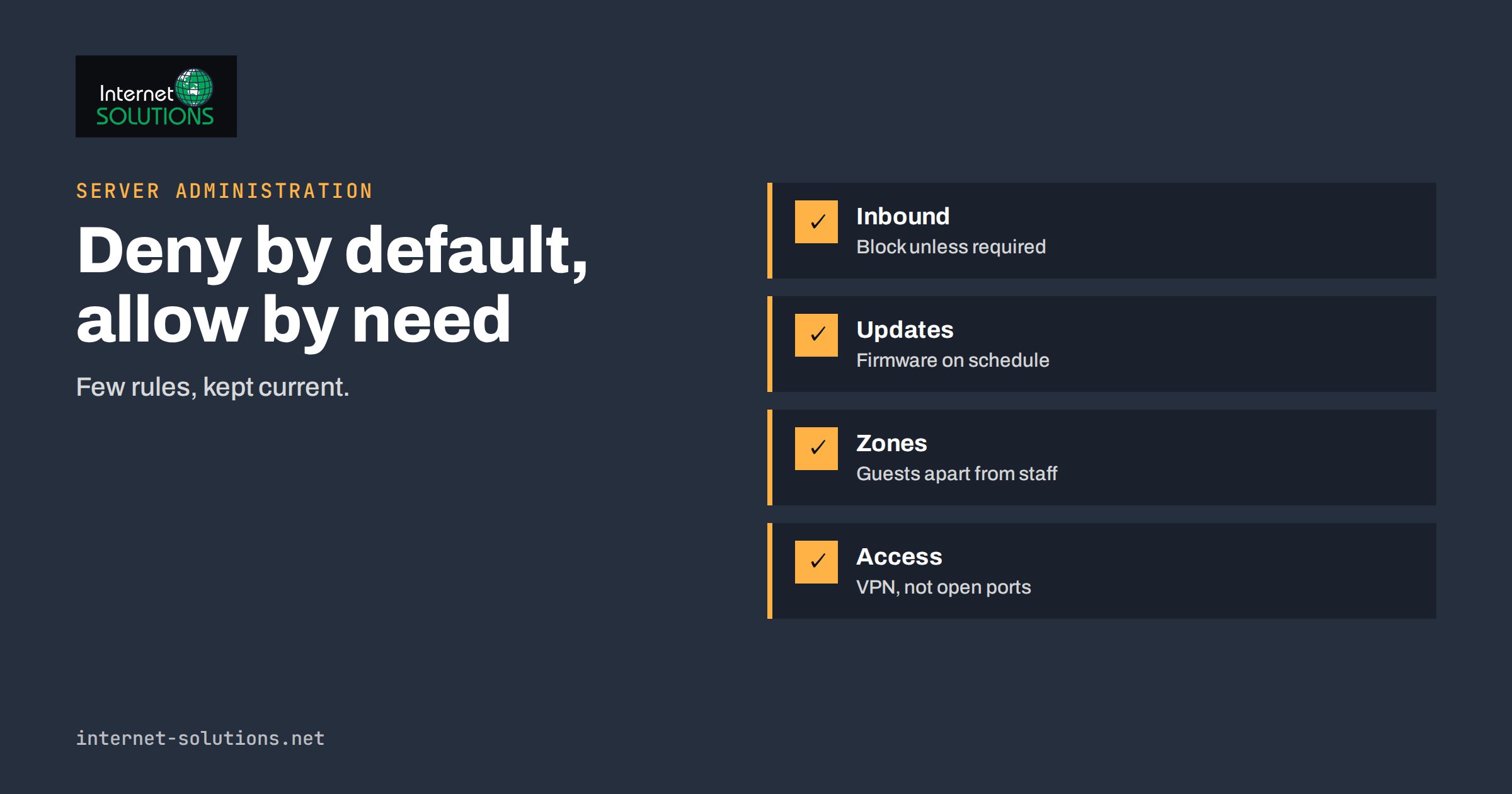
A small office firewall is the device or software that stands between your internal network and the internet and decides which traffic may pass. It is easy to ignore, because when it works nothing seems to happen. When it is missing, misconfigured or years out of date, however, it becomes the weak point through which attackers scan, guess passwords and reach computers, printers, cameras and file servers that were never meant to be public. This guide explains what a firewall does in a small office, how to choose one, which rules to set, how to keep it updated, how to separate guests and devices and how to allow remote access without opening doors that should stay shut.
It is written for owners and office managers who are responsible for a network of five to fifty people and may not have a full-time IT specialist. It is general guidance, and the exact menus differ between products, so use the manufacturer’s documentation for details.
What a Firewall Actually Does
A firewall inspects network traffic and applies rules. At its simplest, it keeps a list of what is allowed and blocks the rest. Modern firewalls do more.
- Stateful filtering. The firewall remembers connections that started from inside, so replies are allowed back, and unsolicited connections from outside are dropped by default.
- Network address translation. Many devices share one public address, and the internal addresses stay hidden.
- Segmentation. Different parts of the network, such as staff, guests, cameras and servers, can be separated and given different rules.
- Application and content controls. Some firewalls identify applications, block categories of websites or scan for known threats. These features often need a subscription and regular updates.
- VPN and remote access. Many firewalls can host secure tunnels for staff who work from home or travel.
- Logging. They record what was blocked and allowed, which helps to investigate problems.
The router from your internet provider usually contains a basic firewall, but it often lacks the segmentation, logging, update policy and control that a business needs. For a general reference on how firewalls work, see NIST’s Guidelines on Firewalls and Firewall Policy, and the UK National Cyber Security Centre’s small business guide for practical basics.
Choosing a Firewall for a Small Office
The right choice depends on size, budget and skill. Consider these questions before buying.
- How many people and how much traffic? A firewall must handle your internet speed with the security features switched on. Many devices quote their maximum speed with all inspection turned off, which is not the real figure.
- Who will manage it? A device with a clear interface, good documentation and a vendor that publishes updates regularly is better than a complicated one nobody understands.
- What features do you need? A VPN, separate networks for guests and devices, reporting and email alerts are common needs. Advanced threat inspection may not be essential for every office.
- What is the support and update policy? Check how long the manufacturer provides security updates for the model, and what subscriptions cost, if any.
- Hardware, virtual or cloud-managed? A physical appliance is the usual choice for an office. Cloud-managed devices simplify remote administration and monitoring. Software firewalls on servers and laptops are valuable additional layers, not replacements.
Avoid buying the cheapest consumer router and treating it as a business firewall. Equally, avoid oversized systems that nobody has time to configure, because an unconfigured expensive device protects less than a well-configured simple one.
Rules That Matter: Deny by Default
The key principle is to block everything that is not needed and to allow what you can explain. A good rule set for a small office is short.
- Inbound: block by default. No connection from the internet to your internal network should be accepted unless there is a specific, documented reason, such as a public web server in its own zone.
- Outbound: allow what staff need. Web, email and the business applications in use. Stricter control, such as blocking uncommon ports, can reduce the damage if a machine is infected, and it needs more care because it may break legitimate programs.
- Internal: separate by purpose. Guests cannot reach staff machines. Printers and cameras cannot start connections to the internet unless they must. Servers accept connections only from the clients that need them.
- Administration: restricted. The firewall’s management page should not be reachable from the internet, and should require strong passwords and multi-factor authentication where supported.
- Logging on. Keep logs long enough to investigate, and check them from time to time.
Write down every rule you add with the reason and the date. Rules that nobody can explain a year later tend to remain forever and slowly widen the exposure. A review twice a year, removing unused rules, keeps the list honest.
Keeping the Firewall Updated
A firewall is a computer, and like any computer it has vulnerabilities that are fixed in firmware updates. Attackers routinely exploit unpatched network devices, because they are exposed to the internet by design. Updating is therefore part of the job, not an optional extra.
- Record the model, the firmware version and the support end date in your asset list. Our guide to IT asset inventory shows how to keep it.
- Subscribe to the manufacturer’s security notices or check the support page monthly.
- Apply security updates promptly, after a quick backup of the configuration. Plan a time outside working hours, because a firewall restart interrupts the connection.
- Replace devices that no longer receive updates. An unsupported firewall is a liability.
- Turn off services you do not use, such as remote management over the internet or old protocols.
Back up the configuration after every change, and keep the file in a safe place. A device that fails without a backup can take a day to rebuild, while one with a backup takes minutes.
Segment the Network: Staff, Guests and Devices
A flat network, where every device can talk to every other, lets an infection or an intruder move freely. Segmentation limits that. A small office can start with three or four zones.
| Zone | Devices | Can reach | Typical restrictions |
|---|---|---|---|
| Staff | Laptops and desktops | Internet, file server, printers | No access to guest or camera zones |
| Servers | File server, NAS, application servers | Limited outbound access for updates | Inbound only from staff on needed ports |
| Guests | Visitors’ phones and laptops | Internet only | No access to any internal zone |
| Devices | Printers, cameras, door controllers | Only what they must, such as the server for scans | No general internet access where possible |
| Management | Firewall, switches, access points | Administrators only | Strong authentication, no internet exposure |
Our guide to small business network setup explains the equipment for guest Wi-Fi and separate networks, and the article on office Wi-Fi troubleshooting helps when coverage is the problem.
Remote Access Without Opening Ports
Staff working from home need to reach files and applications. The tempting shortcut is to open a port on the firewall and point it to a computer or server, such as remote desktop. This is one of the most common routes into small networks, because exposed services are scanned constantly and attacked with stolen or guessed passwords.
- Use a VPN terminated on the firewall or a dedicated server, with multi-factor authentication and individual accounts. Our guide to VPN and secure remote access for small teams compares the options.
- Consider zero-trust or cloud access tools that connect outbound from the office, so that no inbound port is needed.
- Never expose remote desktop directly. If a service must be public, place it in a separate zone with strong controls and monitoring.
- Limit who can connect and to what. Remote users should reach only the systems they need.
- Remove access when people leave. The offboarding checklist should include VPN accounts and keys.
Monitoring and Alerts
A firewall that nobody watches still helps, but monitoring turns it into an early warning system. Enable email or app alerts for important events: failed administrator logins, configuration changes, firmware updates available, VPN connections from unusual countries and repeated blocked attempts to a particular service. Review a weekly summary, and look for patterns such as one internal device making many unusual outbound connection attempts, which can indicate an infection. Do not drown in alerts: pick a short list that you will really read. If the volume is too high, adjust thresholds rather than ignoring the messages. Our guide to server monitoring alerts describes how to avoid alert fatigue, and the principles are the same for network devices.
Firewall Is Not the Whole Defence
A firewall protects the perimeter, but most successful attacks today arrive through the front door: a phishing email, a stolen password or an infected download that the user runs from inside. The firewall cannot judge that. Combine it with updated devices, antivirus or endpoint protection, multi-factor authentication, backups and training. Treat it as one layer, and see our server security hardening basics for the server side. If you prefer to have a specialist take care of configuration and monitoring, our server administration service covers firewalls and network security for small businesses.
Testing That the Rules Work
A rule that exists on paper is not proof of protection. After setting up or changing the firewall, test it. From a guest device, try to reach a staff computer or the file server and confirm that the attempt fails. From outside the office network, for example from a mobile connection, check that no unexpected services respond on your public address; reputable online port-scanning tools can help, but only scan addresses that you own. Confirm that a VPN user can reach exactly what they should and nothing else. Write the results next to the rules, and repeat the tests after each firmware update, since upgrades occasionally reset settings.
A Worked Example
A ten-person accounting practice uses the router supplied by its internet provider. A consultant suggests a review. The office manager finds that remote desktop is open to the internet through a port forwarding rule created years ago, that the guest Wi-Fi and staff share a network, that the router firmware is three years old and that nobody knows the administrator password.
The practice buys a small business firewall with a VPN and separate network zones. A technician configures zones for staff, guests, the file server and printers, sets inbound traffic to deny by default, removes the remote desktop rule, installs VPN accounts with two-step sign-in and enables alerts for failed logins. The configuration is backed up, the model and firmware version are recorded, and an update is scheduled each quarter. During the next month, the logs show hundreds of blocked attempts against the old remote desktop port, a reminder of what had been exposed. The manager adds a twice-yearly review of rules to her calendar.
Common Mistakes
- Leaving the default administrator password or an old shared one.
- Opening ports for convenience and forgetting them.
- Running outdated firmware or a model that no longer receives updates.
- Putting guests, staff and devices on one flat network.
- Exposing the management page to the internet.
- Skipping configuration backups.
- Treating the firewall as the only security measure.
Frequently Asked Questions
Is the router from my internet provider enough?
For a tiny office it may offer basic protection, but it usually lacks segmentation, logging and a clear update policy. A business firewall gives more control and visibility.
How often should I update the firewall?
Apply security updates as soon as practical after they are released, and check at least monthly. Replace models that no longer receive updates.
Do I need a subscription?
Not always. Basic filtering and VPN often work without one, while advanced threat inspection usually needs a subscription. Choose features you will really use.
Can I allow remote desktop through the firewall?
It is better not to expose it directly. Use a VPN or a secure access service with multi-factor authentication, and let staff connect through that.
What is the minimum network separation I should have?
Separate guests from staff as a minimum, and put printers, cameras and other devices in their own zone if your equipment allows it.
Who should manage the firewall?
Someone with clear responsibility and the skills, whether a staff member trained for the task or an external IT provider. Document the setup either way.
The Bottom Line
A small office firewall protects the network only if it is chosen sensibly, configured with deny-by-default rules and kept up to date. Separate guests, staff, servers and devices, avoid opening ports and use a VPN with multi-factor authentication for remote access. Back up the configuration, record the firmware and support dates, review rules twice a year and watch a short list of alerts. The firewall is one layer in a wider defence, but a well-managed one removes a large share of avoidable risk at modest cost.