

 English
 Lietuvių
 Latviešu
 Eesti
Eesti Русский
 Polski
 Українська
 Deutsch
 Italiano
 Español
 Français
 Português
 Čeština
 Magyar
 Română
 Ελληνικά
 Türkçe
 日本語
日本語 العربية
 हिन्दी
 Bahasa Indonesia
 Bahasa Melayu
 ไทย
ไทย Tiếng Việt
 বাংলা
বাংলাWebsite Maintenance Plan: What to Check Weekly, Monthly and Quarterly
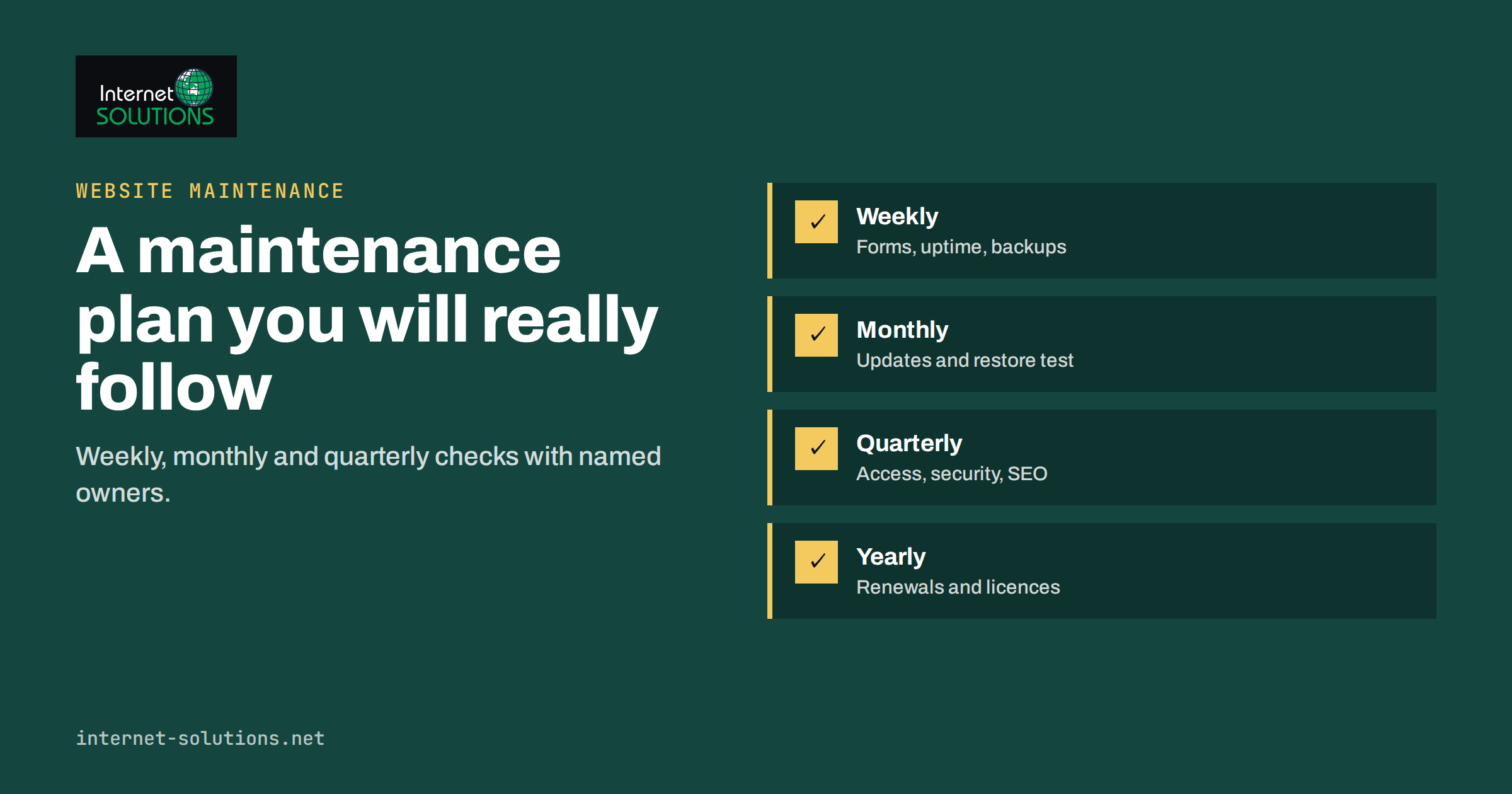
A website maintenance plan is a written schedule of the checks and updates that keep a site secure, fast and working. Most business websites are not abandoned on purpose. They drift: a plugin goes months without an update, a backup silently fails, a contact form stops sending mail, an SSL certificate expires on a Saturday. Each problem is small on its own, but together they cause outages, lost enquiries, security incidents and slow decline in search results.
This guide gives you a practical routine you can follow weekly, monthly and quarterly, explains who should do what, and shows how to document the work so that it survives staff changes. It is written for owners and managers who run a company website, and for the people who look after it. If you would rather hand the routine to a team, our IT maintenance service covers it.
Why a Written Plan Beats Good Intentions
Without a plan, maintenance happens when something breaks, which is the most expensive time to do it. A plan changes the pattern in three ways.
- Problems are found while they are small. A failed backup noticed on Monday costs a few minutes. The same failure noticed after a hack costs days.
- Responsibility is clear. When “someone” is supposed to check the site, nobody does. A plan names an owner and a deputy for each task.
- Work can be measured. A checklist with dates shows what was done, what was skipped and how long things take, which helps with budgeting and with decisions about outsourcing.
The plan does not have to be complicated. A one-page document or a shared spreadsheet is enough, as long as the tasks are specific and are really carried out.
Start With an Inventory
Before you schedule anything, list what you actually maintain. Many problems start with assets that nobody remembers.
- Domain and DNS. Registrar, renewal date, who owns the account and where DNS is managed.
- Hosting. Provider, plan, server type, access details and the contact for support.
- Platform and version. The content management system, its version and the PHP version, plus any custom code.
- Plugins, themes and extensions. Names, versions, purpose and whether each is still needed. Remove what you do not use.
- Third-party services. Email delivery, payment providers, analytics, chat widgets, tag managers and any scripts loaded from other domains.
- Accounts and access. Who has administrator rights, with which role and with which authentication method.
- Backups. What is backed up, how often, where it is stored and how it is restored.
Keep the inventory in a place that more than one person can reach, and store passwords in a password manager, not in the document.
The Weekly Checks (15 to 30 Minutes)
Weekly tasks are quick and focus on whether the site is up, secure and doing its main job.
- Open the site as a visitor. Load the home page, a service page and the contact page on a phone and a computer. Look for layout problems, missing images and error messages.
- Test the main conversion path. Submit the contact form, place a test order or request a quote, and confirm the notification arrives in the right inbox and not in spam.
- Review uptime and alerts. Check the monitoring tool for outages, slow periods and certificate warnings. Our guide to uptime, backups and monitoring explains what to track.
- Confirm the latest backup. Check that a recent backup finished successfully and that its size looks normal. A backup that is suddenly tiny or missing is a warning.
- Apply critical security updates. If a core, plugin or theme update fixes a known vulnerability, install it promptly after a quick test. See the notes on staging in the next section.
- Moderate comments and form spam. Remove junk and check that the spam filter is not blocking real enquiries.
- Scan the logs or security dashboard. Look for repeated failed logins, unexpected new administrator accounts or unusual spikes in traffic.
The Monthly Checks (1 to 3 Hours)
Monthly tasks go deeper into updates, performance and content.
- Update everything in a controlled way. Apply core, plugin, theme and library updates. Make a backup first, apply the updates on a staging copy if the site is important, test the key pages, then update the live site. Our article on patch management describes a safe order of work.
- Remove what you do not need. Delete unused plugins, themes and old user accounts. Each extra component is a possible entry point for attackers.
- Test a restore. Restore a backup to a test location and confirm that the site loads and the database is intact. A backup that has never been restored is only a hope.
- Check speed. Run a performance test on the home page and one heavy page, and compare with last month. Look at image sizes, caching and third-party scripts.
- Find broken links. Crawl the site for 404 errors and redirect chains, and fix links that matter.
- Review search and traffic data. Look at Search Console for new errors, indexing problems and falling pages, and at analytics for pages with unusual drops.
- Check email deliverability. Send a test from the site and confirm that SPF, DKIM and DMARC still pass.
- Update content that has gone stale. Opening hours, prices, team pages, legal notices and product availability should be accurate.
The Quarterly Checks (Half a Day)
Quarterly tasks look at the bigger picture and at risks that change slowly.
- Audit user accounts and permissions. Remove former staff and contractors, check roles and make sure everyone with administrative access uses multi-factor authentication.
- Review the inventory. Confirm versions, renewal dates and ownership of domains, certificates, licences and subscriptions.
- Check platform and PHP versions. Make sure the server is running a supported version of PHP and the database, and plan upgrades before support ends.
- Run a security review. Scan for malware, check file permissions, review firewall rules and look at the open ports and services on the server.
- Do a technical SEO check. Review the sitemap, robots.txt, canonical tags, structured data and mobile usability, and fix recurring issues.
- Test accessibility and usability. Navigate with a keyboard, test forms with a screen reader and check contrast on key pages.
- Review analytics goals. Confirm that conversion tracking still fires after changes to forms, checkout or the tag setup.
- Run a recovery drill. Practice the steps you would follow if the site were down: who is called, where the backups are, how DNS is changed. Your answers should be written down.
Yearly Tasks
Some jobs only appear once a year, but forgetting them can be costly. Renew domains and certificates well ahead of expiry, review your hosting plan against your traffic and growth, update the privacy policy and cookie notices, check the licences for premium themes and plugins, and review the cost of the whole maintenance programme. A yearly review is also the moment to ask whether the platform still fits your needs or whether a redesign or migration is due.
Who Does What: A Simple Responsibility Table
The table shows one way to divide the work. Adapt it to your team, but make sure every row has a named person.
| Task | Frequency | Typical owner | Evidence to keep |
|---|---|---|---|
| Visual check and form test | Weekly | Marketing or office manager | Short note with date and result |
| Uptime and backup review | Weekly | Technical contact or provider | Monitoring report, backup log |
| Updates and cleanup | Monthly | Developer or maintenance provider | Update log with versions |
| Restore test | Monthly or quarterly | Developer or sysadmin | Restore checklist signed off |
| Access and permission audit | Quarterly | Site owner with technical contact | List of accounts and roles |
| Security and SEO review | Quarterly | Provider or specialist | Findings and fixes list |
| Renewals and licences | Yearly, with reminders | Site owner | Renewal calendar |
Tools That Make the Routine Easier
You do not need an elaborate stack, but a few tools remove manual effort.
- Uptime monitoring that checks the site from outside every few minutes and alerts you by email or messaging app.
- Automated backups with off-site storage and alerts if a job fails. The WordPress handbook explains how backups work and what they must include: files and database.
- A staging environment so that you can test updates before they reach visitors.
- Vulnerability alerts for your platform and plugins, so you know when an update is urgent. The OWASP Top Ten is a useful overview of the most common web application risks.
- A password manager and multi-factor authentication for all administrator accounts.
- A shared checklist in a spreadsheet or task tool, with dates and initials.
For core updates and their risks, the official guide on updating WordPress is worth bookmarking.
Setting Priorities When Time Is Short
Not every business can do every task every time. If you have only a little time, protect these four things first, in this order.
- Backups that restore. They are the only thing that turns a disaster into an inconvenience.
- Security updates and access control. Most compromises exploit known vulnerabilities or weak accounts.
- Working conversion paths. Forms, checkout, booking tools and phone links earn the revenue, so test them first.
- Renewals. An expired domain or certificate can take the whole site offline, which is an avoidable failure.
Everything else, from speed tuning to content refreshes, improves results but can wait for the next cycle if necessary. What you should avoid is skipping the routine entirely for months and then discovering several problems at once.
Common Mistakes
- Updating without a backup. Always create a restore point first.
- Updating everything at once on the live site. If something breaks, you will not know which update caused it.
- Trusting the backup without a test. Partial backups and corrupt archives are discovered only during restore.
- Leaving former staff with access. Old accounts are a favorite entry point.
- Ignoring small alerts. Slow response times and certificate warnings often come before a larger failure.
- No documentation. When the only person who knows the setup leaves, the site becomes a risk.
If you want a maintenance routine set up and carried out for you, you can contact us. For help deciding what a contract should include, read what an IT maintenance contract should cover.
Frequently Asked Questions
How often should a website be maintained?
Light checks should happen weekly, deeper updates and tests monthly and a broader review every quarter. High-traffic or transactional sites, such as online stores, may need daily monitoring and faster security updates.
How much time does website maintenance take?
A small business site typically needs about half an hour a week and a few hours a month if everything is in order. The first setup of monitoring, backups and documentation takes longer, as does cleaning up a neglected site.
Can I do website maintenance myself?
Weekly checks, content updates and form tests are well suited to a non-technical owner. Updates, restore tests, server work and security reviews are safer in the hands of a developer or maintenance provider, especially for sites that bring in revenue.
What happens if I skip updates?
Known vulnerabilities stay open, which makes the site an easy target. You may also face compatibility problems when the server software changes, and the longer you wait, the harder and riskier the eventual update becomes.
Do I need a staging site?
For any site that affects sales or enquiries, yes. A staging copy lets you test updates and changes without risking visitors, and it makes rollbacks much simpler.
How do I know that my backups work?
Restore one. Put a recent backup on a test server or staging area, check that the pages load, the database is complete and recent content is present. Do this regularly, not just once.
The Bottom Line
A good website maintenance plan is short, specific and repeated. Start with an inventory of domains, hosting, software and accounts, then split the work into weekly checks of availability and forms, monthly updates and restore tests, and quarterly reviews of access, security, SEO and recovery. Assign an owner to each task, keep brief evidence of what was done and add yearly renewals to a calendar. The routine takes a modest amount of time compared with the cost of one serious outage, and it keeps your site fast, secure and ready to convert visitors every day.