

 English
 Lietuvių
 Latviešu
 Eesti
Eesti Русский
 Polski
 Українська
 Deutsch
 Italiano
 Español
 Français
 Português
 Čeština
 Magyar
 Română
 Ελληνικά
 Türkçe
 日本語
日本語 العربية
 हिन्दी
 Bahasa Indonesia
 Bahasa Melayu
 ไทย
ไทย Tiếng Việt
 বাংলা
বাংলাWordPress User Roles and Permissions: Least Privilege for Teams
WordPress user roles decide who can do what on your website: who can publish a blog post, who can install a plugin, who can see customer orders and who can change the settings that keep the site running. On many business websites, these decisions were never made consciously. Everyone who ever needed access was simply made an Administrator, including a freelancer from three years ago, a marketing agency that has since moved on and a colleague who only ever edits one page.
That shortcut is convenient until something goes wrong. A compromised Administrator account can install malicious code, create new users, export data and lock you out of your own site. This guide explains the default WordPress user roles, how to apply the principle of least privilege in practice, how to handle agencies, freelancers and online stores, and how to keep accounts tidy over time. It is based on the access reviews our website development team carries out when we take over or maintain client sites.
How WordPress Roles and Capabilities Work
WordPress controls access with two related concepts. A capability is a single permission, such as editing published posts, uploading files or managing options. A role is a named bundle of capabilities assigned to a user. When someone tries to do something, WordPress checks whether their role includes the necessary capability. The official Roles and Capabilities documentation lists every default capability in detail.
A standard single-site installation has five default roles, plus a Super Admin role on multisite networks:
- Administrator. Full control of the site: plugins, themes, settings, users and all content. On a single site, Administrators can also edit theme and plugin files unless that is disabled.
- Editor. Can publish and manage all posts and pages, including those written by others, and moderate comments. Cannot change settings, plugins, themes or users.
- Author. Can write, publish and manage their own posts and upload files. Cannot edit other people’s content or pages.
- Contributor. Can write and edit their own posts but cannot publish them or upload files. An Editor or Administrator reviews and publishes.
- Subscriber. Can log in and manage their own profile. Often used for membership, community or customer accounts.
- Super Admin. On multisite networks only, controls the whole network, including adding sites and installing plugins and themes network-wide.
Plugins frequently add their own roles. WooCommerce, for example, adds Shop Manager and Customer roles, and many SEO, membership and learning plugins add roles or capabilities of their own.
Comparison: What Each Default Role Can Do
| Task | Administrator | Editor | Author | Contributor | Subscriber |
|---|---|---|---|---|---|
| Install and update plugins and themes | Yes | No | No | No | No |
| Change site settings | Yes | No | No | No | No |
| Create and manage users | Yes | No | No | No | No |
| Publish and edit all posts and pages | Yes | Yes | No | No | No |
| Publish own posts | Yes | Yes | Yes | No | No |
| Upload media files | Yes | Yes | Yes | No | No |
| Write drafts for review | Yes | Yes | Yes | Yes | No |
| Manage own profile | Yes | Yes | Yes | Yes | Yes |
The Principle of Least Privilege
Least privilege means each person receives exactly the access they need for their work, and no more. In WordPress terms, it means choosing the lowest role that still lets someone do their job, and raising it only when there is a clear reason.
Why It Matters
- Limits damage from stolen passwords. If an Author’s account is compromised, an attacker can publish spam posts, which is unpleasant but fixable. If an Administrator’s account is compromised, the attacker can take over the whole site.
- Prevents accidents. Someone who cannot install plugins cannot install the wrong one, and someone who cannot change settings cannot accidentally switch off search engine visibility.
- Makes responsibility clear. When only two people can change settings, it is easy to know who changed what.
- Supports data protection. Customer and order data should be visible only to people who need it, which also helps meet GDPR principles such as data minimisation.
How Many Administrators Do You Need?
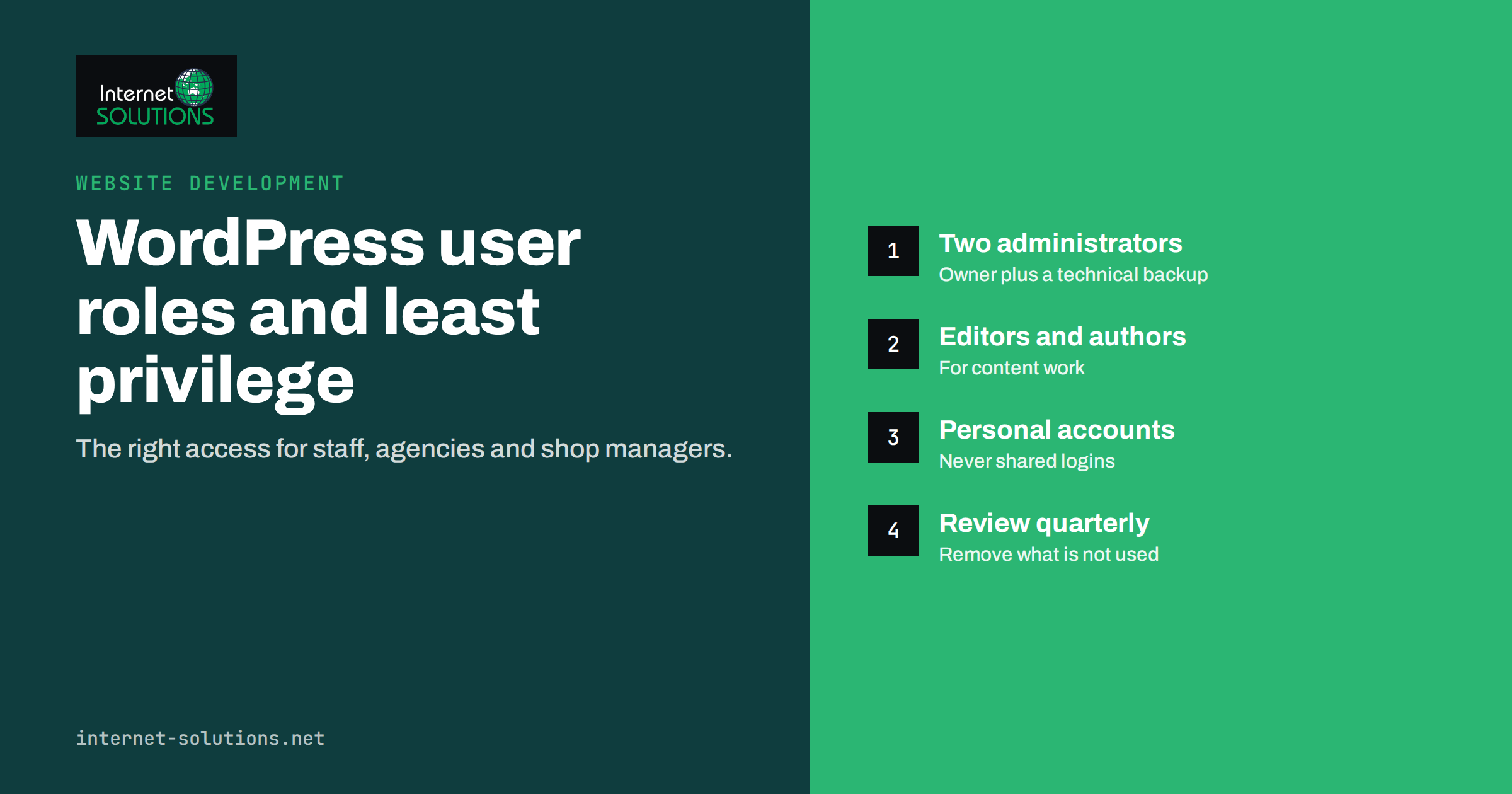
For most small business sites, the answer is two: one person in the company who owns the site and one technical partner or backup. More Administrators mean more accounts that could be compromised. Everyone else should use Editor, Author, Contributor or a plugin-specific role.
It also helps to separate everyday work from administration. An owner who mainly writes news posts can use an Editor account day to day and log in with a separate Administrator account only when settings, plugins or users genuinely need changing. That way, the most powerful account is used rarely and is exposed far less often.
Matching Roles to Real Jobs
Content and Marketing Teams
Marketing staff who manage all website content usually need the Editor role. Writers who publish their own articles can work as Authors, while external or occasional writers are better as Contributors, so an Editor reviews their work before it goes live. This also adds a natural quality check.
Agencies and Freelancers
External partners often ask for Administrator access by default. Sometimes that is justified, for example for a developer who maintains plugins and updates, but often an Editor role is enough for content work, and SEO tasks can be handled with a plugin-specific role where available. When Administrator access is truly needed:
- Create a personal account for each individual, never a shared “agency” login.
- Require multi-factor authentication on that account.
- Agree how long access will last, and remove or downgrade it when the project ends.
- Keep at least one Administrator account that belongs to your company, so you never depend on an outside partner to regain control.
Online Stores
In WooCommerce, the Shop Manager role allows staff to manage products, orders and customers without access to plugins, themes or general settings. It suits people who process orders and update the catalogue. Customer service staff who only need to view orders may need even less, which can be configured with a role editor plugin.
Developers and Hosting Access
Developers often need access beyond WordPress itself, such as hosting panels, SFTP, databases and staging environments. These should follow the same principles: individual accounts, minimum access and removal when work is finished.
Custom Roles and Role Editor Plugins
Sometimes none of the default roles fits. Role editor plugins let you create new roles or adjust capabilities, and developers can define roles in code, as described in the WordPress developer documentation on roles and capabilities.
Use this flexibility carefully:
- Start from the closest default role and add or remove only the capabilities you need.
- Avoid granting powerful capabilities casually, such as installing plugins, editing files, managing options or creating users. These are effectively administrator powers.
- Document custom roles: what they are for, who has them and why.
- Test custom roles by logging in as a user with that role and checking what they can and cannot do.
Securing Privileged Accounts
Roles reduce risk, but the accounts with the most power still need extra protection.
- Multi-factor authentication for every Administrator and Editor, and ideally for everyone who logs in. Our guide to multi-factor authentication and password managers explains how to roll this out.
- Unique, strong passwords stored in a password manager.
- No generic usernames such as “admin” for real accounts.
- Disable file editing in the dashboard on production sites, so even an Administrator account cannot change theme or plugin code from the browser.
- Limit login attempts and monitor failed logins.
- Use application passwords for integrations that use the REST API, so external tools do not use a person’s main password and can be revoked separately.
Server-side measures matter too. Our article on server security hardening covers the basics beneath WordPress.
Running a User Access Review
A quick review every three to six months keeps access under control. It takes less than an hour on most sites.
- Export or list all users with their roles and last login, if your setup records it.
- Check each Administrator. Is this person still involved? Do they still need full access?
- Remove former staff and partners. When deleting a user, WordPress lets you assign their content to another account so nothing is lost.
- Downgrade where possible. Move people to the lowest role that fits their current work.
- Check integration accounts and application passwords, and revoke any that are no longer used.
- Record the review with the date and the changes made.
Combine this with your staff onboarding and offboarding process, so access is granted and removed as part of normal routines rather than remembered months later.
Signs Your Site’s Access Needs Attention
If you are not sure whether your site needs an access review, a few warning signs are worth checking right away:
- You do not recognise every Administrator in the user list, or some accounts have generic names that hide who uses them.
- Former employees, agencies or freelancers still have accounts, even though their work ended long ago.
- Several people share one login, so you cannot tell who made a change.
- Nobody in your company can log in as Administrator without asking an outside partner.
- New users appear that nobody created, which can be a sign of a compromise and should be investigated immediately.
- Customer or order data is visible to people who never handle customers or orders.
Any one of these is a reason to schedule a review this week rather than at the next redesign.
Roles on Multisite and Multilingual Sites
On a WordPress multisite network, roles are assigned per site, and the Super Admin role sits above them all. Keep Super Admin access even more restricted than Administrator access on a single site, because it controls every site in the network, including which plugins and themes are available. Site Administrators on a network can manage their own site’s users and content but, by default, cannot install plugins or themes.
Multilingual sites add another dimension. Translators often need to edit content in one or a few languages only. Depending on the translation plugin you use, it may offer translator roles or language-specific permissions; otherwise, the Contributor or Author role with a review step by an Editor keeps control in the right hands. Whatever the setup, the same principle applies: give each person access to the languages and content they work on, and nothing more.
Common Mistakes to Avoid
- Making everyone an Administrator because it avoids permission questions.
- Sharing one login among several people or an entire agency.
- Leaving former employees and partners active for months or years.
- Granting powerful capabilities to custom roles without understanding them.
- Relying on an outside partner as the only Administrator.
- Skipping multi-factor authentication on privileged accounts.
Frequently Asked Questions
Which WordPress role should a content manager have?
Usually Editor. It allows publishing and managing all posts and pages without access to plugins, themes, settings or users.
Does an SEO agency need Administrator access?
Not always. Content and on-page changes can usually be made with an Editor role, and some SEO plugins offer their own roles. If technical work requires Administrator access, give it to named individuals, protect it with multi-factor authentication and remove it when the work ends.
What happens to posts when I delete a user?
WordPress asks whether to delete the user’s content or assign it to another user. Choose to assign it to an existing account to keep the content.
How many Administrators should a small business site have?
Two is a sensible default: one person within the company and one technical partner or backup. Everyone else should have a lower role.
What role should WooCommerce staff have?
The Shop Manager role suits staff who manage products, orders and customers. It does not allow installing plugins or changing general site settings.
Can I create my own WordPress role?
Yes, with a role editor plugin or custom code. Start from the closest default role, add only the capabilities you need and test the role before giving it to anyone.
The Bottom Line
WordPress user roles are a simple, built-in way to reduce risk on your website. Keep the number of Administrators small, match every other account to the lowest role that fits the job, give agencies and freelancers personal, time-limited access, and protect privileged accounts with multi-factor authentication. Review users regularly and remove access as soon as it is no longer needed. If you would like a professional review of your site’s users and security settings, our IT maintenance team can audit access and set up roles that fit the way your team works.