

 English
 Lietuvių
 Latviešu
 Eesti
Eesti Русский
 Polski
 Українська
 Deutsch
 Italiano
 Español
 Français
 Português
 Čeština
 Magyar
 Română
 Ελληνικά
 Türkçe
 日本語
日本語 العربية
 हिन्दी
 Bahasa Indonesia
 Bahasa Melayu
 ไทย
ไทย Tiếng Việt
 বাংলা
বাংলাPostRSS for Agencies: Managing Client Feeds and Pages in One Account
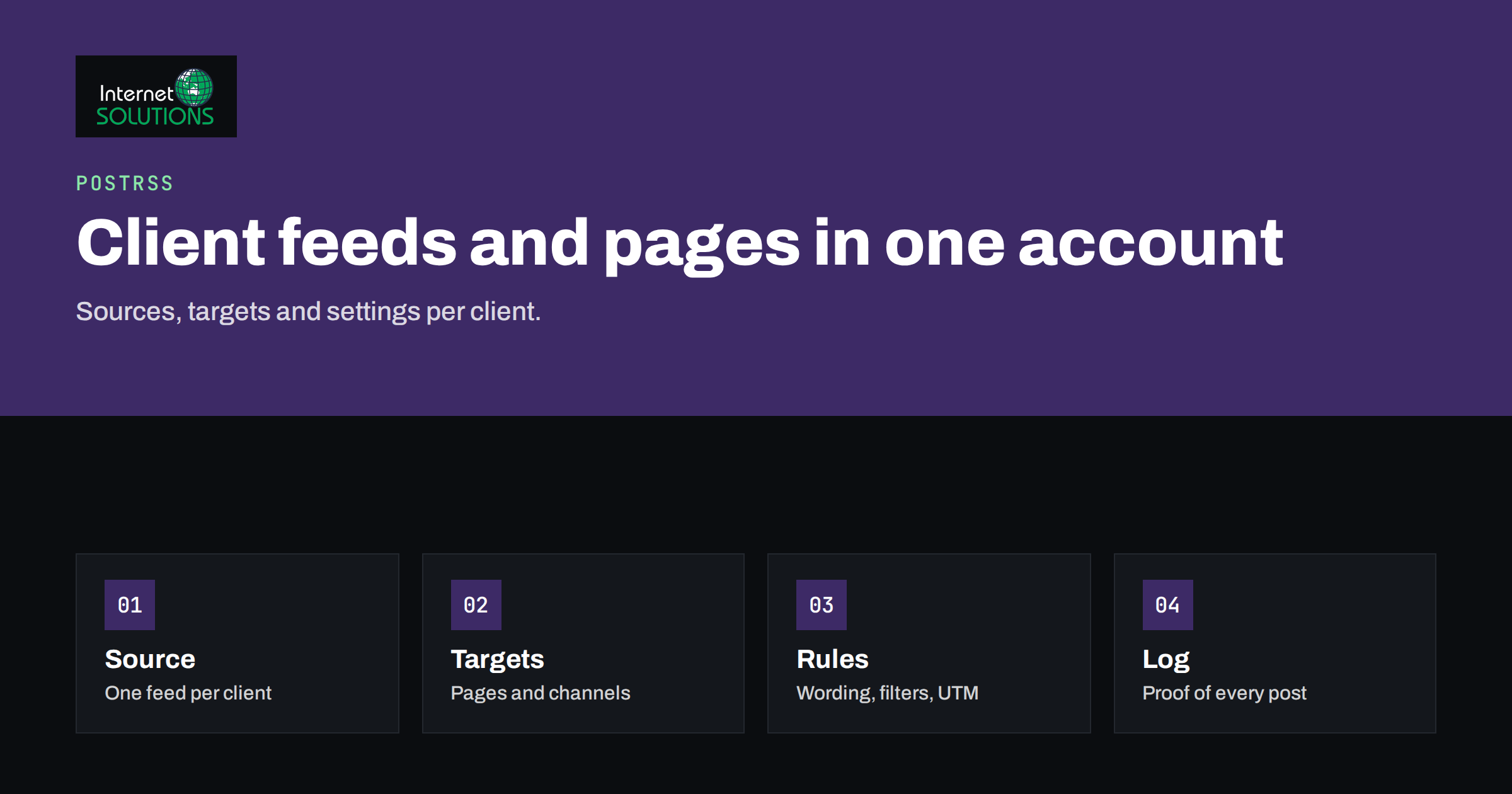
Agencies that manage social media for several clients soon discover that the hard part is not creating content. It is the repetition. Each client publishes new articles, products or announcements, and each one needs them shared on the right networks, with the right wording, at sensible times, and with proof that it happened. Doing this by hand multiplies quickly: ten clients with three networks each means thirty places to post to, every time something is published.
PostRSS was built for this kind of repetition. It reads an RSS or Atom feed and publishes each new item to the networks you connect, and one account can hold many feeds and many targets. This guide describes a practical agency workflow: how to organise sources and targets per client, how to set wording, filters and tracking, how to handle access and approvals, and how to report on what was posted. It is written for agency owners, account managers and freelancers, and it assumes the basics covered in our PostRSS setup guide.
The Agency Problem PostRSS Solves
For most agency clients, the content already exists somewhere: a blog, a news section, an online shop or a podcast. That content usually has a feed. The agency’s real work is deciding what is worth sharing, writing the surrounding message and making sure the posts go out reliably. Mechanical copying of links into network dashboards adds cost without adding value, and it creates gaps: weekends, holidays and busy days when posting slips.
With PostRSS, the feed becomes the trigger. When the client publishes, the item flows to the connected networks automatically. The agency’s time moves to strategy, to the content that does not come from a feed, such as campaigns and community replies, and to reporting. PostRSS itself was created by a team that ran hundreds of Facebook pages and wanted to stop posting manually, and its design reflects the needs of people who manage many accounts.
How PostRSS Is Organised
Three concepts matter for agency work.
- Sources. The place content comes from: an RSS 2.0 or Atom feed, a CSV file on plans that support it, or a WordPress site using the official plugin.
- Targets. The places content goes to: a Facebook Page, a LinkedIn page, a Telegram channel, a Pinterest board, a Bluesky or Mastodon account, a team chat via webhook and so on. The product supports dozens of networks, and the available networks and the number of targets depend on the plan.
- The link between them. A source can feed several targets, and each connection has its own settings, such as message format, schedule, filters and tracking parameters.
That structure maps neatly to agency work. One client usually means one or a few sources and several targets. Because each connection has separate settings, the same article can be posted to LinkedIn with a professional tone and to a Telegram channel with a short summary.
Set Up One Client: A Repeatable Routine
- Find the feed. Most websites have one, and WordPress sites publish it at
/feed/. Open the address in a browser and confirm it shows the latest posts. The RSS format is described in the RSS 2.0 specification, which is useful if you need to explain a problem to a client’s developer. - Check the feed content. Make sure each item contains a title, a link and, ideally, an image or a description. Poor feeds produce poor posts, and fixing the feed is often the quickest improvement. PostRSS takes the picture from the feed item or from the page’s Open Graph tags, so it is worth checking that the client’s pages define them, as described in the Open Graph protocol.
- Connect the client’s accounts. The person connecting signs in to each network and authorises PostRSS. Agree in advance who does this and under whose login.
- Create targets. One target per destination, named clearly, for example “ClientName – LinkedIn page”.
- Set the message format. Choose how each post is built from the item title, the item description, the page title and any static text.
- Choose timing. Decide how often the feed is checked, whether to post at once or in chosen hours, and how many items to publish per update.
- Test with a real item. Publish a harmless post, or use the start date to avoid flooding the page with older items, and check the result on each network.
- Activate and document. Switch the connection on and record the settings in your client file.
Done consistently, this takes a small part of the time that manual posting would need in a single week, and the routine can be given to a junior team member.
Naming and Structure for Many Clients
Once you manage ten or twenty clients, naming discipline becomes the difference between order and chaos. Use one pattern for every source and target: client name first, then the network or purpose. A search for the client name should show everything related to them. Keep a simple register outside the tool, a spreadsheet or your project system, with the client, the feed address, the targets, who owns the accounts and when settings were last reviewed.
It also helps to group clients by type, because similar clients share settings. Retail clients may need image-heavy posts and category filters. Professional services need cautious wording and fewer posts. Publishers need volume control. Writing down a standard configuration per type makes setup faster and more consistent.
Standard Configurations by Client Type
Writing down a default setup for each type of client keeps the work consistent. The table below is a starting point to adapt, not a rule. Always confirm the final settings with the client.
| Client type | Typical sources | Message style | Controls to set |
|---|---|---|---|
| Online store | New products and sale pages | Product title, short description, strong image | Posts per update limit, keyword filter for categories, UTM tags |
| Professional services | Blog and news | Title with a short summary, measured tone | Posting windows during business hours, a few posts per week |
| Publisher or media | High-volume news feed | Title only on fast networks, title and summary elsewhere | Strict post limits, order setting, keyword exclusions |
| Local business | Offers, events and updates | Plain title with the key detail | Time zone windows, filters for expired offers |
| Software company | Release notes and product blog | Title plus description, link to details | Separate targets for customers and for developer channels |
Wording That Fits Each Client and Network
PostRSS lets you decide what each post says. Message formats combine the item title, the item description, the page title and your own static text in several combinations, so you can choose a short headline-only post for one target and a title with a summary for another. Static text allows a consistent call to action or a fixed brand line. Our guide to keyword filters and hashtags explains how to add hashtags and restrict what is posted.
Agree the tone and the format with each client, and put it in writing. For example: “LinkedIn posts use the title and the first sentence; Telegram uses the title only; no hashtags on LinkedIn; up to three on Instagram.” Clients are less likely to dispute results when the rules were approved at the start.
Control What Gets Posted
Not every item in a feed should reach every network. Several controls help you avoid embarrassing or irrelevant posts.
- Keyword filters. Include or exclude items by words in the title or description. A client that publishes both news and job adverts can send only the news to its main page.
- Publishing order and volume. Choose newer or older items first, and limit how many items go out per update, so a feed that adds twenty items in a bulk upload does not flood followers.
- Start date. When you connect a feed for the first time, choose where to begin so that the entire archive is not posted by accident.
- Posting windows. On paid plans, restrict posting to chosen hours or exact times in the client’s time zone, which is important when clients serve different countries.
The rules about scheduling are explained in our article on schedule windows, exact times and post limits. Use them to match each client’s audience instead of one generic pattern.
Track the Traffic You Create
Clients want to know what the social activity achieved. PostRSS can add your own query parameters, such as UTM tags, to every link, so that analytics shows what each network brought. Use a clear scheme: one source value per network, a medium for social and a campaign name per client or per content type. Keep it identical across clients so you can compare. Our guide to UTM parameters for auto-posted social traffic goes through the naming rules and common mistakes, and the monthly report becomes much easier when the tags are consistent.
Access, Approvals and Responsibility
Agency work depends on trust and clear responsibility. Decide the following before connecting anything.
- Who owns the social accounts. The client should always own their pages and profiles. Ask them to give your staff the appropriate role on the page, where the network supports it, instead of sharing personal passwords.
- Who authorises PostRSS. The person who signs in to a network to connect it needs sufficient rights on the page. Document who that is and what happens if they leave.
- What needs approval. Automatic posting suits content the client has already published on their own site. For anything sensitive, such as legal or crisis communication, agree a manual route.
- Team access. Some plans allow additional users to work in the same account. Check the current plan details on the PostRSS site if several people on your team need to manage the same set of clients.
Remember also that on Facebook, PostRSS posts to Pages only. Automated posting to Facebook groups or personal profiles is not possible since Meta closed that API in April 2024, so set that expectation with clients who ask. Our article on PostRSS and Facebook Pages explains what is possible.
Monitor and Report
Automation is not an excuse to stop looking. Build a short routine into the week.
- Check the history log for errors and retries. It shows what was posted, where and when, with links to each post.
- Look for expired connections. Network authorisations can lapse, and a silent failure means a client’s page stops posting without anyone noticing.
- Review the feed itself after website changes, since a redesign or plugin change can break a feed or alter its structure.
- Sample the posts on the networks to confirm the images, text and links look right.
For reporting, combine the history of posts with the analytics data from the UTM tags. Our guide to monthly marketing reports for clients lists what to include, and the same structure works whether the work is search, ads or social posting.
Where an Agency Should Not Rely on Automation
Automatic posting from feeds is excellent for distributing content that already exists. It does not replace community management. Replies, conversations, original social-first content and reactive posts need people. Treat PostRSS as the reliable base layer that keeps every client visible, and use your time for the parts that need judgement. That split also makes pricing easier to explain: the routine distribution is a low-cost service, and the creative and community work is where the premium lies.
Scaling Without Losing Quality
As the number of clients grows, quality depends on standards. Create a checklist for onboarding a client, a template for the register, a naming convention and a monthly review of all connections. Assign an owner for each client, and rotate checks so that mistakes do not stay hidden. If you build websites for your clients too, consider the official WordPress plugin or a well-formed feed as part of the delivery, so that the social distribution is ready at launch. Our PostRSS overview shows the full list of features and where to start with a free account.
Frequently Asked Questions
Can I manage several clients from one PostRSS account?
Yes. One account can hold many sources and many targets, and each connection has its own settings. Use a strict naming convention and keep a register so that each client is easy to find. The number of targets and the networks available depend on your plan.
Should I use my own social logins or the client’s?
The client should own their accounts. Ask for an appropriate role on their page, where the network supports it, and use that for connecting. Avoid sharing personal passwords, and record who authorised each connection.
Can I customise the post for each network?
Yes. Each connection has its own message format, filters, schedule and tracking settings, so the same article can be posted with different wording to different targets.
How do I prove results to clients?
Use the history log to show what was posted and when, and add consistent UTM parameters to links so analytics reports the traffic from each network. Combine both in a monthly report.
Can PostRSS post to Facebook groups for my clients?
No. PostRSS posts to Facebook Pages only, because Meta closed the group publishing API in April 2024. Tell clients this at the start so they do not expect group posting.
What if a client’s website has no RSS feed?
Most do, often at a fixed address such as /feed/ on WordPress. If not, a feed can usually be generated, or on plans that support it you can upload a CSV file where each row becomes a post.
The Bottom Line
For agencies, PostRSS turns repetitive posting into a routine that runs by itself. Connect each client’s feed as a source, create clearly named targets for their networks, set wording, filters, timing and tracking per connection, and keep the accounts in the client’s ownership. Check the log and connections weekly, report with consistent UTM data and keep human effort for the work that needs judgement. With a documented setup routine and good naming, the same approach scales from a handful of clients to many without lowering quality.