

 English
 Lietuvių
 Latviešu
 Eesti
Eesti Русский
 Polski
 Українська
 Deutsch
 Italiano
 Español
 Français
 Português
 Čeština
 Magyar
 Română
 Ελληνικά
 Türkçe
 日本語
日本語 العربية
 हिन्दी
 Bahasa Indonesia
 Bahasa Melayu
 ไทย
ไทย Tiếng Việt
 বাংলা
বাংলাWeb Form Design: Fewer Fields, Clear Errors and Better Conversion
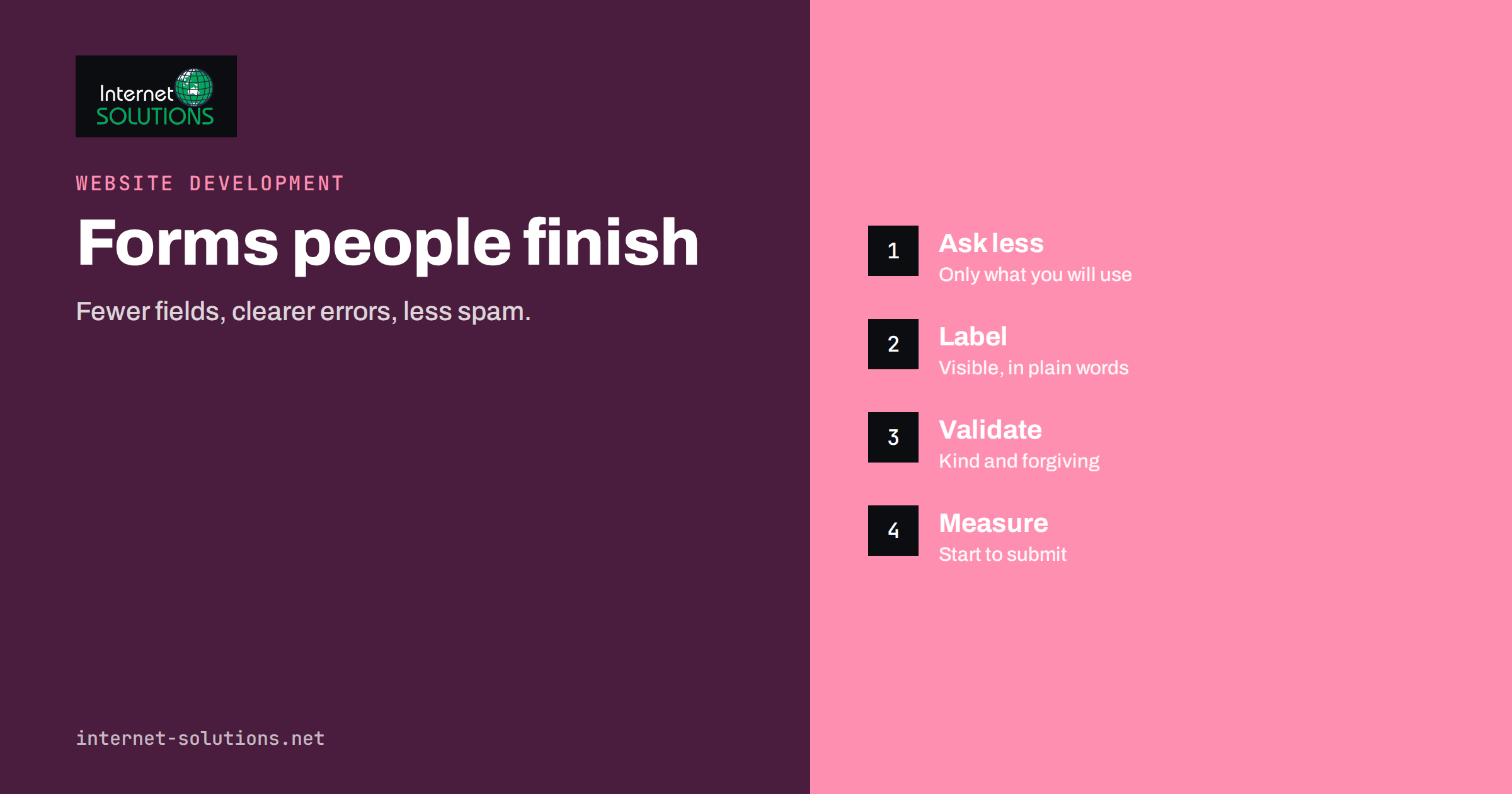
Web form design decides whether a visitor who has already made up their mind actually becomes a lead, a customer or a subscriber. The visitor has found your page, read your offer and clicked the button. The form is the last step, and it is surprisingly easy to lose people there: too many questions, unclear labels, error messages that appear only after submission, a spam check that cannot be solved on a phone. None of this shows up as a ranking problem, yet it can quietly waste a large share of the traffic you worked to earn.
This guide covers the practical decisions: which fields to keep, how to write labels and hints, how to validate input without frustrating people, how to protect the form from spam, how to make it accessible and how to measure it. It builds on our notes on contact forms, email deliverability and lead notifications, which cover what happens after the form is sent.
Start With the Purpose of the Form
Every form should have one job that you can describe in a sentence: request a quote, book a call, subscribe to a newsletter, create an account. If you cannot say what the form is for, you cannot decide what it should ask. Many business sites carry a single generic contact form on every page, which tries to serve sales, support, job applicants and suppliers at once. The result is a long form with vague fields and a message box that nobody knows how to use.
Split forms by intent when the audiences differ. A quote request needs details about the project. A support request needs an order number or an account email. A newsletter signup needs only an email address. Separate forms let you ask the right questions and route the messages to the right people, and they make the page itself clearer.
Then define what you will do with every answer. If nobody will read a field, do not ask for it. If the answer is needed for a later step, ask for it later. A useful test is to go through the form field by field and write down who uses the answer, and when. Fields without an answer to that question are candidates for removal.
Ask for Less
Each extra field adds effort, and effort lowers completion. This is a simple principle, but it is often ignored because teams want as much information as possible from each lead. The better approach is to ask for the minimum needed to start a useful conversation, then collect the rest in the follow-up.
For a contact or quote form, the usual minimum is a name, an email address and a message. A phone number is useful when you intend to call, and it should then be marked as optional unless calls are the only way you work. Company name, budget range and timeline can be useful to qualify leads, but each one increases abandonment. If you need them, consider a second step shown after the first is submitted, or a short optional section.
Avoid fields that exist only for convenience of the data team. Asking for a title, a salutation, a separate first and last name, a second address line and a country, all at the start of a simple enquiry, makes the form look like paperwork. A single “Full name” field is easier for most visitors and works across cultures where the concept of a first and last name differs.
Multi-step forms can help when a long form is unavoidable, such as a detailed quote or an application. Break the form into short steps with a visible progress indicator, put the easiest questions first and save the sensitive ones for last. Keep the steps few, and let people go back without losing what they typed.
Labels, Hints and Placeholders
Every field needs a visible label placed above or next to it. Placeholder text inside the field is not a replacement for a label: it disappears as soon as someone starts typing, it often has poor contrast and screen readers may not announce it consistently. Use placeholders only for short examples, such as a format hint, and never for the field name.
Write labels in plain words that match how visitors think. “Your email” is clearer than “Electronic mail address”, and “What do you need help with?” is clearer than “Message body”. Keep them short. If a field needs an explanation, add a short hint under the label, for example why you ask for a phone number and what you will use it for.
Mark optional fields rather than required ones when most fields are required, or the reverse when most are optional. Use the same marker everywhere on the site. A red asterisk without a legend is not enough on its own, so add a short note that explains it, or write “optional” in the label.
Choose the right input type. Use email, telephone, number and date inputs where they fit, because mobile browsers then show a suitable keyboard. Add the autocomplete attribute with the standard values for names, email, phone and address, so that browsers and password managers can fill the form. The MDN reference for autocomplete lists the values.
Validation That Helps Instead of Blocks
Validation is the part of form design where most frustration is created. The goal is to catch real mistakes, explain them clearly and avoid rejecting valid input. A few rules cover most cases.
Check on the server as well as in the browser. Browser checks give quick feedback, but they can be bypassed or fail silently, so the server must always verify the data. Treat browser checks as a convenience and server checks as the actual rule.
Be generous with formats. Phone numbers appear with spaces, dashes, brackets and country codes. Postcodes differ by country. Names can contain apostrophes, hyphens and non-Latin letters. A validation rule that rejects a real name or phone number loses a real customer. When in doubt, accept the input and clean it up on your side.
Show errors next to the field they concern, in plain language, and say how to fix them. “Please enter an email address like name@example.com” helps more than “Invalid input”. Keep what the visitor typed, so that a single error does not erase the whole form. Move focus to the first field with an error, and also show a short summary at the top for long forms.
Validate at the right moment. Checking a field while the person is still typing it creates false errors, such as complaining about an incomplete email address after the first character. A better pattern is to validate when the person leaves the field, and to re-check as they correct it. Do not clear the form after an error, and do not disable the submit button without explaining why.
The Submit Button and the Moment After
Name the button after the result, not the action of the form. “Send my request” or “Get my quote” tells the visitor what happens. “Submit” does not. Place the button directly under the last field, aligned with the fields, and make it large enough to tap comfortably on a phone.
Show clear progress after the click. Disable the button briefly to avoid double submissions, show a short “Sending” state and then a confirmation that says what happens next: when you will reply, from which address and what to do if nothing arrives. A bare “Thank you” page wastes the chance to reassure the visitor. If the confirmation is a separate page, it is also a clean place to measure conversions.
Send a confirmation email when it makes sense, and make sure it is deliverable. If your authentication is not set up, the message may land in spam, and the visitor will think the form failed. Our guide to SPF, DKIM and DMARC covers the settings that keep these messages out of spam folders.
Spam Protection Without Punishing Real People
Every public form attracts spam sooner or later. The aim is to block bots without making humans solve puzzles. Layer several light measures rather than relying on one heavy one.
| Method | How it works | Strengths | Watch out for |
|---|---|---|---|
| Honeypot field | A hidden field that real visitors leave empty and many bots fill | Invisible to people, easy to add | Simple bots learn to skip it; hide it properly and keep it out of autofill |
| Time check | Reject submissions made implausibly fast after the page loaded | Cheap, no user effort | Cached pages can break the timer; use a generous minimum |
| Server-side rules | Reject links in short fields, repeated content or known bad patterns | Catches obvious spam | Review false positives so real leads are not lost |
| Rate limiting | Limit submissions per address or session over time | Stops floods | Shared networks can look like one visitor |
| CAPTCHA or challenge | A test that is hard for bots | Strong against automated abuse | Adds friction, accessibility and privacy questions; use it as a last layer |
Whichever you choose, log what you block, and review the blocked messages from time to time. A spam filter that silently drops real enquiries is worse than no filter. Set up an email or dashboard alert when the number of blocked messages changes sharply, because it can mean that a legitimate field or a script has broken.
Also check where your form sends data. A form that posts directly to an email address from the browser exposes that address to scrapers. Post to your own server, validate there and send the notification from a controlled sender address.
Accessibility Is Part of Conversion
A form that cannot be used with a keyboard, a screen reader or a zoomed screen loses visitors, and in many places it may also create legal risk. The good news is that the basics are cheap. The W3C Web Accessibility Initiative forms tutorial shows the patterns in detail, and our overview of website accessibility for business owners puts them in context.
- Associate every label with its field, using the
forandidattributes or by wrapping the field in the label. - Make sure the form can be completed with the keyboard alone, in a logical tab order, with a visible focus indicator.
- Connect error messages to their fields, so that assistive technology announces them, and do not rely on colour alone to show an error.
- Group related options, such as radio buttons, in a fieldset with a legend.
- Keep contrast high enough for labels, hints and borders, and make touch targets large.
- Avoid time limits, or give people a way to extend them.
Most of these changes also help everyone else. People filling a form on a bright phone screen, with one hand, on a train, benefit from large targets, clear labels and good contrast as much as anyone with a disability.
Design for Phones First
A large part of form traffic now comes from phones, and phones punish careless design. Use a single column, because side-by-side fields are hard to read and tap. Make fields tall enough for fingers, and leave space between them. Use the right keyboard type for each field, and avoid dropdowns with long lists when a text field with suggestions would do.
Make sure the keyboard does not hide the field being edited or the submit button. Test with a real phone, not just a narrow browser window. Check that autofill works and that the form can be completed while switching to a password manager or an email app and back.
Keep the page light. A form that waits for slow scripts, such as heavy anti-spam or analytics tags, may not respond when the visitor taps. Our guide to mobile-first web design lists other common mistakes to check at the same time.
Privacy and Trust
Visitors decide within seconds whether a form is worth their details. Show a short line that explains what you will do with their data and link to your privacy information. If you ask for a phone number, say why. If you add people to a mailing list, use a separate, unticked checkbox with clear wording, and never bundle consent with the enquiry itself.
Collect only what you need. Besides reducing friction, it reduces the data you must protect, store and delete. Define how long you keep enquiries and who can read them. Send notifications over secure channels, and avoid putting sensitive details into email subjects.
Trust signals near the button also help: a real contact address, an expected reply time that you can meet, and a line that describes what happens next. Do not use claims that you cannot support, such as a response time that your team cannot achieve.
Measure, Test and Improve
You cannot improve a form you do not measure. Track at least four numbers: how many visitors reach the form, how many start filling it, how many submit and how many of those become real leads. The first three tell you about design and the last one tells you about quality. A form that gets many submissions that never turn into business may be too easy, or may attract the wrong audience.
Field-level data is valuable when your analytics tool supports it: which field people leave, where errors happen most often, how long each field takes. A field with many errors needs a better label or a more forgiving rule. A field where people abandon needs a reason to exist or should be removed.
Change one thing at a time and give each change enough traffic to show a difference. Good first tests are removing one field, rewriting the button text and moving the form higher on the page. Keep notes of what you changed and when, so that you can connect changes in results to changes in the form. Make sure conversion tracking works correctly first, as described in our guide to conversion tracking with GA4, Tag Manager and the Meta pixel.
Finally, test the whole chain regularly. Submit the form yourself every month, from a phone and a desktop, and confirm that the message arrives, the notification is delivered and the confirmation looks right. Forms break quietly after plugin updates, hosting changes or mail settings changes, and the first sign is often a quiet inbox. If you want a form review as part of a wider site project, our website development team can help.
A Quick Form Checklist
- One clear purpose per form, with a button that names the result.
- Only the fields you will use, with optional fields marked.
- Visible labels, short hints and the right input type for each field.
- Autocomplete attributes set for names, email, phone and address.
- Server-side validation, forgiving formats and clear error messages that keep what was typed.
- Layered spam protection, with a log of what was blocked.
- Keyboard access, associated labels, good contrast and large tap targets.
- A clear confirmation message and a working notification email.
- Privacy wording next to the form and a separate consent box for mailing lists.
- Monthly tests from a phone and a desktop, and a record of changes and results.
Frequently Asked Questions
How many fields should a contact form have?
As few as you can use. Name, email and message cover most enquiries. Add a phone number or other details only if you will use them, and mark them optional where possible.
Should I use placeholder text instead of labels?
No. Placeholders vanish when someone types and are often hard to read. Use visible labels for the field name and keep placeholders for short examples only.
Is a CAPTCHA necessary?
Not always. Start with a honeypot, a time check, server-side rules and rate limiting. Add a challenge only if spam still gets through, since it adds friction and raises accessibility and privacy questions.
When should error messages appear?
Usually when the visitor leaves a field or submits the form, not while they are still typing. Show the message next to the field, say how to fix it and keep everything they entered.
Are multi-step forms better than single-page forms?
For long forms they often are, because short steps feel easier. For short forms they add clicks without benefit. Test both if the form is important.
How do I know if my form is losing leads?
Compare visitors who reach the form with the number of submissions, and check for field-level drop-off. Test the form monthly yourself and check spam folders and logs for messages that did not arrive.
The Bottom Line
A good form is short, clear and forgiving. Ask only for what you will use, label every field, validate on the server with kind error messages, protect the form with light layers of spam control and make it accessible and easy to use on a phone. Then measure what happens and improve one thing at a time. The result is more completed forms from the same traffic, which is usually the cheapest improvement available on a business website.