

 English
 Lietuvių
 Latviešu
 Eesti
Eesti Русский
 Polski
 Українська
 Deutsch
 Italiano
 Español
 Français
 Português
 Čeština
 Magyar
 Română
 Ελληνικά
 Türkçe
 日本語
日本語 العربية
 हिन्दी
 Bahasa Indonesia
 Bahasa Melayu
 ไทย
ไทย Tiếng Việt
 বাংলা
বাংলাLive Chat on WordPress: Plugin or Script Tag, Caching, Builders
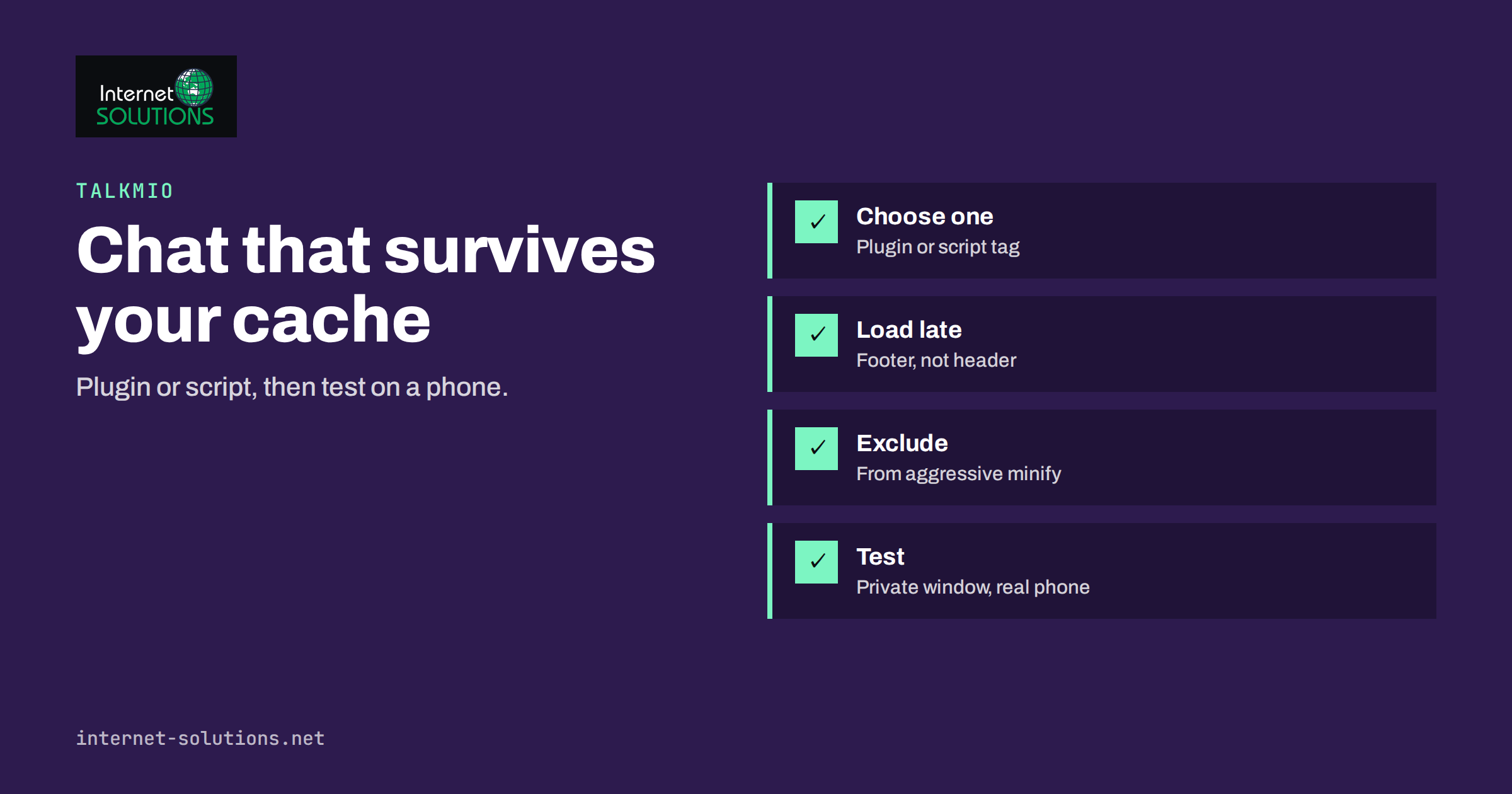
Live chat on WordPress is easy to add and surprisingly easy to get slightly wrong. The chat bubble appears on your home page and everything looks finished, but a week later you discover that it is missing on the checkout, hidden behind a cookie banner on phones, cached for logged-in users or loaded on the admin screens where nobody wants it. WordPress sites are assembled from themes, plugins, page builders and caching layers, and a chat widget has to live comfortably among all of them.
This guide explains the two ways to install Talkmio on a WordPress site, the one-line script and the plugin, how to choose between them, where the code should load, how caching and optimisation plugins can interfere and how to test the result on real devices. The aim is a chat widget that appears where it should, stays out of the way where it should not and does not slow the site down.
Two Ways to Add Talkmio to WordPress
Talkmio is added to a website with one line of code, and it also offers a WordPress plugin. Both end up doing the same job: loading the chat widget on your pages so visitors can talk to Mio and your team. The difference is how the code gets onto the page and who maintains it. The Talkmio overview describes the product, and our setup guide walks through the account side. This article concentrates on the WordPress specifics.
| Approach | How it works | Best for | Watch out for |
|---|---|---|---|
| Plugin | Install and activate from the WordPress dashboard, then connect your account | Site owners who prefer not to edit theme files | Keep it updated like any other plugin; check compatibility after major WordPress updates |
| Script tag in the theme | Paste the single line of code into the site header or footer | Developers who want direct control over where it loads | Theme updates can overwrite edits unless you use a child theme |
| Script tag via a header and footer tool | Paste the code into a snippet or header and footer plugin | Owners who want the script outside the theme without a dedicated plugin | Adds another plugin to maintain |
| Tag manager | Load the script from a tag manager container | Sites that already manage scripts that way | Consent rules and trigger timing need care |
Choosing Between the Plugin and the Script Tag
For most small business sites the plugin is the simplest answer. It lives in the normal WordPress update process, it does not depend on theme files and removing it is as easy as deactivating it. If you are not comfortable editing code, this is the safer route.
The script tag is the better choice when you need precision: loading the widget only on certain templates, delaying it until after user interaction, loading it through a tag manager so it respects consent choices, or running the same code on a mixture of WordPress and non-WordPress sites. It also avoids one more plugin on a site that already has too many.
Whichever you choose, pick one. Running the plugin and a pasted script together can produce two chat bubbles or conflicting behaviour. If you switch method, remove the old one first and then test.
Installing the Plugin
- Create your Talkmio account and add your website in the Talkmio dashboard.
- In WordPress, open the plugins screen, add a new plugin and install the Talkmio plugin. If you need background on choosing plugins safely, see the WordPress plugin directory and check update dates and reviews as usual.
- Activate it and follow the prompt to connect it to your account.
- Open the public site in a private browser window and confirm the widget appears.
- Send a test message and check that it arrives in the Talkmio inbox.
Make a note of the plugin version and the date. If a problem appears later, knowing what changed and when saves time.
Installing the Script Tag Safely
If you paste the script yourself, do it in a way that survives updates:
- Use a child theme or a dedicated snippet tool. Editing the main theme files directly means the next theme update may remove your line without warning.
- Place it in the footer where possible. The widget is not needed to render the page, so loading it late helps the first view appear faster.
- Copy the code exactly. Do not retype it. Smart quotes introduced by editors or word processors break scripts in ways that are hard to spot.
- Add it once. Search the theme and plugins for earlier copies before adding another.
- Keep the account key private to your team. Treat the snippet like any other site configuration, even though it is visible in the page source.
Where the Chat Should and Should Not Appear
A chat widget on every page is not always best. Think about the visitor’s situation on each type of page:
- Home, service and pricing pages. Almost always useful. Questions are common and the visitor is deciding.
- Product pages in a shop. Very useful for pre-sale questions about sizes, delivery and availability.
- Cart and checkout. Helpful, but make sure the bubble does not cover the pay button or form fields, especially on phones.
- Login, account and admin screens. Usually unnecessary for the public widget. Make sure it does not load in the editor or preview screens where it can interfere with your work.
- Landing pages for ads. Useful when the page invites questions, but test that it does not distract from the main action.
- Legal and policy pages. Optional. A visitor reading terms may still have a question.
If your theme or builder supports conditions, apply them in one place rather than scattering rules across several plugins. Appearance rules that live in three places become impossible to debug.
Caching, Optimisation and Other Plugins
This is where most WordPress chat problems begin. Performance plugins aim to make pages faster by combining, delaying or rewriting scripts, and they can accidentally break a widget that depends on loading in a particular way. Our explanation of website caching covers the layers involved. For chat, a handful of checks catch nearly everything:
- Clear every cache after installing. Page cache, object cache, CDN cache and the browser cache can all hold an old version of the page without the widget.
- Check script minification and combining. If the widget disappears after you enable these features, exclude the chat script from them and test again.
- Check delayed or deferred script loading. Some tools delay all scripts until the first interaction. That can be fine, but the chat may then appear later than expected. Decide whether that delay is acceptable.
- Check lazy loading of iframes and scripts. Widgets sometimes use frames; blanket lazy-loading rules can interfere.
- Check page-level exclusions. If you exclude the checkout or account pages from caching, confirm the widget behaves there too.
- Check the CDN. Make sure rules do not rewrite or block the widget’s requests. If you use a firewall or content security policy, allow the domains the widget needs.
Always change one setting at a time and test after each change. When several optimisation features are switched on together, a missing widget could be caused by any of them, and you lose track of which. The official WordPress documentation on performance optimization is a helpful reference for what these layers do.
Page Builders and Themes
Page builders and block themes can change how footer code is output. Some builders have their own areas for custom code, some offer headers and footers as templates and some inject extra wrappers around everything. Check the following:
- Template coverage. If your site uses different templates for posts, pages, shop and archives, confirm that each one includes the footer where the script loads.
- Full-width and landing page templates. These often skip the standard footer, which also skips the chat.
- Sticky elements. Sticky bars, cookie banners, back-to-top buttons and mobile menus all compete for the bottom corners of the screen. Decide which gets the bottom-right corner and move others.
- Z-index conflicts. If the widget appears behind a menu or a banner, adjust the layer order of the competing element rather than the chat.
- Theme changes. After switching themes, repeat the whole test. The code that loaded the widget may have belonged to the old theme.
Consent, Privacy and Cookie Banners
Chat can involve personal data, including names, email addresses and the content of conversations. Make sure your privacy notice mentions it and that your cookie and consent setup reflects how the widget behaves. If you use a consent tool, decide whether the chat loads before or after consent according to your legal advice and your configuration, and test that the behaviour matches what you intended. Our article on what to check when the widget does not show includes consent-related causes that are easy to overlook.
Customising Appearance Without Breaking Things
Colour, greeting text, position and business hours are controlled from the Talkmio dashboard rather than by editing theme code. That keeps the design consistent across all pages and means a theme change does not undo your chat styling. Our guide to widget setup explains the options. Avoid custom CSS that targets the widget unless you have a clear reason, because internal markup can change and custom rules may stop working after an update.
A Testing Checklist for WordPress
After installation, test as a visitor, not as an administrator. Use a private window and, ideally, a phone.
- Open the home page, a service page, a blog post and a contact page. The widget should appear on each one you intended.
- Open the cart and checkout if you have a shop. Confirm the bubble does not hide any controls.
- Open the page on a phone in portrait and landscape. Check the bubble position against banners and menus.
- Send a test question. Confirm that Mio answers from your content, and that the message appears in your inbox.
- Ask something Mio should not answer and confirm it hands over to a person according to your settings.
- Log in to WordPress and confirm the widget does not appear in the admin screens or editor.
- Test with your consent banner: accept, reject and ignore.
- Run a speed test before and after to confirm that the page still loads quickly.
- Test after clearing all caches, and again after the next scheduled cache rebuild.
Repeat the checklist after major changes: a theme update, a new caching plugin, a CDN change or a redesign. Add it to your regular website maintenance routine so it does not depend on someone remembering.
Troubleshooting Quick Reference
| Symptom | Likely cause | What to try |
|---|---|---|
| No widget anywhere | Code not installed, plugin not connected, cache not cleared | Check the page source for the script, reconnect the plugin, clear all caches |
| Widget on some pages only | Template does not include the footer, or conditions exclude the page | Check templates and display rules |
| Two chat bubbles | Plugin and pasted script both active | Remove one of them |
| Widget appears late | Delayed script loading | Adjust the delay setting or exclude the script |
| Widget breaks after enabling optimisation | Minify, combine or defer rules | Exclude the script and test each setting separately |
| Hidden behind another element | Layer order or overlapping sticky elements | Move or adjust the competing element |
| Missing only for some visitors | Consent settings, ad blockers, or a cached page | Test with consent accepted and with extensions disabled |
Frequently Asked Questions
Do I need a developer to add live chat to WordPress?
No. You can install a plugin from the WordPress dashboard, or paste one line of code into a footer snippet tool. A developer is useful only for advanced cases, such as loading the widget on certain templates or inside a tag manager.
Should I use the plugin or paste the code?
The plugin is simplest for most owners. Paste the code when you want precise control over where and when it loads. Use only one of them to avoid duplicate widgets.
Will live chat slow down my WordPress site?
Any extra script has a cost, so measure. Loading the widget in the footer and keeping your caching setup healthy keeps the impact small. Compare speed tests before and after installation.
Why does the chat show for me but not for visitors?
Usually a cache is serving an old version to visitors, or a rule hides the widget for logged-out users. Clear all caches and test in a private window while logged out.
Can I show the chat only on some pages?
Yes, through display conditions in your theme or builder, or by loading the script only in selected templates. Keep the rules in one place so they are easy to maintain.
What should I do after a WordPress or theme update?
Repeat the testing checklist. Updates can overwrite pasted code, change footers or alter script loading, and a short test catches problems before customers do.
The Bottom Line
Adding live chat to WordPress takes minutes, but making it dependable takes a little planning. Choose either the plugin or the script tag, not both. Load the widget where visitors need it, keep it out of admin screens, exclude it from aggressive script optimisation, handle consent properly and test on a real phone. Then repeat the test after every significant change. If you would like help setting up a reliable chat on your own website, or reviewing the speed and structure of a WordPress site, our website development team can help.