

 English
 Lietuvių
 Latviešu
 Eesti
Eesti Русский
 Polski
 Українська
 Deutsch
 Italiano
 Español
 Français
 Português
 Čeština
 Magyar
 Română
 Ελληνικά
 Türkçe
 日本語
日本語 العربية
 हिन्दी
 Bahasa Indonesia
 Bahasa Melayu
 ไทย
ไทย Tiếng Việt
 বাংলা
বাংলাInternet Outage Plan: Backup Connections and Failover
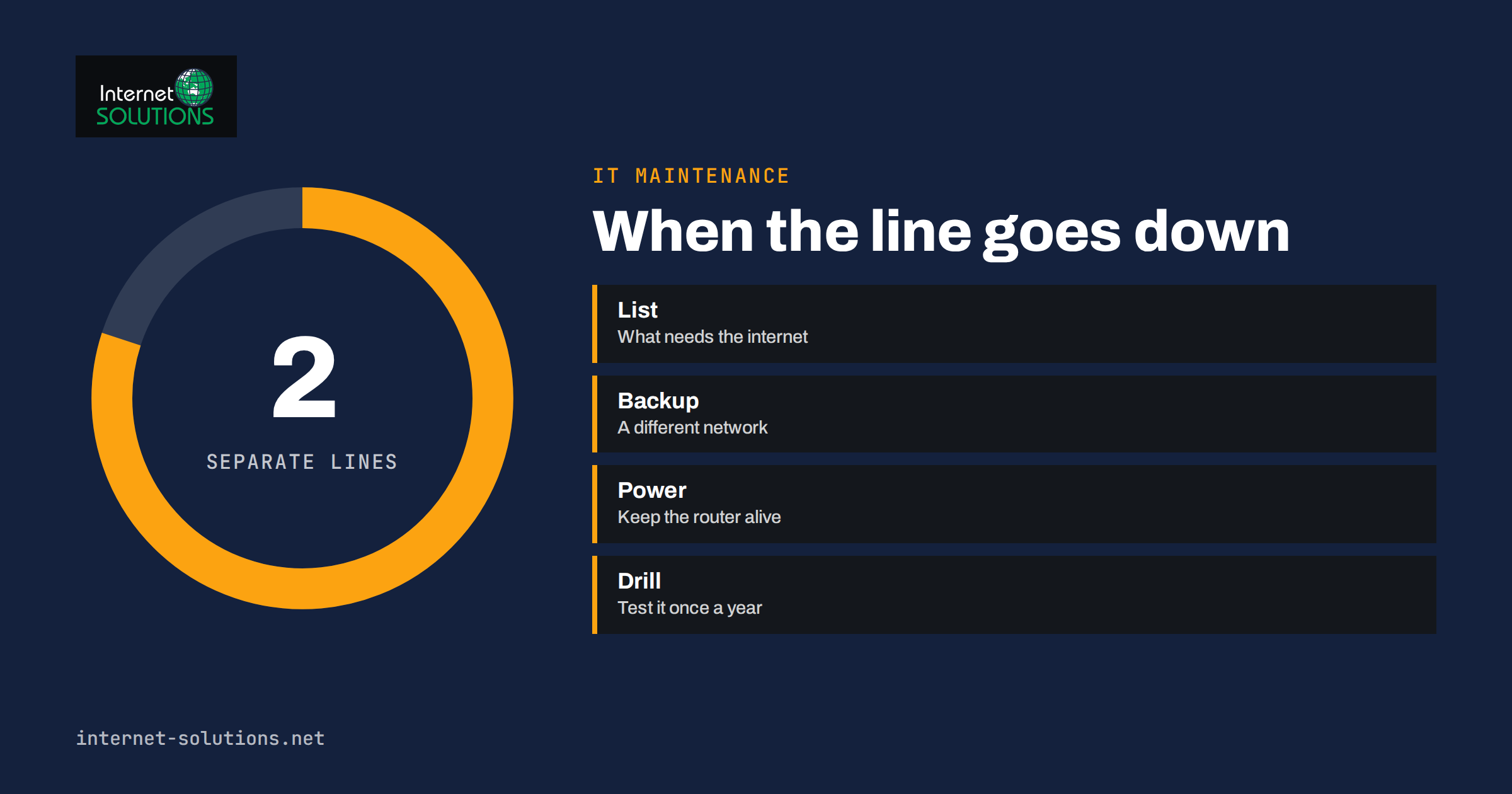
An internet outage plan is one of those things a small business only wants once, and only after the first bad morning. The line goes down at nine, card terminals stop approving payments, the phone system is silent, the cloud accounting tool will not load and half the team sits idle while somebody holds on to a provider’s support line. Sometimes the cause is a cable cut three streets away. Sometimes it is a failed router, a billing error or a power problem. Whatever the cause, the cost is the same: lost sales, lost hours and unhappy customers.
Almost every business depends on connectivity more than it realises, and almost none can say in advance what they would do if it disappeared for four hours or four days. This guide explains how to work that out. You will see how to list what depends on the connection, how to choose backup options, how failover works, what to do in the first hour, how to test the plan and what to ask your provider. It is aimed at offices, shops and small teams rather than data centres, and it favours simple measures that are cheap, tested and understood.
Start With What Depends on the Connection
You cannot protect what you have not listed. Spend an hour walking through the business and writing down every function that needs the internet. Include the obvious items and the hidden ones.
- Revenue. Online shop, booking system, card terminals, point-of-sale software, invoicing.
- Communication. Email, phone system, chat, video meetings, messaging tools.
- Work tools. Cloud storage, accounting, customer records, project software, shared documents.
- Infrastructure. Door entry, alarms, cameras, building controls, printers that fetch jobs from the cloud.
- Security. Remote access, authentication codes sent to phones, password managers that need to sync.
For each item, note how long the business could manage without it before real damage occurs: ten minutes, an hour, a day. That figure is the target recovery time for that function, a concept explained in our article on disaster recovery planning. Functions that tolerate only minutes need an automatic backup connection. Those that tolerate a day may need only a manual workaround.
Understand Why Connections Fail
Different causes call for different defences, so it helps to know the usual suspects.
| Cause | Typical duration | What helps |
|---|---|---|
| Local equipment failure (router, switch, cable, power supply) | Minutes to a day | Spare equipment, documented settings, small battery backup |
| Power cut in the building | Minutes to hours | Battery backup for network equipment, mobile hotspots |
| Provider fault in the local network | Hours to days | Second connection from a different provider and route |
| Cable damage by building works | Days | Second connection using a different technology |
| Configuration or billing error | Hours to days | Clear account details, escalation contacts, documented line information |
| Provider-wide outage | Hours | Backup through another provider and different network type |
| Attack or overload | Hours | Provider protection, firewall rules, a tested incident plan |
| Cloud service outage | Hours | Offline copies of critical information, alternative tools |
Notice that two of these, a cloud service outage and a fault beyond your control, are not fixed by a second line at all. A good plan therefore has two layers: ways to keep connectivity, and ways to keep working without it.
Backup Connection Options
A backup is only useful if it fails independently of the main line. Two connections that share the same cable, the same exchange or the same provider’s core network can fail together. Consider these options:
Mobile data backup
A router with a mobile data modem, or a separate hotspot device, is the most common and affordable backup. It uses a completely different network from a fixed line. Its limits are speed, data allowances, signal strength inside the building and the cost of heavy use. It is excellent for card payments, email, cloud accounting and ordinary web use, but poor for large file transfers or many simultaneous video calls.
A second fixed line from a different provider
This gives higher capacity and steadier performance. To make it truly independent, ask whether the two services use different physical routes into the building and different upstream networks. If both ride the same duct, a single digger can still take out both.
Different technologies
Combining fibre with a wireless or satellite option gives the most resilient independence, at higher cost. This suits businesses where downtime is expensive, or remote locations with poor mobile coverage.
Phone tethering as an emergency measure
Sharing a phone’s data is a reasonable emergency step for one or two people, but it is not a plan. Battery, signal and data limits restrict it, and everyone will compete for the same connection.
Working elsewhere
If the cause is a local fault, the cheapest backup may be people working from home or a nearby location with secure remote access. Make sure that this is possible in advance; our guide to secure remote access for small teams explains the options and the security points to check.
How Failover Works
Failover is the automatic switch from the main connection to the backup. A router or firewall with two internet inputs checks the health of the primary line, usually by sending small test requests to reliable addresses on the internet. When the checks fail repeatedly, it moves traffic to the backup. When the primary line recovers, it switches back, often after a delay to avoid flapping between lines.
Some points to settle when designing failover:
- What counts as failure. A line can be “up” but useless. Health checks should test real internet reachability rather than just the link to the provider.
- What traffic uses the backup. A mobile connection with a limited allowance should carry only essential traffic. Many routers let you prioritise payments and business applications and block streaming, updates and backups while on the backup line.
- Addresses and services that depend on your public address. Remote access, hosted systems that allow only your office address, or phone systems may need updating. Some services allow several permitted addresses; add the backup line’s address if it is stable.
- Time to switch. Automatic failover typically takes seconds to a minute or two, so active calls and connections may drop and reconnect.
- Return to normal. Make sure traffic returns to the main line when it is restored, otherwise you may burn through the mobile allowance without noticing.
- Alerts. Failover that nobody notices is a hidden cost. Send a notification to responsible people when the backup activates.
Sound network basics make all of this simpler. If your equipment layout and settings are well organised, as described in our guide to small business network setup, adding a second line is a modest change rather than a rebuild.
Power: The Overlooked Dependency
A backup line is no use if the router has no power. Small battery units, known as uninterruptible power supplies, can keep the router, switch, modem and a few critical devices running through short outages and give time for an orderly shutdown during longer ones. Size them for the equipment you actually need to keep alive, not the whole office. Test them: batteries wear out, and an untested unit often fails exactly when needed.
Remember that a power cut in the building may also affect the street cabinet, mobile masts or provider equipment, so a backup that works in an office-only power failure might still fail in an area-wide outage. Understanding this limit helps you decide how far to go.
Keeping Work Going Without the Internet
Even with backups, sometimes everything is down. A good plan includes ways to carry on at reduced capacity.
- Offline copies of essentials. Customer contact lists, price lists, current orders, key contracts and the plan itself, stored on laptops or in a secure printed folder.
- Manual procedures for taking orders and payments. A paper order form, a way to record card details securely according to your payment provider’s rules, or a decision to take only cash or defer payment. Check what your payment provider allows before relying on any manual method.
- Phone contingency. If your phone system depends on the internet, set up a call forward to mobile numbers that you can switch on from a mobile network.
- Customer communication. A pre-written message for social media, a mobile-friendly status page hosted elsewhere or a voicemail greeting explaining the problem and how to reach you.
- Tasks that do not need the internet. Prepare a list of useful offline work for staff: stock counts, filing, training, planning.
The First Hour: A Response Checklist
Write the following steps down and keep them where they can be read without the internet.
- Confirm the scope. Is it one device, the whole office or only certain services? Try a phone on mobile data and check the provider’s status page from it.
- Check the basics. Power, cables and lights on the router and modem. A restart of the router is reasonable if it has been working normally until now.
- Look for the cause outside. Provider status page, social media of the provider and neighbouring businesses.
- Call the provider with the details ready. Account number, line identifier, address, what you tested and when it began. Ask for a fault reference and an estimated repair time.
- Activate the backup. If failover did not occur, switch manually. Confirm that critical systems work.
- Inform the team. Say what works, what does not and what to do. Silence creates confusion.
- Inform customers if needed. Use the prepared message.
- Record the timeline. Times, actions and reference numbers help with provider claims and with improving the plan later.
- After recovery, check everything. Services, phone forwarding, payments, backups and synchronisation.
- Review. What worked, what did not and what should change.
Questions to Ask Your Provider
- What is the service level for repairs, and is it a target or a commitment with compensation?
- What is the escalation route when a fault drags on?
- Is there a business-priority fault line with shorter response times?
- Which exchange and route does our line use? Would a second service from you share it?
- Do you offer a managed backup, such as a mobile failover device?
- Who is the named contact, and how do we reach them at night?
- How and when will we be told about planned maintenance?
Keep the answers and the line details in your IT documentation, which our article on what to write down first covers. When the connection is down, the account number and support phone number must be somewhere you can reach.
Testing the Plan
A plan that has never been tested is a hope. Test in stages:
- Desk check. Read through the plan with the people involved and fix unclear steps.
- Backup line test. Disconnect the main line at a quiet time and confirm that failover works, that key services run and that alerts are sent.
- Power test. Confirm that the battery units keep network equipment running for the expected time.
- Offline drill. Run a short session where the team works from the offline procedures.
- Review. Update the plan with what you learned and set a date for the next test.
Repeat at least once a year, and after any significant change to the network, the provider or the business. If you would like help designing or testing a backup connection, our IT maintenance team can help. The UK National Cyber Security Centre also publishes practical guidance on backing up your data and a wider set of cyber security steps that complement an outage plan.
Frequently Asked Questions
Do I really need a backup internet connection?
It depends on how much an hour of downtime costs. If sales, payments or critical work stop without a connection, a low-cost mobile backup is usually worth it. If the business can pause for a day, a tested manual plan may be enough.
Is a mobile hotspot enough?
For small teams and basic needs, yes. It keeps card payments, email and web tools running. It is less suitable for heavy traffic or many simultaneous video calls, and data allowances can run out.
Will failover happen automatically?
Only if you have a router or firewall that supports two connections and it is configured with health checks. Otherwise the switch is manual. Test it, because a configuration that has never been exercised often has surprises.
What should I tell customers during an outage?
Be brief and honest: what is affected, how you can still be reached and when you expect to be back. Prepare the message in advance and keep a way to publish it from a phone.
How often should I test the plan?
At least once a year, and whenever the network, the provider or key systems change. Test the backup line, the power backup and the offline procedures.
Can an outage affect security?
Yes. People may resort to unsafe shortcuts, such as connecting to unknown public networks or sharing passwords. Your plan should state which workarounds are safe and which are not.
The Bottom Line
An internet outage plan does not need to be expensive or complicated. List what depends on the connection, decide how long each function can wait, add an independent backup for the ones that cannot, keep power equipment alive, prepare simple offline procedures and write a one-page checklist for the first hour. Then test it. The few hours you invest now are far cheaper than the first unplanned morning without a connection.