

 English
 Lietuvių
 Latviešu
 Eesti
Eesti Русский
 Polski
 Українська
 Deutsch
 Italiano
 Español
 Français
 Português
 Čeština
 Magyar
 Română
 Ελληνικά
 Türkçe
 日本語
日本語 العربية
 हिन्दी
 Bahasa Indonesia
 Bahasa Melayu
 ไทย
ไทย Tiếng Việt
 বাংলা
বাংলাPostRSS Posting History: Audit What Went Out, Where and When
PostRSS posting history answers the question every owner of an automated publishing setup eventually asks: what actually went out? Automation is valuable precisely because you do not watch it. New items appear in a feed, PostRSS turns them into social posts, and your networks fill with content while you work on something else. But unattended systems need an audit trail. When a customer says they never saw your announcement, when a colleague asks why a post appeared at an odd hour or when you simply want to confirm that this week’s articles reached every channel, you need a reliable record rather than a guess.
PostRSS keeps that record. In the history you can see what was posted, where and when, with links to every post. This guide shows how to turn that record into a simple, regular audit: which questions to ask, what to compare against, what patterns to look for and how to act on what you find. It does not require technical skills, only a little routine. For the product overview, see the PostRSS page.
Why an Audit Trail Matters for Automated Posting
A manual process leaves memories: you remember writing the post, choosing the image, pressing publish. Automation leaves nothing unless a system records it. Without a record, you cannot easily answer the basic questions of accountability.
- Did it happen? Confirm that an item in the feed became a post on each connected network.
- When did it happen? Compare actual posting times with the schedule you intended.
- What exactly was posted? Check the text, link and media that went out, not just the template you set.
- Where did it go? Verify that each post reached the intended page, profile or channel and nothing else.
- Why did it not happen? When something is missing, work out whether the item was filtered, scheduled for later, never present in the feed or had a problem elsewhere.
The history is also valuable for agencies. If you manage several clients, as described in our article on managing client feeds and pages in one account, the history is the evidence you show when a client asks what was published for them last month.
What to Look at in the History
Open the history in your PostRSS account and start with the basics. For each entry, note the same few fields:
| What to check | Question to ask | What a problem looks like |
|---|---|---|
| Item | Is this the feed item you expected? | Wrong or older item, duplicate of an earlier one |
| Network and target | Did it go to the right page, profile or channel? | Missing target, unexpected target |
| Time | Does the time match the schedule you set? | Posts bunched together or outside planned times |
| Text | Does the message follow your template? | Truncated text, odd characters, missing hashtags |
| Link | Does the link open the right page? | Broken, redirected or wrong address |
| Media | Is the image or video attached properly? | No image, wrong image, poor crop |
| Result | Does the post exist on the network? | Link from history leads to nothing, or to a different post |
The links in the history are the quickest way to verify the last row. Open a few of them each time. A record that says a post went out is helpful, but seeing the post itself on the network is the real confirmation.
A Weekly Five-Minute Audit
You do not need to review every entry. A short, consistent routine catches most issues:
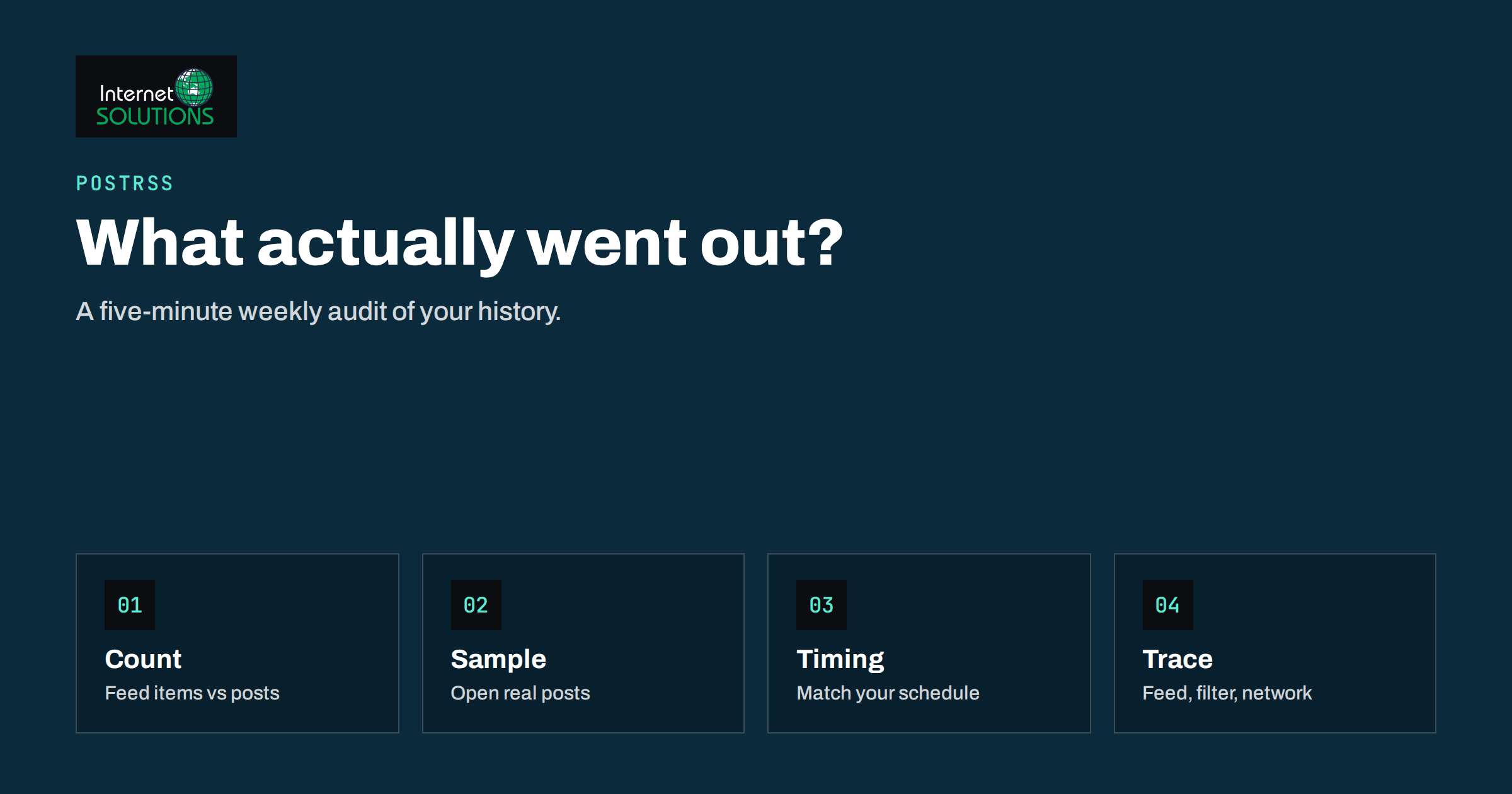
- Count. Compare the number of new items in your feed over the last week with the number of posts per network in the history. Large gaps need an explanation.
- Sample. Open three or four posts at random, preferably on different networks, and check text, image and link.
- Scan the times. Look for bunching or long silences that do not match your settings. Our guide to the posting schedule, windows and limits explains how timing choices shape what you see.
- Check the newest item in the feed. Confirm that it is either posted or intentionally pending.
- Note exceptions. Write down anything odd, with the date, so patterns show up over time.
Put this on the calendar. The value of an audit is not in a single check but in noticing, early, that something changed.
Common Findings and What They Usually Mean
An item in the feed has no matching post
Several explanations are possible. A filter may have excluded it deliberately; our article on keyword filters and hashtags describes how filters work. The item may not have appeared in the feed when PostRSS checked it, or it may have been added with an older date and treated as an existing item rather than a new one. It may also be scheduled for a later window. Check these in turn, starting with the feed itself. If the item is missing in the feed, the problem is on the website side, and the guide to troubleshooting RSS feeds will help.
The same item appears twice
Look at whether the feed changed the item’s identifier or address after publication, for example by editing the link, adding tracking parameters or changing the slug. Feed readers and automation tools often recognise items by identifier or link, so a change can make an old item look new. Fix it at the source by keeping addresses stable.
Posts arrive in a burst
Bursts usually occur when several items were published at once, when the feed was unavailable for a while and then caught up, or when settings allow all new items to go out together. If bursts are unwelcome, use the scheduling options to spread posts through the day.
The text looks wrong on one network
Each network has its own limits and conventions. Compare the history entry with the live post. A template that works for one channel may need a shorter version for another; see our piece on message formats for choosing the text that goes with each link.
The image is missing or poorly cropped
Check that the feed item includes an image and that the image address is reachable. Very large files, hidden images or addresses that require login can fail to attach. Follow the image guidance in our article on social media images for RSS auto-posting.
A link in the history leads to a missing post
The post may have been deleted on the network, hidden by the network’s own review process, or removed by someone with access to the page. Check the page directly, check who has access and review the network’s notifications.
Auditing for Different Roles
Solo business owner
A weekly look is enough. Focus on whether your best content reached the audience and whether the posts look professional on each network.
Marketing team
Add the history to your reporting. Record counts by network, notable gaps and any changes made. When campaign results are lower than expected, the history shows whether posting was the cause.
Agency
Review each client’s history before the monthly report and keep screenshots or exported notes of what was posted. When a client asks “did you post the sale announcement?”, you can answer with dates and links.
Publisher or shop with a busy feed
Check volume against intentions. A high-volume feed can produce many more posts than an audience welcomes. If the history shows a flood, tighten filters or spacing.
Keeping Your Own Records
The history in the product is the primary record, but a short log of your own makes it more useful. Note changes to templates, schedules, connected accounts and filters, with dates. When something looks different in the history a month later, you will know what changed. A shared document or a simple spreadsheet is enough.
Consider tracking outcomes as well. If you use tagged links, as described in our guide to UTM parameters for auto-posted social traffic, you can compare what the history says was posted with what visitors came from. That closes the loop between publishing and results.
Checking the Source: The Feed Itself
Because PostRSS reads a feed, many history questions end up as feed questions. If a post is missing, open the feed in a browser and check that the item exists, has a title, link and date, and uses a stable identifier. Valid, well-formed feeds behave predictably. You can test yours with the W3C feed validation service, and the RSS specification explains what each element is meant to contain.
Watch for common feed issues: items without dates, links that point to temporary addresses, full-text feeds that stopped including images and feeds that return an error page occasionally. Each can produce odd results in the history without anything being wrong in PostRSS itself.
Turning Findings Into Fixes
- Write the observation. “Three items from 12 May did not post to Pinterest” is better than “Pinterest seems off”.
- Check the feed. Does each item exist with the data PostRSS needs?
- Check filters and schedules. Did a rule exclude them or move them?
- Check the network. Is the connected account still valid, and does the network show the post?
- Change one thing. Adjust a single setting and note it.
- Verify with the next item. Confirm in the history that the fix worked.
- Update your notes. A recurring issue deserves a permanent rule or checklist item.
A Worked Example: Tracing One Missing Post
Imagine a small shop that publishes a blog article every Tuesday. On Wednesday a customer mentions that she never saw the announcement on one of the shop’s social profiles. Here is how the audit trail helps.
- Open the history and look for Tuesday’s article. It appears for three networks but not for the fourth, the one the customer follows.
- Open the three links from the history. All three posts exist and look correct, so the template and the feed item are fine.
- Check the feed. The article is present, with a title, a link and a date, so the feed is not the cause.
- Check the filters for the fourth network. A keyword rule written months ago excludes items that do not contain a certain word. Tuesday’s title did not contain it.
- Decide. The rule is doing what it was told, but it no longer matches the shop’s intention. The owner relaxes the rule and writes down the date and the reason in the change log.
- Verify. The next Tuesday, the history shows four posts. The note in the log explains the change if anyone asks later.
Nothing in this example required technical knowledge. The history provided the facts, the feed and the filters supplied the explanation and a one-line note preserved the decision. That is the whole value of an audit trail: it converts “something seems off” into a specific cause and a documented fix.
Frequently Asked Questions
What does PostRSS show in its history?
The history shows what was posted, where and when, with links to every post. Use it to confirm that items reached each connected network and to open the posts themselves.
How often should I review the history?
A five-minute weekly check suits most accounts. Busy feeds, campaigns and client accounts may justify a quick daily glance, and every change to templates or schedules deserves a check on the next few posts.
A post is in the history but I cannot find it on the network. What now?
Open the link from the history, check that you are signed in to the right account and look at the network’s own notifications. The post may have been removed or limited by the network, or by someone with access to the page.
Why was an item in my feed not posted?
Common reasons are a filter rule, an item that looked like an existing one, a feed that did not include the item when it was checked or a later scheduled time. Check the feed first, then your filters and schedule.
Can I use the history as a report for clients?
It is a good basis. Summarise the counts by network, list notable posts with their links and note any changes made. Add traffic data from your analytics for a fuller report.
Does the history tell me how well a post performed?
Its purpose is to record what was published. For performance, use each network’s own insights and your website analytics, ideally with tagged links so you can connect visits to posts.
The Bottom Line
Automated publishing earns trust when you can verify it. Use the PostRSS history as a lightweight audit: count what should have gone out, sample real posts, check timing, and investigate gaps by looking at the feed, the filters, the schedule and the network in turn. A five-minute weekly routine, a short log of your own changes and a habit of fixing one thing at a time will keep your automation reliable and your audience seeing what you meant them to see. If you would like help setting up or reviewing your publishing workflow, you can start from the PostRSS overview and the guides linked above.