

 English
 Lietuvių
 Latviešu
 Eesti
Eesti Русский
 Polski
 Українська
 Deutsch
 Italiano
 Español
 Français
 Português
 Čeština
 Magyar
 Română
 Ελληνικά
 Türkçe
 日本語
日本語 العربية
 हिन्दी
 Bahasa Indonesia
 Bahasa Melayu
 ไทย
ไทย Tiếng Việt
 বাংলা
বাংলাGoogle Merchant Center Product Feeds: Data Quality and Disapprovals
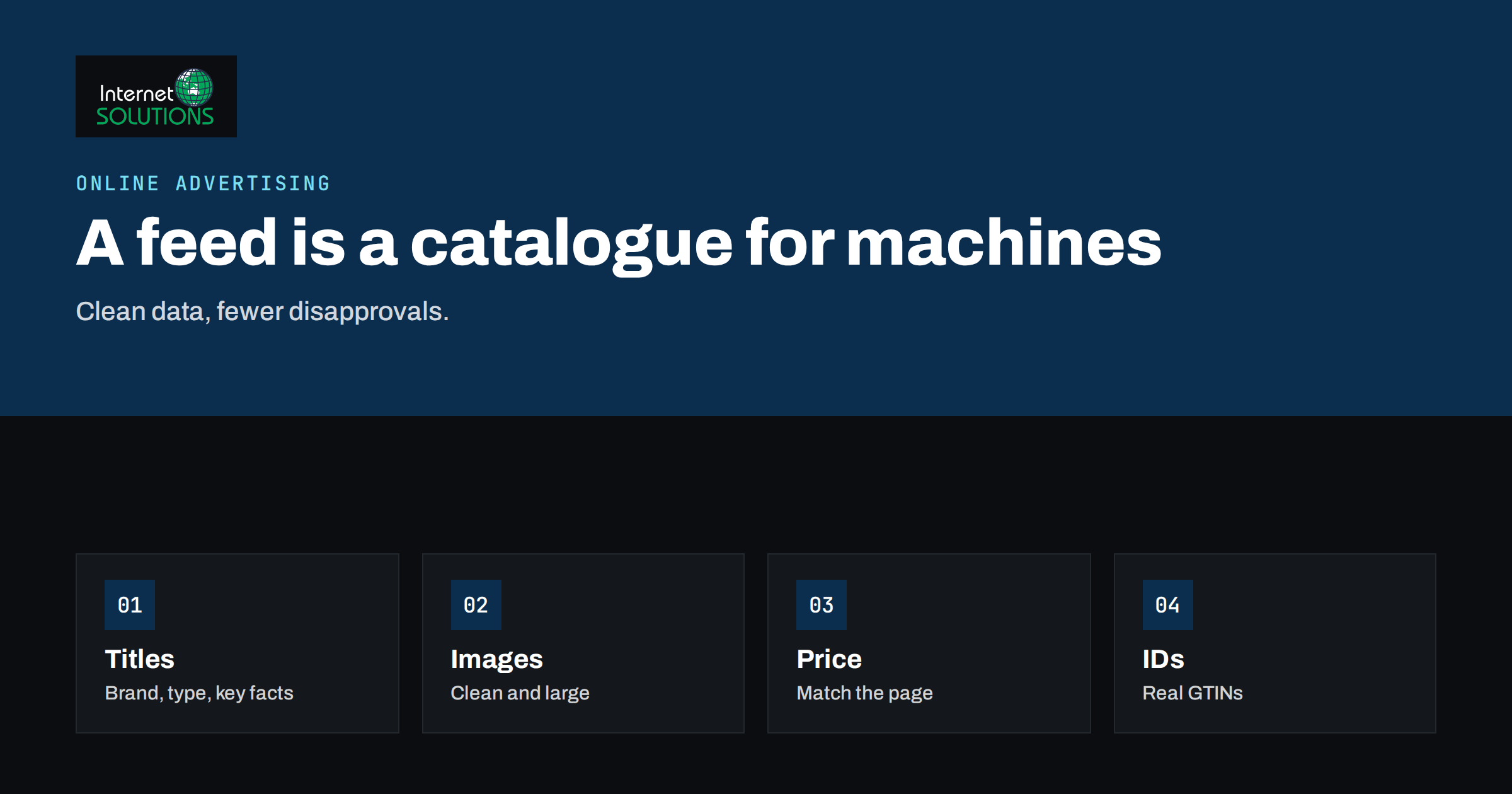
Google Merchant Center product feeds are the foundation of Shopping ads and free product listings, and the quality of the data in them decides how often your products appear, to whom, and whether they appear at all. A shop can have a good website, a sensible budget and a strong offer, and still lose most of its Shopping traffic because titles are vague, prices do not match the page, or hundreds of items sit in the diagnostics list marked as disapproved. This guide explains how a product feed works, which attributes matter most, how to write titles and descriptions that match what shoppers search for, and how to find and fix the most common disapprovals.
It is written for owners and marketers of online shops, whether the products come from a platform such as WooCommerce or Shopify, from a stock system or from a spreadsheet. The details of buttons and menus change over time, so the guide focuses on principles and checks that stay valid, and points to Google’s own documentation for the current specification.
What the Feed Does
A product feed is a structured list of everything you sell, with one row or entry for each product and one column or attribute for each piece of information: identifier, title, description, price, availability, image, link and many more. You upload it to Merchant Center, which checks it, matches it against Google’s policies and the content of your landing pages, and makes approved items eligible to appear in Shopping results.
The feed is the only source Google reads for most Shopping decisions. It does not usually “understand” your product from the page the way a person does. If the title says “Shoe” and does not mention the brand, colour or size, Google has little to match against the query “men’s black running shoes size 44”. If the price in the feed differs from the price on the landing page, the item is disapproved. The feed, in other words, is a product page for machines, and it deserves the same care as the page for people.
There are several ways to send the data: a scheduled fetch from a file hosted at an address on your site, a file upload, a connection through an e-commerce platform’s extension, an API integration, or a spreadsheet. Choose the method that your team can keep working without manual steps, because outdated feeds cause more problems than imperfect ones. For the specification of each attribute, Google’s product data specification is the reference.
The Attributes That Matter Most
Dozens of attributes exist, but a small group drives most of the results. Fill these completely and accurately before optimising anything else.
| Attribute | Purpose | Common problem |
|---|---|---|
| id | Unique, stable identifier for each product or variant | Changing the ID when the product is updated, which resets its history |
| title | The headline shoppers see; up to 150 characters | Too short, keyword-stuffed or missing brand and key attributes |
| description | Detailed text, up to 5,000 characters | Copy of the title, promotional wording or HTML clutter |
| link | Landing page address | Redirects, broken pages or the wrong variant |
| image_link | Main product image | Low resolution, watermarks, text overlays or placeholder pictures |
| price | Price with currency | Does not match the page, or sale price not updated |
| availability | In stock, out of stock, preorder | Feed says in stock while the page says sold out |
| brand | Manufacturer or brand name | Missing, or store name used instead of the brand |
| gtin and mpn | Global identifiers that match products to Google’s catalogue | Invented or invalid codes |
| condition | New, refurbished or used | Missing for used items |
| google_product_category | Places the product in Google’s taxonomy | Too general, or wrong category |
| shipping and tax | Delivery cost and, where required, tax | Different from what the checkout charges |
Variants need extra attributes: colour, size, material, pattern, gender and age group for apparel, and a group identifier that ties the variants of one model together. Each variant needs its own ID, link and image. Clothing and shoes are the area where missing attributes cause the most disapprovals and the most wasted traffic.
Writing Titles That Match Searches
The title is the most influential text in the feed. Shoppers scan for it, and Google uses it to decide which searches your product is relevant to. A strong title is built from the facts a buyer cares about, in an order that puts the most important first, since only the first part is shown in many placements.
- Apparel: brand, gender, product type, key attribute, colour, size. Example: “Nordic Trail Men’s Waterproof Hiking Jacket, Green, Size L”.
- Electronics: brand, product line, model number, key specification. Example: “Acme AirBook 14 Laptop, 16 GB RAM, 512 GB SSD, Silver”.
- Home and garden: brand, product type, material, dimensions or capacity, colour. Example: “Greenleaf Stainless Steel Watering Can, 5 Litre, Matt Black”.
- Consumables: brand, product, flavour or type, quantity. Example: “Alpine Roast Ground Coffee, Dark, 1 kg”.
Avoid promotional text, such as “Free shipping” or “Best price”, in titles, which is not allowed. Do not use capital letters for emphasis, and do not add keywords the product does not match. If the platform automatically uses the page title as the feed title, review a sample; page titles are written for web search and may be shorter or less informative than a Shopping title needs. Many shops solve this with a custom feed attribute or rule that builds the title from product fields.
Descriptions deserve attention too. They help matching and influence conversions in some placements. Write a clear paragraph that describes the product, its materials, use and dimensions, in plain text. Do not copy the same description for every variant if the differences matter, and do not include links, contact details or promotional claims.
Images That Pass and Sell
The main image is often the reason a shopper clicks. It should show the product alone on a clean, plain background, large enough to look sharp, and with no watermarks, logos added on top, borders or promotional text. Use a real photograph of the product rather than a generic icon or a “coming soon” placeholder. Apparel images need a minimum size larger than most other categories, and all images should be as large as practical so they remain sharp on high-density screens.
Additional images, for example from other angles, in use or showing detail, can be supplied in the additional image attribute. Check that every image address is accessible to Google without a login and loads quickly. A feed with thousands of products pointing to a slow image server will produce errors that look like random disapprovals.
Identifiers: GTIN, Brand and MPN
For branded products, global trade item numbers (GTINs), such as the barcode on the packaging, help Google match your item to its catalogue, group offers and show richer information. Always use the real number supplied by the manufacturer or your supplier. Invented, duplicated or invalid GTINs lead to disapproval. If a product genuinely has no GTIN, for example a handmade or custom item, mark it as having no identifier as the specification describes, and supply the brand and any manufacturer part number you do have.
Make sure the brand attribute holds the brand of the product, not the name of your shop, unless you are the manufacturer. Where you sell your own private-label products, use your own brand name consistently. Mismatches between the brand in the feed and the brand on the page are a common cause of warnings.
Price, Availability and the Landing Page
Google compares your feed to your landing page. If the price, currency, availability or shipping in the feed differs from what a customer sees, the item can be disapproved, and repeated mismatches can put the account at risk. The best defence is to have one source of truth, with both the web page and the feed generated from the same product database, and to refresh the feed often enough to follow stock and price changes.
- Frequency: a daily fetch is a minimum for most shops; fast-moving stock or sales justify more frequent updates.
- Sale prices: use the sale price attribute with start and end dates, and make sure the page shows the same discounted price.
- Out of stock: mark items as out of stock rather than removing them, unless they are permanently discontinued.
- Currency and tax: include tax where it must be shown, and make sure the currency matches the country of sale.
- Structured data: product markup on the page with price and availability also helps Google verify the data automatically. See our guide to product page SEO for online stores.
Common Disapprovals and How to Fix Them
The diagnostics area of Merchant Center lists problems by type, shows the number of affected products and often gives examples. Work through the largest groups first, since one fix may clear hundreds of items.
| Issue | Likely cause | Fix |
|---|---|---|
| Mismatched value (price) | Feed out of date, or page shows a different price | Refresh the feed, align sale logic, test with a sample product |
| Mismatched value (availability) | Stock changed after the last fetch | Increase fetch frequency or use the API for stock updates |
| Missing value: GTIN or brand | Attribute absent for a branded product | Add the manufacturer’s identifiers; use the no-identifier setting only where it applies |
| Image too small or has overlay | Thumbnail, watermark or promotional text | Use the clean, original, large image |
| Landing page not working | Redirect, error, geoblocking, or blocked crawler | Make sure the page loads for Google’s crawler and is not behind a login |
| Unsupported or misleading content | Wording or products that conflict with policy | Read the policy page for the category and adjust |
| Missing shipping or tax data | No rule for the target country | Define shipping and tax in settings or in the feed |
| Invalid or duplicated IDs | Same ID for different items | Generate unique, stable identifiers |
Google’s Shopping ads and listings policies describe what is allowed in each category, and it is worth reading them before a large change. After a fix, request a re-review if the interface offers it, and allow some time. Changes do not appear instantly, and you may see the old status for a day or two. If a whole account is suspended, read the policy message carefully before you make large changes, and correct the root cause rather than resubmitting the same data.
From Feed to Campaigns
A clean feed is a prerequisite for effective advertising. When you move to paid campaigns, the structure and bids matter, but they cannot compensate for poor product data. Our guide to structuring Shopping campaigns that convert shows how to group products by margin and performance, and the article on Performance Max explains how automated campaigns use the feed. In both, the quality of titles, images and prices flows directly into results.
Free listings use the same feed, so improving it benefits you even when your advertising budget is small. You can also segment products in your reports by brand, category or custom labels, such as “bestseller” or “high margin”, and use that insight when deciding what to advertise. If your team prefers to hand the setup to specialists, our online advertising services include feed review and campaign setup.
A Monthly Feed Routine
- Open diagnostics and review new issues, starting with the largest.
- Check that the feed was fetched on schedule and without errors.
- Sample ten products across categories: compare the feed, the page and the Shopping listing.
- Review the titles of the top fifty products by revenue and improve them.
- Check images for new products, especially variants and imports.
- Look at the products with impressions but few clicks, and at those with clicks but no sales; fix titles, images or prices as appropriate.
- Document any rules you change so that the next person understands why.
Frequently Asked Questions
Do I need a feed to appear in free product listings?
Yes. Free listings use product data from Merchant Center, supplied through a feed, an integration or structured data on your pages, depending on the options available in your account.
How often should the feed be updated?
At least daily for most shops. If prices or stock change often, update more frequently, so that the feed never shows information that differs from the page.
What happens if I do not have GTINs?
For branded products, supply the real GTINs from the manufacturer. For custom or handmade items without identifiers, use the setting that marks the product as having none, and give the brand and other details you have.
Why are my products approved but not showing?
Approval means eligibility, not guaranteed visibility. Relevance, competitiveness of price, title quality, images, ratings and, for ads, bids and budget all affect whether your product appears.
Can I change titles in the feed without changing the website?
Yes. The feed title can differ from the page title, and many shops build a dedicated Shopping title from brand, type and attributes. The facts in it must still be true and match the product.
How long does a disapproval take to clear after I fix it?
It can take from a few hours to several days, depending on how Google re-fetches your data and pages. Check again after the next scheduled fetch.
The Bottom Line
Google Merchant Center product feeds work best when they are treated as a product catalogue for machines: unique stable IDs, informative titles, clean images, real identifiers, prices and availability that match the page, and a fetch schedule that keeps up with your stock. Check diagnostics regularly, fix the largest groups of issues first, and build campaigns on top of a feed you trust. A tidy feed lifts both free listings and paid Shopping results, usually at far lower cost than increasing the budget.