

 English
 Lietuvių
 Latviešu
 Eesti
Eesti Русский
 Polski
 Українська
 Deutsch
 Italiano
 Español
 Français
 Português
 Čeština
 Magyar
 Română
 Ελληνικά
 Türkçe
 日本語
日本語 العربية
 हिन्दी
 Bahasa Indonesia
 Bahasa Melayu
 ไทย
ไทย Tiếng Việt
 বাংলা
বাংলাLive Chat Accessibility: Keyboard, Screen Readers and Contrast
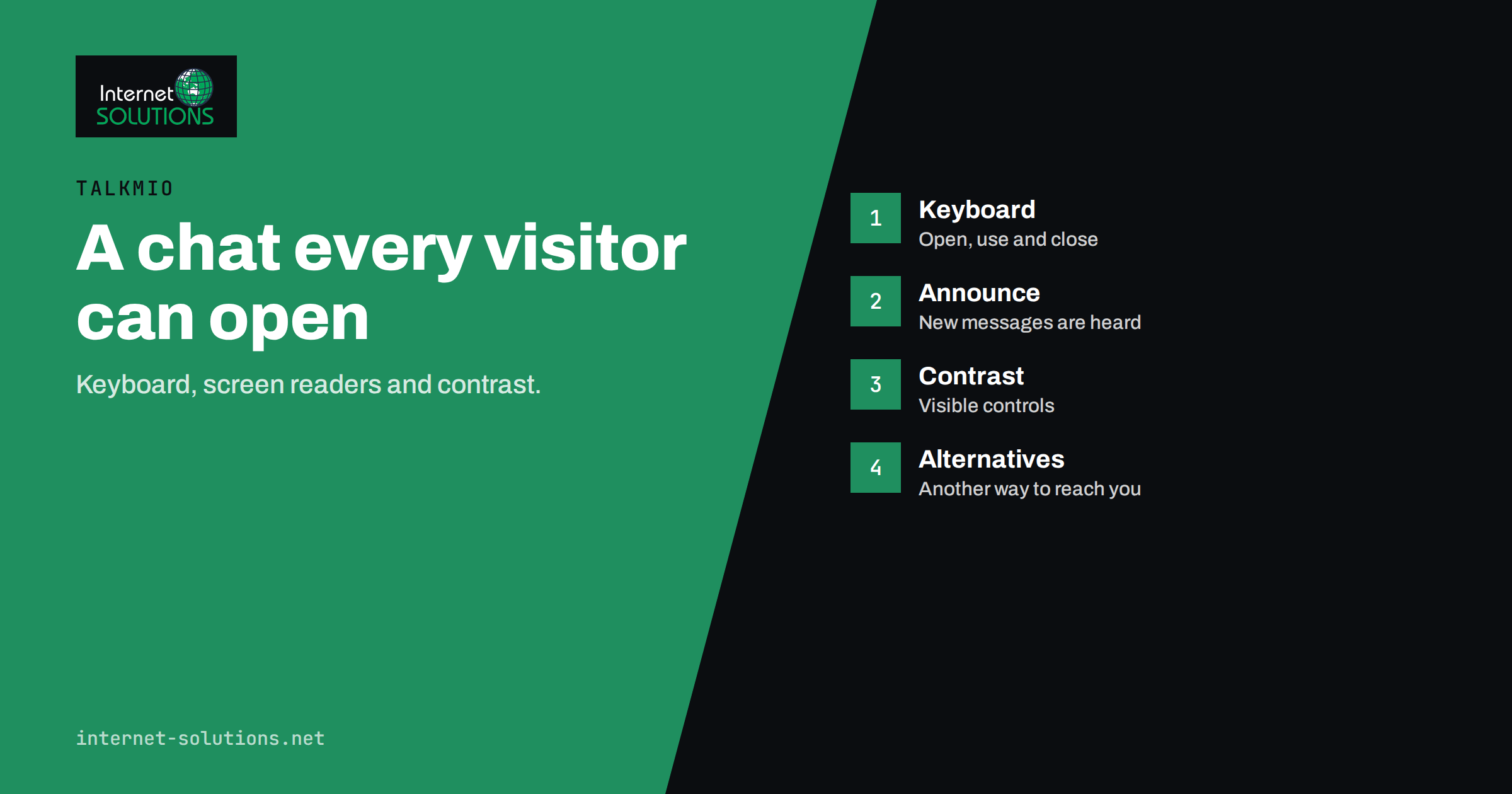
Live chat accessibility decides whether a visitor who uses a keyboard, a screen reader, voice control or a magnifier can ask your business a question at all. A chat widget is a small application that sits on top of your website, and many are built and tested only with a mouse and good eyesight. For a person who navigates by keyboard or hears the page read aloud, a badly built widget can be invisible, impossible to open or a trap that swallows focus and cannot be closed. Since chat is often the fastest route to help, excluding those visitors means losing customers and, in many countries, risking legal complaints.
This guide explains how a chat widget should behave for people with different needs, translated from accessibility standards into practical checks. It lists what to test, what to ask a vendor, how to configure colours, greetings and forms, and how to offer alternatives when a chat is not the right channel. It is written for website owners and support managers, not for specialists, and it applies to any chat product, including Talkmio.
Who Is Affected
Accessibility is often imagined as a matter for a small minority. In fact, many people use assistive technology or accessibility settings at least some of the time. Think about the range of visitors who meet your chat.
- Keyboard-only users: people with motor impairments, repetitive strain injuries or a broken mouse, and power users who prefer the keyboard.
- Screen reader users: people who are blind or have low vision and hear the page spoken or read in braille.
- Low-vision users: people who zoom to 200 or 400 percent, use high-contrast modes or large text.
- Colour-blind users: about one man in twelve has some form of colour vision deficiency, and colour-only cues fail them.
- Deaf and hard-of-hearing users, for whom text chat is often better than a phone call, provided that it is accessible.
- People with cognitive or learning differences, who benefit from simple language, predictable behaviour and no sudden pop-ups.
- Voice-control users, who operate buttons by speaking their names.
- Everyone in difficult conditions, such as bright sunlight, a noisy room or a small phone.
Our overview of website accessibility and WCAG compliance explains the standard that these checks come from. The guidelines apply to a chat widget in the same way as to the rest of the page.
The Main Requirements in Plain Language
The Web Content Accessibility Guidelines are written for all web content, but a few of their success criteria matter especially for chat. The table translates them.
| Area | What the widget should do | Why it matters |
|---|---|---|
| Keyboard access | The launcher, the message field, the send button, the close button and every option can be reached and used with Tab, Shift+Tab, Enter, Space and Escape | Without it, keyboard users cannot start or finish a chat |
| Names and roles | Controls have accessible names, such as “Open chat” and “Send message”, and correct roles | Screen readers announce buttons by their names; an unlabelled icon is silent or confusing |
| Status messages | New messages, typing indicators and errors are announced without moving focus | Blind users cannot see that an agent has replied unless it is announced |
| Focus management | When the chat opens, focus moves into it; when it closes, focus returns to the launcher; focus is always visible | Keyboard users must know where they are and must not get lost or trapped |
| Contrast | Text meets at least 4.5 to 1, and borders, icons and focus indicators at least 3 to 1 | Low-vision and colour-blind users need to see the controls |
| Target size and spacing | Buttons are large enough to hit and not crowded together | Helps people with tremors, large fingers or a phone in motion |
| Zoom and reflow | The chat remains usable when the page is zoomed or the text size grows, and does not cover essential content | Prevents the widget from becoming a barrier on small or zoomed screens |
| Motion and interruptions | Animations can be reduced; greetings do not steal focus; timing is not too short | Protects users who are distracted or sensitive to movement |
Keyboard Operation
Test keyboard access first, because it is the foundation for everything else. Put the mouse aside, load a page with the chat on it and press Tab repeatedly. You should be able to reach the chat launcher in a logical order, see a clear focus indicator on it and open it with Enter or Space. Inside the chat, Tab should move through the message field, the send button, attachments, options and the close button, in an order that makes sense.
- Escape should close the window, and focus should go back to the launcher that opened it.
- Focus must not escape behind an open chat that behaves as a dialog, and must not be trapped inside with no way out. The W3C pattern for a modal dialog describes the expected focus behaviour.
- Every action must be possible without a mouse, including choosing a quick-reply button, uploading a file, rating the conversation and ending the chat.
- The focus indicator must be visible. The guidance on focus visible explains why a faint or removed outline fails users.
- Shortcuts must not clash with screen reader or browser commands, and single-key shortcuts should be avoidable.
Screen Readers and Live Updates
A screen reader user cannot see a message bubble appear. The widget has to tell assistive software what is happening. Controls need names and roles that match their purpose, a requirement known as name, role and value and described in the W3C’s page on name, role, value. Icons without text, such as a speech bubble or an arrow, need an accessible label.
The conversation itself should be exposed as a live region, so that new messages are announced politely without moving the user’s focus. Without this, a visitor might wait for minutes unaware that the agent has already replied. Related events deserve announcements too: “Agent is typing”, “Message sent”, “Connection lost” and “File upload failed”. The requirement is explained in the guidance on status messages.
- Turn on a screen reader, such as NVDA or the one built into your operating system, and open the chat.
- Check that the launcher is announced with a sensible name and role, for example “Open chat, button”.
- Type a message, send it and listen for confirmation.
- Have a colleague reply and confirm that you hear the reply without searching for it.
- Check that the sender of each message is clear, such as “You” and “Agent”, and that timestamps are not read out in a confusing way.
- Close the chat and confirm that focus returns to a logical place.
Pay attention to the content that automated bots send. Buttons offered as quick replies should be real buttons with names, and cards, carousels or images should have text alternatives.
Colour, Contrast and Visual Design
Most chat tools allow you to change the colours of the launcher and the header. That freedom is easy to misuse: a pale pastel launcher with white text, or a brand colour that fails contrast, makes the first interaction hard. Check these points.
- Text in the header, message bubbles, buttons and placeholders should meet a 4.5 to 1 contrast ratio against its background.
- The launcher icon and the borders of input fields should meet 3 to 1 against the page, or the user will not recognise them.
- Do not use colour alone to show who is speaking or whether a message failed. Add text, icons or alignment.
- Check the launcher on every background of your site, including images, footers and banners.
- Support the operating system’s high-contrast and dark modes where the widget offers them, and test the result.
Our practical article on Talkmio widget setup describes the colour and greeting options, and the same advice about contrast applies when you choose them.
Size, Position and Overlap
A fixed-position widget in the bottom corner can cover buttons, cookie banners, form fields and sticky navigation. On a small phone, an open chat can fill the whole screen with no obvious way back. Test the chat at zoom levels of 200 and 400 percent, in portrait and landscape and with large text enabled. The launcher should stay reachable but not conceal important controls, and the open window should scroll properly and have a close button that is easy to find.
Make sure that targets are comfortable. The guidance on minimum target size sets a floor for how small an interactive element may be, but larger is better, especially for the close and send buttons. Leave enough space between neighbouring buttons so that a shaky tap does not hit the wrong one.
Greetings, Pop-Ups and Timing
Automatic greetings can be helpful, but they are also a common source of barriers. A pop-up that appears after five seconds, takes focus and covers the page interrupts a screen reader in mid-sentence and distracts people with attention difficulties. Review the trigger rules with this in mind; our guide to chat triggers and rules explains how to set them up.
- Do not move focus into the chat unless the user opened it.
- Let greetings be dismissed with one action and keep them dismissed on following pages.
- Avoid flashing or constantly moving animation, and respect the setting that asks for reduced motion.
- Do not set short time limits on replies or sessions that expire while a person is still composing a message. If a session must end, warn the user and allow extension.
- Do not play sounds automatically without a clear way to turn them off.
Forms, Bots and Language
Many chats ask for a name and email address before the conversation starts. Each field needs a visible label, not just placeholder text that disappears, and errors must be explained in words and announced. Avoid image-based verification puzzles that block users who cannot see or solve them; choose a method that does not depend on sight or fine motor skill, or one that is invisible to humans.
Bots and automated answers need accessibility too. Say clearly when the visitor is talking to an automated assistant, give a visible route to a human and keep sentences short. Plain language, avoiding jargon and idioms, helps everybody, including people who read in a second language and visitors who use translation tools. Our article on live chat etiquette gives advice on writing replies that are clear and respectful.
Offer an Alternative to Chat
Even a well-built widget will not suit everyone. Some people cannot use chat comfortably, some browsers or assistive tools struggle with embedded widgets, and some tasks are too complex for short messages. Always give other ways to reach you on the contact page and, if possible, within the chat itself: an email address, a phone number, a contact form and, where relevant, a text relay service. State response times honestly so that visitors know what to expect. Equivalent alternatives are part of an inclusive support strategy and a good fallback when scripts fail to load.
Choosing and Testing a Chat Product
When you evaluate a chat tool, treat accessibility as a requirement, not an extra. Ask the vendor direct questions and test the answers.
- Does the vendor publish an accessibility statement or conformance report, and which version of the standard does it refer to?
- Can the widget be operated entirely by keyboard, and is it tested with common screen readers?
- Can colours, fonts and positions be adjusted to meet contrast and size requirements?
- How are new messages announced to assistive technology?
- Can greetings and animations be disabled or reduced?
- Does the agent-side application, used by your staff, also support accessible use? Some of your own team may rely on assistive technology.
- How quickly does the vendor fix accessibility issues that you report?
Then run your own test before launch and after every major widget or theme update: keyboard walk-through, screen reader walk-through, zoom test, contrast check and a test with real users if you can. Record the results, fix what is under your control and report the rest to the vendor in writing.
A Short Checklist You Can Use Today
- Open the chat and operate it with the keyboard only, including closing it.
- Confirm a visible focus indicator on every control.
- Listen to the widget with a screen reader and confirm that new messages are announced.
- Check contrast for header, bubbles, buttons and input borders.
- Zoom to 200 percent and 400 percent and look for overlaps and clipped content.
- Review the greeting rules and remove pop-ups that take focus.
- Label all form fields and test the error messages.
- Publish at least one alternative way to contact you.
Frequently Asked Questions
Does a live chat widget have to meet WCAG?
The widget is part of your web page, so accessibility standards apply to it as they do to other content. Laws in many countries refer to these guidelines, and a barrier in a chat can count as a barrier on your site.
Can I rely on the vendor for accessibility?
The vendor builds the widget, but you control how it is configured and placed, and you remain responsible for the experience on your site. Ask for documentation and test the result yourself.
How do I test chat with a screen reader without experience?
Use a free screen reader such as NVDA on Windows or the built-in reader on your phone, learn a handful of basic commands and walk through opening the chat, sending a message and hearing a reply. Even a short test reveals major problems.
Is an automatic greeting bad for accessibility?
Not necessarily, but it must not take focus, must be easy to dismiss and must not interrupt reading or typing. A quiet, dismissible greeting is better than a full pop-up.
What contrast should my chat colours have?
Aim for at least 4.5 to 1 for text and 3 to 1 for icons, borders and focus indicators. Use a contrast checker on your actual colours, because brand colours often fail.
What if my chat tool is not accessible?
Report the problems to the vendor, adjust settings that you control, offer an alternative contact route and consider switching tools if issues remain serious. Document your efforts.
The Bottom Line
An accessible chat is one that anybody can open, read, write in and close using the tools they already use. Check keyboard access, screen reader announcements, contrast, size, motion and forms, ask vendors for evidence, test after every change and always provide another way to reach you. These steps are not extra polish; they decide whether every visitor, not only the typical one, can get the help your chat promises.