

 English
 Lietuvių
 Latviešu
 Eesti
 Русский
 Polski
 Українська
 Deutsch
 Italiano
 Español
 Français
 Português
 Čeština
 Magyar
 Română
 Ελληνικά
 Türkçe
 日本語
 العربية
 हिन्दी
 Bahasa Indonesia
 Bahasa Melayu
 ไทย
 Tiếng Việt
 বাংলা
WordPress Multisite or Separate Installs: Which Fits Your Sites?
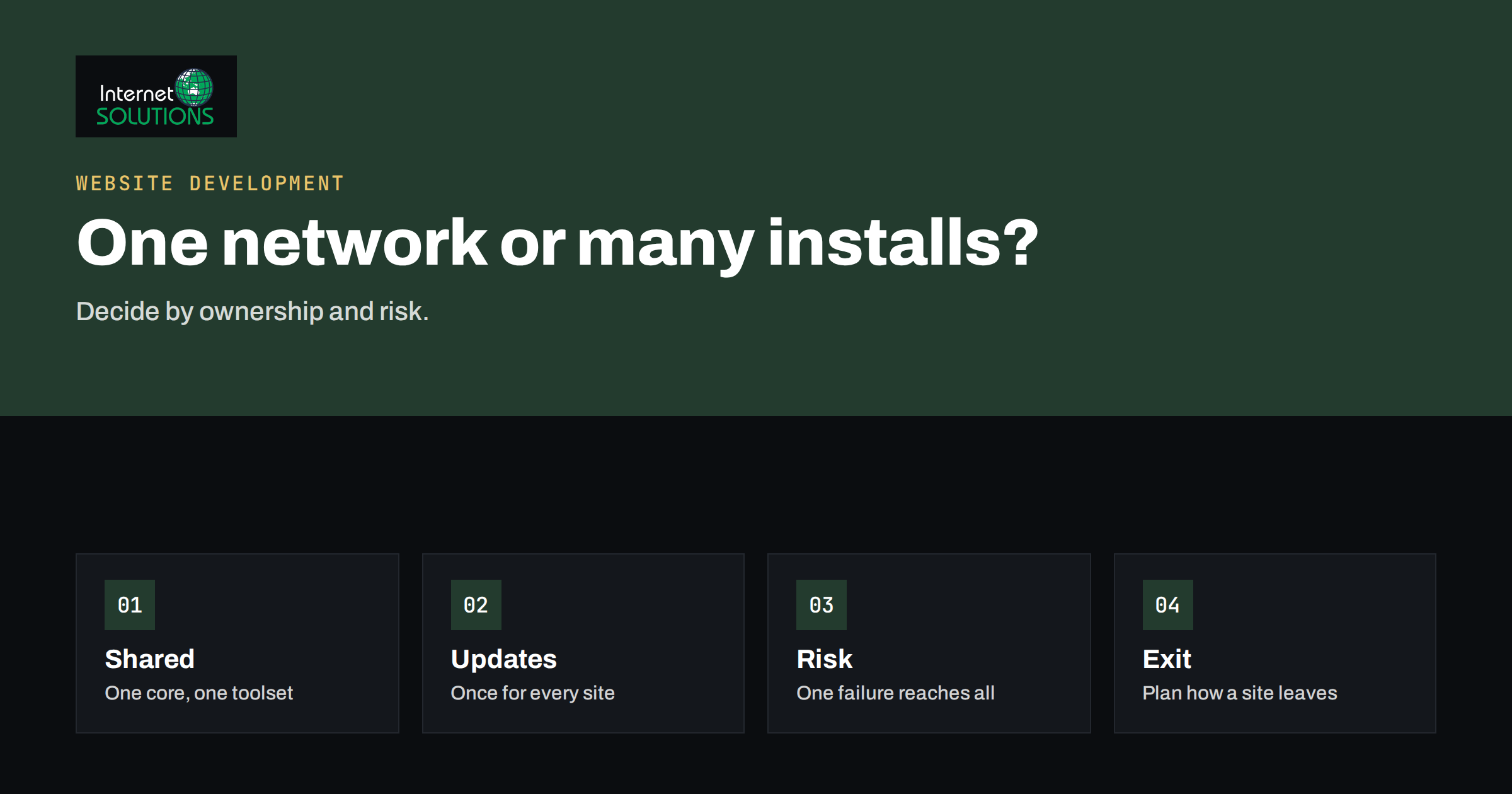
WordPress Multisite is a built-in feature that lets one WordPress installation run many websites. Instead of installing WordPress ten times, you install it once and create ten sites inside it, managed from a single network dashboard. For an organisation with a family of similar sites, such as regional offices, franchise locations, language versions or a set of campaign microsites, it can reduce maintenance dramatically. For a group of unrelated sites with different owners and different needs, it can create more problems than it solves. The right answer depends less on technology than on how the sites are owned, updated and trusted to fail.
This guide explains how Multisite works, what it shares and what it keeps separate, where it shines, where separate installs are safer, and how to decide. It also covers backups, security, hosting, migration and the questions to ask before committing. It is written for owners and managers who must choose a setup for several WordPress sites, with or without a developer in the room.
How Multisite Works
A Multisite network has one WordPress core, one set of plugin and theme files and one database, in which each site has its own set of content tables. A user with the Super Admin role manages the network: installing plugins and themes, updating WordPress and creating sites. Individual site administrators manage content and settings within their own site, and can activate only the plugins and themes the Super Admin has made available. The official documentation in the WordPress multisite guide describes the architecture in detail.
Networks come in two address styles. In a subdirectory network, sites live in folders such as example.com/uk/. In a subdomain network, they live on subdomains such as uk.example.com. WordPress can also map custom domains to individual sites, so each site can present its own address to visitors. The choice affects how you plan your structure, and the guide on creating a network explains the technical requirements.
What Is Shared and What Is Separate
| Element | In a Multisite network | In separate installs |
|---|---|---|
| WordPress core | One copy, updated once | One copy per site, updated each time |
| Plugins and themes | Installed by Super Admin, enabled per site or network-wide | Installed and updated per site |
| Database | One database, separate tables per site | One database per site |
| Users | Shared user table, roles per site | Separate users per site |
| Media uploads | Stored per site, in the same installation | Fully separate |
| Administrator power | Super Admin controls everything | Each site has its own full administrator |
| Failure impact | A core or plugin problem can affect all sites | A problem stays within one site |
| Custom code per site | Possible but shared files make it harder | Easy to isolate |
When Multisite Is a Good Fit
- Many similar sites with one owner. Regional versions of a company site, franchise locations that follow one brand template, or schools in one group.
- A central team controls plugins and design. The network owner chooses the toolset and local editors only add content.
- Uniform needs. Every site uses the same theme, the same plugins and similar content structures.
- Shared users. Staff work across several sites with one login and different roles on each.
- Frequent new sites. You create sites on request, and each one should start from a known template in minutes.
- Efficient maintenance. You want to update the core and plugins once, instead of ten times a month.
In such a network, a single patch release reaches every site together, which is a real advantage. Our article on patch management explains why timely updates matter, and Multisite makes the discipline cheaper.
When Separate Installs Are Safer
- Unrelated owners or clients. If different organisations own the sites, you do not want one Super Admin account able to reach all of them, nor do you want a problem at one client to affect another.
- Different technology needs. A WooCommerce store, a membership site and a plain brochure site may need incompatible plugins, different PHP versions or different caching setups.
- Custom development per site. Heavy site-specific code in a shared installation becomes hard to test and deploy.
- Independent release schedules. If one site must stay on an older plugin version for a while, a network forces the same version on everyone.
- Different hosting requirements. You may want to move one site to another host, or give it dedicated resources, without moving the rest.
- Risk tolerance. If one broken update would cost real money for all sites at once, isolation is valuable.
Agencies that manage many client sites often choose separate installs for exactly these reasons, usually combined with a management dashboard or scripted update process to reduce repetitive work.
Plugins and Themes in a Network
Not every plugin works well in Multisite. Some assume a single site, store settings in ways that conflict across sites or break when the same plugin is activated differently on each. Before choosing the network route, list the plugins you need and check that each supports Multisite, and test them on a staging copy. Be especially careful with e-commerce, membership, backup and caching plugins. Our guide to choosing WordPress plugins safely covers general criteria, and the same advice applies with extra weight when one bad plugin can affect an entire network.
Themes work well in a network, because the Super Admin can offer a small set of approved themes, or a parent theme with child themes for variations. This keeps the visual identity consistent and the code base manageable.
Users, Roles and Control
In a network, users exist once and can be added to any site with a role. That makes staff management easier, but it also means a compromised account may touch several sites. Define who gets the Super Admin role, which should be a very small group, and use site-level roles for everyone else. The principle of least privilege, described in our article on WordPress user roles and permissions, matters more in a shared installation. Require multi-factor authentication for all administrators and log changes to the network settings.
Backups, Staging and Recovery
Backups in a Multisite network deserve extra thought. Because the sites share a database, a single backup captures the whole network, which is convenient for disaster recovery, but restoring a single site from a full backup is more complicated than restoring a standalone site. Decide in advance how you will recover one site that an editor has damaged: through a plugin with per-site restore, through exports of that site’s tables or through a staging copy. Test the restore on a copy before you need it. A staging environment is equally important, because a change to the network affects every site. Our guide to the WordPress staging site describes how to test changes safely.
Performance and Hosting
A network concentrates traffic on one installation, so size the hosting for the total load, not for the average site. Use object caching and page caching, and check that your caching setup understands Multisite. A traffic spike on one site can slow all the others on a small server, so monitor resource use and consider splitting very busy sites out. Hosts differ in how well they support Multisite, so ask whether the provider supports it, how backups work and whether custom domains can be mapped with automatic certificates.
Migration and Exit Strategy
Moving a site into a network, or out of one, is possible but takes planning. Content can be exported and imported, and plugins exist for cloning sites, but custom tables, media paths and settings need careful handling. Think about exit before you enter. If a site might one day be sold, handed to a client or moved to its own host, plan how you would extract it, and keep documentation of its configuration. A network that cannot release a site easily becomes a lock-in for the organisation as well as for the technology.
Three Scenarios Compared
A restaurant group with eight venues. Each venue needs its own menu, opening hours and booking link, but the brand, design and features are the same, and one marketing manager oversees everything. This is a classic Multisite case: one theme, a small set of plugins, a template site that is cloned for each new venue, and local managers with editor rights on their own site only. Updates reach all eight sites in one step, and a new venue can launch in an afternoon.
A web studio with thirty client sites. The clients are unrelated, some run online shops and some run simple brochure sites, and each pays for its own hosting and has its own expectations about updates. Separate installs are the better fit. The studio can adopt a standard stack and an automated update routine, and a problem at one client never reaches another. It can also hand a site over when a client leaves, without untangling it from a shared database.
A university department with a main site and twenty project sites. The projects are short-lived, created by different teams and often abandoned after the grant ends. Multisite lets the central web team keep standards, apply security patches centrally and archive finished project sites. The team must restrict plugin installation to approved ones and agree rules for retiring sites, because a network of forgotten sites becomes a security liability.
Governance Rules That Keep a Network Healthy
Technology is only half of the answer. A network that works well usually has written rules. Define who can request a new site and who approves it. Publish the list of approved themes and plugins, and the process for requesting an addition, including a security review. Set a naming convention for sites and a standard configuration for new ones. Agree on a retention policy: after how long is an inactive site archived or deleted, and who decides. Document the update routine, the person on call for incidents and the way site owners are informed of maintenance. When these rules exist, the network becomes a service that site owners trust. Without them, it turns into a collection of exceptions, and the benefits of centralisation disappear.
A Simple Decision Guide
- Count the sites and note who owns each one.
- List the plugins and themes each needs, and mark the differences.
- Decide who should control updates: one central team or each site owner.
- Assess the risk of a shared failure, in money and reputation.
- Check hosting and backup options for per-site recovery.
- Choose Multisite if the sites are similar, share one owner and benefit from central control. Choose separate installs if they differ, belong to different parties or need isolation.
- Pilot with two sites before you commit the whole group.
If you want an independent view of your own situation, our website development team can review the sites and propose a structure.
Common Mistakes
- Choosing Multisite only to save a few update clicks, without considering shared risk.
- Putting clients with different owners into one network.
- Not testing plugins for Multisite compatibility.
- Giving too many people the Super Admin role.
- Skipping staging, and updating the network directly on production.
- Having no plan to restore a single site.
- Forgetting to plan the exit of a site that may leave the network.
Frequently Asked Questions
Is Multisite faster than separate installs?
Not by itself. It simplifies maintenance, but performance depends on hosting, caching and how heavy each site is. A busy network needs more capacity than a single site.
Can each site use its own domain name?
Yes. WordPress supports mapping custom domains to individual sites in a network, as long as the DNS and certificates are configured correctly.
Can I turn existing separate sites into a network?
Yes, with a migration. You create the network, import each site’s content and settings, and test carefully. Plan for redirects if addresses change.
Is Multisite less secure?
Not inherently, but the consequences of a single weakness are larger because sites share files, the database and a super administrator. Strong access control, timely updates and good backups are essential.
Can sites in a network use different themes?
Yes. The Super Admin controls which themes are available, and each site chooses from them. Child themes are a common way to give each site its own variation.
Which is better for an agency with client sites?
Usually separate installs, because clients differ in needs and ownership, and isolation protects everyone. Agencies often use tooling to update many separate sites at once.
The Bottom Line
Choose WordPress Multisite when you run a family of similar sites for one owner, with one team responsible for plugins and design, and when central updates and shared users matter more than isolation. Choose separate installs when the sites belong to different parties, have different technical needs, or when a shared failure would cost too much. Whichever you pick, protect administrator access, keep a staging site, test your restore process and write down how a site could leave. For help choosing and implementing the right structure, see our website development page.