

 English
 Lietuvių
 Latviešu
 Eesti
 Русский
 Polski
 Українська
 Deutsch
 Italiano
 Español
 Français
 Português
 Čeština
 Magyar
 Română
 Ελληνικά
 Türkçe
 日本語
 العربية
 हिन्दी
 Bahasa Indonesia
 Bahasa Melayu
 ไทย
 Tiếng Việt
 বাংলা
Website Deployment: Git, rsync and Safe Rollbacks for Small Sites
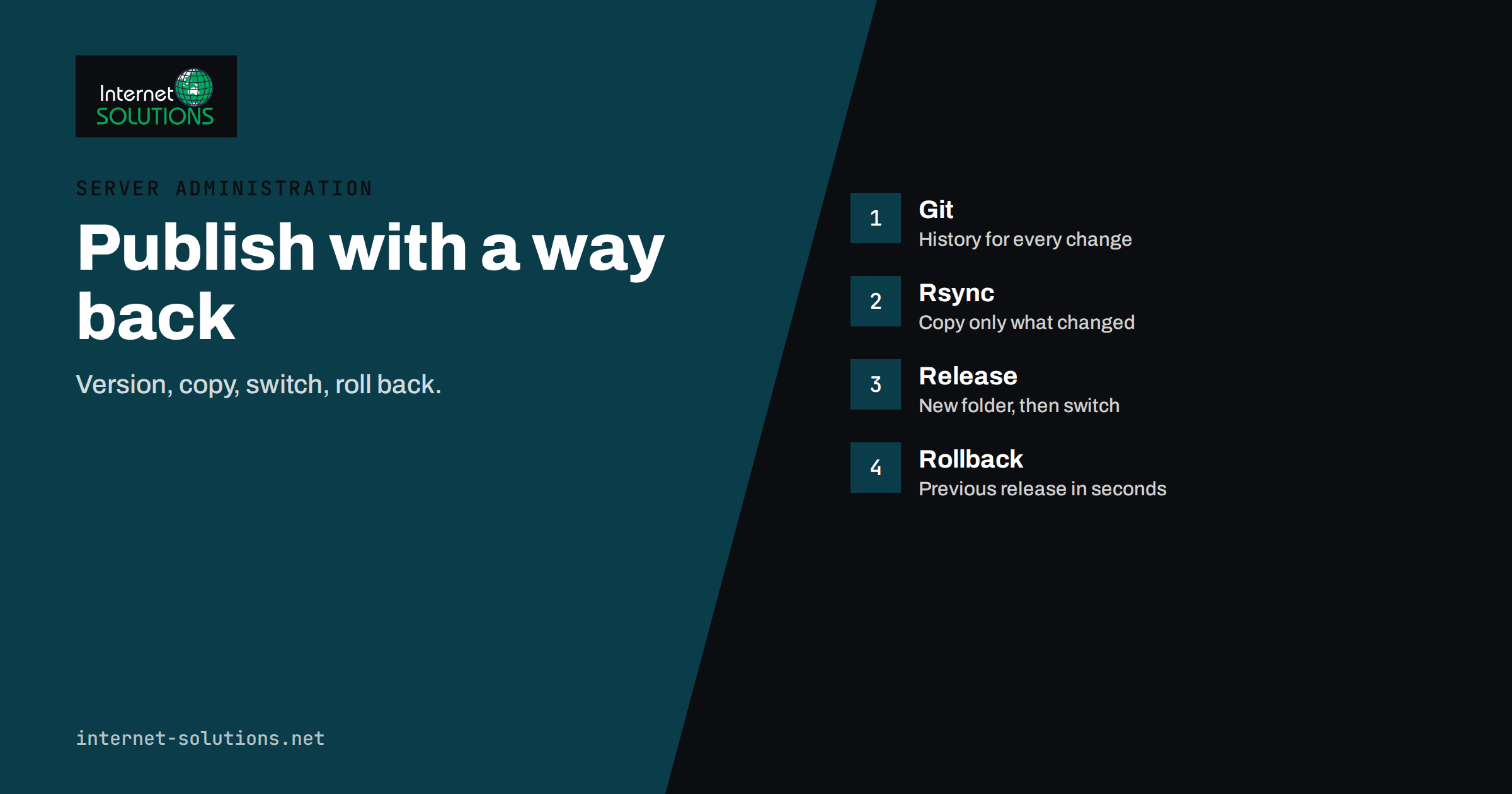
Website deployment is the step in which a change leaves a developer’s computer and reaches the live site. For many small business websites that step is still done by hand: someone connects over FTP, drags a folder across, overwrites files and hopes. It works until the day a file is missed, an old file overwrites a newer one, a configuration value is copied from the wrong place or a change that looked fine on a laptop breaks the checkout during the busiest hour. A safe deployment process does not need to be complicated or expensive. It needs to be repeatable, quick to run, easy to reverse and honest about what exactly changed.
This article explains how a small site can move from manual file copying to a calm, scriptable deployment with Git and rsync, how to keep configuration and uploads separate from code, how to switch versions atomically with a release directory, how to handle databases and caches, and how to roll back in a minute when something goes wrong. The examples assume a Linux server and a PHP or static site such as WordPress, but the principles apply to any stack.
What Goes Wrong With Manual Deployment
Before changing the process, it helps to name the failures it is meant to prevent.
- Half-uploaded releases. The upload takes several minutes, and during that time visitors see a mixture of old and new files. A template may call a function that does not yet exist in the uploaded library.
- Forgotten files. A new file is never uploaded, or a deleted file lingers on the server and keeps running old code.
- Overwritten local changes. Someone edited a file directly on the server during an emergency, and the next upload silently erases the fix.
- Wrong configuration. Database passwords, debug flags or API keys from the development copy end up in production, or the reverse.
- No way back. Because the old files were overwritten, there is nothing to restore except a backup that may be hours old.
- No record. Nobody can say which version is live, who deployed it and what changed.
Each of these is solved by the same ideas: keep the code in version control, deploy from a known commit, build the new version beside the old one, switch over in one step and keep the previous release available.
Step One: Everything Goes Through Git
Git records every change to the code, who made it and why. For deployment, the key rule is that the live site only ever runs code that exists in the repository. That has some practical consequences.
- Keep the code in a repository hosted by your own server or a service that you trust, with named branches or tags for releases.
- Do not commit secrets. Passwords, keys and tokens belong in configuration files outside the repository, as described in the “config” principle of the twelve-factor app method, which says that configuration that varies between environments must be kept apart from code.
- Tag what you release. A tag such as
v2026.11.05or a short commit hash lets you answer “what is live?” with certainty. - Exclude what is not code. Uploaded media, caches, logs and local settings should be ignored by Git and kept separate on the server.
- Forbid edits on the server. If a change is urgent, make it in the repository and deploy it, even if the process takes two extra minutes. Direct edits cause the next deployment to behave unpredictably.
Our guide to a WordPress staging site describes how to test changes before they reach visitors. A good deployment process sends the same commit first to staging and then to production, so that the thing you tested is exactly the thing you release.
Step Two: Choose a Transfer Method
There are four common ways to get a commit onto a server, and each has a place.
| Method | How it works | Strengths | Weaknesses |
|---|---|---|---|
| Git pull on the server | The server holds a clone and updates it with a pull or checkout | Simple, small transfers, easy to see the current commit | Git metadata sits on the server, a pull is not atomic and conflicts can occur if files were edited by hand |
| Rsync from a build machine | A script copies a clean copy of the code to the server | Fast incremental transfer, can delete removed files, works well with dry runs | Needs access from the build machine and care with delete options |
| Release archive | A tarball is built, uploaded and unpacked on the server | One file to verify, easy to keep and reuse, ideal for rollbacks | Larger uploads for big sites |
| Hosting panel or CI service | A platform runs the steps for you after a push | Less to maintain, logs and approvals included | Another system to learn and secure |
For many small sites, the best compromise is an rsync deployment of a clean export of the repository into a new release directory. The rsync documentation describes the options in detail, and the ones that matter most are few. The archive option preserves permissions and times, the dry-run option shows what would change without changing anything, the delete option removes files at the destination that no longer exist in the source and the exclude option protects directories such as uploads. Always run a dry run first, and be very careful with delete, because a wrong destination path can remove the wrong files.
Step Three: Release Directories and an Atomic Switch
The most useful pattern for small sites is a directory layout that separates releases from shared data and uses a symbolic link to decide which release is live.
releases/contains one directory per deployment, named by date or commit.shared/contains data that must survive deployments: the uploads folder, the configuration file with secrets and any persistent cache.currentis a symbolic link that points to the active release, and the web server document root points to it.
A deployment then follows a fixed sequence:
- Create a new directory under
releases/and copy the new code into it while the old release keeps serving visitors. - Link the shared items into the new release: the uploads directory and the configuration file.
- Run any build or dependency steps, such as installing Composer packages in production mode, in the new directory.
- Run checks against the new release, such as a syntax check and a test request, before it is visible.
- Switch the
currentlink to the new release in one operation. Replacing a link is effectively instant, so visitors see either the old version or the new one, never a mixture. To make the switch atomic, create a temporary link and rename it over the old one, instead of deleting and recreating the link. - Reload the application server gently, if needed, so that cached file paths are refreshed.
- Keep the last few releases and delete older ones on a schedule.
Rolling back is then trivial: point current at the previous release directory and reload. It takes seconds, because the old files are still there. That alone justifies the layout.
Step Four: Handle Caches and Opcode Correctly
PHP servers keep compiled code in memory through opcache, and some caches remember where files were found. After a switch by symbolic link, the server may continue to use cached paths for a moment. The simplest safe approach is to perform a graceful reload of PHP-FPM, or to call the opcache reset function through a protected endpoint or command, as the last step of the deployment. Check your PHP settings for the options that control how often file changes are noticed, because a long validation interval delays the visibility of a new release.
Application and page caches deserve the same attention. Clear or version them so that visitors do not receive pages that refer to old assets. Our article on website caching explains the layers, and a content delivery network may need a purge after changes to files that keep the same name. A simple habit is to add a version to the file names of stylesheets and scripts, so that a new release automatically bypasses old browser copies.
Step Five: Databases and Migrations
Code is easy to roll back, data is not. If a release changes the database structure, treat that change with extra care.
- Back up before you migrate. Take a fresh dump and confirm that you can restore it, as described in our guide to MySQL backups and restore tests.
- Make changes backward compatible. Add a column before the code that uses it, and remove an old column only in a later release after nothing reads it. That way the previous version of the code still works if you roll back.
- Keep migrations in the repository and run them as a scripted step, never by hand in a database console.
- Avoid long locks. A migration that locks a large table can freeze the site. Plan heavy changes for quiet hours and test them on a copy of the data.
- Know the point of no return. If a release changes data in a way that cannot be reversed, write down the recovery plan before you deploy.
Step Six: Checks Before and After the Switch
A deployment is not finished when the files are in place. Build verification into the script so that it is performed every time.
- Before the switch: run a syntax check of the code, confirm that required configuration values exist, verify file permissions and, for archives, check a checksum.
- Right after the switch: request the home page, a content page, a form page and, for shops, the cart and checkout pages, and verify the status codes and a known piece of text. Check the error log for new entries.
- Watch for a few minutes: use the monitoring you already have, as described in our guide to server monitoring alerts, and look for a spike in errors or response time.
- Define automatic rollback: if the post-switch check fails, the script should switch back by itself and report the failure.
Our website launch checklist contains additional items, such as search visibility, tracking and redirects, that matter for major releases.
Access, Security and Ownership
An automated deployment is also a powerful key to your server, so protect it. Use a dedicated deployment user with the minimum permissions that it needs, authenticate with a key and not with a password, and limit what the key can do. Our guide to SSH keys and server access explains rotation and offboarding. Keep secrets out of build logs, restrict who can trigger a production deployment and keep a log of every release with its time, the person or system that started it and the commit.
A Worked Example
A small agency maintains a brochure site and a modest online shop on a single virtual server. Its previous routine was to edit files over FTP, and twice a year an upload broke the shop. The agency moves the theme and custom plugin code into a repository, keeps uploads and the configuration file in a shared directory and writes a deployment script of about forty lines.
The script exports a tagged commit, runs a dry-run rsync into a new release directory, installs dependencies, links the shared items, runs a syntax check, creates the new link, reloads PHP-FPM and requests six test URLs. If any request fails, it restores the previous link and sends an alert. The first month, the team uses it only for staging. In the second month, it switches production. Within weeks, deployments become routine, a broken release is reversed in under a minute and the agency can say exactly which version every client site is running.
Common Mistakes
- Editing files directly on the production server and losing the changes at the next deployment.
- Running rsync with delete before checking the destination path with a dry run.
- Committing passwords or keys to the repository.
- Overwriting the uploads directory or the configuration file with a local copy.
- Skipping the cache and opcode step, then wondering why the old code still runs.
- Running destructive database changes without a tested backup or a way back.
- Deleting old releases too soon, which removes the rollback option.
- Giving the deployment key more access than it needs.
Frequently Asked Questions
Do I need a continuous integration service?
Not at the start. A short script that you run yourself already removes most risks. A service becomes useful when several people deploy, when you want automatic tests on every change or when you need approvals and logs.
Is git pull on the server acceptable?
It can be, for very small sites, but it leaves Git data on the server, is not atomic and breaks when files were edited by hand. A release directory with an atomic switch is safer and not much harder.
How many releases should I keep?
Three to five is a common choice. It gives you enough history to roll back past a faulty release, without using too much disk space.
How do I deploy a WordPress site?
Keep the theme and custom plugins in the repository, manage third-party plugins deliberately and keep the uploads directory and the configuration file in shared storage. Treat database and content changes separately from code, and test on a staging copy first.
What if a release needs a database change that cannot be reversed?
Plan it as a special release: take and test a backup, schedule a quiet period, write the recovery steps and, where possible, split the change into compatible stages over several releases.
Can I deploy during business hours?
With atomic switching, checks and fast rollback, small releases are low risk at any time. Still, avoid large or database-heavy releases at your busiest hours.
The Bottom Line
A safe deployment is boring by design: code in Git, a clean copy built beside the live site, shared data kept apart, one atomic switch, automatic checks and a previous release ready to restore. Start with a dry-run script and a release directory, add checks and rollback, protect the deployment key and review the process after every incident. If you would like help setting up deployments and monitoring on your own server, see our server administration service.