

 English
 Lietuvių
 Latviešu
 Eesti
Eesti Русский
 Polski
 Українська
 Deutsch
 Italiano
 Español
 Français
 Português
 Čeština
 Magyar
 Română
 Ελληνικά
 Türkçe
 日本語
日本語 العربية
 हिन्दी
 Bahasa Indonesia
 Bahasa Melayu
 ไทย
ไทย Tiếng Việt
 বাংলা
বাংলাSSH Keys and Server Access for Teams: Rotation, Audits and Offboarding
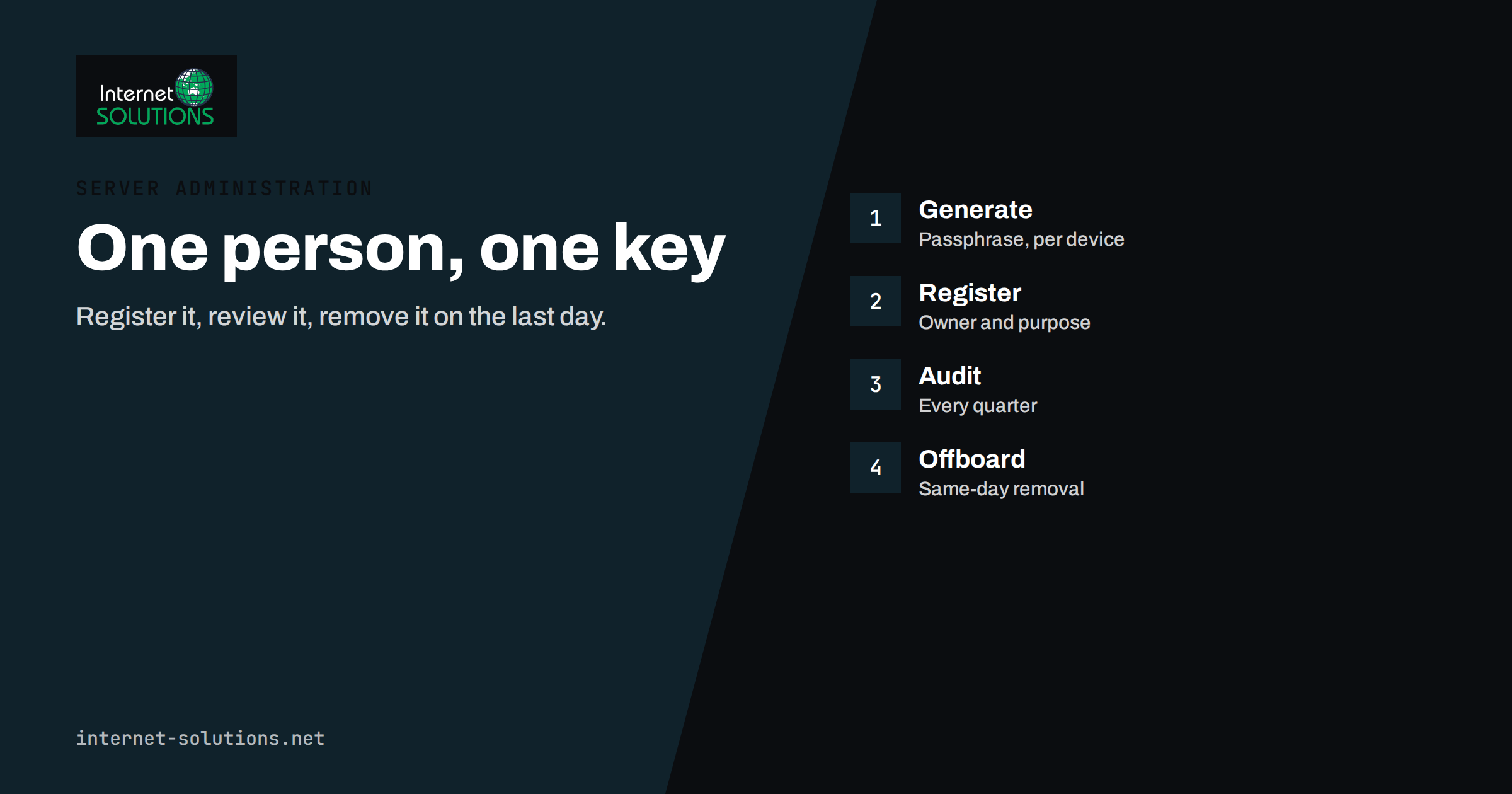
SSH keys and server access are the keys to the building for any business that runs its own servers. A public SSH key placed on a server lets its owner log in without a password. That is convenient and, done properly, far safer than passwords. Done carelessly it becomes one of the quietest security risks in a company: keys that nobody remembers creating, keys belonging to people who left years ago, one private key copied between five laptops, and an administrator account shared by the whole team.
This guide explains how to manage SSH access for a small team: how keys work, how to generate and protect them, how to structure accounts, how to harden the server settings that matter, how to rotate and audit keys, and what to do when someone leaves. It is aimed at business owners and team leads who need to understand the process, and at administrators who will carry it out.
How SSH Keys Work in Brief
SSH, short for Secure Shell, is the standard way to administer Linux and many other servers remotely. With key-based login, a person generates a pair of keys. The private key stays on their device and must never be shared. The public key is copied to the server, into a file that lists the keys allowed to log in to a given account. When the person connects, the server asks their device to prove it holds the matching private key, without the private key ever being sent over the network.
This has advantages over passwords. Keys cannot be guessed by trying common words, they are not reused across services by habit, and they can be protected with a passphrase or stored on a hardware token. The same properties create duties: because a key grants access without any further question, a stolen or forgotten key is as dangerous as a stolen password, and often harder to notice.
The Common Problems
- Shared accounts and shared keys. When three people use one login and one key, no log can say who did what, and revoking one person means changing access for everybody.
- Orphaned keys. Former staff, contractors and agencies keep working keys because nobody removes them.
- Unprotected private keys. A key stored without a passphrase on a laptop that is lost or infected gives the finder full access.
- Keys with no owner or purpose. A line in an authorised keys file with no comment and no record of who it belongs to.
- Old key types and sizes. Older algorithms and short keys are weaker than modern ones.
- Permanent root access. Administrators log in directly as the most powerful account, so every mistake and every stolen key has maximum impact.
- No review. Nobody ever looks at who has access, so the list only grows.
The US National Institute of Standards and Technology describes these problems at length in its report on security of interactive and automated access management using Secure Shell, which notes that in large organisations unmanaged keys often outnumber the people who should have access. Small businesses are no exception, only the numbers are smaller.
Principles for Sensible Access
| Principle | In practice |
|---|---|
| One person, one key per device | Everyone generates their own key; never copy a private key between people or machines |
| Individual accounts | Each administrator has a named user, with elevated rights through a controlled mechanism |
| Least privilege | Give people access only to the servers and accounts they need |
| Protect private keys | Use a passphrase, a password manager’s agent or a hardware token |
| Record ownership | Every key has an owner, a purpose and a date in a register |
| Review and rotate | Check the list regularly and replace keys on a schedule and after any incident |
| Remove quickly | Access ends on the day the person leaves or the project closes |
Generating Keys Properly
Each team member should create a key on the device they use, using a modern algorithm. The Ed25519 type is widely supported, produces short keys and is the usual recommendation today. A typical command looks like this:
ssh-keygen -t ed25519 -C "firstname.lastname laptop 2026"
The comment at the end identifies the owner and device, which becomes valuable during audits. When asked, set a passphrase. A passphrase encrypts the private key on disk, so that a stolen file is useless without it. A loaded ssh-agent can then remember the key for the session, so the passphrase does not need to be typed for every connection. Many password managers can also store and serve SSH keys to the agent, which means the key never sits unprotected on disk.
For higher assurance, use a hardware security key. OpenSSH supports keys that live on a FIDO2 token, where the private key cannot be copied off the device and each login can require a touch. This is particularly suitable for administrators of important systems. Full details of the options are in the ssh-keygen manual.
Some rules to share with the team:
- Never email, chat or upload a private key. Only the public key, which ends in “.pub”, is shared.
- Do not store keys in shared drives, repositories or tickets.
- Use a separate key for each device, so that a lost laptop means removing one key, not replacing all of them.
- Keep the private key’s file permissions restricted to your own user.
Structuring Accounts and Privileges
A common pattern is for each person to have a named account on the server, with membership of a group that allows controlled elevation through sudo. This gives accountability: logs show which named user ran which command. Shared service accounts still exist for deployments and automated jobs, but each of those should have its own dedicated key, restricted to what the job needs.
Avoid logging in directly as the root user. Disable direct root login over SSH, and require administrators to log in as themselves and escalate. This gives an extra checkpoint and a clear record. For automated systems, such as backup or deployment tools, create dedicated accounts with limited rights, and restrict their keys so they can run only the intended command or only connect from a known address. The OpenSSH options for authorised keys allow such restrictions, including limiting the source address and the command that can be run.
If you manage many servers, consider a bastion host, also called a jump host. People connect to one hardened server and reach internal machines from there. This reduces the number of systems exposed to the internet, gives you one place to log and monitor, and makes it simpler to switch off a person’s access.
Hardening the Server Side
The SSH daemon’s configuration file controls who can connect and how. The sshd_config manual documents each option. The following settings are the ones most small businesses should review.
- Disable password login once keys work for everyone. This removes the possibility of password-guessing attacks succeeding.
- Disable direct root login, or restrict it to key-only use for a specific purpose.
- Limit who may log in with an allow list of users or groups.
- Use a modern protocol version and strong algorithms. Keep the SSH software updated through your normal patching routine.
- Set idle timeouts so abandoned sessions close.
- Log at a useful level and send logs to a central place, so evidence survives if a server is compromised.
- Protect the service from brute force. Rate limits and tools such as fail2ban reduce noise and risk; our guide to brute-force protection covers the details.
Always test configuration changes carefully. Keep one existing session open while you test a new one, so that a mistake does not lock you out. For general server basics beyond SSH, see our article on server security hardening.
Add a Second Factor Where You Can
A private key protected by a passphrase is something you have plus something you know, but you can go further. Hardware-backed keys, as mentioned, add physical possession. Some organisations require a second factor on the bastion host or use short-lived certificates issued after a login through the company’s identity system. SSH certificates are signed by a trusted authority and carry an expiry time, which means access ends automatically without anyone having to remember to remove a key. They require more setup but become attractive as teams grow. Our guide to multi-factor authentication and password managers explains the principles for the rest of your accounts.
Keep a Key Register
You cannot manage what you cannot see. A key register is a simple table, in a spreadsheet or your documentation system, with one row per key.
- Owner’s name and role.
- Key fingerprint, which uniquely identifies the key without revealing it.
- The device it belongs to.
- Servers and accounts it can access.
- Reason for access and who approved it.
- Date added and date for review or expiry.
The fingerprint of a public key can be printed with the ssh-keygen tool, which lets you match entries on servers to the register. Any key found on a server that is not in the register should be investigated and, if it cannot be explained, removed. This takes an hour the first time and turns a vague worry into a list of actions.
Auditing Access Regularly
Set a review rhythm. Quarterly is realistic for most small companies, and monthly for systems that hold sensitive data. A review covers these steps:
- List the accounts on each server and compare them with the current staff and contractor list.
- Read each account’s authorised keys file and match every key to the register.
- Check for keys with no comment, duplicate keys on several accounts, and keys that grant access to more than their owner needs.
- Review the authentication logs for logins from unexpected addresses, at unusual hours or for accounts that should be dormant.
- Check that password login and root login are still disabled after any maintenance.
- Record what you found and fixed, with a date.
Many of these checks can be scripted, so the review shows only exceptions. Even a simple script that lists keys and the last login of each user pays for itself.
Rotation
Should keys expire? Opinions differ, but a sensible rule is to rotate keys when there is a reason and on a long schedule otherwise. Reasons include a lost or replaced device, a suspected compromise, a change of role and the departure of anyone who had access to the key. A routine rotation every year or two for administrators of important systems is a reasonable policy, and it also helps you discover forgotten keys, because anyone who still needs access will ask for it.
To rotate a key, the person generates a new key, you add it to the necessary accounts and test it, then remove the old key and update the register. Do not remove the old key before confirming the new one works. For automated accounts, schedule rotation too, and update the systems that use the key at the same moment.
Offboarding: When Someone Leaves
The departure of an administrator, developer or agency is the moment when access control matters most. A practical sequence is:
- Plan ahead. Use the register to list every server and account the person can reach, before the last day.
- Remove their keys from every authorised keys file, and disable or delete their named accounts.
- Rotate shared secrets they knew: database passwords, API tokens, shared service-account keys, control panel logins.
- Check other access paths. Control panels, cloud consoles, domain registrar, code repositories, backup storage, monitoring tools.
- Review logs for the last days of their employment for unusual activity.
- Update the register and the documentation.
This is part of a wider routine, which we describe in our IT checklist for employee onboarding and offboarding. The same applies when you end a relationship with a contractor or an agency. Ask them to confirm in writing which keys and accounts they hold, then remove them.
If You Suspect a Key Is Compromised
Act quickly and calmly. Remove the key from every server, check logs for its use, change anything it could have reached, generate a replacement for the owner on a clean device, and investigate how it was exposed. Treat the situation as an incident, following the steps in our article on a security incident response plan if there are signs that someone else used it.
If you would like help with reviewing or restructuring access to your servers, our server administration team can carry out the audit and set up a process that your staff can keep following.
Frequently Asked Questions
Are SSH keys safer than passwords?
Generally yes, because they cannot be guessed and are not typed or reused. They are only as safe as the private key, so protect it with a passphrase or hardware token and manage who holds copies.
Can my team share one SSH key?
It is better not to. Shared keys prevent accountability and make it impossible to revoke one person’s access without affecting everyone. Give each person their own key, per device.
Which key type should we use?
Ed25519 is widely supported and a good default for new keys. Use a hardware-backed type for the most sensitive administrators if your software supports it, and replace old short keys.
How often should we review who has access?
Quarterly is a sensible default, with extra reviews after staff changes or incidents. Systems that hold sensitive data may justify monthly checks.
What should I do when a contractor finishes a project?
Remove their keys and accounts on the agreed end date, rotate any shared credentials they knew, and record the change in the register. Ask them to confirm they hold no remaining access.
Do I still need other protections if I use keys?
Yes. Keep software patched, restrict who can reach the service, monitor logs, use a firewall and keep tested backups. Key-based login is one layer, not the whole defence.
The Bottom Line
Good SSH access is not complicated, but it needs habits. Give every person their own protected key and named account, disable password and direct root login, keep a register that records who holds which key and why, review it on a fixed schedule, and remove access on the day someone leaves. These steps turn an invisible pile of keys into a short, understood list, and they make the difference between a lost laptop being an inconvenience and being an incident.