

 English
 Lietuvių
 Latviešu
 Eesti
Eesti Русский
 Polski
 Українська
 Deutsch
 Italiano
 Español
 Français
 Português
 Čeština
 Magyar
 Română
 Ελληνικά
 Türkçe
 日本語
日本語 العربية
 हिन्दी
 Bahasa Indonesia
 Bahasa Melayu
 ไทย
ไทย Tiếng Việt
 বাংলা
বাংলাAsk Mio for System Administrators: Linux, DNS and SSL Help
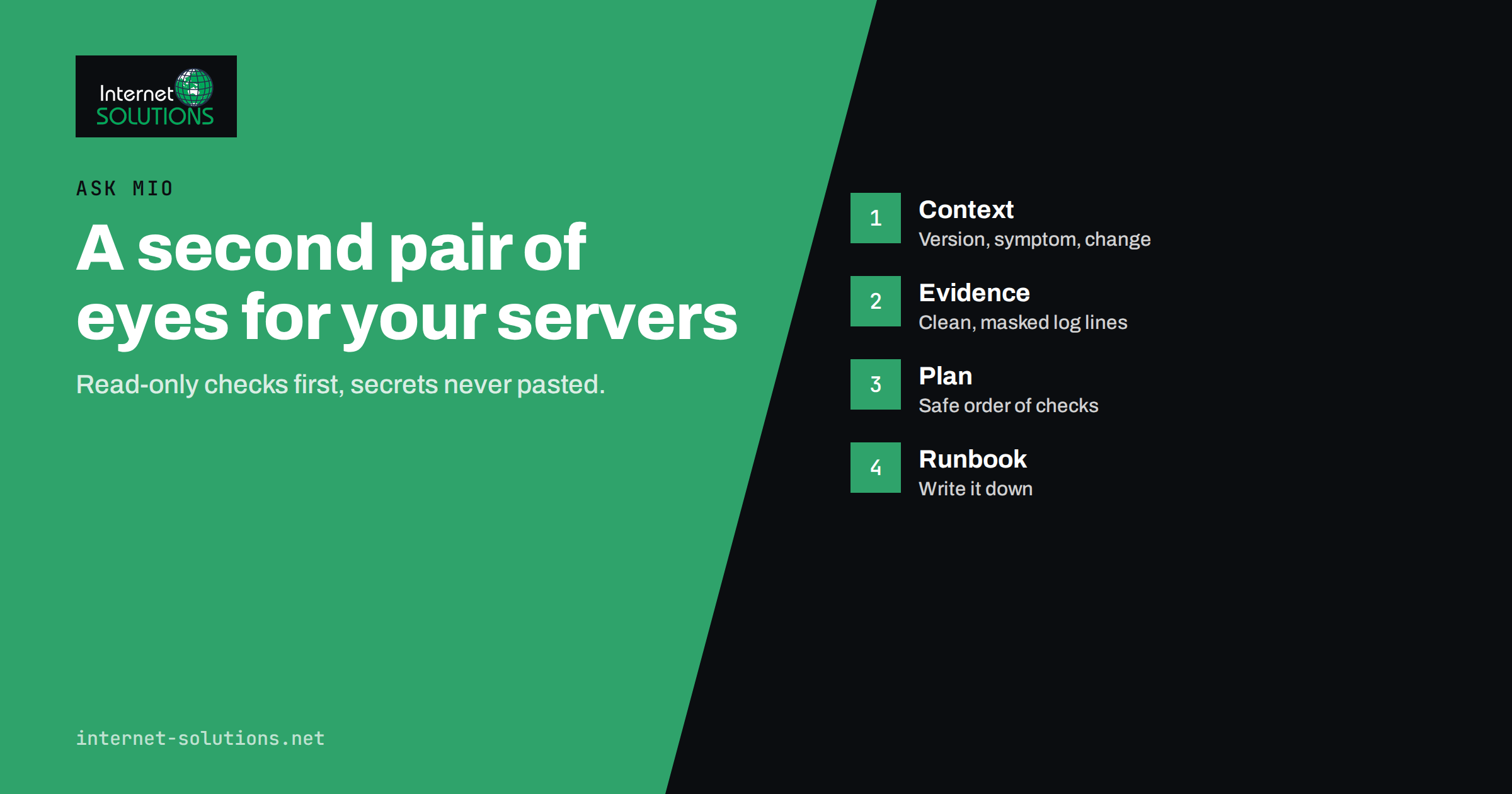
Ask Mio for system administrators is a way to get a second pair of eyes on a Linux, DNS, mail or SSL problem at any hour, in your own language, with the context of your own logs and error messages. It does not log in to your servers, and it does not replace the person who is responsible for them. What it does well is read what you paste, explain what the messages probably mean, propose a sequence of safe checks, draft the commands and write up what happened afterwards. For a small business with one administrator or none, that can shorten an outage and improve the documentation.
This guide explains how to use Ask Mio for the everyday work of administration: choosing the right expert and mode, giving the assistant useful context, protecting secrets, diagnosing Linux, DNS and certificate problems step by step, running read-only checks first, verifying every command before you run it and keeping a record of the result. It is based on the capabilities listed on the Ask Mio features page, and it is honest about the limits.
What Ask Mio Can and Cannot Do for Server Work
Being clear about the boundaries prevents most disappointment and most accidents.
What it can do
- Explain messages. Paste an error from a log or a terminal and ask what it means and what usually causes it.
- Suggest a diagnostic order. A good administrator checks the cheapest and safest things first, and Mio can lay out that sequence for your symptoms.
- Draft commands and configuration. It can write a command, a configuration fragment or a short script, with an explanation of each option.
- Check public information. Its domain and DNS tool looks up A, AAAA, MX, TXT and NS records and whether the site responds, and its page reader can fetch a public page.
- Calculate and analyse. A code runner can process data you provide, such as a list of log lines, in a sandbox.
- Write documentation. It can turn rough notes into a runbook, a change record or an incident summary.
What it cannot do
- It cannot connect to your servers, see your private network or read files you did not give it.
- It cannot know the current state of your system. It reasons from the text you provide.
- It can be confidently wrong. Commands that look plausible may not match your distribution, version or configuration.
- It cannot take responsibility. Changes to production systems remain a human decision.
Treat the answers as advice from a knowledgeable colleague who has never seen your server: useful, fast and in need of checking.
Pick the Right Expert and Mode
Ask Mio has five modes, including Chat, Code and Research, and a list of experts that turn the assistant into a specialist for the whole conversation. Several suit server work.
| Expert or mode | Described by Ask Mio as | Use it for |
|---|---|---|
| System administrator | Linux, mail, DNS, SSL and troubleshooting | Diagnosing a failing service, mail delivery or certificate problem |
| DevOps engineer | Servers, Docker, CI/CD, backups and monitoring | Deployment pipelines, containers and backup design |
| Security reviewer | Finds weaknesses in code, configurations and processes | Reviewing a configuration before you apply it |
| Code mode | Working code with explanations and bug fixes from a pasted error | Scripts for log parsing, reports and automation |
| Research mode | Web search with cited sources | Checking current documentation, release notes and advisories |
Start with the System administrator expert for diagnosis, switch to the Security reviewer before you change a firewall or an access rule, and use Research mode when you need a source for a claim. Our overview of server administration explains the wider practice that these helpers support.
Give Context, Not Just Errors
The quality of the answer depends on the quality of the question. A single line such as “nginx won’t start” produces generic advice. A good request contains five elements.
- The environment: distribution and version, service and version, whether it runs in a container, and how it was installed.
- The symptom: what you expected, what happened and when it began.
- What changed: updates, configuration edits, new certificates, DNS changes or traffic spikes.
- Evidence: the relevant log lines, the output of the status command and the exact error text.
- Constraints: that this is a production system, that you cannot restart during business hours or that you have a backup and a maintenance window.
Ask for a plan rather than a fix: “give me a numbered list of read-only checks, in order, and tell me what each result would mean.” This keeps you in control and avoids the temptation to run a command you do not understand.
Protect Secrets Before You Paste
Logs and configuration files often contain things that must not leave your control: passwords, API tokens, private keys, database connection strings, customer email addresses and internal host names. Before pasting anything, remove or replace them.
- Replace passwords and tokens with placeholders such as REDACTED.
- Never paste a private key or the contents of a file in a secrets folder.
- Mask personal data in log lines, including email addresses and IP addresses of customers where appropriate.
- Prefer small, relevant excerpts over entire files.
If a secret has been pasted somewhere it should not be, treat it as exposed and rotate it. Our guide to AI at work and data privacy lists the categories of information to keep out of prompts.
Diagnosing a Linux Service That Will Not Start
A typical session with the System administrator expert follows a pattern that works for most services.
- Check the status. Ask for the command that shows whether the service is running, failed or restarting, and paste the result.
- Read the journal. The systemd journal, queried with journalctl as described in its manual page, shows the messages from the failed start. Ask Mio how to filter by service and time range.
- Test the configuration. Most servers can validate their configuration without restarting. Ask for the validation command for your service and version.
- Check resources. A service that dies at once may be out of memory, disk space or file descriptors. Ask which commands show each, and how to read the output. Our article on Linux out-of-memory errors covers one common cause.
- Check ports and permissions. Another process may hold the port, or a file may have the wrong owner.
- Compare with what changed. Ask Mio to help you list changes since the last working state, and review them one by one.
When the cause is identified, ask for the smallest change that fixes it, together with how to verify and how to undo it. Apply it on a test system first if you have one. For log-based investigations of web traffic, our guide to server log analysis pairs well with Code mode, which can write a small script to count errors by URL or address.
DNS Problems: From Symptom to Record
DNS faults are common and confusing, because caches hide changes for a while. The built-in domain and DNS check lets Mio look up the public records for a domain and confirm whether the site responds, which gives you evidence to work with.
- Site unreachable after a move: ask Mio to check the A and AAAA records and compare them with the address of the new server. A stale IPv6 record that points to the old server is a classic cause of intermittent failures.
- Mail not arriving: check the MX records and ask what a correct set looks like for your provider. A single wrong priority or a stray record can redirect mail.
- Mail landing in spam: look at the TXT records for SPF, DKIM and DMARC. Our article on SPF, DKIM and DMARC explains what each one should contain.
- Delegation errors: compare the NS records at the registrar with those in your DNS provider.
Remember propagation. Records are cached for the time set in their TTL, so a change may take time to be seen everywhere, and different resolvers may disagree for a while. Ask Mio how to query a specific resolver and how to read the answer, and check again after the TTL has passed. Our guide to DNS for business owners explains the basics.
SSL and Certificate Problems
Certificate issues have a short list of causes, and Mio is helpful at walking through it.
- Expired certificate. Ask for the command to display the expiry date of the certificate that your server actually presents, not only the file on disk. A renewed certificate that the web server has not reloaded still looks expired.
- Name mismatch. The certificate must list the exact hostname visitors use, including the version with and without the www prefix.
- Incomplete chain. Browsers may cope, but other clients fail when the server does not send the intermediate certificate. Ask how to test the chain from outside.
- Renewal failures. Automated certificates depend on a challenge succeeding, whose rules are defined in the ACME standard, RFC 8555. Typical causes are a blocked port, a redirect that breaks the validation path or a DNS record that no longer points at the server.
- Mixed content and protocol settings. After the certificate is fixed, pages may still load old http resources, or a legacy client may fail because of the protocol settings.
For the renewal process itself, our guide on SSL certificate renewal without downtime describes monitoring and rehearsal. Ask Mio to turn it into a checklist for your server, and use Research mode to confirm details against the documentation for your certificate provider.
Safe Habits for Running What Mio Suggests
- Read-only first. Begin with commands that only display information. Escalate to changes only when the cause is clear.
- Understand every flag. Ask Mio to explain each part of a command, and consult the manual page. Never paste a command that deletes, overwrites or changes permissions recursively without being sure of its target.
- Back up before changing. Copy the configuration file or take a snapshot. Note the time and the file name.
- One change at a time. Changing several things together makes it impossible to know what helped or hurt.
- Validate before reloading. Use the service’s configuration test and prefer a reload to a restart when possible.
- Have a rollback. Decide in advance how to undo the change and how long you will wait before doing so.
- Ask for a second opinion. Before a risky change, ask the Security reviewer to look at the plan and list what could go wrong.
Our article on fact-checking AI answers at work provides a routine that fits server work well, particularly the habit of confirming a claim against the official documentation.
Turning Troubleshooting Into Documentation
Many small teams solve the same problem three times because nobody wrote down the first solution. After each incident, paste your notes and ask Mio to produce:
- A short incident summary: what happened, impact, timeline, cause and fix.
- A runbook entry: symptoms, checks in order, fix, verification and rollback.
- A list of follow-up actions, such as adding a monitoring alert or changing a renewal reminder.
Read the result carefully and correct anything that does not match what you did. Store it with your other documentation so that the next person can find it. Over time this becomes the most valuable output of the whole exercise.
When to Call a Human Expert
- The system is down, customers are affected and you are not sure of the next step.
- You suspect a compromise, such as unknown processes, unexpected logins or changed files.
- Data may be lost or corrupted, and a wrong move could make recovery harder.
- The change touches payments, personal data or legal obligations.
- You cannot test the plan anywhere safe.
An assistant can help you prepare for that conversation by summarising the symptoms and timeline, which saves time for whoever takes over.
Frequently Asked Questions
Can Ask Mio log in to my server and fix it?
No. It works from the text and information you give it and from public lookups such as DNS records. You run the commands yourself or through your usual tools, and you remain responsible for the result.
Is it safe to paste logs into Ask Mio?
Only after removing secrets and personal data. Replace passwords, tokens and keys with placeholders, mask customer details and share only the lines needed. If a secret is pasted by mistake, rotate it.
Which expert should I choose for a mail problem?
Start with the System administrator expert, which covers mail, DNS and SSL. Use the DNS check to read your MX and TXT records, and paste the mail server’s log lines for the failing message, with addresses masked.
Can I trust the commands it suggests?
Treat them as drafts. Ask for an explanation of each part, check the manual for your version and start with read-only commands. Test changes on a non-production system where possible.
Does it replace monitoring and backups?
No. It helps you interpret problems and write documentation, but you still need monitoring that alerts you, backups that you have tested and updates that you apply on a schedule.
Can it help me write a script for log analysis?
Yes. Code mode can write a small script to count errors, group requests by URL or summarise a log excerpt, and its code runner can process data you provide in a sandbox. Review the script before running it on real systems.
The Bottom Line
Ask Mio is a fast, patient colleague for system administrators: it explains messages, proposes a safe order of checks, drafts commands and turns messy notes into runbooks. It cannot see your servers, so give it clean context, remove secrets and verify every suggestion against documentation. Start with read-only steps, change one thing at a time, keep a rollback ready and record what you learn. Used with that discipline, it shortens troubleshooting without taking away the control that makes administration safe.