

 English
 Lietuvių
 Latviešu
 Eesti
 Русский
 Polski
 Українська
 Deutsch
 Italiano
 Español
 Français
 Português
 Čeština
 Magyar
 Română
 Ελληνικά
 Türkçe
 日本語
 العربية
 हिन्दी
 Bahasa Indonesia
 Bahasa Melayu
 ไทย
 Tiếng Việt
 বাংলা
Backing Up Microsoft 365 and Google Workspace: What Providers Miss
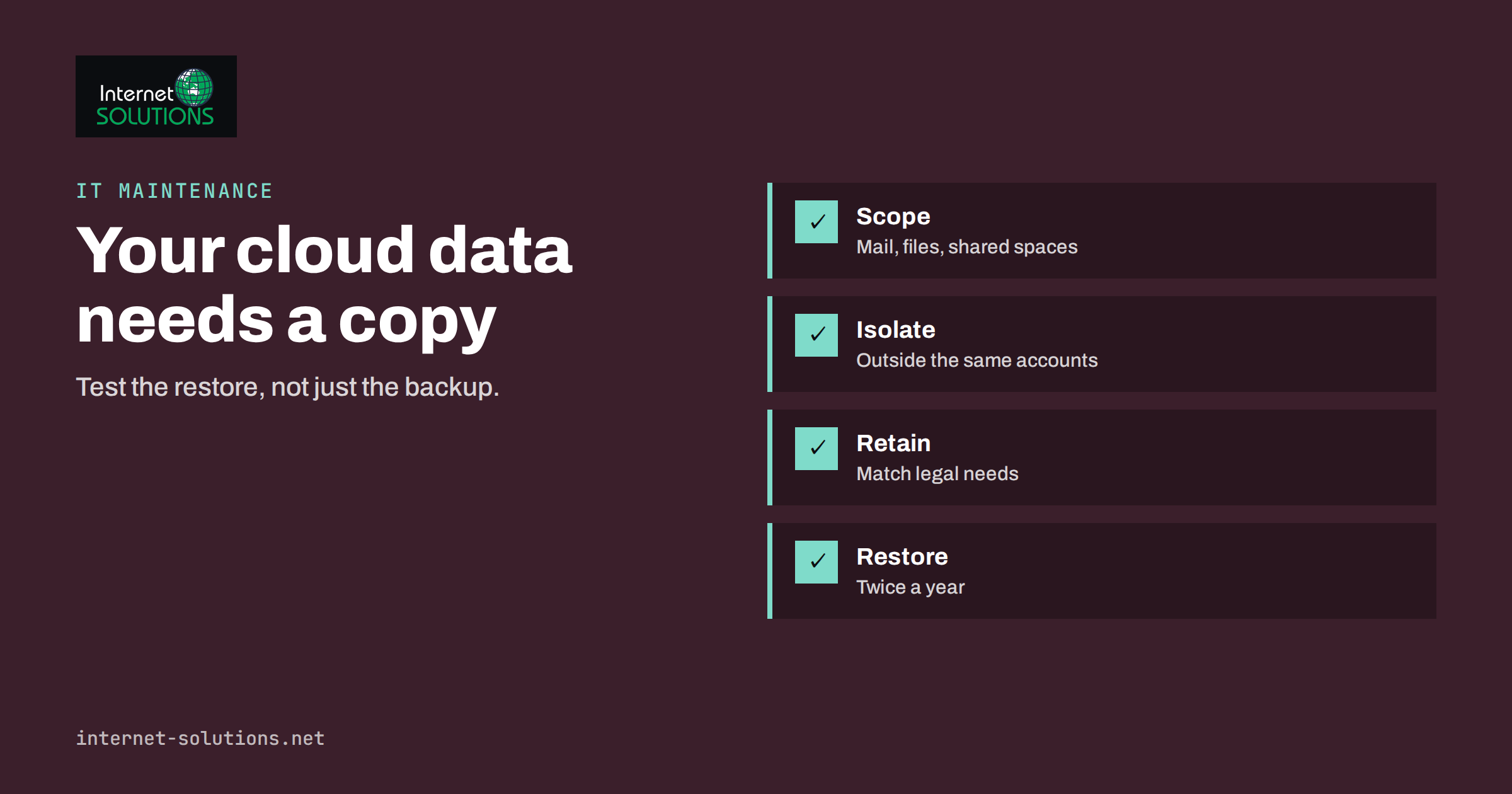
Backing up Microsoft 365 and Google Workspace sounds unnecessary to many small businesses, and the reason is understandable: the data is already in the cloud, the provider has enormous data centres and nobody has ever seen their mailbox vanish with a power cut. The assumption behind it is that “in the cloud” means “backed up”. It does not. Cloud providers promise that their service stays available and that your data survives hardware failure. They do not promise that your data survives you, your colleagues, a ransomware attack that syncs encrypted files, a disgruntled leaver or a mistake made six months ago that nobody noticed until now.
This guide explains what the providers do and do not cover, the realistic ways in which business data is lost from these platforms, what an independent backup should include, how to choose and test one, and what it costs in time and money. It is written for owners and IT managers of small organisations who use Microsoft 365, Google Workspace or both, and who want a clear answer to the question “do we need a separate backup?”
Shared Responsibility in Plain Words
Both Microsoft and Google operate on a shared responsibility model. The provider is responsible for the platform: the infrastructure, the application, availability and resilience against hardware and facility failures. You are responsible for your data and how it is used: who has access, what is deleted, what is retained and how it is recovered after a mistake or attack. Microsoft describes how it protects data against infrastructure problems in its overview of data resiliency in Microsoft 365, and the emphasis is on service continuity, not on restoring any version of any file at any date.
That distinction matters. If a data centre fails, the provider fails over. If an employee deletes the wrong folder, the provider does exactly what the employee asked. Recovery from user actions is mostly your problem, and the built-in tools help only within limits.
What the Built-In Protection Gives You
Both platforms include features that make small mistakes easy to fix, and they deserve credit. Typical examples are recycle bins and trash that hold deleted items for a period, version history on files, recoverable items folders for mail and the ability for an administrator to restore a deleted user for a limited time. The details and time limits differ by product, plan and settings, and Microsoft’s pages on retention policies and labels show how organisations can keep or delete content on purpose. Retention is not the same as backup, though. A retention policy preserves content according to rules, but it does not give you a clean, restorable copy of a mailbox or site as it looked on a certain day.
Check the actual figures for your plan before you rely on them. As a rough guide, deleted files and messages are often recoverable for weeks and not for years, and once the final stage of deletion passes, they are gone. Do not use numbers from an article or a forum, including this one, as a promise: read the current documentation for your subscription.
How Business Data Really Gets Lost
- Accidental deletion. Someone deletes a shared folder, a mailbox rule removes messages or a bulk clean-up goes too far. Often nobody notices for weeks.
- Malicious deletion. A leaving employee, or an intruder with a stolen account, removes data on purpose and empties the recycle bin.
- Ransomware and sync. Malware encrypts files on a laptop, and the sync client uploads the encrypted versions, replacing the good ones. Version history may help, but restoring thousands of files by hand is slow.
- Account deletion. When a user is removed, their mailbox and files may disappear after a short window unless you transferred them.
- Misconfigured retention or sharing. A policy that deletes after a certain period, or a change to sharing settings, can lead to loss or exposure that is hard to reverse.
- Third-party app mistakes. An integration or migration tool with broad permissions can overwrite or remove data.
- Delayed discovery. You need a file from last year for a dispute or an audit, and the platform no longer has it.
Our article on ransomware protection for small businesses explains why a copy that attackers cannot reach is the last line of defence.
What an Independent Backup Should Cover
| Data | Why it matters | What to look for in a backup |
|---|---|---|
| Mailboxes (Exchange Online, Gmail) | Contracts, invoices and history live in email | Full mailbox, folders and attachments, with search and item-level restore |
| Files (OneDrive, SharePoint, Drive) | Working documents and shared libraries | Versions, permissions and folder structure, restorable to a date |
| Calendars and contacts | Scheduling and customer details | Included in the same restore workflow |
| Shared drives and team sites | Departmental data owned by the group, not by a person | Backup by site or shared drive, not only by user |
| Chat and team spaces | Decisions and files shared in conversation | Check which parts are supported and which are not |
| Configuration and users | Rebuilding after a bad change is slow | Export of groups, roles and key settings as documentation |
Choosing a Backup Approach
Third-party backup as a service
Specialist providers back up Microsoft 365 and Google Workspace data into a separate environment, usually with scheduled copies several times a day, retention you choose and a simple restore interface. This is the most common choice for small businesses because it needs little maintenance. Check the provider’s terms, where the data is stored, how it is encrypted, who can access it and what happens if you stop paying.
Export or sync to your own storage
Tools exist that copy files and mail to a NAS or to another cloud account that you control. It can be cheaper, but you become responsible for scheduling, monitoring, access control and restores. Do not run it on a machine that attackers who reach your normal accounts could easily reach too. Our guide to NAS or cloud storage for a small office discusses the trade-offs.
Built-in retention only
For a very small team with low-risk data, relying on retention and recycle bins may be a conscious choice. If you make it, write it down, explain the limits to owners and set up a monthly export of the most critical folders as a minimum.
Requirements to Set Before You Buy
- Recovery point: how much recent data can you afford to lose? A daily backup means up to a day.
- Recovery time: how quickly must you restore a mailbox or a site? Hours, or days?
- Retention: how far back might you need to go? Legal and sector rules may require specific periods.
- Granularity: can you restore a single email or file, or must you restore everything?
- Isolation: is the backup stored outside the accounts and credentials it protects, so a compromised admin cannot erase it?
- Coverage: does it include shared mailboxes, shared drives and sites, or only user accounts?
- Cost model: per user, per gigabyte, with minimums, and what changes when staff leave.
These are the same ideas as in our article on disaster recovery plans, where recovery time and recovery point objectives are explained.
Test Restores, Not Just Backups
A backup that has never been restored is a hope, not a control. Schedule restore tests at least twice a year and after any major change. A useful test is simple: restore one mailbox into a test account, restore a deleted folder to a new location and open files from an older date. Time the exercise and write down any problems, such as missing permissions or confusing steps. Make sure two people know how to do it, and that the credentials for the backup service are held securely and are not tied to one person’s account. Review the backup reports weekly, or have alerts sent to a shared mailbox, so that a silent failure does not run for months.
A Practical Setup in One Week
- Day 1: inventory. List every mailbox, shared mailbox, shared drive and team site, with an owner for each. Note which data is critical and which can be rebuilt.
- Day 2: requirements. Agree the recovery point, recovery time and retention period with the owners, and write them in one paragraph.
- Day 3: choose and connect. Pick the approach, create a dedicated service account with the minimum permissions the tool needs and protect it with multi-factor authentication.
- Day 4: first backup. Run the initial copy, which can take hours or days for large data sets, and monitor it for errors such as locked files or throttling.
- Day 5: restore test. Restore a mailbox, a folder and a file version to a test location, and record the time taken.
- Day 6: alerts and reports. Send backup status to a shared mailbox and set a weekly reminder to read it.
- Day 7: document. Write a one-page runbook: where the backup lives, who can restore, how to do it and whom to call.
Afterwards, the ongoing work is small: read the weekly report, add new shared spaces to the backup scope when they are created, repeat the restore test twice a year and review the retention period when your obligations change. Keep the runbook with your other IT documentation so that it is found when it is needed, which is usually on a stressful day when the person who set it up is not available.
Legal and Privacy Points
A backup is another copy of personal data. Include the backup service in your records of processing, sign the data processing terms, understand where data is stored and make sure you can delete personal data from backups according to your retention rules and legal obligations. Be clear about who can access the backups and log that access. The guidance in our article on file sharing for small teams helps set sensible folder permissions before they are copied.
Common Mistakes
- Believing that the provider’s availability promise is the same as a backup.
- Backing up only user mailboxes, and forgetting shared drives, sites and shared mailboxes.
- Storing the backup in a place reachable with the same administrator credentials.
- Never testing a restore.
- Keeping the same retention for everything instead of matching it to business and legal needs.
- Cancelling a leaver’s licence before exporting their data.
- Ignoring backup alerts.
Frequently Asked Questions
Doesn’t Microsoft or Google already back up my data?
They protect the service against infrastructure failure. Recovering data deleted or corrupted by users, administrators or attackers is limited to the built-in recovery windows, which are not the same as an independent, restorable backup.
How long do deleted items stay recoverable?
It varies by product, plan and settings, and commonly spans weeks, not years. Check the documentation for your subscription and do not assume longer periods.
Is version history enough?
It helps with individual files, but it is not a full backup. It may not cover deleted sites, whole mailboxes or the aftermath of widespread corruption, and it depends on the same account.
How often should we back up?
Daily is a common minimum for small organisations, with several runs a day for critical data. Choose according to how much recent work you can afford to redo.
What should we do for leavers?
Transfer or export their mailbox and files before you remove the licence, and keep the backup for the period your policy requires. Our offboarding checklist covers the steps.
Can we manage this ourselves?
Yes, if you have time to configure, monitor and test it. Many small businesses prefer a managed service and a periodic review with their IT partner.
The Bottom Line
Treat your Microsoft 365 or Google Workspace data as business-critical and give it a copy that does not depend on the same accounts. Identify what you must protect, decide how much loss and downtime you can tolerate, choose a backup that covers mail, files and shared spaces, keep it isolated and test restores regularly. For guidance on wider practices, the NCSC guide for small organisations includes advice on backups and recovery. If you would like help choosing and testing a solution, see our IT maintenance services.