

 English
 Lietuvių
 Latviešu
 Eesti
Eesti Русский
 Polski
 Українська
 Deutsch
 Italiano
 Español
 Français
 Português
 Čeština
 Magyar
 Română
 Ελληνικά
 Türkçe
 日本語
日本語 العربية
 हिन्दी
 Bahasa Indonesia
 Bahasa Melayu
 ไทย
ไทย Tiếng Việt
 বাংলা
বাংলাBrowser Extensions in Business: Risks, Allowlists and Clean-Up
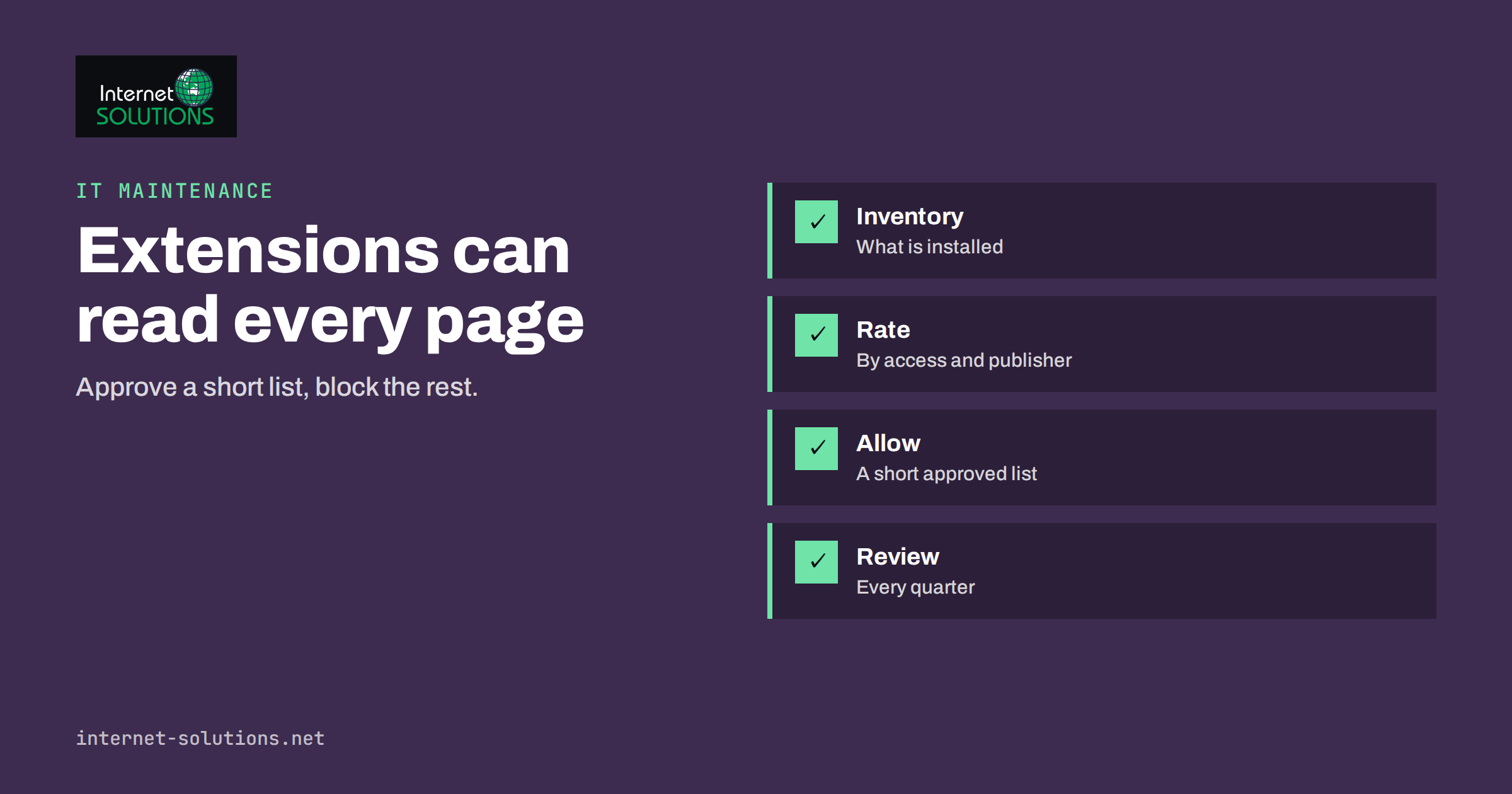
Browser extensions are small programs that add features to a web browser: password managers, grammar checkers, screenshot tools, PDF converters, shopping helpers, coupon finders, colour pickers, translation tools and hundreds of others. They are convenient and, in most cases, harmless. They are also one of the least supervised parts of a company’s technology. An extension can often read and change the pages you visit, including your email, your accounting system and your customer database. When a team of ten people each installs a dozen extensions, the business has a hundred and twenty pieces of third-party code with access to its most sensitive screens, and nobody has a list.
This guide explains why browser extensions matter for security and privacy, how to find out what your team has installed, how to build a simple allowlist, how to control extensions through browser management settings, and how to keep the policy light enough that people follow it. It is aimed at owners and office managers, not specialists.
Why Extensions Are a Business Risk
Extensions run inside the browser with permissions that the user grants during installation. A permission such as “read and change all your data on all websites” is common and extremely powerful. It means the extension can see what you type, read what is displayed and alter what you see. Most extension publishers are honest, but the risks are real, and they arise in several ways.
- Malicious extensions. Some are built to steal data, hijack searches, inject advertisements or capture credentials. They may look like useful tools and have many positive reviews that are not genuine.
- Sold or taken-over extensions. A popular, trustworthy extension can be sold to a new owner or its developer account compromised, and a later update can turn it harmful. Users who installed it years ago do not notice.
- Over-collection of data. Even legitimate extensions may send browsing data or page content to their own servers, which can include customer information.
- Excessive permissions. A simple tool may ask for far more access than it needs, increasing the damage if it is compromised.
- Abandoned extensions. Extensions that are no longer maintained may carry unfixed flaws and stop working after a browser update.
- Conflicts and slowdowns. Too many extensions slow the browser, break websites and create confusing faults that look like problems with your own systems.
This is a close relative of the issue we discuss in our article on shadow IT: tools adopted by individuals for good reasons, without anyone assessing the risk.
How Extensions Work, Briefly
Modern browsers share a similar model. An extension is a bundle of files with a manifest that declares which permissions it needs and on which sites it works. The browser shows these permissions when the extension is installed, and the extension store reviews submissions to some extent. You can read how the system works in the Chrome extensions documentation. The key points for a business are that permissions are broad, updates arrive automatically in the background and the browser’s store is not a guarantee of safety.
Step 1: Find Out What Is Installed
Start with facts. Ask each person to open the extensions page of their browser and list what they see, or, if you manage devices centrally, export the list from your management console. For each extension record:
- Name and publisher, and the browser it runs in.
- What it is used for, in the user’s words.
- The permissions it holds, especially access to all sites, to browsing history, to clipboard or to downloads.
- Number of users in your team.
- Last update and user rating, as a rough sign of whether it is maintained.
Most small teams discover a long tail of single-use extensions, duplicates doing the same job and a few that nobody remembers installing. Make it easy to be honest: say that the aim is a clean list, not blame. It also helps to combine this with the broader asset list described in our guide to IT asset inventory and software licences.
Step 2: Classify by Risk
Not every extension deserves the same scrutiny. Sort them by what they can reach and what you stand to lose.
- High risk: extensions with access to all websites that handle text, forms or page content, such as writing assistants, screen recorders, PDF tools, download managers, shopping or coupon extensions and anything that asks to read your clipboard.
- Medium risk: tools that work on specific sites you choose, or that need limited permissions, such as a page translator used on request.
- Lower risk: extensions from established publishers that change only the browser’s own appearance, or that are tied to a system your company already manages, such as the browser plug-in of your password manager.
The questions to ask for each: what data can it see, who publishes it, how does the publisher make money, is it needed for work and is there a built-in browser feature or a managed tool that does the same thing?
Step 3: Build an Allowlist
The most reliable policy is an allowlist: a short list of extensions approved for work use, with everything else blocked. A blocklist, which tries to keep up with bad extensions, is always behind. An allowlist keeps you in control and is easier to explain.
- Start from what people really use. Approve the useful, well-known tools identified in step one.
- Add a small core set, typically the password manager and any tool required by your business systems.
- Choose an owner for the list who can approve or reject new requests quickly.
- Give a request route. A short form or an email address, and a promise to answer within a couple of days, prevents people from working around the rules.
- Document the reason for each approval and review it at least yearly.
Google explains how administrators can control extensions through browser policies in its article on managing Chrome extensions. Other major browsers offer comparable policy settings, either through a management console or through configuration files on the devices.
Comparing Ways to Control Extensions
| Approach | How it works | Control level | Effort | Suitable for |
|---|---|---|---|---|
| Trust and guidance | A written rule and a list of approved tools | Low | Low | Teams of one to five people |
| Periodic manual review | Check each person’s extensions each quarter | Low to medium | Medium | Small teams without device management |
| Browser policy with allowlist | Only approved extensions can be installed | High | Medium to set up, low to run | Teams using managed browsers or accounts |
| Forced installation of approved tools | Required extensions are installed and updated centrally | High | Medium | Teams with standard tools such as a password manager |
| Separate browser profiles | A clean work profile and a personal profile | Medium | Low | People who mix personal and work browsing |
Step 4: Clean Up and Communicate
Once the list is ready, remove what is not approved. Do it with a short, friendly message that explains why: extensions can see everything in the browser, and the business is responsible for customer and company data. Offer alternatives for the useful extensions that fail the review. If a person needs a tool that is not approved, make the request route obvious and quick.
Include extensions in your joiner and leaver routines. New starters get the approved set, and leavers’ browser profiles are signed out and removed from company devices. See our checklist for employee onboarding and offboarding.
Personal Devices and Mixed Use
Many small teams use personal laptops or phones for work. You cannot manage a personal browser as you would a company one, but you can set rules for what touches company data. Ask people to use a separate browser profile for work with only approved extensions, to sign in to company systems only in that profile and to keep the browser updated. Where possible, access company systems through accounts that require multi-factor authentication, which limits the damage if a session is exposed. Our article on remote device management covers wider options.
Special Cases Worth a Closer Look
Writing and summarising helpers
Extensions that rewrite text or summarise pages usually need to read everything you type or view. Before approving one, check who publishes it, where the text is sent and whether the publisher states how it is stored. For sensitive work, a managed tool with a clear data policy is preferable to a free extension.
Screenshot and screen-recording tools
These capture whatever is on screen, which may include customer details, internal dashboards and private messages. Prefer tools built into the operating system, or a reviewed tool whose recordings are stored where you control access.
VPN and proxy extensions
A free VPN extension routes your browsing through someone else’s servers, and the publisher may collect or sell that data. Use a company-approved service or none at all.
Coupon, shopping and price-comparison tools
These are designed to watch what you browse and buy. They have no place on browsers used to administer the business, especially those with access to payment or banking pages.
If You Find a Suspicious Extension
Act quickly but calmly. Remove the extension from the affected browser, then change the passwords of accounts used in that browser, starting with email, banking and administrative accounts, and sign out of active sessions. Check the browser settings for changes to the homepage, search engine and proxy. Run a scan with your security software. Look at the activity logs of important accounts for unfamiliar logins, and tell colleagues who may have installed the same extension. If customer data may have been exposed, find out whether you have a legal duty to report, and consult an adviser. Afterwards, add the lesson to your policy: what made the extension look trustworthy, and how could the review have caught it?
Ongoing Practices
- Review quarterly. Check whether approved extensions have changed owners, permissions or behaviour.
- Remove what is unused. Fewer extensions mean a smaller risk and a faster browser.
- Watch the permission prompts. If an update asks for new permissions, treat that as a reason to look again.
- Keep browsers updated. Updates fix security flaws and keep policies working.
- Report strange behaviour. Unexpected redirects, new toolbars or advertisements in unusual places can mean a bad extension.
- Back the policy with protection. Endpoint security tools help detect problems that slip through; see our guide to endpoint protection for small businesses.
Common Mistakes
- Believing that anything in the official store is safe.
- Letting each person decide with no list and no review.
- Blocking everything without offering a request route, which pushes people to bypass the rules.
- Ignoring extensions with a large user base because they seem trustworthy.
- Forgetting extensions when someone leaves.
- Installing coupon or shopping extensions on work browsers.
Frequently Asked Questions
Are browser extensions dangerous?
Most are not, but they run with broad access, and a few are harmful or become harmful after an update. The risk is manageable with a list and a review process.
Should we ban extensions completely?
Rarely. A short allowlist is more realistic and keeps useful tools such as password managers. A total ban often drives people to workarounds.
How can I see what an extension can access?
Open the extension’s details in the browser’s extension page, where permissions are listed, and read the privacy information from the publisher. Be cautious with any extension that can read and change data on all sites.
Do extensions work the same in every browser?
Many follow a shared model, but stores, review practices and policy controls differ. Check the documentation for each browser your team uses.
What if someone needs a tool that is not on the list?
Use a quick request route: describe the need, check the permissions and publisher, and approve or suggest an alternative within a day or two.
How often should the allowlist be reviewed?
At least once a year, and whenever an approved extension changes owner, requests new permissions or stops being maintained. Quarterly is better for sensitive teams.
The Bottom Line
Browser extensions are useful and risky in equal measure, because they can see and change the pages your team uses to handle customers and money. List what is installed, rank the extensions by what they can reach, approve a short allowlist with a quick request route and enforce it with browser policies where you can. Review the list regularly, keep browsers updated and include extensions in your joiner and leaver routine. For help setting up the policies, see our IT maintenance page.