

 English
 Lietuvių
 Latviešu
 Eesti
Eesti Русский
 Polski
 Українська
 Deutsch
 Italiano
 Español
 Français
 Português
 Čeština
 Magyar
 Română
 Ελληνικά
 Türkçe
 日本語
日本語 العربية
 हिन्दी
 Bahasa Indonesia
 Bahasa Melayu
 ไทย
ไทย Tiếng Việt
 বাংলা
বাংলাEndpoint Protection for Small Businesses: Antivirus, EDR, Encryption
Endpoint protection is the set of tools and habits that keep the laptops, desktops, phones and servers your team uses safe from malware, theft and mistakes. For a small business, endpoints are where most attacks start: someone opens a booby-trapped attachment, installs a fake update, plugs in an unknown USB stick or loses a laptop on a train. The firewall at the office door cannot help with any of those, because the work happens on devices that travel, connect to home networks and sit on café tables.
This guide explains what endpoint protection includes, how antivirus differs from detection and response tools, why disk encryption belongs on every portable device, which basic settings do the most good and how to choose a level of protection that matches a team of five or fifty. It builds on our notes on ransomware protection for small businesses and supports our IT maintenance service.
What Counts as an Endpoint
An endpoint is any device that connects to your business systems and runs software on behalf of a person. That includes company laptops and desktops, the personal phone that reads work email, tablets used in the field, point-of-sale terminals, printers and the servers that host your files and applications. Each of them can be an entry point, and each has its own operating system, patch cycle and owner.
A realistic first step is a list of all of them. You cannot protect a device you do not know about. Record the owner, the operating system and version, whether it is company-owned or personal, where it is used and whether it holds business data. Our guide to IT asset inventory and software licences describes a simple register that serves this purpose.
Include devices that people forget: an old laptop used for the shared calendar, a tablet at reception, a home computer where the accountant logs in. Unmanaged devices with access to business data are the usual weak spot.
The Layers of Endpoint Protection
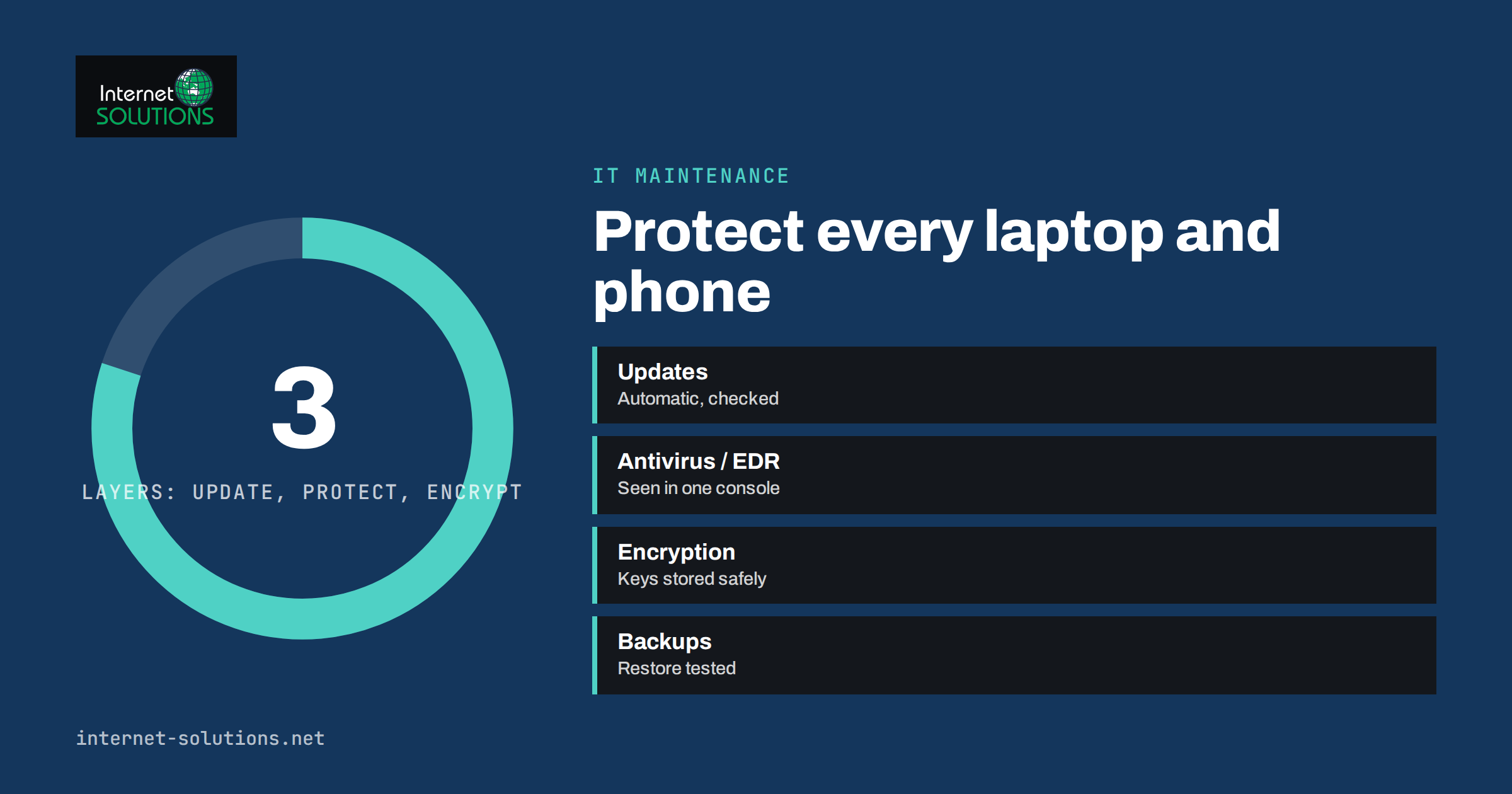
Good protection is layered, because no single product stops everything. The main layers are listed below, from the basics to more advanced tools.
| Layer | What it does | Typical fit |
|---|---|---|
| Operating system updates | Closes known vulnerabilities in the system and built-in components | Every device, always |
| Antivirus (anti-malware) | Detects and blocks known malicious files and some suspicious behaviour | Every computer; built-in tools may be enough for very small teams |
| Endpoint detection and response (EDR) | Records activity on the device, detects suspicious patterns and lets responders isolate the machine and investigate | Teams that handle sensitive data or want faster response |
| Managed detection and response (MDR) | A service in which people watch EDR alerts and act on them, often around the clock | Businesses without in-house security staff that need real monitoring |
| Disk encryption | Makes the data unreadable if the device is lost or stolen | All laptops and phones; desktops where theft is possible |
| Device management | Enforces settings, installs updates and can lock or wipe a device remotely | Any team with more than a handful of devices |
| DNS or web filtering | Blocks known malicious sites before they load | An inexpensive extra layer for office and remote staff |
Think of these as steps on a ladder. Everyone needs the first rungs. Add the higher rungs as the amount of sensitive data, the number of people and the cost of downtime grow.
Antivirus Today
Traditional antivirus compares files with a database of known threats and watches for malicious behaviour. Modern products also use cloud lookups and behaviour analysis, so the old picture of a scanner that only recognises yesterday’s viruses is out of date. For many very small businesses, the antivirus built into the operating system, kept up to date and left switched on, provides a reasonable baseline.
The practical problems with antivirus are not usually about the engine, but about management. Is it enabled on every device? Are definitions updating? Did someone add broad exclusions to make a program run faster and then forget about them? Did a user turn it off during a software install and never turn it back on? A product that you cannot see across the whole fleet gives false comfort.
If you use a paid product, choose one that offers a central console where you can see device status, alerts and update state in one place. Avoid running two full antivirus products on the same machine, since they can conflict with each other. Ensure that exclusions are documented, minimal and reviewed.
EDR and MDR: When to Step Up
Endpoint detection and response goes beyond blocking known threats. It keeps a record of what runs on each device: processes, network connections, file changes and logins. When something suspicious occurs, such as a document launching a command shell that downloads a program, it raises an alert and allows a responder to isolate the device from the network while keeping it available for investigation.
For a small business, the question is who will respond. An EDR tool that generates alerts at three in the morning is only useful if someone looks at them. That is why managed detection and response exists: a provider’s analysts watch the alerts and take action, according to rules you agree in advance. If your team has no security expertise and handles customer data, financial records or health information, a managed service is often a better investment than a more advanced tool you must operate yourself.
Be clear about what you are buying. Ask what happens when an alert fires, how quickly the provider acts, what actions they may take without calling you and what reports you receive. Check that the contract covers the number and types of devices you actually have, including servers, and what happens when staff leave.
Disk Encryption: Protecting Lost and Stolen Devices
Laptops get lost and stolen. When that happens, the question is whether the finder can read the files. Full disk encryption turns the contents of the drive into unreadable data unless the correct credentials are supplied at start-up. It is one of the cheapest, most effective protections available, and the major operating systems include it.
On Windows, the built-in feature is BitLocker on supported editions, with a simpler device encryption feature on some hardware; Microsoft’s BitLocker documentation explains the requirements and options. On a Mac, FileVault provides full disk encryption, described in Apple’s FileVault guide. On Linux, LUKS is the common standard, usually chosen during installation. Phones encrypt data by default on current versions of iOS and Android when a screen lock is set, so the key step there is a strong passcode.
The weak points are about management, not mathematics. Keep recovery keys in a safe place that is separate from the device, such as your device management console or a company password manager, and record which key belongs to which machine. Without the recovery key, a legitimate user who forgets a password may lose the data. Require a start-up PIN or password on laptops where policy and hardware permit, and make sure encryption is switched on before a device is given to an employee. Add the check to your onboarding and offboarding checklist.
Settings That Do the Most Good
Many incidents could have been prevented by a few settings that cost nothing. Apply these on every device.
- Automatic updates. Turn on automatic updates for the operating system and for browsers, and check regularly that devices actually install them. Unpatched software is a leading cause of compromise.
- Standard user accounts. Give people normal accounts for daily work. Use separate administrator accounts only when changing the system. Malware that runs as an administrator can do far more damage.
- Screen lock. Set a short automatic lock time and require a password, PIN or biometric to unlock.
- Firewall. Keep the built-in host firewall switched on, including on public networks.
- Multi-factor authentication. Protect email, file storage and admin tools with a second factor, as described in our article on multi-factor authentication and password managers.
- Software installation control. Limit who can install programs, and keep a short list of approved software. Remove software nobody uses.
- Removable media. Decide whether USB storage is allowed. If it is not needed, disable it, or at least scan devices automatically.
- Browser hygiene. Use a supported browser, limit extensions to a short approved list and enable built-in safe browsing features.
The UK National Cyber Security Centre publishes practical advice in its small business guide, and its Cyber Essentials scheme lists a short set of technical controls, including secure configuration, patching, malware protection and access control. You do not need to be in the UK to use it as a checklist.
Managing Devices as a Group
With more than a few devices, manual checks stop working. A device management tool lets you enforce the settings above, push updates, deploy approved software, enforce encryption, and remotely lock or wipe a lost device. Options range from the built-in management features of your email and productivity suite to dedicated tools. Choose one that supports all the platforms you use, since mixed fleets of Windows, Mac and mobile devices are common.
Decide what your rules are for personal devices. A bring-your-own-device policy can work if you separate business data from personal data, require a screen lock and encryption, and can remove business data when someone leaves. If you cannot enforce those rules, restrict access from personal devices to the web version of your applications, and do not allow business files to be saved locally. We cover this topic in more depth in our guide to remote device management.
Plan for loss. Staff should know exactly what to do if a device is lost or stolen: who to call, how fast, and what you will do, such as locking the device, revoking sessions and changing passwords. A short written procedure and a quick drill make a real incident calmer.
Backups: The Safety Net Under Everything
No endpoint protection is perfect, so assume that one day a device will be compromised or fail. The question then is how fast you recover. Backups that are separate from the device, tested, and protected from being encrypted along with it are the answer. Keep at least one copy that is not permanently connected to the network or that cannot be altered once written.
Make sure laptops are included. Many businesses back up the server and forget that important files live on laptops. Either use a sync and backup tool for user folders, or make it a rule that business files live in shared storage that is itself backed up. Test restores, because an untested backup is a hope, not a plan.
Choosing a Level for Your Business
A sensible approach depends on size, data and risk. These are guidelines, not rules.
- Team of up to about five, low-risk data: automatic updates, built-in antivirus kept on, full disk encryption on laptops, multi-factor authentication, standard user accounts, tested backups and a written lost-device procedure.
- Team of five to twenty-five, customer data or finance records: all of the above, plus a central device management tool, a managed antivirus or EDR product with a console and web filtering.
- Larger teams, regulated data or high cost of downtime: add managed detection and response, a formal patching process, application control and regular security reviews.
Revisit the choice every year or whenever the business changes: new staff, new locations, new data types or a near miss. If you want help assessing your current setup, our team can review your devices and policies as part of an IT maintenance engagement.
Frequently Asked Questions
Is the antivirus built into my operating system enough?
For very small teams with good habits, a built-in antivirus that is enabled and updated gives a reasonable baseline. The risk is not seeing the status across all devices, so consider a central console as the team grows.
What is the difference between antivirus and EDR?
Antivirus mainly blocks known malicious files and some suspicious behaviour. EDR records detailed activity, detects suspicious patterns and lets responders isolate and investigate a device. EDR is only useful if someone acts on its alerts.
Do I need disk encryption on desktops?
It is essential on laptops and mobile devices, which are easily lost. For desktops, it depends on the risk of theft and the sensitivity of the data. Many businesses simply enable it everywhere for consistency.
Where should I store recovery keys?
In a secure place that is separate from the device, such as a device management console or a company password manager, with a record of which key belongs to which device.
Should employees use personal phones for work?
Only with clear rules: screen lock, encryption, current software and the ability to remove business data when someone leaves. Without those controls, limit access to web versions of your apps.
How often should we review our endpoint protection?
Check device status monthly, review settings and software lists every quarter, and reassess the whole approach once a year or after any significant change or incident.
The Bottom Line
Endpoint protection works when the basics are done everywhere: updates, standard accounts, screen locks, a managed antivirus or EDR tool, full disk encryption, multi-factor authentication and tested backups. Start with a list of every device, apply the free settings first and add paid layers as your data and team grow. The best product in the world is no help on a device that nobody manages, so visibility and routine matter as much as the technology you choose.