

 English
 Lietuvių
 Latviešu
 Eesti
 Русский
 Polski
 Українська
 Deutsch
 Italiano
 Español
 Français
 Português
 Čeština
 Magyar
 Română
 Ελληνικά
 Türkçe
 日本語
 العربية
 हिन्दी
 Bahasa Indonesia
 Bahasa Melayu
 ไทย
 Tiếng Việt
 বাংলা
Computer Overheating: Dust, Thermal Paste and Fan Faults
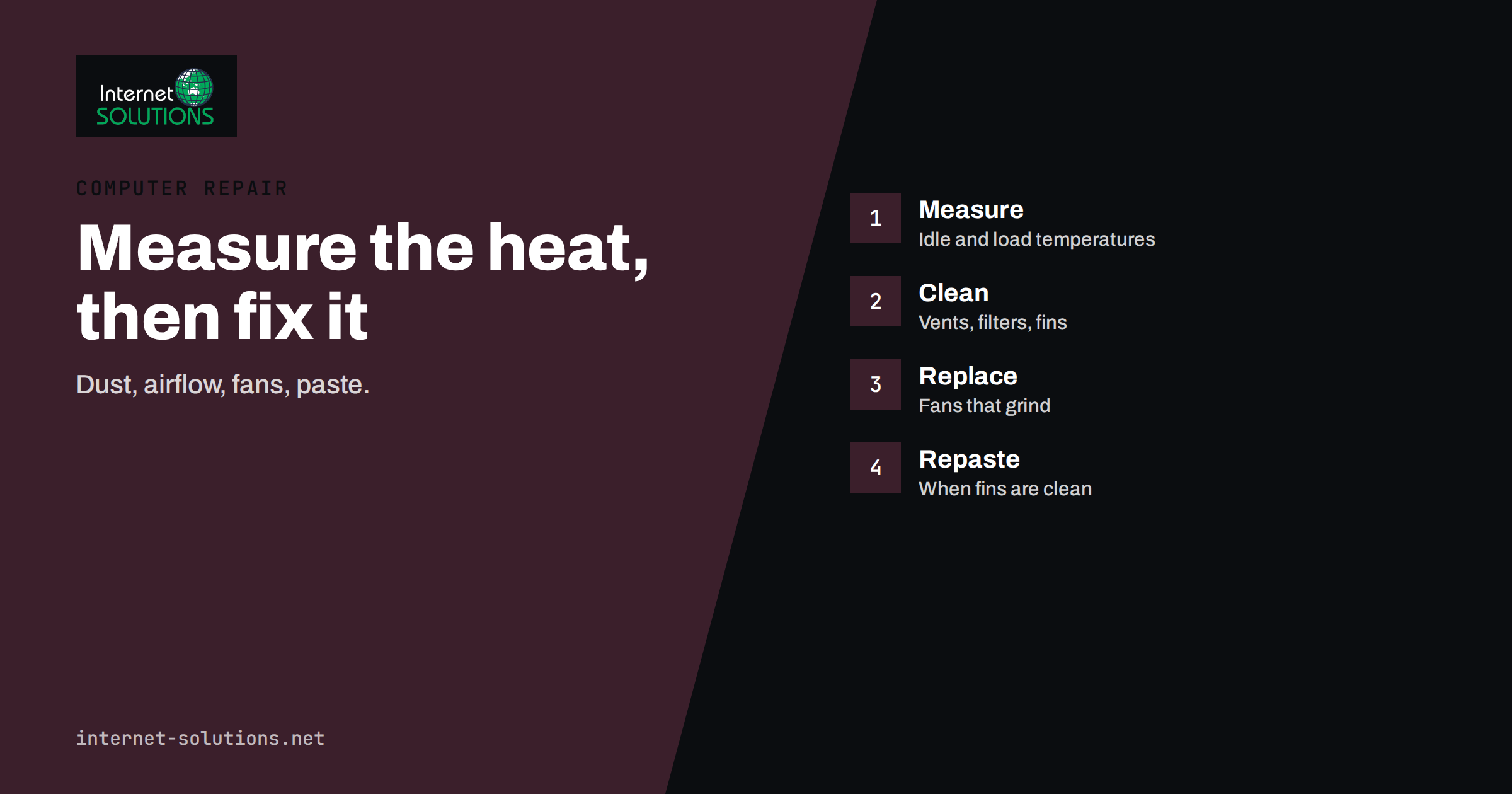
Computer overheating is one of the most common reasons for a business laptop or desktop that suddenly becomes slow, noisy or switches itself off in the middle of work. Heat is a normal by-product of computing, and every machine is designed to manage it with heat sinks, fans and vents. Problems begin when something in that system stops working: dust blocks the airflow, a fan wears out, old thermal paste dries, the machine sits on a soft surface or the cooling is simply too weak for the work being asked of it. The good news is that most overheating can be diagnosed with free tools and fixed with basic care, and the rest points clearly to a repair or replacement decision.
This guide explains how a computer manages heat, how to recognise the warning signs, how to measure temperatures safely, what to clean and what to leave to a technician, how thermal paste and fans fit in, and how to prevent the problem from coming back. It is written for office managers, small business owners and anyone who looks after a handful of machines without a dedicated IT department.
How a Computer Handles Heat
The processor and the graphics chip turn electrical energy into work and heat. A heat sink, a block of metal with fins, draws heat away from the chip. A thin layer of thermal paste fills microscopic gaps between the chip and the heat sink so that heat moves across efficiently. A fan pushes air through the fins and out of the case. The system is controlled by firmware, which speeds the fan up when the chip gets warm.
When temperatures climb toward a limit, the processor protects itself by lowering its speed. This is called thermal throttling, and it is a form of dynamic frequency scaling. The machine does not break, but it becomes slow, often in sudden steps that users describe as “freezing”. If the temperature keeps rising despite throttling, the computer shuts down to avoid damage. Throttling is therefore both a safety feature and a clear sign that something needs attention.
Warning Signs You Should Not Ignore
- Fan noise that is loud or constant. A fan running at full speed during light tasks, such as browsing or writing a document, means the system cannot shed heat.
- A hot case. The underside of a laptop or the top of a small desktop that is too hot to touch comfortably for long.
- Slowdowns under load. The machine starts a video call or a spreadsheet at normal speed and then gets sluggish after ten minutes.
- Sudden shutdowns or restarts. They happen without a warning message, often during heavy use or at the start of a game or render.
- Graphical glitches. Flickering, artefacts or driver crashes can indicate an overheating graphics chip.
- Battery trouble. Heat shortens battery life, and a swollen or hot battery is a safety matter. Our guide to laptop battery problems explains what to do.
- Warnings from the firmware. Some machines display a message at start-up about the fan or temperature, which should be taken seriously.
- Burning smell or visible damage. Switch off, unplug and stop using the device until it is inspected.
Measure Before You Guess
Feeling the case is not enough. A few simple measurements show whether a machine has a real heat problem.
- Install a monitoring tool. Free utilities such as HWiNFO on Windows show the temperature of each core, the fan speed and whether the processor is throttling. On other systems, similar tools exist in the package manager or the app store.
- Record the idle temperature. Close everything, wait five minutes and note the temperature of the processor. A typical modern laptop idles in the thirties or forties degrees Celsius, although this varies by design and room temperature.
- Record the load temperature. Run a realistic workload for ten minutes, such as a video call with screen sharing and a large spreadsheet, and note the highest temperature and whether the clock speed drops.
- Compare with the manufacturer’s limits. The processor documentation gives a maximum safe temperature, often around one hundred degrees. Sitting near that limit for long periods is a sign of a problem, not of a hard-working machine.
- Repeat in a different setting. Test on a hard desk with open space around it. If the temperatures drop a lot, the placement was part of the problem.
Write the results down with the date. A series of measurements shows whether a machine is getting worse and gives a technician useful information.
Common Causes and Their Fixes
| Cause | Typical signs | Fix | Who should do it |
|---|---|---|---|
| Dust in vents and heat sink fins | Gradual rise in noise and temperature over months or years | Cleaning with compressed air and a soft brush | User for vents, technician for opening the case |
| Blocked airflow from placement | Hot only on a bed, sofa or tightly packed shelf | Use a hard surface and leave room around vents | User |
| Worn or failing fan | Grinding, rattling or no air from the vent | Replace the fan | Technician |
| Dried thermal paste | High temperatures despite clean fins, often on older machines | Remove old paste and apply new | Technician or experienced user |
| Runaway software | High processor use while the machine is idle | Find the process, update or remove it, scan for malware | User or IT support |
| Power settings | Fans loud under light use after a settings change | Restore balanced power mode and update firmware | User |
| High room temperature | Problem appears in summer or in a small hot office | Improve ventilation or cooling | Office manager |
| Under-specified machine | Always hot with modern heavy workloads | Upgrade or replace for the real workload | Business decision |
Cleaning Dust Safely
Dust is the cause behind more overheating than any other single factor. Offices with carpets, pets, workshops or construction nearby collect it fastest. A safe routine for a desktop computer looks like this.
- Shut down and unplug. Hold the power button for a few seconds after unplugging to discharge remaining power.
- Move the machine outside or to a ventilated spot. Dust clouds are unpleasant to breathe.
- Open the side panel. Most towers need a screwdriver or a thumb screw.
- Hold the fan blades still. Use a finger or a soft stick, because compressed air can spin a fan too fast and damage its bearing.
- Blow short bursts of air. Keep the can upright, spray from a distance of several centimetres and clear the heat sink fins, filters, fan blades and the power supply grille.
- Wipe visible dust with a soft brush or a dry cloth. Avoid vacuum cleaners that build up static electricity, unless the model is designed for electronics.
- Close, reconnect and measure again. Compare the new load temperature with the earlier result.
For laptops, start with the outside. Blow air through the vents with the machine switched off, and clean the intake on the underside. Opening a laptop is a different matter. Many have fragile clips, thin cables and glued parts, so unless you know the model, leave internal cleaning to a technician. Our computer repair service includes cleaning and re-pasting, and the article on when to call a technician helps you decide when to hand a machine over.
Thermal Paste and Fans
Thermal paste is a compound that improves heat transfer between the chip and the heat sink. Over several years it can dry out, crack or be pushed out of place, and the heat sink then makes poorer contact. Typical signs are high temperatures on a machine whose fins and fans are clean, particularly a quick jump to very high temperatures when a load begins. Re-pasting means removing the heat sink, cleaning the old compound with alcohol, applying a thin layer of new compound and refitting with the correct pressure. The principle is described in the encyclopedia entry on thermal grease. It is a modest job on a desktop and a delicate one on a thin laptop, where the wrong screw order or too much paste can cause damage.
Fans wear out. Bearings dry, blades collect grime and motors weaken. A fan that makes a grinding or clicking sound, runs unevenly or fails to spin at start-up should be replaced rather than oiled. Fans are inexpensive on desktops and model-specific on laptops, so check the part before ordering. In a desktop, also make sure the airflow direction is right: usually cool air enters at the front and warm air leaves at the back and top. A fan fitted the wrong way round can reduce cooling rather than improve it.
Software and Settings That Make Heat Worse
A machine can overheat even when the hardware is perfect, because software keeps it busy. Check these before opening anything.
- Processes using the processor at idle. The task manager shows which program is responsible. Browsers with many tabs, sync clients, indexing services and update tools are frequent culprits.
- Malware and unwanted miners. Hidden software that uses the processor heavily is a known problem. A scan with a trusted security tool, and the practices in our article on ransomware protection for small businesses, reduce the risk.
- Outdated firmware and drivers. Manufacturers sometimes fix fan curves and power behaviour in updates, so check the support page for your model.
- Power plan. A high-performance plan on a thin laptop produces more heat. A balanced plan is better for office work.
- Too many start-up programs. Trim them. Our checklist for slow computer troubleshooting covers this step by step.
Placement, Environment and Habits
Prevention costs almost nothing. Put laptops on a hard flat surface or a stand that lifts the base, not on a duvet or a lap with a blanket. Keep desktop towers away from walls and out of closed cabinets, and leave at least a hand’s width of space around the vents. Avoid direct sunlight and radiators. In small rooms with several machines, the combined heat can warm the room itself, so consider ventilation. Do not place a printer or a heater against the back of a tower. In dusty environments, use filters on the intake fans and clean them on a schedule. For servers and network cabinets, apply the same logic at a larger scale, with monitored temperature alerts as described in our guide to server monitoring alerts.
Repair or Replace?
Cleaning and paste are cheap, so try them first on a machine that is otherwise healthy. Replacement makes sense in some cases:
- The machine is several years old, has a weak processor for current software and also suffers from a worn battery or slow storage.
- The repair cost approaches a meaningful share of the price of a new machine with a warranty.
- The cooling design is inherently inadequate, such as a very thin laptop that throttles under ordinary office work.
- The graphics chip or the board shows heat damage, such as repeated artefacts or intermittent faults.
When you buy new, look at cooling as well as specifications. Reviews that test sustained performance are more useful than peak figures, and warranty terms for business use are worth reading. Our business laptop buying guide lists the other points to check.
A Worked Example
An accounting office has a five-year-old desktop that shuts down several times a week during month-end work. The office manager installs a monitoring tool and finds an idle temperature in the fifties and a load temperature close to the limit, with the clock speed falling after a few minutes. She switches the machine off and opens the case: the heat sink fins are packed with grey dust, and the filter on the front intake is blocked. She cleans both, holds the fans still while blowing air and reassembles the machine.
The load temperature falls by about twenty degrees, but still rises faster than expected. A technician replaces the old thermal paste and finds that one case fan makes a grinding noise, so he replaces it as well. After the work, the temperature stays well below the limit through a full day of spreadsheets, and the shutdowns stop. The office adds a six-month cleaning reminder to its maintenance calendar, moves the tower out of a closed cabinet and records the measurements in the asset list for comparison next year.
Common Mistakes
- Spraying compressed air while the fan is free to spin.
- Using a vacuum cleaner on the inside of a computer without anti-static protection.
- Applying too much thermal paste, which insulates instead of conducting.
- Opening a laptop without the service manual and damaging cables or clips.
- Ignoring a swollen battery because the machine “still works”.
- Assuming that a loud fan is normal for an older machine.
- Replacing parts without measuring temperatures first.
Frequently Asked Questions
What temperature is too hot for a computer?
It depends on the processor, but sustained temperatures near the manufacturer’s maximum, often around one hundred degrees Celsius, are too hot. Repeated throttling or shutdowns also mean the cooling is not adequate, whatever the number.
How often should I clean the dust out of a computer?
For a typical office, once or twice a year is enough, and more often in dusty places or with pets. Check the vents more often, since a quick clean can prevent buildup.
Can overheating damage my computer permanently?
Occasional high temperatures usually do not, because the machine protects itself by throttling and shutting down. Long exposure to extreme heat can shorten the life of the battery, the board and other components.
Is it safe to change thermal paste myself?
On a desktop, it is a reasonable task for a careful person with the right tools. On a laptop, it can be delicate, so check the service manual or hand it to a technician.
Do cooling pads help?
They can lower temperatures a few degrees by improving airflow under a laptop, particularly on a soft surface. They do not fix clogged fins or dried paste, so clean the machine first.
Why does my computer get hot even when I am not doing anything?
Some background process, such as a sync, an update, an indexing job or unwanted software, is probably using the processor. Check the task manager, and scan for malware if you do not recognise the program.
The Bottom Line
Computers overheat when heat cannot leave the case, and the usual causes are dust, poor airflow, a worn fan, dried thermal paste or software that keeps the processor busy. Measure temperatures first, clean vents and filters safely, check placement and settings, and call a technician for opening laptops, replacing fans and renewing paste. Record the results and set a cleaning schedule, so that heat is managed before it causes slowdowns or failures. When the machine is old and the repair is not worth the cost, replace it and choose cooling that suits the real workload.