

 English
 Lietuvių
 Latviešu
 Eesti
Eesti Русский
 Polski
 Українська
 Deutsch
 Italiano
 Español
 Français
 Português
 Čeština
 Magyar
 Română
 Ελληνικά
 Türkçe
 日本語
日本語 العربية
 हिन्दी
 Bahasa Indonesia
 Bahasa Melayu
 ไทย
ไทย Tiếng Việt
 বাংলা
বাংলাGoogle Ads Search Terms Report: A Weekly Review Routine
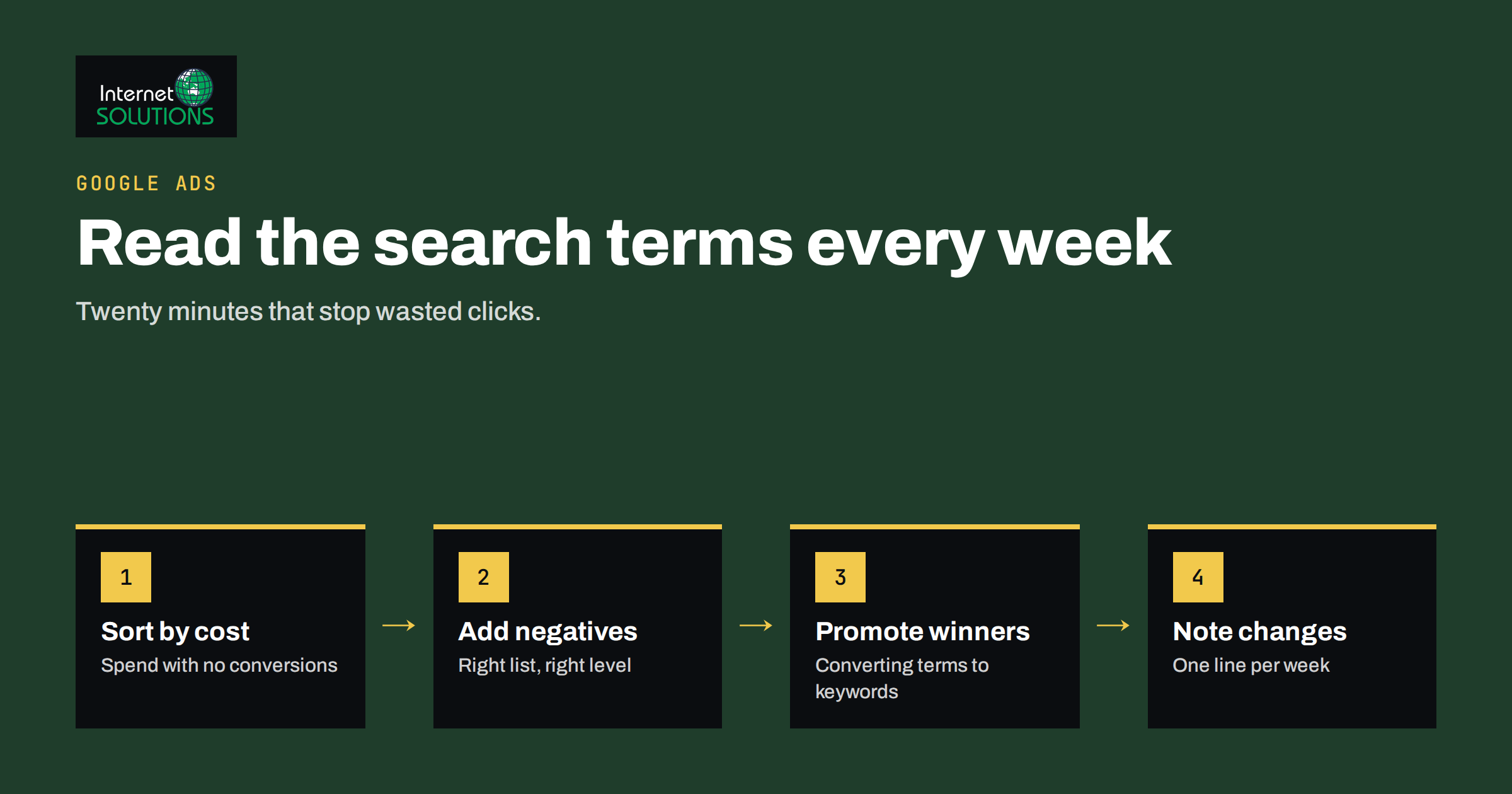
The search terms report is the most honest document in a Google Ads account. Keywords describe what you hoped people would search for; the search terms report shows what they actually typed before they clicked your ad and cost you money. A keyword such as “accounting software” can trigger ads for “free accounting software for students”, “accounting software jobs” and “accounting software course”, and only one of those is a customer. The report is where you find that out.
This guide turns the report into a weekly routine that takes about twenty minutes for a typical small account. It covers where the report lives, how to read it without drowning in rows, which terms to block, which to promote, how to avoid the common negative keyword mistakes and how to keep a short record so you can see the effect of your changes. It is written for business owners and in-house marketers who run their own campaigns, and it reflects the way we review accounts in our Google Ads management work.
What the Search Terms Report Shows
Every time your ad appears on a search, Google records the query that triggered it. The search terms report groups those queries and shows, for each one, which keyword matched it, the match type that was used, impressions, clicks, cost, conversions and the usual derived metrics such as click-through rate and cost per conversion. You will find it under Campaigns, then Insights and reports, then Search terms, and it can be filtered to a single campaign or ad group.
Two limits shape how you use it. First, Google only shows search terms that reached a privacy threshold; queries made by very few people are grouped into a hidden row. In most accounts that hidden share is a meaningful part of spend, so the visible rows are a sample, not the full picture. Second, the report shows what happened, not why: a query with zero conversions might be a poor match, or it might be a good query that landed on the wrong page. Reading the report well means combining it with what you know about your product and your landing pages.
The report also reflects how match types work. Even an exact match keyword can show for close variants, and broad match keywords use signals beyond the words themselves. If you have not reviewed how matching behaves recently, our article on keyword match types and negative keywords explains the current rules in detail. Google’s own documentation on the search terms report describes the privacy threshold and the columns available.
Why a Weekly Routine Beats Occasional Clean-Ups
Most accounts we audit have a search terms problem that is not dramatic on any single day. A few pounds here on a job-seeker query, a few there on a competitor brand, a trickle of clicks on “free” and “DIY” searches. Over a quarter this adds up to a noticeable share of the budget, and because it accumulates slowly nobody notices. A monthly or quarterly clean-up catches it late; a weekly review catches it while it is still small and before the automated bidding has learned from the wrong conversions.
Weekly also matches how search behaviour changes. New products, seasonal queries, news events and competitor campaigns all shift what people type. A fixed slot in the calendar, such as Monday morning with a coffee, keeps the review from being skipped. Twenty minutes is a realistic target for accounts spending up to a few thousand euros a month; larger accounts may need a longer slot or a split by campaign.
The Twenty-Minute Routine
Minute 0 to 2: Set the view
Open the search terms report for all search campaigns with the date range set to the last seven days. Add the columns you need: cost, clicks, conversions, conversion value if you track it, cost per conversion and the matched keyword. Save this as a custom column set so you do not rebuild it every week. Hide display and video campaigns; this report is for search.
Minute 2 to 8: Sort by cost, look for waste
Sort by cost, highest first, and read the top rows. You are looking for terms that spent money and either converted at a much worse rate than the account average or clearly describe someone who will never buy. Typical waste patterns include:
- Job and career searches: “jobs”, “salary”, “career”, “vacancy”, “internship”.
- Education and research: “course”, “tutorial”, “what is”, “definition”, “pdf”, “thesis”.
- Free and do-it-yourself intent: “free”, “open source”, “template”, “how to make”.
- Wrong product or audience: a different model, a consumer query on a business-only product, a location you do not serve.
- Competitor brands you do not want to bid on, or your own brand if you handle it in a separate campaign.
Do not block a term just because it has not converted yet. A single week is a small sample. A rule that works well: block immediately when the intent is clearly wrong, and only block for poor performance when a term has spent at least several times your target cost per conversion without converting.
Minute 8 to 14: Add negatives at the right level
Each term you block becomes a negative keyword, and where you add it matters. Add it to a shared negative keyword list when it is wrong for the whole account, such as “jobs” or “free”. Add it at campaign level when it is wrong for that campaign but right for another, for example a product name that belongs to a different campaign. Add it at ad group level only when you are steering traffic between ad groups. Choose the match type carefully: a phrase match negative “jobs” blocks any query containing the word, while an exact match negative blocks only that exact query.
Minute 14 to 18: Promote the winners
Now sort by conversions. Terms that convert well but are only being caught by a broad or phrase match keyword deserve their own exact match keyword, usually in the ad group that already matches them. Doing this gives you control over bids and ad copy for the queries that matter most. Terms that convert but belong to a product you have no page for are a content brief: a new landing page, or a request to our website development team if the page needs building.
Minute 18 to 20: Write one line
Keep a simple change log: the date, how many negatives you added, the terms you promoted and anything odd you saw. This takes a minute and makes the next review faster. It also lets you link a change in results to the week you made it, which is the only way to learn what works in your account.
Negative Keyword Decisions Compared
| Situation | Action | Where to add | Match type |
|---|---|---|---|
| Query is clearly not a customer (jobs, free, course) | Block now | Shared negative list | Phrase |
| Query belongs to another campaign | Block in this campaign only | Campaign level | Phrase or exact |
| Query spent several times target CPA, no conversions | Block after review | Campaign level | Exact |
| Query converts well via broad match | Add as exact keyword | Matching ad group | Exact (positive) |
| Query converts but no suitable page exists | Note for a landing page | Change log | None yet |
| Query is a competitor brand | Decide once as a policy | Shared list or dedicated campaign | Phrase |
Common Mistakes That Undo the Work
Over-blocking with broad negatives
A broad match negative such as “software” added in a rush can block most of the account’s traffic. Before saving a negative, ask what else contains that word. Google now offers a check in the interface that warns when a negative conflicts with an active keyword; take the warning seriously, and read the negative keyword documentation once to understand how negative match types differ from positive ones. If traffic drops sharply the day after your review, the first place to look is the negatives you just added.
Blocking on too little data
Blocking a term after one unconverted click is a classic way to shrink an account until it has no reach left. The weekly review is for patterns, not single clicks. Use the thresholds from the routine above, and remember that conversions can arrive days after the click, so last week’s report will look worse than it really was.
Ignoring the hidden row
If the hidden “other search terms” row is a large share of spend, negatives alone cannot fix it. Tighter match types on the keywords that generate it, or a review of whether broad match is earning its place, will do more than another round of blocking.
Forgetting Performance Max and Shopping
Performance Max campaigns show search themes and categories rather than a full search terms list, and Shopping campaigns show search terms without the keyword column because they match on product data. Both still need negatives, and account-level negative keywords can apply to them. Review them in the same slot, even if the view is less detailed.
Reading the Report With Conversions in Mind
The report is only as good as the conversion data behind it. If conversion tracking is broken, every term looks like waste, and if it counts page views as conversions, every term looks like a winner. Before trusting a week of cost per conversion figures, confirm that the conversion actions in the account fire once per real lead or sale. Our guide to conversion tracking that holds up walks through the checks. When a lead form or a chat counts as a conversion, the search terms report becomes a very direct measure of which queries produce enquiries.
Conversion value adds a second dimension. A term that converts rarely but at high value can be worth more than one that converts often at low value. If your business can assign even a rough value per lead type, add value columns to the report and sort by value as well as by conversions once a month.
Turning Search Terms Into Better Pages and Ads
The report is also a research tool. The exact phrases people use tell you how they describe your product, which objections they have (“price”, “vs”, “review”) and which features they care about. Use them to write ad headlines in the customer’s words, to add sections to landing pages that answer the questions you see, and to brief articles for your blog. Queries with “vs” and “alternative” are a signal to build comparison content; queries with “near me” and city names are a signal to review location targeting and local pages.
Over time, the search terms report and your organic data from Search Console describe the same demand from two sides. Terms you pay for and also rank for organically are candidates for lower bids; terms you pay for but never rank for are candidates for new content. This is where paid search and SEO work together rather than compete for the same budget.
Frequently Asked Questions
How often should I check the Google Ads search terms report?
Weekly is right for most small and medium accounts. It catches waste early and gives the review enough new data to be worth doing. Daily is rarely needed except in the first days of a new campaign, and monthly lets waste accumulate for too long.
Why do I not see every search term in the report?
Google only shows terms that meet a privacy threshold. Queries made by few users are grouped into a hidden row. If that row is a large share of spend, tighten match types or review broad match keywords rather than relying on negatives alone.
Should a negative keyword go in a shared list or a campaign?
Use a shared negative list for terms that are wrong for the whole account, such as job or free searches. Use campaign-level negatives for terms that belong to a different campaign. Ad group negatives are for steering traffic between ad groups within a campaign.
When should I block a term for poor performance?
Only after it has spent several times your target cost per conversion without converting, and after checking that conversions are tracked correctly. One or two unconverted clicks are not enough evidence.
Do negative keywords work in Performance Max campaigns?
Account-level negative keywords can apply to Performance Max, and brand exclusions are available. The campaign shows search themes and categories rather than a full search terms list, so review it in the same slot but expect less detail.
Can the search terms report help with SEO?
Yes. It shows the exact phrases people use, which helps with page titles, headings and new content ideas. Comparing paid terms with organic queries from Search Console shows where you pay for traffic you could earn and where you need pages you do not have yet.
The Bottom Line
The search terms report is where a Google Ads account tells the truth about its spend. A fixed weekly slot, a sorted view by cost, negatives placed at the right level, winners promoted to exact match keywords and a one-line change log are enough to keep an account clean and to learn how your customers actually search. Block clear mismatches at once, block poor performers only with evidence, and feed the phrases you find back into your ads, pages and content. Twenty minutes a week spent this way usually returns more than any other change you can make to a small account.