

 English
 Lietuvių
 Latviešu
 Eesti
Eesti Русский
 Polski
 Українська
 Deutsch
 Italiano
 Español
 Français
 Português
 Čeština
 Magyar
 Română
 Ελληνικά
 Türkçe
 日本語
日本語 العربية
 हिन्दी
 Bahasa Indonesia
 Bahasa Melayu
 ไทย
ไทย Tiếng Việt
 বাংলা
বাংলাLive Chat on Mobile Websites: Widget Placement, Pop-Ups and Page Speed
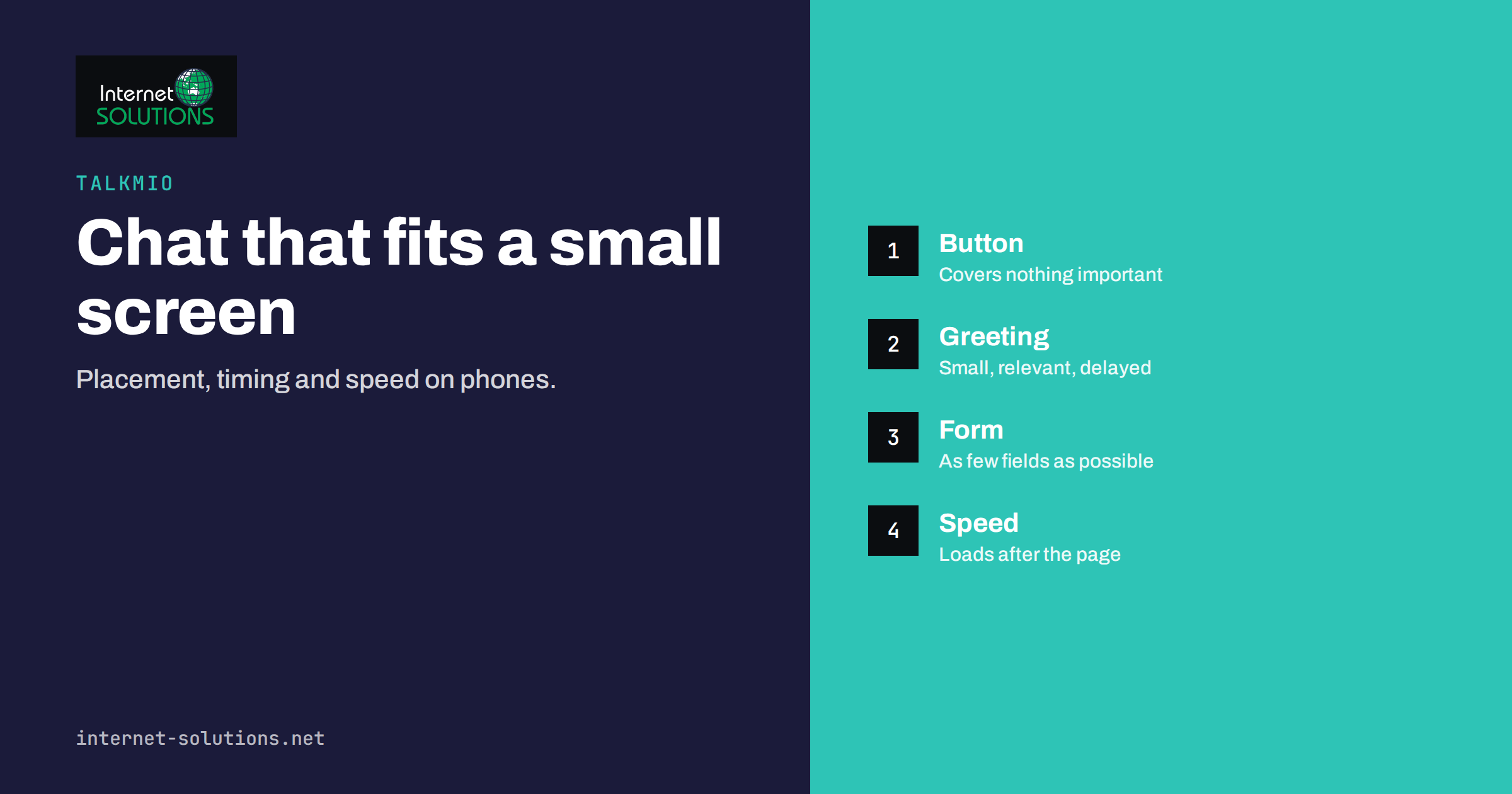
Live chat on mobile websites needs different decisions from live chat on a desktop. More than half of most business traffic now arrives on phones, yet many chat widgets are installed once, checked on a laptop and forgotten. On a small screen a chat bubble can cover the button a visitor needs, a greeting pop-up can block the page they came to read, and a heavy script can slow the first view. This guide explains how to place, time and test a chat widget so that it helps phone visitors instead of annoying them, with practical checks you can run in an afternoon.
The advice is general and applies to any chat tool. Where it mentions Talkmio, it refers to the settings the product offers for the widget, such as colours, greeting, pre-chat form and business hours; the rest is about how phones behave.
How Phone Visitors Differ
A person on a phone is usually in a hurry, using one thumb, and often on a slower connection than an office network. They read less, scroll more and are quick to leave a page that gets in the way. Four differences matter for chat.
- Screen space is scarce. A bubble that is a small corner detail on a desktop can be a tenth of the visible area on a phone.
- Typing is slower. Long forms and open questions cost effort, so short choices and quick replies work better than fields to fill in.
- The keyboard changes the layout. When the on-screen keyboard opens, it can hide half of the chat window or push the input field out of view if the widget is not built for it.
- Interruptions are costly. A pop-up that covers the content on a phone is hard to dismiss with a thumb, and search engines treat intrusive full-screen overlays on mobile as a poor experience.
None of this means chat is a bad idea on phones. On the contrary, a visitor who can ask a question in two taps often does so rather than hunting through menus. It means the widget has to be designed for the small screen first. Our guide to mobile-first web design lists the wider mistakes that business sites make on phones, and chat should be tested in the same spirit.
Where to Place the Chat Button
The default position for a chat button is the bottom corner of the screen, and for good reason: it sits where the thumb rests and rarely covers the main content. But the default is not always right for your site. Look for conflicts with other fixed elements before you decide.
| Fixed element on your page | Possible conflict | What to do |
|---|---|---|
| Cookie banner at the bottom | Covers the chat button until it is dismissed | Test with the banner open; keep the chat visible above it or accept the delay |
| Sticky “Call” or “Buy” bar | Bubble sits on top of the primary action | Move the bubble above the bar or to the opposite corner |
| Back-to-top arrow | Two round buttons fight for the same corner | Put one on each side |
| Add-to-basket button on a product page | Bubble hides the price or the button | Raise the bubble or reduce its size on those pages |
| Form submit button | Bubble overlaps the final step | Hide the widget on checkout and long forms |
Choose one side and keep it consistent across the site. Right-handed users find the lower right comfortable, but there is no universal rule. What matters is that the button never covers a control that a visitor needs to finish a task. If your widget settings let you adjust the offset, nudge it a little higher on pages with a bottom bar rather than hiding the bar.
It is also worth deciding where the widget should not appear. Checkout pages, login pages and landing pages built for one single action often convert better without a chat bubble, unless the page is the place where questions arise. Look at your chat transcripts to see where people actually ask for help before you decide.
Greetings and Pop-Ups on a Small Screen
A greeting message that pops open on arrival can be helpful on a desktop and disruptive on a phone. The safest approach on mobile is a quiet invitation: show the bubble, perhaps with a short line such as “Questions? Ask us here”, and let the visitor open the window themselves.
If you do use proactive messages, follow a few rules.
- Wait. Do not show anything in the first seconds. Let the visitor see the page first.
- Be relevant. A message on a pricing page that offers help with plans is welcome. The same message on a blog article is noise.
- Keep it small. A one-line bubble beside the button is better than a card that covers a third of the screen.
- Show it once. Do not repeat after the visitor closes it, at least not in the same visit.
- Respect the content. Never cover the main headline or the call to action with a pop-up.
Search engines are explicit that intrusive interstitials can harm the user experience on mobile. A chat bubble is not an interstitial, but a full-screen chat pop-up that appears on load can behave like one. Our article on chat triggers and rules explains how to choose when a message should appear, and the same logic applies, with more caution, on phones.
The Chat Window Itself
When the visitor opens the chat on a phone, the window should take over a sensible part of the screen. Most good designs use almost the full height, because a small floating box is hard to read and type in. Check these points on a real device.
- The input field stays visible when the keyboard opens, and the latest message remains in view above it.
- The close button is easy to reach and large enough to tap without precision. Accessibility guidance recommends a minimum target size; the WCAG explanation of target size gives the numbers.
- Text is readable without zooming. Use a font size that does not trigger automatic zoom when the field is focused.
- Colours have enough contrast. Sunlight and low brightness make weak colour combinations hard to read outdoors.
- Quick replies and buttons are available so that a visitor can answer with a tap instead of typing.
- Links open sensibly. A link that replaces the whole page without a way back loses the conversation; links that open in a new tab keep it.
With Talkmio you set the widget colours, the greeting, a pre-chat form and business hours in the settings; our widget setup guide walks through them. On a phone the pre-chat form deserves special attention. Ask for as little as you need: perhaps a name or an e-mail address, and only when you cannot answer without it. Every extra field reduces the number of visitors who start the chat.
Page Speed and the Widget
A chat widget is a third-party script, and every script has a cost. On a fast office connection the cost is invisible; on a mid-range phone with a mobile network it may add a noticeable delay. The result shows up in the speed measures that search engines use, such as Largest Contentful Paint and Interaction to Next Paint, which web.dev describes as Core Web Vitals.
You can limit the effect without removing chat.
- Load the script after the page. The chat does not need to appear before the content. Loading it once the main page is ready keeps the first view fast. Many tools load asynchronously by default; confirm it in your page source.
- Measure with and without. Run a speed test on a typical page with the widget enabled, then run it again with the widget temporarily disabled in a test environment. If the difference is large, look for conflicts with other scripts or a caching plugin.
- Do not install it twice. It is common to find the widget loaded by both a plugin and a manually pasted script. Check the page source and remove one.
- Keep your own page light. A chat bubble cannot rescue a page with huge images. Our article on website speed and Core Web Vitals lists what you can fix yourself.
If you use WordPress with caching or a page builder, make sure the widget script is not combined or delayed in a way that breaks it. The notes in our WordPress live chat guide cover the typical conflicts.
Messages That Work on Phones
The text you or your assistant sends matters just as much as the layout. Short lines are easier to read on a narrow screen than long paragraphs. A reply of three sentences with one link is better than a wall of text. Break instructions into numbered steps, and keep each under a line or two.
An AI assistant that answers first, as Talkmio’s Mio does from your own pages and documents, should be taught to answer briefly. Test your most common questions on a phone: opening hours, delivery, prices, how to contact a person. If the answer scrolls for several screens, shorten the source text in your knowledge base. Our guide to what to teach Mio and how to test answers explains how.
When the question needs a person, set a clear expectation. A line such as “A team member will reply here, usually within a few minutes during opening hours” is more useful than silence. Visitors on phones often leave the page and come back later, so make sure the conversation is saved and that you have a way to reach them, such as an e-mail address they have chosen to share.
A Mobile Testing Routine
Desktop browsers can simulate a phone, but they do not behave like one. Set aside half an hour with real devices and follow this routine.
- Open your home page, a product or service page and a blog article on a phone, with and without the cookie banner.
- Check that the chat button does not cover anything important on any of them.
- Start a chat, type a message and watch what the keyboard does to the layout.
- Rotate the phone to landscape and check that the window is still usable.
- Use the page with a slow connection mode in your developer tools or with a phone on mobile data, and note when the bubble appears.
- Try both a recent phone and an older, smaller one if you have them.
- Test as a visitor with a screen reader or large text setting if accessibility is a requirement.
Record the findings in a short list and fix them in order of impact. Repeat the test whenever you change the theme, add a banner or update the widget settings.
What to Measure
After changes, check whether phone visitors are using the chat and whether it helps. Compare the share of chats that start on mobile with the share of mobile visits. If mobile visitors are 60 percent of traffic and only 10 percent of chats, the widget may be hidden, slow or intrusive. Look at the first-reply time for mobile chats, the proportion solved by the assistant and the ratings visitors give. The metrics described in our live chat metrics guide apply equally to phones.
Also watch for negative signals. A rise in bounce rate on pages where you added a proactive message suggests that it is annoying. A drop in conversions on checkout pages after installing the widget is a sign to hide it there. Change one thing at a time and give each change a few days so that you can tell what helped.
Frequently Asked Questions
Should the chat bubble appear on every mobile page?
Not necessarily. Show it where visitors have questions, such as pricing, services, shipping and contact pages. Consider hiding it on checkout, login and single-purpose landing pages where it distracts from the task.
Does a chat widget slow my website on phones?
Any extra script adds some load. A widget that loads asynchronously after the main content usually has a small effect, but measure your own pages with and without it, especially on mid-range phones.
Are proactive pop-ups a good idea on mobile?
Use them sparingly. A small, delayed, relevant message beside the bubble can help; a large card that covers the content on arrival hurts the experience and can lead to poor engagement and search penalties for intrusive interstitials.
Which fields should the pre-chat form ask for on a phone?
As few as possible. A name or an e-mail address is often enough, and only if you need it to follow up. Typing on a phone is slow, and each extra field lowers the number of started chats.
How do I know if the keyboard hides the chat input?
Test on a real phone. Open the chat, tap the input field and check that the field and the last message remain visible. Desktop emulators often hide this problem.
Can I answer chats from my own phone?
Yes. Talkmio has a mobile app for operators for answering chats and handling hand-offs and tickets, so a visitor’s question does not have to wait until someone is at a desk.
The Bottom Line
Live chat on mobile websites works when it stays out of the way until it is needed. Place the button where it covers nothing important, keep greetings small and relevant, shorten the pre-chat form, make sure the window and keyboard behave on real devices and load the widget so that it does not slow the first view. Test on phones after every design change, measure how many chats start there, and treat the results as a reason to adjust, not to guess. You can read about the product on the Talkmio page, and if the theme or speed of your site needs work, our website development team can help.