

 English
 Lietuvių
 Latviešu
 Eesti
Eesti Русский
 Polski
 Українська
 Deutsch
 Italiano
 Español
 Français
 Português
 Čeština
 Magyar
 Română
 Ελληνικά
 Türkçe
 日本語
日本語 العربية
 हिन्दी
 Bahasa Indonesia
 Bahasa Melayu
 ไทย
ไทย Tiếng Việt
 বাংলা
বাংলাLog Rotation and Disk Space: Preventing Full-Disk Server Outages
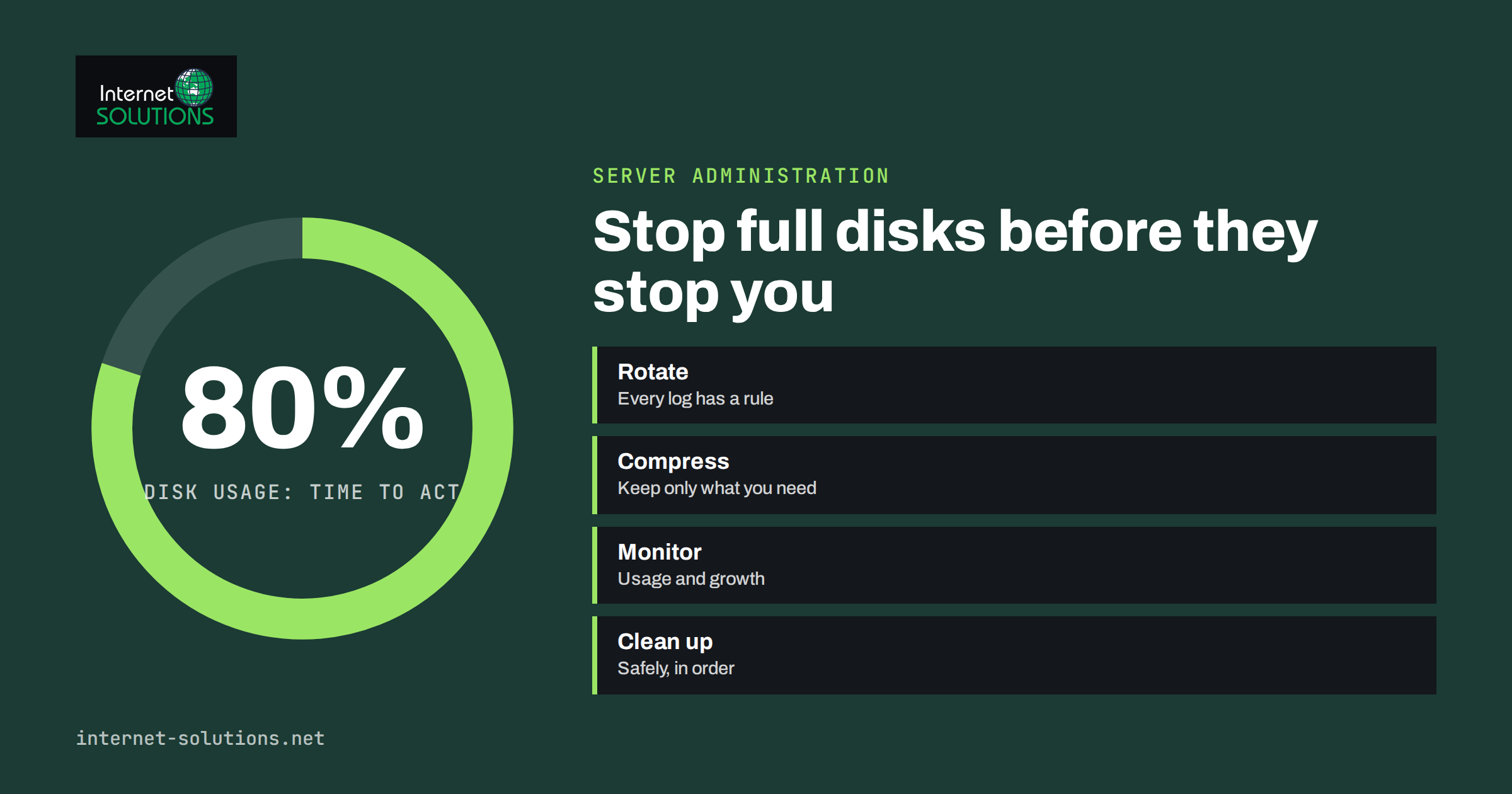
A full disk is one of the most common and most avoidable causes of server outages. Databases stop accepting writes, mail queues stall, web applications fail to save sessions and uploads, and sometimes the server cannot even write the logs that would explain what went wrong. Very often the culprit is not a sudden event but a slow build-up of files that nobody looked at, and log files are the usual suspects. Good log rotation and a simple routine for watching disk space turn this recurring emergency into a non-event.
This guide explains how log rotation works on a typical Linux server, how to find out what is using space, how to configure retention sensibly, how to clean up safely when a disk is already almost full and how to monitor usage so that you hear about the problem days before it matters. It complements our wider guide to uptime, backups and monitoring, and it applies to virtual servers, dedicated machines and most shared administration setups.
Why Disks Fill Up
Servers write to disk constantly. Web servers log every request, applications log errors and debug messages, databases write transaction and binary logs, mail servers keep queues and spools, and the system journal records service activity. Add backups that were never pruned, old release folders, uploaded files, temporary exports and cache directories, and the total grows quietly every day.
Several patterns cause most emergencies. A debug setting left on after troubleshooting can multiply log volume by ten. A misbehaving script can write the same error thousands of times a minute. A traffic spike or a bot crawl can inflate access logs. A backup job that stores copies on the same disk without deleting old ones fills the volume at a predictable rate. A deleted log file that is still held open by a running process continues to consume space even though it no longer appears in directory listings.
Understanding these causes matters because each needs a different fix. Rotation handles steady log growth. Retention policies handle old backups and releases. Application configuration handles runaway logging. Monitoring tells you which one is happening before the disk reaches 100 percent.
How Log Rotation Works
Log rotation means periodically closing the current log file, renaming it, starting a fresh one and removing the oldest copies after a set number of rotations. On most Linux distributions the standard tool is logrotate, which runs from a daily timer or cron job and reads its configuration from /etc/logrotate.conf and the files in /etc/logrotate.d/. Packages such as web servers and databases usually install their own rotation rules, so many logs are already covered. The behaviour of every directive is documented in the logrotate manual page.
A typical rule says which files to rotate, how often, how many old copies to keep and what to do around the rotation. For example, a web server rule might rotate daily, keep fourteen copies, compress old ones and ask the web server to reopen its log files afterwards. Rotation by size is also possible, which is useful for logs that can grow unpredictably.
| Directive | What it does | When to use it |
|---|---|---|
| daily, weekly, monthly | Sets how often rotation is considered | Match the rhythm to log volume and retention needs |
| rotate N | Keeps N old copies and deletes older ones | Set from your retention requirement, not by habit |
| compress, delaycompress | Compresses old logs; delaycompress waits one cycle | Almost always, delaycompress when a process may still write to the last file |
| maxsize, size | Rotates when a file passes a size, regardless of schedule | For logs that can spike |
| missingok, notifempty | Ignores absent files and skips empty ones | To avoid errors and pointless empty archives |
| create | Creates a new file with set permissions and owner | When the service does not create its own log |
| copytruncate | Copies the file and then empties the original | Only when a program cannot reopen logs; small data loss is possible |
| postrotate | Runs a command after rotation, such as a reload | So the service writes to the new file |
Write a Sensible Rule for Your Own Logs
Application logs written by your own code are the most common gap, because no package installed a rotation rule for them. Create a file in /etc/logrotate.d/ named after the application, list the log path, and choose settings based on volume and need. Start with daily or weekly rotation, keep a number of copies that covers your retention requirement, compress old files and use notifempty and missingok.
Think about how the application writes. If it holds the file open, rotation must either signal it to reopen its logs, typically through a reload in the postrotate script, or use copytruncate as a last resort. If you rename a file that a process continues to write to, the process keeps writing to the renamed file, so the new file stays empty and space is not freed as you expect. This is the single most common rotation mistake.
Test every new rule before trusting it. Running logrotate in debug mode with the configuration file shows what it would do without changing anything, and a forced run on a single rule confirms the whole cycle, including permissions and the reload. Check the next morning that a rotated, compressed file exists and that the application is writing to the new log.
Do Not Forget the System Journal and Other Writers
Many modern distributions keep service logs in the systemd journal, which has its own size limits. The journal can grow large if it is configured to persist and no limit is set. You can check current usage with the journalctl disk-usage option, and you can set limits such as a maximum total size and a maximum age in the journald configuration. The journald.conf manual lists the options. Vacuuming the journal by size or time is a safe way to reduce it immediately.
Other writers need attention too. Databases may keep binary logs for replication and recovery, and the retention for those is controlled in the database’s own configuration, not by logrotate. Container platforms store logs and image layers that can grow over time unless you set log size limits and prune unused data. Mail servers keep queues and logs. Backup tools may store local copies. Package managers keep caches. Make a list of everything on the server that writes data, and for each item note where it writes, how fast and who is responsible for pruning it.
Find What Is Using the Space
When a disk is filling, work from the top down. Start by checking each file system with a disk-free report to see which volume is full, and check inodes as well, because a disk with millions of tiny files can run out of inodes while showing free space. Then use a disk-usage summary, limited to one file system and sorted by size, to find the largest top-level directories. Repeat inside the largest one until you find the files responsible. An interactive tool such as ncdu makes this faster if it is installed.
Look at the patterns in what you find. A single enormous log file suggests rotation is missing or broken. Hundreds of numbered archives suggest a retention setting that is too generous. A large directory of temporary files suggests a job that never cleans up. A big database data folder may be legitimate growth that needs a capacity decision, a topic we cover in our guide to server capacity planning.
If space seems to be missing, check for files that were deleted but are still open. A process holding a deleted file keeps its space allocated until it closes the file or restarts. Listing open files with a link count of zero reveals these. The fix is to restart or reload the process, not to look for more files to delete.
Clean Up Safely When the Disk Is Nearly Full
An almost full disk is stressful, and stress causes mistakes. Slow down and follow a safe order. First, make sure you have a recent backup of anything you are about to touch, or at least confirm that what you plan to remove is expendable. Second, start with the least risky items: compressed old logs that are past their retention period, package caches, old journal data and temporary files you have identified as safe.
Never delete the active log file of a running service with a plain remove command, because the service keeps its handle and the space is not released. To empty a live log, truncate it instead, which keeps the file in place and frees the space at once. If you need evidence from the log, copy the relevant part elsewhere first, ideally to another machine.
Do not remove files from system directories unless you know exactly what they are. Do not delete database files, mail spool folders or application data to make room. If the only way to free space is to remove something valuable, extend the volume or move data to another disk instead, and treat the incident as a capacity problem to solve properly afterwards. Write down what you removed and why, as part of your incident notes.
Choose Retention That Fits Your Needs
How long to keep logs is a business and legal decision as much as a technical one. Keep logs long enough to troubleshoot, investigate security incidents and meet any contractual or regulatory requirements, and no longer. Access logs and error logs usually need weeks to a few months. Security and audit logs may need longer, depending on your obligations. Logs can contain personal data such as IP addresses and user identifiers, so privacy rules may also limit how long you may keep them.
Write the retention periods down in a short policy and make the rotation settings match it. If you need long-term storage of important logs, ship them to a separate log service or storage system rather than keeping them on the application server, where they compete with the application for space and may be lost in an attack. Our guide to server log analysis shows how much value logs have when they are available, which is the reason to keep the right ones and rotate the rest.
Monitor Disk Usage and Get Warned Early
Monitoring is what turns a disk-space plan into a reliable one. Track used space and used inodes on every important file system and alert at sensible thresholds, for example a warning at around 80 percent and an urgent alert at around 90 percent, adjusted to the size of the disk and the speed of growth. A one-terabyte disk at 90 percent has far more headroom than a twenty-gigabyte root volume at the same level.
Growth rate is more useful than a fixed threshold. A disk that is 70 percent full but growing five percent a day is in more danger than one at 85 percent that has not changed in a month. Many monitoring tools can forecast when a disk will fill, and even a simple weekly note of usage will show the trend. Alert the person who can act, through a channel they actually read, and test the alert path at least once.
Also monitor the things that create the problem. Alert on a sudden jump in log volume, on failed rotation runs and on backup jobs that did not finish or did not prune. These early warnings catch the cause before the disk reaches a threshold. Mistakes like these appear frequently in our list of common server administration mistakes that cause downtime.
A Monthly Checklist
Once rotation and monitoring are in place, a short routine keeps them healthy. Review the largest directories on each server, confirm that rotated logs exist for every important service and that old ones are removed on schedule, and check that the journal and database logs are within their limits. Look at the backup folders and confirm that pruning works. Review alerts from the last month and ask whether any were noise that should be tuned or real warnings that should have come earlier.
Add disk and log checks to the process for any new service or deployment. Whenever someone installs a new application, the question “where does it write, how fast, and what rotates it?” should have an answer before it goes live. If you would rather hand this over to professionals, our server administration service covers monitoring, maintenance and clean-up as part of regular care.
Frequently Asked Questions
How often should I rotate logs?
Daily rotation suits busy web and application logs, weekly or monthly suits quiet ones. Add a size limit for logs that can spike. Choose the schedule and the number of copies from your retention needs and the volume of data.
Is it safe to delete old log files?
Old rotated and compressed logs beyond your retention period are normally safe to remove, ideally by letting logrotate do it. Do not delete the active log of a running service; truncate it instead, and never delete files you cannot identify.
Why does the disk stay full after I deleted big files?
A running process may still hold the deleted file open, so the space is not released. Find such files by listing open files with a link count of zero, then restart or reload the process that holds them.
What does copytruncate do and should I use it?
It copies the log and then empties the original, so a program that cannot reopen its log keeps working. It can lose a few lines written during the copy, so prefer a reload in postrotate wherever the application supports it.
How much free space should I keep?
Enough to absorb a bad day. Many teams alert at about 80 percent and treat 90 percent as urgent, but growth rate and disk size matter. A small root volume needs tighter limits than a large data disk.
Do logs have privacy implications?
Yes. Logs often contain IP addresses and user identifiers, which can be personal data. Keep them only as long as you need, restrict who can read them and state the retention in your privacy documentation.
The Bottom Line
Full disks are predictable, which makes them preventable. Make sure every writer on the server has a rotation or pruning rule, test those rules, set retention from real needs, and monitor both usage and growth so that you hear about trouble early. When a disk does fill, work from the top down, clean up in a safe order and fix the underlying cause afterwards. A few hours of setup now removes a whole class of outages and the late-night clean-ups that come with them.