

 English
 Lietuvių
 Latviešu
 Eesti
Eesti Русский
 Polski
 Українська
 Deutsch
 Italiano
 Español
 Français
 Português
 Čeština
 Magyar
 Română
 Ελληνικά
 Türkçe
 日本語
日本語 العربية
 हिन्दी
 Bahasa Indonesia
 Bahasa Melayu
 ไทย
ไทย Tiếng Việt
 বাংলা
বাংলাMoving to a New Hosting Provider: Cutover, DNS TTL, Rollback
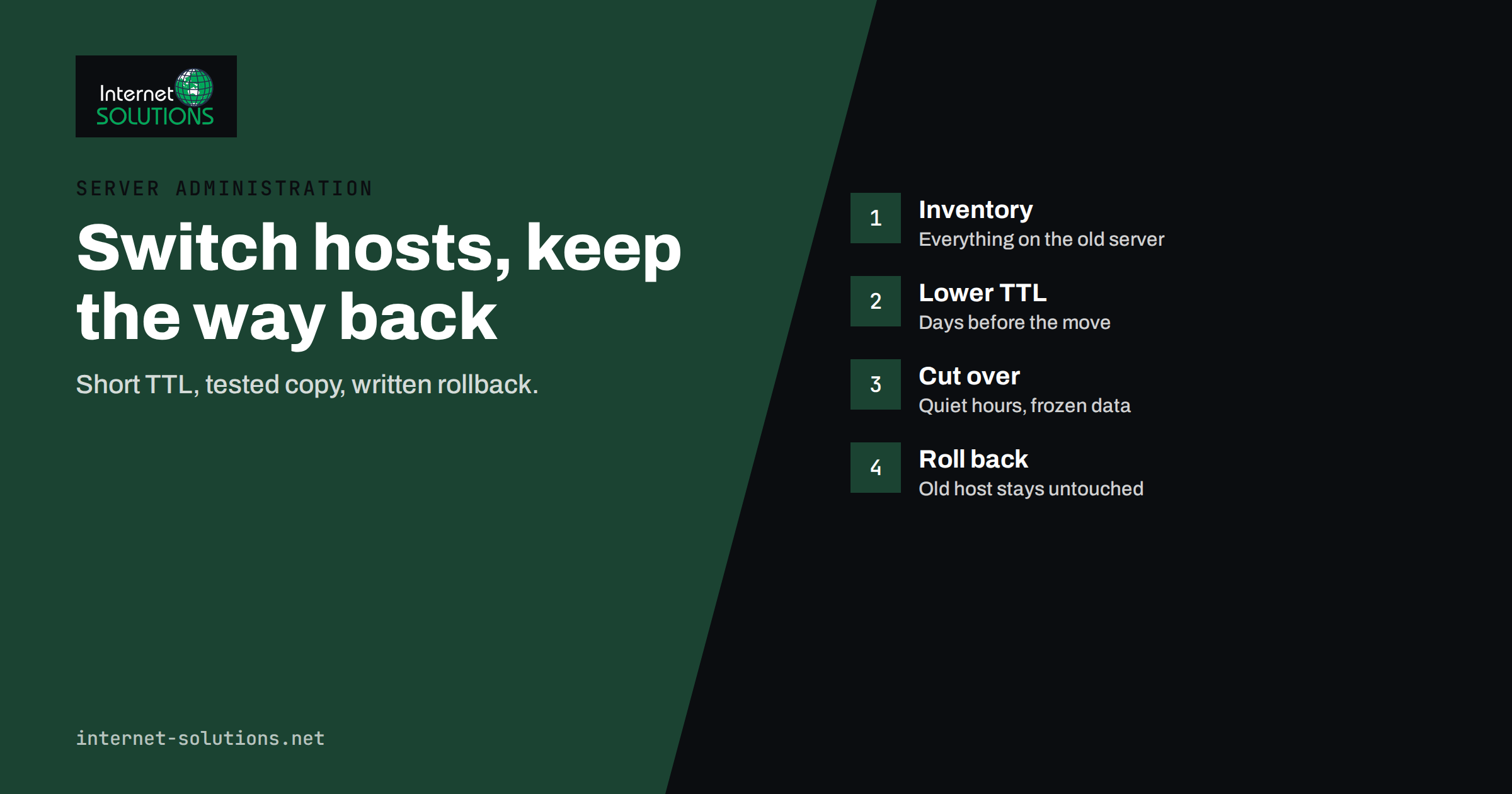
Moving to a new hosting provider is one of the few website tasks where preparation matters far more than skill on the day. The files and the database are rarely the problem. What goes wrong is everything around them: email that stops arriving because a mail record was forgotten, a certificate that has not been issued when the switch happens, a form that still posts to the old server, visitors who see two different versions of the site for a day and no way back when the new server turns out to behave differently. A well-planned move to a new hosting provider avoids all of these, and most of them can be avoided with a checklist and a few hours of patience.
This guide is for owners and managers of business websites who are changing host, whether for speed, cost, support or capacity, and for the people who will carry out the work. It explains how to inventory what you have, how to prepare the new server, how DNS and its time-to-live setting control the cutover, how to switch with minimal disruption, how to roll back if needed and what to check afterwards. It deliberately focuses on the hosting change itself. If the move also changes addresses, structure or platform, read our article on migrating a website without losing SEO rankings as well.
Why a Hosting Move Goes Wrong
Most failures come from a short list of causes:
- Incomplete inventory. Nobody wrote down all the services running on the old server: scheduled jobs, email, redirects, hidden subdomains, third-party integrations tied to the old address.
- Unprepared DNS. The records were changed without lowering the time-to-live first, so the change takes much longer to spread than planned.
- Email forgotten. Switching the web server while the mail records still point somewhere else, or the reverse.
- Different server configuration. The new server has another PHP version, another web server, different limits or missing modules, so a site that worked before breaks.
- Data changing during the move. Orders, comments or form entries arrive on the old server after the copy was taken and disappear.
- No rollback plan. If something fails, nobody knows how to return quickly.
- No testing before the switch. The first real test is the live site, in front of customers.
Stage 1: Take an Inventory
Before you contact the new provider, write down everything the old hosting does. Use this list as a starting point:
| Area | What to record | Why it matters |
|---|---|---|
| Website files and database | Size, location, database type and version, upload folders | Determines transfer method and time |
| Software versions | PHP version, extensions, web server type, key plugins and their requirements | Differences cause the most surprises |
| Domains and subdomains | Every name pointing to the server, including forgotten test sites | Each needs a plan |
| DNS | Where DNS is managed, all current records, TTL values | The cutover happens in DNS |
| Mailboxes, forwarders, aliases, mail host, webmail, size of stored mail | Email is often the most damaging thing to break | |
| SSL certificates | Type, expiry, who issues and renews them | Visitors see warnings without a valid certificate |
| Scheduled tasks | Cron jobs, backups, imports, report scripts | Silent jobs stop working unnoticed |
| Integrations | Payment gateways, APIs, webhooks, services that allow-list the server address | Some depend on the old address |
| Security rules | Firewall rules, access restrictions, HTTP authentication, redirects | Easily lost during copying |
| Contracts | Renewal date, notice period, data retention after cancellation | Avoid paying twice or losing access too soon |
If you have never documented the server, the exercise itself is valuable. Our article on IT documentation explains how to keep such records afterwards.
Stage 2: Prepare the New Hosting
- Match the environment. Choose the same PHP version, or a version you have tested, and install the required extensions. Compare memory limits, upload sizes and execution times. A difference here is a common cause of errors after the move.
- Copy the site. Transfer files and export and import the database. Use a method that preserves file permissions and character encoding.
- Adjust configuration. Update database connection details, file paths and any settings tied to the old server.
- Set up scheduled tasks. Recreate every cron job and confirm that it runs.
- Prepare email. Create mailboxes, aliases and forwarders on the new system or decide to keep mail elsewhere. See the notes on email below.
- Prepare SSL. Arrange for a certificate to be ready, or confirm how it will be issued once DNS points to the new server. Our guide to SSL certificate renewal and management describes how to avoid gaps.
- Set up backups and monitoring on the new server before it goes live.
Stage 3: Test Before Anyone Else Sees It
You can view the new copy before changing DNS by overriding name resolution on your own computer, so that your browser reaches the new server while everyone else still reaches the old one. Ask the new provider for a temporary preview address or give your developer the server address to use for testing.
Test thoroughly:
- Home page, key pages, search, login and account screens.
- Forms: submit tests and confirm that the messages arrive.
- Checkout and payments in a safe test mode.
- Image and file uploads.
- Redirects and error pages.
- Admin screens, editing and saving.
- Scheduled tasks, by triggering them manually.
- Speed and caching behaviour.
- Mobile views.
If you use WordPress, a staging copy is a safe place for the first trial. Compare the new site with the old one side by side and write down every difference before the switch.
Understanding DNS and TTL
The cutover happens in the Domain Name System. Your domain’s records tell the internet which server to contact. When you change the record that points the domain to a new server, visitors begin reaching the new one, but not all at the same moment. Every resolver caches the old answer for a period called the time-to-live, or TTL, measured in seconds. If the TTL is 86,400 seconds, some visitors may continue to reach the old server for up to a day after the change.
The standard technique is to shorten the TTL in advance:
- Two or three days before the move, lower the TTL on the relevant records to a short value such as 300 seconds. Do this early enough for the old, long TTL to expire first.
- At cutover, change the records to the new server.
- After the move is stable, raise the TTL again to a sensible value, which reduces load on DNS and slightly improves speed.
For a clear explanation of how records work, read our article on DNS for business owners, and the original DNS specification if you want the technical definition of TTL.
Take a full copy of the existing DNS records before changing anything, including mail, verification and text records. Many incidents occur when a record that nobody remembered was lost during a transfer of DNS management.
Handling Email Carefully
Email often lives separately from the website, and many moves go wrong here. Decide which of these applies:
- Email stays where it is. The simplest case. Keep the mail records unchanged and move only the web records. Make sure that you are not changing the whole DNS zone in a way that overwrites the mail records.
- Email moves with the hosting. Create mailboxes in advance, copy existing mail, lower the TTL on mail records, switch them at a quiet time and check delivery in both directions. Our guide to email migration describes the steps.
- Email moves to a separate service. Treat it as its own project and sequence it so you are not changing everything on the same day.
Whichever applies, confirm that the authentication records for your domain remain correct after the change, especially if the sending address of your website or newsletter tool changes.
Stage 4: The Cutover
Choose a quiet time for the switch, preferably early in the week and in your lowest-traffic hours, so that there is time to fix problems. Then follow a written sequence:
- Announce a short change window to the team, and if needed to customers.
- Freeze changes. Stop editing content, and for shops pause orders or put the site in a read-only mode shortly before the final copy.
- Take a final copy. Copy the latest database and any uploaded files that changed since the first transfer.
- Import and verify on the new server.
- Change the DNS records to point to the new server.
- Watch both servers. Some visitors will still reach the old server during propagation. Check the access logs on both. For a shop, make sure no orders are accepted on the old server after the final copy, or plan to merge them.
- Run the post-move test list described below.
- Lift the freeze when everything is confirmed.
Where the site accepts data, such as orders, bookings or comments, the safest approach is to make the old server read-only or to redirect writes, so there is only one source of truth at a time. Plan how to handle any data created in the overlap.
Rollback: Your Safety Net
A rollback plan is simple if you prepared for it: keep the old hosting running and untouched, keep the old DNS records written down and keep the TTL short until you are confident. If the new site fails in a serious way, change the DNS records back to the old server. Because the TTL is short, most visitors return within minutes.
Decide in advance what counts as a reason to roll back: for example, the checkout fails, forms do not deliver, email is broken or errors affect many visitors, and who makes the decision. Set a time limit for fixing problems before reverting. Do not cancel the old hosting until the new one has run cleanly for at least a couple of weeks and you have checked that no scheduled jobs, backups or forgotten services remain there.
After the Move: Checks and Cleanup
- Test everything again on the live domain: pages, forms, checkout, login, uploads and email.
- Check the certificate and confirm there are no mixed-content or security warnings.
- Check search visibility. Look for crawl errors and server errors in Search Console. If addresses did not change, nothing should differ, but speed and availability matter; Google’s guide on site moves is relevant if anything changed.
- Review logs for errors and unexpected traffic. Our article on server log analysis shows what to look for.
- Confirm backups run and that a test restore works.
- Raise the TTL back to a normal value.
- Update documentation with the new server details, contacts and procedures.
- Update third-party services that depend on the server address, and remove old allow-list entries when ready.
- Cancel the old hosting only after the safe waiting period, and after taking a final archive.
If you would like experienced help planning or carrying out the move, our server administration team can handle the preparation, cutover and checks.
Frequently Asked Questions
How long does moving to a new hosting provider take?
Preparation can take from a few hours for a small site to several days for a complex one. The cutover itself is often short, but DNS changes can take time to reach everyone, which is why lowering the TTL in advance is important.
Will my website go offline during the move?
It does not have to. If you prepare the new server in advance and change DNS at the end, visitors move from the old server to the new one with little or no interruption. A brief freeze on changes may be needed for sites that accept orders or comments.
What is TTL and why does it matter?
TTL, or time-to-live, tells resolvers how long they may remember a DNS answer. A long TTL means the old address can linger after you change it. Lowering it a few days before the move makes the switch faster and the rollback easier.
Do I need to move my email when I move my website?
Not necessarily. Email can remain with its current provider if the mail records are untouched. If it does move, plan it as a separate step with its own testing.
Can I keep the old hosting after the move?
You should, for at least a couple of weeks. It provides a rollback path and a place to find anything you forgot. Cancel it after confirming that everything works and taking a final archive.
Will moving hosting affect my search rankings?
A clean move with unchanged addresses should not harm rankings, and better speed may help. Problems arise from downtime, errors, lost redirects or changed addresses, so test thoroughly and monitor after the switch.
The Bottom Line
A successful hosting move is a matter of preparation: inventory everything, match the environment, test the new copy privately, shorten the DNS TTL in advance, protect email, freeze changes during the final copy, keep a rollback path and verify everything afterwards. Done in that order, the switch itself is usually the least dramatic part of the project. Take your time with the checklist, keep the old server until you are certain, and your visitors will hardly notice that anything happened.