

 English
 Lietuvių
 Latviešu
 Eesti
Eesti Русский
 Polski
 Українська
 Deutsch
 Italiano
 Español
 Français
 Português
 Čeština
 Magyar
 Română
 Ελληνικά
 Türkçe
 日本語
日本語 العربية
 हिन्दी
 Bahasa Indonesia
 Bahasa Melayu
 ไทย
ไทย Tiếng Việt
 বাংলা
বাংলাPodcast and YouTube RSS: Auto-Posting Episodes and Videos With PostRSS
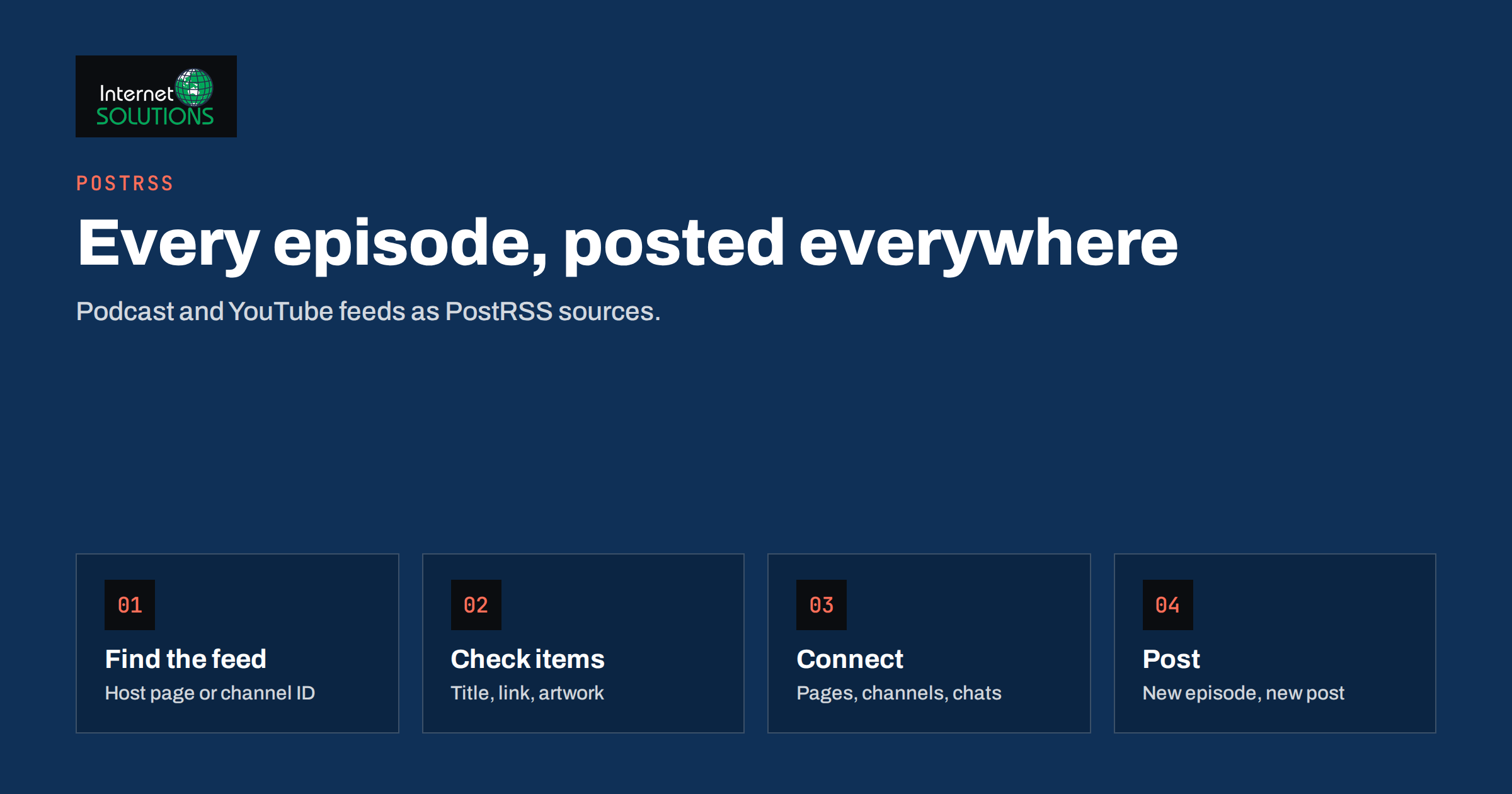
Every podcast has a podcast RSS feed, because that is how podcast apps receive new episodes, and every YouTube channel publishes a feed of its uploads. Most creators and businesses never look at either, which means they are missing the simplest way to announce a new episode or video everywhere at once. Connect the feed to an auto-posting service and each new episode becomes a post on your Facebook Page, your X account, your LinkedIn page, your Telegram channel and anywhere else your audience follows you, within minutes of it going live, with no copying and pasting.
This guide explains where to find the feed for a podcast and for a YouTube channel, what the items in those feeds contain and how that affects the posts, how to connect the feed to PostRSS, how to choose message formats and schedules that suit audio and video, and what to check when a post looks wrong. It is written for podcasters, video teams and the marketing people who support them.
Where the Podcast RSS Feed Lives
A podcast is, technically, an RSS feed with audio attachments. Your hosting platform generates it and you submit that same address to the podcast directories. The address is usually shown in the hosting dashboard under a label such as “RSS feed”, “feed URL” or “distribution”. If you cannot find it, open your show’s page in a podcast directory and look for an RSS link or icon, or check the show’s website, where the feed is often linked in the footer or the page source.
The podcast feed contains one item per episode. Each item typically carries the episode title, a description or show notes, a publication date, a link to the episode page, the audio file as an enclosure, and, in most feeds, episode artwork and a duration. The quality of your auto-posted content depends on how well you fill these in at the hosting platform, so write a real episode description and set episode artwork before you publish rather than fixing it afterwards.
Where the YouTube Channel Feed Lives
YouTube does not show its feed in the interface, but every channel has one in Atom format. The address follows the pattern https://www.youtube.com/feeds/videos.xml?channel_id=YOUR_CHANNEL_ID, where the channel ID is the string beginning with “UC” that you find in the channel’s advanced settings or in the channel page URL. Playlists have a feed too, using a playlist ID parameter instead of the channel ID, which is useful if you want to auto-post only one series rather than every upload.
Each item in the YouTube feed carries the video title, the video link, the publication time, a description and a thumbnail. The feed lists the most recent uploads, so it works well as a trigger for “new video published” posts. Unlisted and private videos do not appear, which is the behaviour you want: only public videos get announced.
If you host video elsewhere, on your own site or another platform, look for a feed in the same way. Many platforms expose one, and if the platform does not, a feed can often be created from the page that lists your videos. The article on finding your RSS feed URL on different platforms covers the common cases.
Check the Feed Before You Connect It
Open the feed address in a browser or a feed validator and look at the most recent item. You want to see a sensible title, a description without broken formatting, a link that opens the right episode or video page, and an image. If the description is empty, the posts built from it will be empty; fix it at the source. If the link points to the audio file rather than the episode page, check your hosting platform’s settings, because a social post that links straight to an MP3 is a poor experience and most networks will not show a preview for it.
For podcasts, make sure the feed follows the widely used podcast feed conventions so that both directories and auto-posting tools read it consistently. The base format is the RSS 2.0 specification, extended with the podcast tags that directories require, and the free W3C feed validator will tell you in seconds whether the feed is well formed and which items have problems. Run it once after any change to the hosting settings. For YouTube, the feed is standard and needs no work.
It is also worth checking how the feed behaves over time. Some hosts cache the feed for several minutes after a new episode is released, which delays everything downstream; others regenerate it instantly. Publish a test episode as private or unlisted if your host allows it, and watch how quickly the item appears in the feed. That delay, plus the check interval you choose, is how long it will take for a new episode to be announced on social networks.
Connecting the Feed to PostRSS
PostRSS accepts any RSS or Atom feed as a source, so a podcast feed and a YouTube channel feed are added the same way as a blog feed. Add the feed address as a new source, connect the networks you want as targets, such as a Facebook Page, an X account, a LinkedIn page, a Telegram channel, a Pinterest board or a team chat, and choose the settings for each target. From then on, PostRSS checks the feed on the schedule you choose, as often as every minute, and publishes each new item with its title, image and link back to the episode or video. The general steps are the same as in the PostRSS setup guide.
Two settings matter more for podcasts and videos than for blogs. First, the catch-up option: when you connect an existing show with a long back catalogue, decide whether older episodes should be posted or only new ones. Set the date to start from so that you do not flood your followers with fifty old episodes on day one; if you do want to recycle the archive, spread it out with the per-update post limit. Second, the image: PostRSS takes the picture from the feed item or from the page’s Open Graph tags, so if your episode page has good social images, the posts will use them. For YouTube, the thumbnail comes with the feed item.
Message Formats That Suit Audio and Video
A blog post announcement usually leads with the title and a link. Episodes and videos benefit from a little more context: the guest’s name, the question the episode answers, the length. PostRSS builds each post from the item title, the item description, the page title or your own static text, and you choose the combination per target. For a podcast, a format that uses the title plus the first part of the description works well on networks that allow longer text, while a short title-only format suits networks with tight limits. Static text lets you add a consistent line such as “New episode. Listen on your favourite app:” before the link. Our article on message formats goes through the options in detail.
Hashtags and keyword rules help when a feed mixes content. If a YouTube channel publishes both tutorials and short clips, and you want only tutorials announced on LinkedIn, a keyword filter on the title keeps the professional channel clean while everything still goes to the more casual networks.
Podcast and YouTube Feeds Compared
| Aspect | Podcast RSS feed | YouTube channel feed |
|---|---|---|
| Where to find it | Hosting dashboard, directory listing, show website | youtube.com/feeds/videos.xml with the channel ID |
| Format | RSS 2.0 with podcast extensions | Atom |
| Item link | Episode page on your site or host (check it is not the audio file) | Video page |
| Image | Episode or show artwork, or the page’s social image | Video thumbnail |
| Description | Show notes, as written at the host | Video description |
| You control the content | Fully, at the hosting platform | Partly; title, description and thumbnail |
| Private items | Not published until released | Unlisted and private videos excluded |
| Best extra setting | Catch-up date and per-update limit for back catalogue | Keyword filter to separate series |
Scheduling Around Release Times
Podcasts are often released early in the morning so they are waiting in listeners’ apps for the commute. That is not necessarily the best time to post on social networks. PostRSS posting windows let you hold posts until the hours you choose, so an episode released at 05:00 can be announced at 08:30 on LinkedIn and at 18:00 on Facebook. Exact posting times on chosen days work well for a weekly show. For a channel that uploads several videos a day, a per-update limit stops a burst of uploads from becoming a burst of posts. The options are explained in our guide to auto-posting schedules, windows and limits.
Measuring What the Posts Bring
Add UTM parameters to the links so that your analytics shows which network sent listeners to the episode page or viewers to your site. PostRSS can append parameters such as the source and medium to every link automatically, per target. For YouTube links, analytics on your own site will not see the click, but YouTube’s own analytics shows traffic sources, including social networks, so you can compare before and after you started auto-posting. For podcasts, the host’s download statistics by day, combined with the posting times, show whether the announcements move the needle.
When a Post Looks Wrong
Most problems trace back to the feed item. No image: the item has no artwork and the episode page has no social image; add one at the host or on the page. Wrong text: the description contains HTML or boilerplate; clean it at the source. Link goes to the audio file: change the host setting so the item link points to the episode page. Old episodes posted: catch-up was enabled without a start date; set the date and the per-update limit. Nothing posted: the feed address changed, the feed is cached by the host, or the item is older than the start date; check the feed in a browser first. If the feed is correct and the post is still wrong, check the target’s settings and the message format before assuming the network is at fault.
Frequently Asked Questions
Where do I find my podcast RSS feed?
In your podcast hosting dashboard, usually labelled RSS feed or feed URL. You can also find it on your show’s page in a podcast directory or in the footer or page source of the show’s website.
Does YouTube have an RSS feed?
Yes. Every channel has an Atom feed at youtube.com/feeds/videos.xml?channel_id= followed by the channel ID. Playlists have a feed too, using a playlist ID, which lets you auto-post only one series.
Will PostRSS post my old episodes when I connect the feed?
Only if you turn on catch-up. Set the date to start from so that only episodes after that date are posted, and use the per-update limit to spread any older items out instead of posting them all at once.
What image does PostRSS use for a podcast episode?
The image from the feed item, or the Open Graph image from the episode page if the item has none. Set episode artwork at your host or a social image on the episode page to control it.
Can I announce new videos on LinkedIn but not on Telegram?
Yes. Each target has its own settings, and keyword filters let you decide which items go to which network, for example only videos with “tutorial” in the title to LinkedIn.
Can I control the posting time of a podcast announcement?
Yes. Posting windows hold posts until the hours you choose, and exact times on chosen days suit a weekly show, so an early-morning release can be announced during working hours on each network.
The Bottom Line
A podcast RSS feed and a YouTube channel feed are ready-made triggers for social posting. Find the feed address, check that its items have good titles, descriptions, links and images, connect it to PostRSS, decide what to do with the back catalogue, choose message formats that suit audio and video, set posting windows around your release times and tag the links so you can measure the effect. After that, publishing an episode or a video is the only step you need to do by hand; the announcements take care of themselves on every network your audience uses.