

 English
 Lietuvių
 Latviešu
 Eesti
 Русский
 Polski
 Українська
 Deutsch
 Italiano
 Español
 Français
 Português
 Čeština
 Magyar
 Română
 Ελληνικά
 Türkçe
 日本語
 العربية
 हिन्दी
 Bahasa Indonesia
 Bahasa Melayu
 ไทย
 Tiếng Việt
 বাংলা
PostRSS and Older Feed Items: What Gets Posted and What Waits
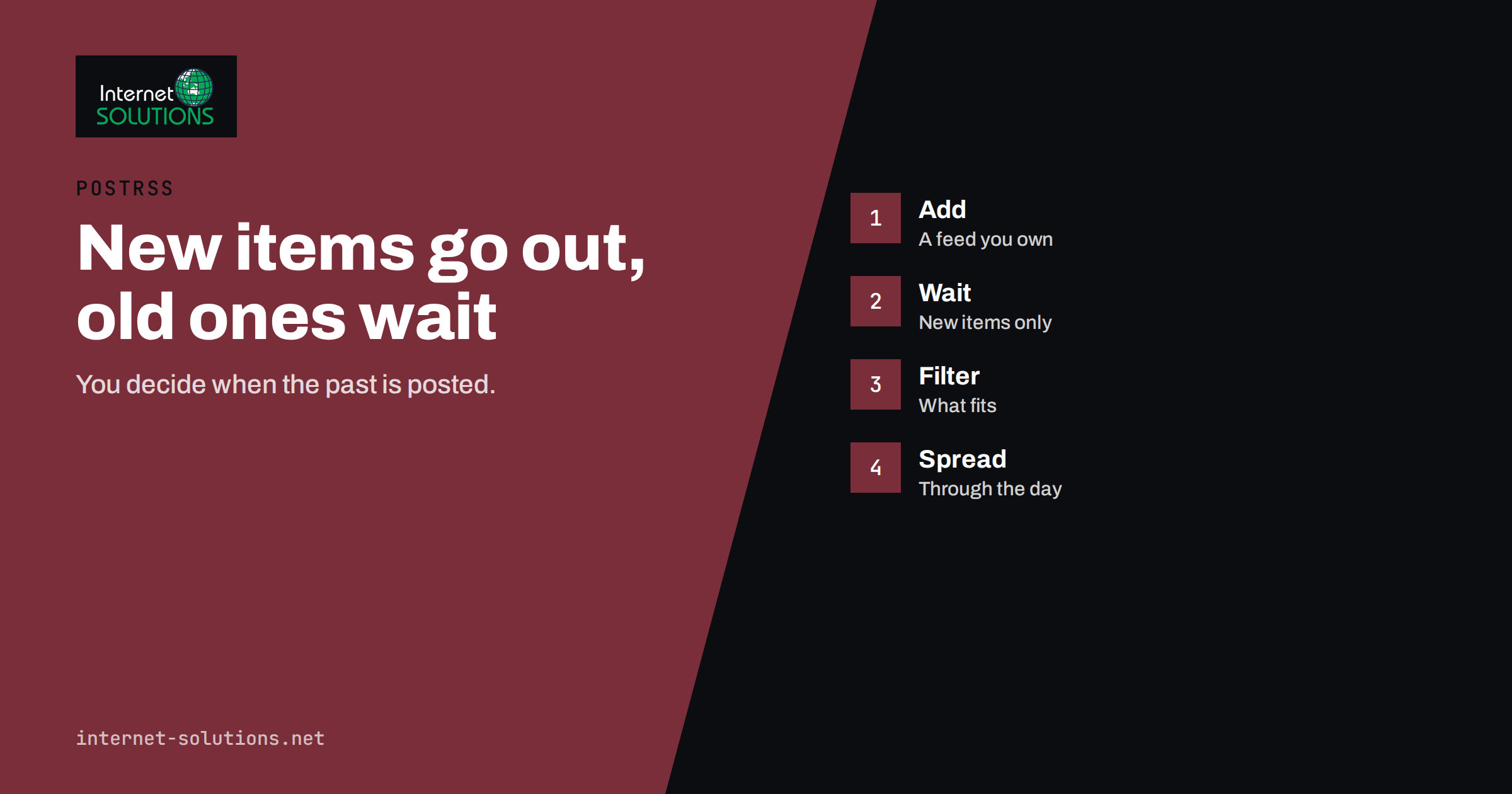
PostRSS is built around one simple promise: it watches your RSS feeds and publishes every new item to your social networks. The word “new” matters. When you add a feed that already holds fifty or five hundred older entries, you naturally ask what will happen on your pages. Will the whole archive appear at once? Will followers see a flood? The answer from the PostRSS product page is reassuring: only new items are posted, unless you choose to publish older ones.
This guide explains what that means in practice, why old items are usually better left alone, when it makes sense to publish older content on purpose and how the other PostRSS controls, namely filters, templates and the schedule, keep a feed under control. It describes PostRSS as it is presented on its product page, so check the current screens and plan details on postrss.com before you set up an important account.
The Default: New Items Only
A feed is a list of entries, each with a title, a link, a date and often a summary and an image. When PostRSS reads a feed, it compares what it sees with what it already knows. Entries that appear after the feed was connected are treated as new, and they go out to the networks you chose with the template you set. Entries that were already in the feed when you added it are the history, and by default they stay unposted.
This default protects you from the most common beginner worry, which is flooding followers with a wall of old posts the moment the feed is connected. It also means that you can connect a feed with a long archive, such as a blog that has run for ten years, without cleaning it first. PostRSS reads the feed from outside, so, as the product page says, you do not need to install anything on your website. For the full path from feed to first post, see our PostRSS setup guide.
Why You Usually Want to Keep It That Way
Posting history in bulk looks harmless but often does more harm than good. Several reasons make the default the right choice for most accounts.
- Followers notice repetition. A sudden series of posts from years ago can look like a glitch, and some followers will mute or unfollow.
- Old content may be wrong. Prices, opening hours, offers and advice change. A post that was true in 2019 can mislead in 2026.
- Links may be broken. Old articles are sometimes moved, merged or deleted. A post that leads to an error page costs trust.
- Networks judge accounts by behaviour. Many posts in a short time can look like spam to the platform’s systems, depending on the network.
- Your best content may not be old. Fresh items usually earn the best response, because they match what your audience expects from you now.
The right way to give old content a second life is selective, not wholesale, which is the subject of the next sections.
When Older Items Are Worth Publishing
There are good reasons to publish older entries, as long as you choose them on purpose. The product page confirms that this is possible, so decide which situations fit your account.
- A new account with an empty profile. A page that starts with no posts looks inactive. A small selection of your strongest older articles gives visitors something to read.
- A relaunch. After a redesign or a rebranding, you may want to present evergreen guides again, in a controlled order.
- A new network. If you add a network where your audience has never seen your content, recent highlights are useful there even if they are not new elsewhere.
- A seasonal return. Some content comes back every year, such as holiday opening hours or a tax deadline reminder.
In every case, review the items first. Remove anything out of date, check that the links work and decide how many to publish, not just whether to publish.
Controls That Keep the Flow Calm
PostRSS gives you several tools on the product page that apply whether an item is new or old. Used together, they let you shape the output instead of accepting whatever the feed contains.
| Control | What it does | How it helps with old or bulk content |
|---|---|---|
| Filters | Post only items that match, or skip those that do not | Select by keyword or topic so that only suitable items are published |
| Schedule | Spread posts through the day instead of posting everything at once | Prevents bursts, even when many items are due |
| Post templates | Place title, summary, link and hashtags the way each network reads best | Lets you add a short line that frames an older item properly |
| Images and video | Media from the feed is attached automatically, sized per network | Old items with weak images can be skipped by filter |
| History | Shows what was posted, where and when | Lets you check that nothing unexpected went out |
Our guides go deeper into keyword filters and hashtags and into posting schedule windows and limits, which are the two controls that matter most when you publish more than a few items.
A Careful Way to Publish Older Items
If you decide to use older content, treat it as a small project with a checklist, not as a switch to flip.
- List candidates. From your own site, choose ten to twenty evergreen pieces that still match your business.
- Check each one. Read it, confirm facts and prices, check that the link works and the image looks right.
- Decide the order. Mix topics so the page does not show five similar posts in a row.
- Set a pace. One or two a day is calm for most networks; more suits only very active accounts.
- Use the schedule. Let the posting window do the spacing for you.
- Watch the first results. Check the history and the network itself after the first day.
- Stop if something looks wrong. Pause the feed, fix the issue and continue.
This approach gives older content a second chance without turning the profile into an archive.
Feeds You Do Not Control
Sometimes the feed belongs to someone else, such as a supplier, a news source or a partner. The same rule applies: only new items go out unless you choose otherwise. But with third-party feeds, additional care is needed. Make sure you have the right to share the content, respect the owner’s terms and use filters so that only relevant items are posted. Add your own template text if the source is not your own content, and always make the origin clear.
If your feed combines many topics, such as an online shop with hundreds of products, decide whether to post everything or only selected categories. Our article about turning product feeds into social posts about new stock explains how to choose.
Check the History After Connecting
The product page describes a history feature that shows what was posted, where and when, with links to every post. After connecting a new feed, treat the first day as a test. Look at the history, open a post on the network and confirm that the text, link and image look as intended. If the first item reveals a problem, such as a missing image or an awkward template, you have only one post to correct instead of dozens. For a longer routine, read our guide to auditing posting history.
A Worked Example
A small bookshop has a blog with about three hundred articles, many from before a website redesign. The owner connects the blog feed to PostRSS and selects the shop’s Facebook page and Telegram channel. Because only new items are posted by default, nothing from the archive appears on the first day. The first new article posts as planned, and the owner checks the history to confirm that the template, image and link look correct.
A month later, the Facebook page still looks sparse. The owner picks fifteen evergreen reading lists from the archive, updates two that mention discontinued titles and publishes them over three weeks, one per day, using the schedule so they go out at the same hour. Keyword filters keep the daily news items and the reading lists separate for the Telegram channel, which only receives new articles. Followers see a steady page, nothing misleading goes out and the owner never needs to apologise for a flood.
Setting Up a Safe First Day
The first day after connecting a feed is the moment to confirm that everything looks right, and a short routine makes it painless. The product page describes the basic path as three steps: add a feed, connect networks and set the template. Add a few checks around those steps.
- Open the feed yourself. Look at the newest items and confirm that titles, links and dates match your site.
- Connect one network first. Start with the account where a mistake is least costly, such as a test channel or a small group, and then add the others.
- Set the template with care. Decide what the post says, which image it uses and how links and hashtags appear. Keep the first template simple.
- Publish a new article. The next time you publish on your site, watch for the post to appear and open it on the network as a visitor.
- Review the history. Confirm the time, the network and the link for the post.
- Add the other networks. When the first one looks right, add the rest and adjust templates per network.
This approach means that your first real test is a single post that you control, and not a batch. It also gives you evidence of how quickly items travel from site to network. If anything looks wrong, pause the feed, correct the template or the source and try again with the next article.
Common Mistakes
- Worrying that an old archive will be posted automatically, and cleaning it needlessly.
- Choosing to publish the whole archive at once.
- Publishing old content with outdated prices or broken links.
- Forgetting to use the schedule when publishing many items.
- Not checking the history after connecting a feed.
- Posting third-party items without checking the owner’s terms.
- Using the same template for every network without testing.
If you want to understand the feed format behind all this, the overview of RSS and the RSS 2.0 specification explain how feeds list items and why each one carries a date and a link. You can also read the PostRSS overview for the current list of networks and features.
Frequently Asked Questions
Will PostRSS post my old blog articles when I add a feed?
No, by default only new items are posted. Older entries that were already in the feed stay unposted unless you choose to publish them.
Do I need to install anything on my website?
No. If your site has an RSS feed, and most do, PostRSS reads it from outside, so there is no plugin to install.
Can I publish older items on purpose?
Yes. The product page states that older items can be published if you choose. Review them first, and publish them slowly with the schedule instead of in one burst.
How do I avoid posting too many items at once?
Use the schedule to spread posts through the day, and use filters to post only items that match what the network audience expects.
How can I check what was posted?
PostRSS keeps a history of what was posted, where and when, with links to every post. Check it after connecting a new feed.
Is there a free plan for testing this?
The product page lists a free plan with no card required. Current plans and prices are always shown on postrss.com.
The Bottom Line
PostRSS posts new feed items and leaves older ones alone unless you decide otherwise, which protects followers from floods and lets you connect a long-running site without cleanup. Keep that default for everyday publishing, and when you do want to bring back older content, pick a small, reviewed set, use filters and the schedule to control volume and verify the result in the history. A calm, steady profile earns more attention than an archive dump, and it takes only a few deliberate choices to achieve.