

 English
 Lietuvių
 Latviešu
 Eesti
Eesti Русский
 Polski
 Українська
 Deutsch
 Italiano
 Español
 Français
 Português
 Čeština
 Magyar
 Română
 Ελληνικά
 Türkçe
 日本語
日本語 العربية
 हिन्दी
 Bahasa Indonesia
 Bahasa Melayu
 ไทย
ไทย Tiếng Việt
 বাংলা
বাংলাPostRSS Webhooks, Zapier and n8n: Turning an Article Into a Workflow
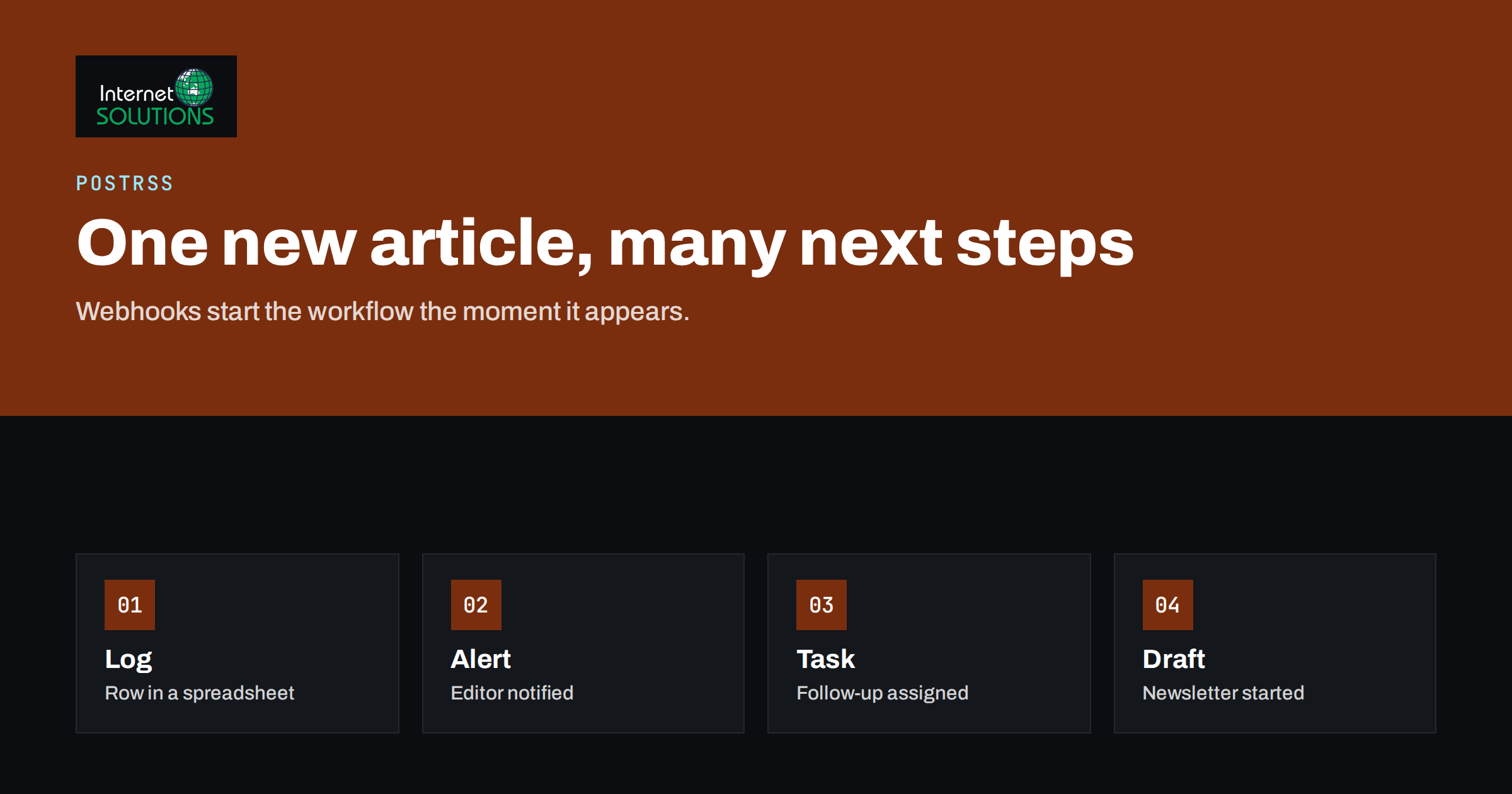
Most people think of PostRSS as a way to publish new feed items to social networks. That is its main job, but it can do something less obvious as well: it can hand every new item to other tools through PostRSS webhooks. Instead of ending at a post on a social profile, a new article can start a workflow that adds a row to a spreadsheet, alerts an editor, creates a task, drafts a newsletter or records the item in a CRM.
This guide explains what a webhook target is, how it fits next to your social targets and how to build practical workflows with automation tools such as Zapier and n8n. It also covers the details that decide whether a workflow is reliable: testing, duplicates, security and monitoring. If you are new to the product, start with our PostRSS setup guide, and for the product overview see the PostRSS page.
What a Webhook Is, in Plain Words
A webhook is a message that one system sends to another when something happens. Your automation tool gives you a web address, PostRSS sends a message to that address each time a new feed item appears, and the tool runs the steps you built. There is no schedule to set up on the receiving side and no need to ask repeatedly whether anything is new, because the message arrives at the moment it is sent.
On the PostRSS integrations page, the webhook option is listed among the networks you can post to, described as covering Slack, Teams, Zapier, Make and n8n. The same page explains the practical meaning: add a webhook target and PostRSS sends every new feed item to Slack, Microsoft Teams, Zapier, n8n or any other service that accepts webhooks. The page also states that webhooks are included from the Start plan, so check the current plan details on postrss.com before you build a workflow that depends on them.
Where Webhooks Fit in a PostRSS Setup
A source in PostRSS is a feed. Each source can have several targets, and each target has its own settings. A target can be a Facebook page, a Telegram channel, a Bluesky account or a webhook. That means one new article can go to your public networks and to your internal tools at the same moment, from the same source, without duplicating any work.
| Target type | Who sees the result | Typical purpose |
|---|---|---|
| Social network page or profile | Your audience | Distribution and traffic |
| Team chat through a webhook | Your staff | Internal awareness and review |
| Automation tool through a webhook | Your systems | Records, tasks, drafts, notifications |
| Your own endpoint | Your developers’ code | Custom logic and integrations |
If you only need a message in a team channel, our guide to feeding Slack, Teams and Google Chat with PostRSS covers that case directly. A webhook into an automation tool is the more flexible route when you want several things to happen after one item.
Workflows Worth Building
The best workflows remove a repeated manual step. Here are patterns that small teams find useful, with the logic described in general terms so you can adapt it to your own tools.
1. Content log in a spreadsheet
Each new item adds a row with the title, link, date and source. Over time the sheet becomes a searchable inventory of everything published, which helps with content audits, reporting and finding old articles to refresh. It is the simplest workflow and a good first test.
2. Editor alert for review
A message goes to a private channel or an email address whenever a new item is published, with the title and link. Editors can check formatting, images and links in the first minutes after release, when fixes are easiest and traffic is smallest.
3. Task for the social or sales team
A new task appears in your project tool, assigned to the person who writes comments, answers questions or follows up with leads. A new case study might create a task for sales to share it with relevant prospects; a new product post might create a task for support to update the help centre.
4. Newsletter draft
The workflow creates a draft in your email platform with the title, summary and link, so that the weekly newsletter starts half-written. A person still reviews and sends it, which keeps quality under control.
5. CRM note or marketing record
Record the article in the CRM as a content asset, so that when a contact later clicks or replies, you can see which piece they read. This depends on how your CRM and tracking are set up, and works best with consistent campaign tags, as described in our article on UTM parameters for auto-posted social traffic.
6. Approval and translation hand-offs
For businesses that publish in several languages, the workflow can notify the translation owner as soon as the original appears, or create a task for each language. The workflow does not translate anything by itself unless you add a step for it; it only starts the process on time.
Building Your First Workflow Step by Step
The exact screens differ between tools, but the sequence is the same in Zapier, n8n and similar platforms.
- Create the receiving step. In your automation tool, start a new workflow with a webhook trigger. The tool shows you a unique web address. In Zapier this is typically a catch hook, and in n8n a Webhook node; their documentation, including the n8n Webhook node page and the Zapier Webhooks overview, explains the options.
- Add the webhook target in PostRSS. Connect the webhook option, paste the address and attach it to the source whose items should trigger the workflow.
- Send a real item. Publish a test article or use a safe test feed, so that PostRSS sends an actual message. Do not guess what the message contains.
- Inspect what arrived. Your automation tool shows the fields it received. Use those field names in later steps. Because the exact fields are defined by PostRSS, treat the sample delivery as the source of truth, and consult the PostRSS documentation if you need details.
- Add the actions. Map fields to a spreadsheet row, a message or a task. Start with one action and add more only after the first one works.
- Test failure cases. What happens when the title is empty, the link is long or the receiving app is down? Decide whether the workflow should retry, alert you or stop.
- Switch it on and watch the first week. Compare the number of items published with the number of workflow runs.
Keep the Workflow Reliable
Automation saves time only when you can trust it. A few habits prevent most surprises.
Handle duplicates
Systems sometimes deliver the same message twice, especially after a retry, and feeds can change an item after it was first seen. Use the item link as a unique key. Before adding a row or a task, check whether the link already exists, and skip it if it does.
Filter before you act
Not every item deserves a workflow run. PostRSS has filters that decide which items are posted, and your automation tool can add further conditions, such as only running for items in a certain category or containing a certain word. Filtering early keeps spreadsheets clean and avoids useless notifications.
Protect the address
A webhook address works like a key. Anyone who knows it can send messages to it. Do not publish it in documents or shared screenshots, store it in the settings of the tool and rotate it if you suspect that it leaked. If your tool supports a shared secret or a header check, use it, and ignore messages that fail the check.
Monitor and alert
Turn on error notifications in the automation tool and check run history once a week. If a downstream app changes its login or permissions, the workflow will fail silently unless something tells you. Our guide to troubleshooting RSS feeds helps you tell whether the problem is the feed, PostRSS or the receiving tool.
Mind limits and costs
Automation platforms count tasks or executions, and plans have limits. A workflow with six steps that runs for every item in a busy feed can use many tasks. Estimate the monthly volume, multiply it by the steps and check it against your plan, instead of finding out when the quota is gone.
Using the API and Custom Endpoints
If you have a developer, the PostRSS site also describes a REST API and webhooks for custom integrations. A custom endpoint can validate the message, save it to a database, trigger internal jobs or call other services, without a third-party automation product. Treat such an endpoint like any production service: use HTTPS, respond quickly with a success status and do slow work in the background, log what you receive and handle repeated deliveries safely. Check the PostRSS documentation for current API details rather than relying on assumptions.
Privacy and Content Considerations
Webhooks send content from your feed into other systems. For a public blog, that is usually harmless, but consider what else might be in the feed. If you use a product feed or a private feed, check who can read the destinations. Keep personal data out of workflows unless you have a clear reason and the right permissions, and make sure any app that receives the items is covered by your data processing arrangements.
When a Webhook Is Not the Right Tool
A webhook is the best choice when another system must react. If you only need the post to appear on a social page, a normal target is simpler. If you need to change the text of each post by network, use the message format and filter options inside PostRSS. And if you want human approval before anything is published, plan that in your editorial process, since a webhook starts a workflow after the item has been detected, not before.
For a wider view of how the three Internet Solutions products work together, you can also read about the way PostRSS fits with chat and AI in our rollout plans. When you are ready to start, the free plan on postrss.com is a safe place to test the social side first, and you can add the webhook once the basics work.
Frequently Asked Questions
What is a PostRSS webhook target?
It is a destination that receives a message for every new feed item. Instead of publishing to a social network, PostRSS sends the item to a web address, usually provided by an automation tool or your own server.
Which tools can I connect with PostRSS webhooks?
The PostRSS integrations page lists Slack, Microsoft Teams, Zapier, Make and n8n, and says any service that accepts webhooks can receive items. Your own endpoint works too.
Do webhooks cost extra?
According to the PostRSS integrations page, integrations do not cost extra and webhooks are included from the Start plan. Plans change, so confirm the details on postrss.com.
Can the same feed post to social networks and run a workflow?
Yes. A source can have several targets, so the same new item can be published to your social profiles and sent to a webhook at the same time.
How do I avoid duplicate rows or tasks?
Use the item link as a unique key. Search for the link before you create a record, and skip creation if it already exists. This also protects you when a message is delivered twice.
What should I do if the workflow stops running?
Check whether PostRSS published the item, whether the webhook target shows an error and whether the automation tool recorded a failed run. Often the cause is an expired login in a downstream app, and re-authorising it fixes the problem.
The Bottom Line
PostRSS webhooks turn a new feed item into a trigger for the rest of your tools. Start with a simple workflow such as a content log or an editor alert, test with a real delivery, key everything on the item link, protect the webhook address and watch the run history. Once that works, add tasks, drafts and records step by step. The result is that one published article quietly does the follow-up work that people used to do by hand.