

 English
 Lietuvių
 Latviešu
 Eesti
Eesti Русский
 Polski
 Українська
 Deutsch
 Italiano
 Español
 Français
 Português
 Čeština
 Magyar
 Română
 Ελληνικά
 Türkçe
 日本語
日本語 العربية
 हिन्दी
 Bahasa Indonesia
 Bahasa Melayu
 ไทย
ไทย Tiếng Việt
 বাংলা
বাংলাPostRSS WordPress Plugin: Publish From wp-admin, No Feed URLs
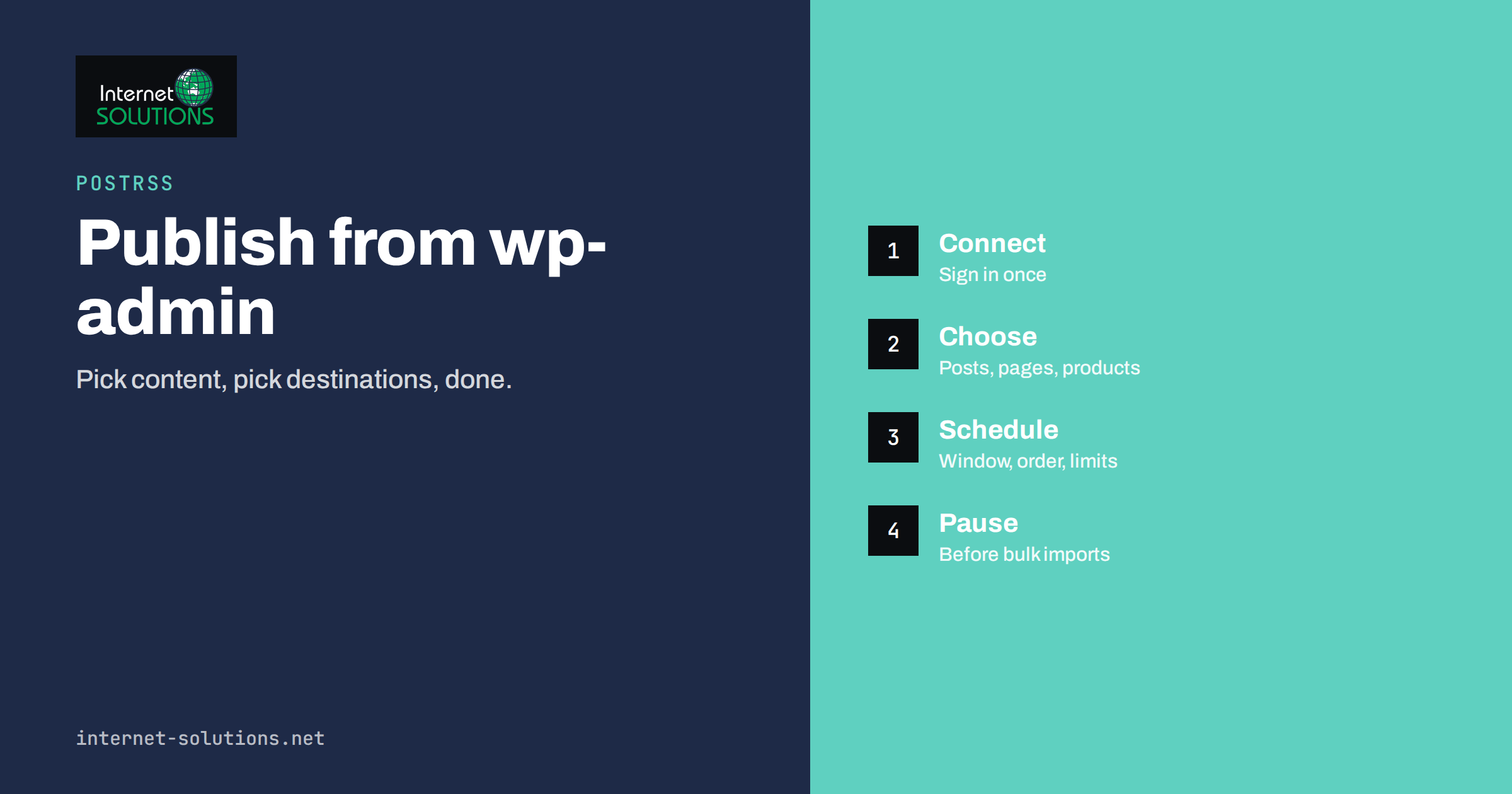
The PostRSS WordPress plugin moves the whole job of sharing your articles into wp-admin. You tick the content you want to publish, choose where it should go, and the plugin builds the feed and creates the matching target for you. There is no feed URL to hunt for, no second browser tab to keep open and nothing added to the pages your visitors load.
PostRSS works perfectly well without a plugin, so it is fair to ask what installing one adds. This guide answers that honestly. It explains what the plugin does and does not do, how to install and connect it, how to choose content and set a schedule, how to pause safely before bulk imports, and what to check when something does not arrive. It is based on the official PostRSS documentation, so you can compare the steps with your own account as you read.
What the Plugin Actually Does
PostRSS is a service that watches an RSS or Atom feed and publishes each new item to social networks, messengers, team chats and blogs. On a WordPress site there are many feeds: one for all posts, one per category, one per tag, one per author and one per public content type. Choosing the right one by hand is where most beginners lose time.
The plugin, called PostRSS Advanced Dashboard Integration, removes that step. Instead of finding a URL, you pick what you want from a list of your own content. The plugin then constructs an ordinary WordPress feed URL for exactly that selection and asks PostRSS to watch it. Nothing is uploaded ahead of time and nothing changes for visitors. PostRSS polls the URL as it would poll any other source.
The plugin also brings account information into the same place: your plan, posting statistics and billing history appear in the dashboard, so the site you publish from is also the place where you manage publishing. According to the PostRSS integrations page, the WordPress plugin is free, and you pay only for your PostRSS plan.
Before You Start
You need three ordinary things.
- A PostRSS account. If you do not have one, the plugin’s Settings page links to registration and password recovery, so you can create it without leaving the dashboard.
- A supported WordPress and PHP version. The documentation lists WordPress 5.0 or newer and PHP 7.4 or newer, and the current release is tested up to WordPress 7.1.
- A publicly reachable site. PostRSS fetches your feed over the internet like any other reader. A site on localhost, behind HTTP authentication, inside a VPN or with feeds blocked by a security plugin cannot be polled.
The third point catches people out. If your site is still in staging or behind a maintenance screen, the plugin will install and connect, but nothing will be published because PostRSS cannot read the feed. Finish the launch checklist first, or pause the target until the site is public.
Installing and Connecting
Install from the dashboard
Go to Plugins, then Add New, search for PostRSS Advanced Dashboard Integration, and click Install Now and Activate. This is the route most people should take because updates then arrive through the normal WordPress update mechanism. You can also upload the ZIP from the plugin page on WordPress.org or extract it into the plugins directory over FTP, and then activate it. Either way, a PostRSS item appears in the wp-admin sidebar.
Sign in to your account
Open PostRSS, then Settings, and sign in with the email and password you use on postrss.com. Entering a password into a plugin deserves scrutiny, so note how it works: the credentials are sent directly to postrss.com over HTTPS to start a session, the password is not stored, and only the resulting session is kept. Clicking Disconnect ends it.
Before connecting, apply the usual rules for any plugin that has a login: install it only from the official directory, keep it updated and give WordPress admin accounts to as few people as possible. Our guide to choosing WordPress plugins safely lists the checks worth making.
Choosing What to Publish
The Feeds page is the reason the plugin exists. It asks three questions: which content, which destinations and which schedule.
Content
- Posts, optionally filtered by category. This is the common case. A site that publishes long articles and short notices usually wants only one of them going to a particular destination.
- Pages, if your site publishes meaningful content as pages.
- Other public content types registered by your theme or plugins. If you run WooCommerce, products are available. A portfolio, case study, event or recipe type appears in the list too, provided it is public.
Destinations
Choose which of your connected PostRSS accounts should receive the content, such as Facebook Pages, LinkedIn, X, Pinterest or Telegram. If the account you want is not connected yet, you can connect it from the same page. For a network-by-network explanation of what each one accepts, see our guide to PostRSS message formats.
Schedule and text
Four controls decide the rhythm:
- How often to check the feed.
- The daily posting window, which keeps publishing inside hours you choose instead of firing at three in the morning.
- Publishing order, which decides whether the oldest or newest item goes first and matters most on the first run.
- Maximum posts per run, which prevents an editorial burst from turning into six notifications in a row.
You can also set the post text here, which controls how the message reads on the destination. When you click Add, the plugin builds a WordPress feed matching exactly what you selected and creates the target on PostRSS. From then on, publishing on your site is the only action required.
Plugin or postrss.com: Which to Use?
The two ways of working are not exclusive. Targets created through the plugin are ordinary PostRSS targets, visible and editable on postrss.com like any other. The table summarises when each is more comfortable.
| Situation | Plugin in wp-admin | postrss.com directly |
|---|---|---|
| Content lives in your WordPress site | Best fit: pick posts, pages or products from a list | Works, but you need the right feed URL |
| Category or post-type filtering | Built into the Feeds page | Requires building the feed address yourself |
| Colleagues manage the site | They see what is published without a separate login | Needs shared access to the account |
| Feeds that are not yours, such as news or podcasts | Not applicable | Best fit |
| Several sites on one screen | One site at a time | All destinations in one account |
Most people end up using both: the plugin for their own site’s content and the web dashboard for everything else.
Managing a Target After It Exists
Click any target on the Feeds page to open it. From there you can see its status, add further sources to the same target, edit or remove individual sources without touching the others, pause or resume the whole target, jump to its posting report or remove it entirely. Adding several sources is how one destination receives different slices of your site, for example posts from two categories plus your products.
Pause before bulk operations
Pausing deserves a rule of its own. If you are about to import a few hundred old articles, re-publish drafts in bulk, change publication dates or move a site to another host, pause the target first. These operations make every affected item look new to a feed reader, and an unpaused target will faithfully publish all of them. Resume it when the work is finished and you have checked that the feed shows only the items you want. Our article on connecting an older blog to auto-posting explains how to catch up on an archive in a controlled way.
The Rest of the Dashboard
Four more pages sit under the PostRSS menu so that ordinary questions can be answered without leaving the site.
- Account shows your profile and subscription usage, including plan, tasks used, targets and expiry, together with the available plans. Check it first when posts stop arriving late in a busy month.
- Statistics shows this month’s and previous months’ posting activity per destination type, which is the quickest way to see whether a network has gone quiet.
- Orders is your billing history.
- Affiliate shows statistics if you are enrolled in the programme.
Does the Plugin Slow Down the Site?
The documentation describes the design as structurally light. The plugin adds admin pages and one extra feed endpoint. The admin pages load only for logged-in administrators who are viewing them. The feed endpoint runs only when something requests it, such as PostRSS polling or you opening the address in a browser. Front-end visitors load none of this code: no script is added to the theme and no database query runs on page render. If speed is something you measure and defend, the sensible check is the one you would make for any change: run your usual speed tests before and after installing. Compare load time and Core Web Vitals, not just how fast the dashboard feels.
When Something Does Not Work
The feed cannot be reached
This is the most common problem and is almost always environmental. Open the feed address in a private browser window while logged out. If you see XML, PostRSS can see it too. A login prompt, an error or a blank page points to the site. The usual culprits are a security plugin blocking non-browser requests, a coming-soon or maintenance-mode plugin, HTTP authentication left on from staging, a firewall rule or a site that is not public yet. You can compare the XML with the format described in the RSS 2.0 specification if you need to check that it is valid.
Nothing is being published
Check three things in order. Is the target paused on the Feeds page? Does Account show tasks remaining on your plan? And did the feed itself update? A caching plugin serving a stale copy looks exactly like a broken automation from the outside. Our checklist for troubleshooting RSS feeds goes through these steps in more detail.
Posts arrive without an image
Destinations build their preview cards from your page’s Open Graph tags, not from the plugin. If an article has no og:image, the image is very large or a CDN rule blocks the fetcher, the card arrives bare. Fixing it on the site fixes every destination at once. WordPress itself documents how its feeds are built in the developer handbook.
Old posts were published unexpectedly
Something made them look new to the feed, such as an import, a re-publish or a changed date. Pause the target before operations like that, and remove the unwanted items from the destination manually if needed.
A content type is missing
The plugin offers public content types. A type registered as private or excluded from feeds will not appear, and that is a decision made by whichever theme or plugin registered it.
The session stopped working
Reconnect from Settings. If your PostRSS password has changed, sign in again with the new one.
Multisite Networks
On a WordPress multisite network each site has its own content and feeds. Install and activate the plugin per site, connect the account on each and create targets from each site’s own Feeds page. The practical advantage is that filtering stays local: every site publishes its own posts to its own destinations, without anyone assembling network-wide feed URLs by hand.
A Short Setup Checklist
- Confirm that your site is public and that its feed opens in a private window.
- Install the plugin from the Plugins screen and activate it.
- Sign in under PostRSS, then Settings, and connect the destinations you need.
- On the Feeds page, choose content, destinations, schedule and post text, and click Add.
- Publish a test article, then check the posting report and a destination to confirm the result.
- Pause the target before any bulk import or migration.
Frequently Asked Questions
Is the PostRSS WordPress plugin free?
According to PostRSS, the plugin is free and you pay only for your PostRSS plan. Current plans and limits are shown on postrss.com.
Do I need the plugin to use PostRSS with WordPress?
No. You can paste a feed address into postrss.com and choose a destination. The plugin is a convenience that builds the feed and the target for you from inside wp-admin.
Does the plugin store my PostRSS password?
No. The documentation states that your email and password are sent to postrss.com over HTTPS to start a session, the password is not stored and only the session is kept until you click Disconnect.
Can I publish products and custom content types?
Yes, if they are public content types. Products from WooCommerce and custom types such as portfolio items or events appear in the content list alongside posts and pages.
Why were old posts published after an import?
An import or re-publish makes old items look new to a feed reader. Pause the target before bulk changes and resume it when the feed contains only the items you want.
Can I use the plugin and postrss.com together?
Yes. Targets created in the plugin are ordinary targets that you can see and edit on postrss.com, so you can use the plugin for your own site and the web dashboard for other feeds.
The Bottom Line
The PostRSS WordPress plugin does one thing well: it replaces feed-URL hunting with a list of your own content and builds the target for you. Check that your site is public, connect the account, choose content, destinations and a sensible schedule, and pause before any bulk change. If a post does not appear, work through the target status, the plan allowance and the feed itself in that order. Used this way, publishing on your site becomes the only step needed to reach your channels.