

 English
 Lietuvių
 Latviešu
 Eesti
Eesti Русский
 Polski
 Українська
 Deutsch
 Italiano
 Español
 Français
 Português
 Čeština
 Magyar
 Română
 Ελληνικά
 Türkçe
 日本語
日本語 العربية
 हिन्दी
 Bahasa Indonesia
 Bahasa Melayu
 ไทย
ไทย Tiếng Việt
 বাংলা
বাংলাProduct Feeds to Social Media: Auto-Posting New Stock With PostRSS
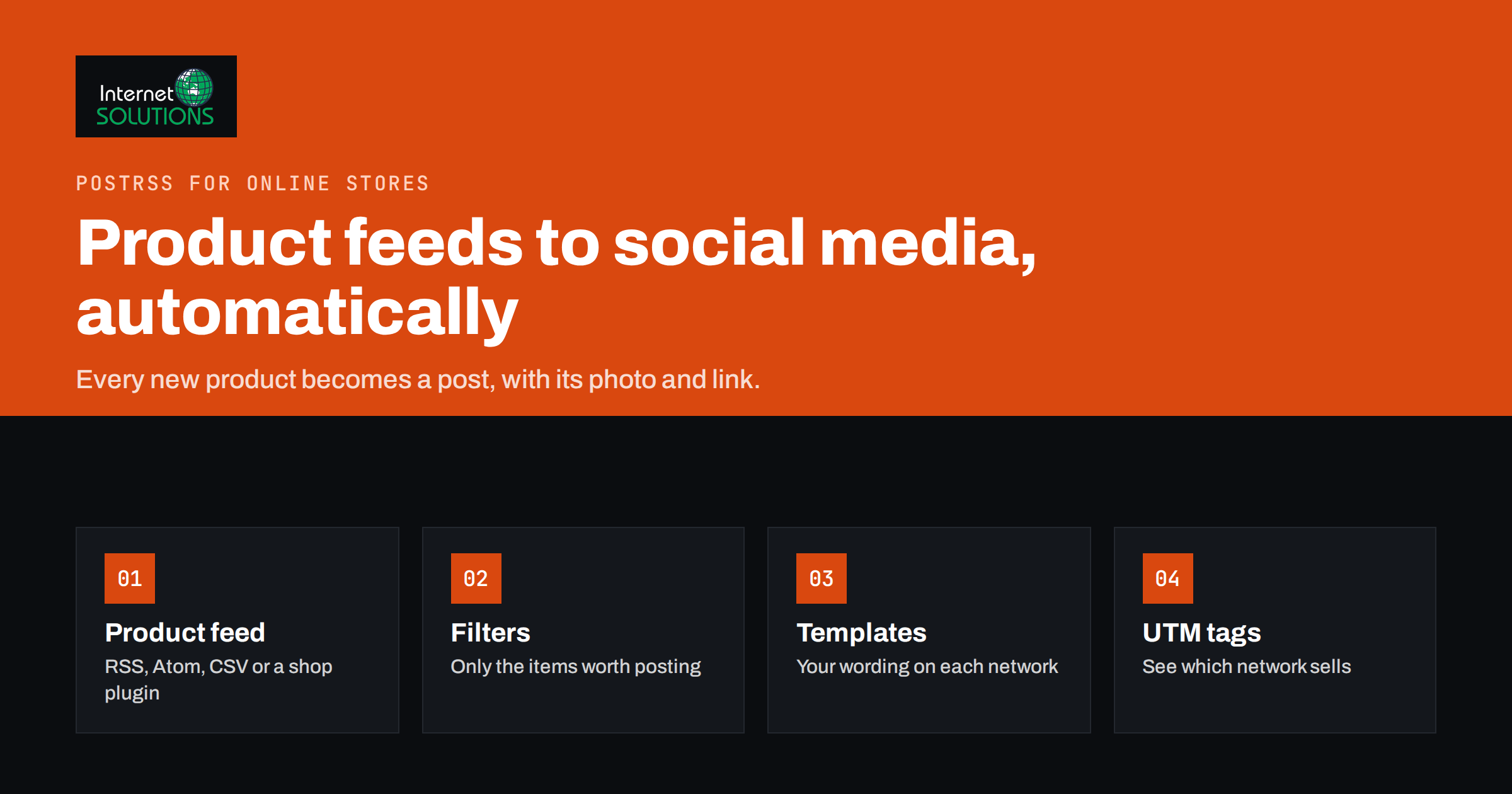
Online shops add products all the time: new arrivals, restocked favourites, seasonal lines, limited editions. Each one is a reason to post on social media, and each post takes a few minutes to write, crop and schedule. Multiply that by several networks and a busy season, and product announcements are the first marketing task to be dropped. Followers stop hearing about new stock, and the shop loses easy sales.
Connecting a product feed to social media solves this by turning every new product into a post automatically, with its photo, name, description and link. This guide explains how product feeds work, how to get one from common shop platforms, how to set up automated posting with PostRSS, and where automation should stop and a human should take over. It is written for small shop owners and the agencies that run shops for clients.
What a Product Feed Is
A feed is a machine-readable list of recent items, published at a fixed web address. Blogs have used RSS and Atom feeds for decades to announce new articles; the formats are described in the RSS 2.0 specification and in the Atom standard, RFC 4287. The same formats work for products. Each new product becomes an item with a title, a link, a description, a publication date and usually an image.
Do not confuse this with a shopping feed for advertising, such as the product data files used by shopping ads and catalogues. Those contain prices, availability and identifiers for ad platforms. A feed for social posting only needs to say “here is something new, here is its picture and here is where to buy it”. Many shops already have one without knowing it.
Where to Find Your Shop’s Feed
Most platforms can produce a feed of new products with little or no setup.
WooCommerce and other WordPress shops
WordPress generates feeds for content types that are public. For WooCommerce products, the product feed is usually available by adding ?post_type=product to the site’s feed address, for example yourshop.com/feed/?post_type=product. Product category feeds are often available too, which is useful if you only want to announce certain ranges. The official PostRSS WordPress plugin can also build the feed and create the targets for you, so you do not have to copy addresses.
PrestaShop and OpenCart
PostRSS has official plugins for PrestaShop and OpenCart that create the product feed and connect it for you. That is usually the quickest route on these platforms.
Shopify and hosted platforms
Some hosted shop platforms expose Atom feeds for collections or blogs. On Shopify, collection pages can often be read as an Atom feed by adding .atom to the collection address. Check in a browser that the feed shows your newest products before you connect it.
No feed at all?
If your platform cannot produce a feed, PostRSS can take a CSV file instead, where each row becomes one post. CSV sources are available on the Professional plan and above. This works well for planned product launches prepared in a spreadsheet.
How Automated Product Posting Works With PostRSS
PostRSS is our own product, so we will describe it precisely rather than generally. It checks each feed every five minutes on all plans, and every minute on Enterprise plans. You can also choose a slower interval, up to once a week. When a new item appears, it creates a native post on each network you have connected to that feed.
- Add the feed as a source, or install the WordPress, PrestaShop or OpenCart plugin.
- Connect the accounts you want to post to. PostRSS supports 66 networks, from Facebook Pages, X, LinkedIn, Pinterest and Telegram to Bluesky, Mastodon, Threads and team chats. On Facebook it posts to Pages only; Meta closed the Groups publishing API in April 2024, so no tool can automate posting to Facebook groups.
- Choose the message format for each target. You can build posts from the item title, the item description, the page title or your own static text, in nine combinations.
- Set the rules: filters, hashtags, posting windows and how many items to post per update.
PostRSS takes the image from the feed item or from the product page’s Open Graph tags, so posts carry the real product photo. That makes it worth checking that every product page has a correct Open Graph image. You can see the full feature list on our PostRSS product page.
Setting Rules So You Post the Right Products
A shop that imports two hundred variants in one afternoon does not want two hundred posts. The rules are what make automation sensible.
Keyword filters
For each source you can list keywords to include or exclude. PostRSS matches them in the item title and description and posts only the items that fit. Typical uses: exclude “sample”, “test” or “gift card”; include only a brand or a range; or send different ranges to different accounts.
Order and volume
You can set the maximum number of posts per update and choose whether newer, older or random items go first. This stops a bulk import from flooding your followers’ feeds.
Posting windows
On paid plans you can post only between chosen hours, or at exact times on chosen days in your time zone. For most shops, posting when customers are awake and browsing matters more than posting the second a product is created.
Hashtags from categories
PostRSS can turn the categories and tags of each feed item into hashtags, up to a set limit, on networks where hashtags make sense. Keep product categories tidy and they double as hashtags.
Catching up older products
By default only new items are posted. If you want to announce existing stock, set a starting date and turn on catch-up, and PostRSS will also post older items that were never published. Combine this with a low volume per update so the catalogue trickles out over days instead of minutes.
Preparing Your Product Data So Posts Look Good
An automated post can only be as good as the product data behind it. Ten minutes spent on the shop’s templates improves every future post.
- Write titles for people. “Linen shirt, sand, relaxed fit” reads better in a social feed than an internal code followed by a size list. The product title is often the first line of the post.
- Use the short description well. If your message format includes the item description, make sure the first sentence of each product’s short description works on its own as a sales line.
- Choose a strong main image. The main product photo becomes the post image. A clear photo on a clean background works on almost every network; a busy lifestyle shot may crop badly.
- Keep categories meaningful. Categories and tags can become hashtags, so “Summer Dresses” is useful while “Misc 2” is not.
Agencies managing several shops
Agencies can connect each client’s feed to that client’s own pages and channels from one PostRSS account, with separate settings per target. Keep a simple record of which feed goes where and which filters apply, so anyone on the team can change a client’s setup without guessing. Enterprise plans can also invite additional team members to work in the same account.
Which Networks Suit Product Posts
Not every network rewards product announcements equally. The table gives a practical starting point.
| Network | Fit for product posts | What works | Tip |
|---|---|---|---|
| Facebook Page | Good | New arrivals, restocks, local shops | Use a message format with a short description, not just the title |
| Very good | Visual products: fashion, home, crafts, food | Clean product photos and descriptive titles; send different categories to different boards | |
| X | Medium | Drops, limited editions, tech products | Keep text short; hashtags from categories help discovery |
| LinkedIn Page | Low for consumer goods | B2B products, equipment, software | Filter to B2B ranges only |
| Telegram channel | Good for loyal audiences | Deals, restocks, niche communities | Customers opt in, so they expect frequent updates |
| Bluesky, Mastodon, Threads | Varies by niche | Independent brands, makers, tech | Test with a subset of products before sending everything |
A good default is to send all new products to one or two visual networks, and only selected ranges to the others using filters.
Measuring What Each Network Sells
Automation is only worth it if you can see results. PostRSS can add your own query parameters to every link, such as utm_source=postrss&utm_medium=social, so your analytics shows which network brought each visit and sale. Use a consistent naming scheme; Google’s Campaign URL Builder explains the standard parameters.
Review the numbers monthly: visits, add-to-cart rate and revenue per network. If a network brings clicks but no sales, adjust the filters or message format before giving up on it. If a network brings nothing at all after a fair test, disconnect it and put that time elsewhere.
Where Automation Should Stop
Automated product posts are the backbone, not the whole social media strategy. Keep humans in charge of:
- Replies and comments. Questions under a product post are sales conversations. Someone must answer them promptly.
- Stories, videos and behind-the-scenes content. These build the brand that makes people want to click on product posts.
- Campaigns and launches. A major launch deserves hand-written posts, ads and email, not only an automated announcement.
- Sensitive moments. Pause automation during a crisis, a stock problem or a pricing error.
Think of automation as the reliable colleague who never forgets to announce new stock, freeing your time for the content that needs a person. For shops still choosing their platform, our comparison of Shopify, WooCommerce and custom builds covers which ones make feeds and integrations easiest.
Common Problems and Quick Fixes
- Posts without images: the feed item has no image and the product page lacks an Open Graph image. Fix the theme or SEO plugin so every product page sets one.
- Wrong or cropped image: the Open Graph image points to a logo or banner. Set it to the main product photo.
- Nothing is posted: the feed address returns an error, is cached for too long or contains no new items. Open it in a browser and check the newest item.
- Too many posts at once: lower the maximum posts per update and use posting windows.
- Drafts or hidden products appear: make sure only published, visible products are in the feed, and use exclude filters for anything else.
For a deeper walk-through of feed errors, see our guide to troubleshooting RSS feeds.
Frequently Asked Questions
Can I post new products to social media automatically?
Yes. If your shop publishes a feed of new products, a tool such as PostRSS checks it regularly and creates a post with the product image, text and link on each connected network.
Does PostRSS work with WooCommerce, PrestaShop and OpenCart?
Yes. WooCommerce shops can use the WordPress product feed or the official WordPress plugin, and PostRSS has official plugins for PrestaShop and OpenCart that build the feed for you.
Can PostRSS post products to Facebook groups?
No. Meta closed the Facebook Groups publishing API in April 2024, so automated posting to groups is not possible. PostRSS posts to Facebook Pages.
How do I stop every product variant from being posted?
Use keyword filters to include or exclude items, limit the number of posts per update, and make sure the feed only contains published parent products rather than every variant.
Can I announce products that are already in my shop?
Yes. Set a start date and turn on catch-up, and PostRSS also posts older feed items that were never published. Keep the volume per update low so they go out gradually.
How do I know which network brings sales?
Add UTM parameters to every link in the PostRSS settings and compare visits, add-to-cart rate and revenue by source in your analytics each month.
The Bottom Line
A product feed connected to social media turns every new item in your shop into a post without anyone having to remember. Find or create the feed, connect the networks that suit your products, and use filters, posting windows and volume limits so followers see a steady stream rather than a flood. Tag links with UTM parameters to see which networks actually sell, and keep people in charge of replies, campaigns and the creative content that automation cannot provide.