

 English
 Lietuvių
 Latviešu
 Eesti
Eesti Русский
 Polski
 Українська
 Deutsch
 Italiano
 Español
 Français
 Português
 Čeština
 Magyar
 Română
 Ελληνικά
 Türkçe
 日本語
日本語 العربية
 हिन्दी
 Bahasa Indonesia
 Bahasa Melayu
 ไทย
ไทย Tiếng Việt
 বাংলা
বাংলাRSS Auto-Posting Schedule: Windows, Exact Times and Post Limits
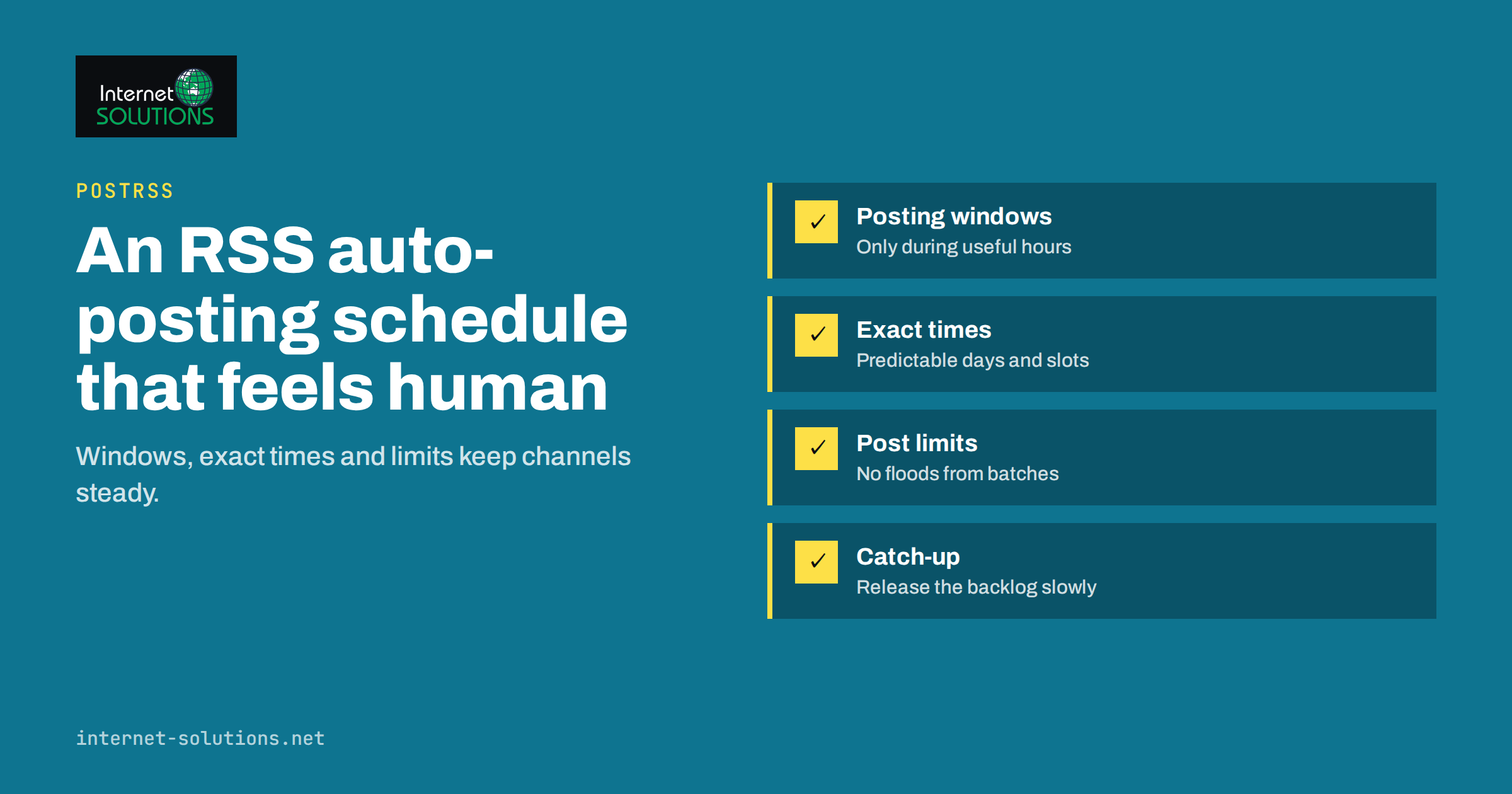
An RSS auto-posting schedule decides when each new article from your feed reaches your audience, and it matters more than most people expect. Publish ten articles in one afternoon and an unplanned tool may push all ten to your social channels within minutes, flooding followers who then tune out. Publish at 3 a.m. in your audience’s time zone and the post sinks before anyone is awake. A good schedule keeps your channels steady, timely and relevant without anyone clicking “share” by hand.
This guide explains how to plan an RSS auto-posting schedule: the difference between checking a feed and publishing a post, how posting windows, exact times, post limits and ordering work, how to handle backlogs and bursts, and how to set sensible rhythms for different kinds of sites. The examples use PostRSS, our own RSS auto-posting service, and the settings described come from its current feature list. The same thinking applies to any automation tool.
Checking a Feed Is Not the Same as Posting
Two separate timings control what happens after you publish an article.
- The check interval: how often the service looks at your feed to find new items.
- The publishing schedule: when and how many of the discovered items are actually posted to each network.
Mixing them up leads to confusion. A fast check interval means new items are noticed quickly. It does not force immediate posting if you have configured posting windows or exact times. Likewise, a narrow posting window does not slow down discovery; the items simply wait for the next allowed slot.
PostRSS checks each feed every 5 minutes on all plans and every minute on Enterprise plans, and you can choose a slower interval for each source, up to once a week. For most blogs, the 5-minute default is fine, because the real scheduling control comes from the posting rules rather than from the check frequency.
How an RSS or Atom Feed Reaches Your Followers
An RSS or Atom feed is a structured list of your latest content. Each item has a title, a link, usually a summary or full text, a publication date and sometimes an image. The formats are defined in the RSS 2.0 specification and in RFC 4287 for Atom. When the service checks the feed, it compares the items with those it has already seen. Anything new becomes a candidate post. The scheduling rules then decide whether that candidate is posted now, later or never.
If you have not yet connected a feed, start with our PostRSS setup guide, which takes you from the feed address to the first published post.
The Scheduling Controls and What They Do
| Control | What it does | Best used when |
|---|---|---|
| Check interval | Sets how often the feed is checked, from every 5 minutes to once a week | You want quick discovery for news, or a slow pace for a rarely updated site |
| Posting window | Allows posts only between chosen hours | You want to avoid night-time posts and keep the channel active in daytime |
| Exact times | Posts at specific times on chosen days in your time zone | You have a proven schedule, such as 9:00 on weekdays |
| Maximum posts per update | Caps how many items are posted at once | Your feed sometimes publishes several items together |
| Order | Publishes newer first, older first or in random order | You are working through a backlog or recycling older items |
| Start date and catch-up | Also posts older feed items that were never published, from a chosen date | You are connecting a feed with existing content |
According to the current PostRSS feature list, posting windows and exact times are available on paid plans, while the check interval and the basic posting options apply more widely. Check the features page for the limits of your plan before you design a schedule around them.
Posting Windows: Keep Posts Inside Useful Hours
A posting window limits publication to the hours you choose. It is the simplest way to avoid posts at awkward times. If your audience is mostly in one country, a window such as 08:00 to 20:00 local time keeps the channel visible during waking hours. If you serve several time zones, choose a window that covers the overlap or create separate targets for different regions.
How to choose the window
- Look at your analytics for the hours when visitors from social networks actually arrive.
- Check each network’s own insights, where available, for when your followers are active.
- Start wide, then narrow after a few weeks of data.
- Remember that team chats and messenger channels have different rhythms from public social networks. A work chat that receives updates at midnight is annoying; a news channel might welcome them.
What happens to items outside the window
Items that arrive outside the window wait for the next permitted moment. If many wait, the maximum posts per update setting prevents all of them from going out together as soon as the window opens.
Exact Times: Predictable, Habit-Forming Posting
Exact times suit channels where regularity builds an audience: a daily article at 09:00, a weekly roundup on Friday afternoon, a morning briefing for a team. You choose the days and the times in your time zone, and the service posts the next queued item at each time. Because the schedule is predictable, followers learn when to expect you, and you can compare results between time slots.
Use exact times when:
- your content supply is steady and you publish at least as often as you post,
- you want different cadences for different networks, such as one post per day on a company page but three on a faster channel,
- you want to test two schedules against each other by using separate targets.
If you publish less often than your schedule has slots, empty slots are normal, and nothing is posted. If you publish more often, items queue up. Decide in advance whether you prefer a queue that drains slowly or a higher posting rate.
Post Limits and Order: Avoid Floods and Choose What Goes First
Burst publishing is common. You schedule five articles for the same morning, import a batch of products or fix a feed error that releases a pile of old items. Without limits, a tool will try to post everything it has found.
Maximum posts per update
Set a modest cap so that each update posts only a few items, and the rest follow at the next opportunity. A cap of one or two items per update is typical for public social networks; higher caps may suit news channels with very frequent content. The cap protects your audience’s attention and reduces the risk of hitting rate limits or looking like spam on a platform.
Newer first or older first
Newer first is the natural default: the freshest article goes out first. Older first is useful when you are catching up on a backlog and want to publish in the original order. Random order suits evergreen libraries where there is no single latest item. For ideas on reusing older material without looking repetitive, see PostRSS and evergreen content.
Backlogs and Catch-Up
When you connect an existing blog, the feed may contain years of articles. Posting all of them would be pointless, so decide how much history you want. PostRSS lets you set the date to post from and, if you wish, also posts older items that were never published. Use this carefully:
- Choose a start date that matches your goal. For a fresh start, set it to today so that only new articles are posted.
- If you want to share older evergreen articles, pick a recent start date, combine it with a low post limit and a posting window, and let the queue drain gradually.
- Review the first few posts manually before leaving the schedule unattended.
- Pause or filter out outdated items, such as time-limited offers, with keyword filters so that they are not shared by accident.
Make Scheduling Work With Message Formats and Filters
Timing is only one part of how natural your channel feels. PostRSS lets you build each post from the item title, the item description, the page title or your own static text, which gives nine combinations of message format. Vary them by network: a short title and link on a fast-moving channel, a title with a description on a company page. Add UTM parameters to the links so that your analytics shows which network and which time slot bring visitors; our guide to UTM parameters for auto-posted social traffic explains a clean naming scheme.
Keyword filters let you include or exclude items by words in the title or description, so that a single feed can serve different channels, for example only articles about one topic going to a topic-specific channel. Hashtags can be generated from the categories and tags of each feed item on networks where hashtags make sense.
Example Schedules
A small business blog with two articles a week
Check interval of 5 minutes, posting window from 09:00 to 18:00 on weekdays, a maximum of one post per update and a start date of today. Every new article goes out on the next weekday morning slot, and nothing is posted at night or on weekends.
A news or publishing site with many articles a day
Fast check interval, a wide posting window and a cap of two or three posts per update, so that stories are shared quickly but not in clumps. Use keyword filters to send different sections to different channels.
An online shop with new products
A product feed with a moderate check interval, a daytime window, a cap of one or two products per update and clear message formats showing the title and link. Exclude out-of-stock items with filters if your feed includes them. The approach is described in product feeds to social media.
An agency managing several client channels
One source per client feed and a separate target per network, each with its own time zone, window and cap. Document the settings in the client file so that anyone can see why a channel behaves as it does.
Common Scheduling Mistakes
- No cap on posts per update, so a batch publication floods followers.
- Wrong time zone, which shifts every post by several hours.
- The same schedule on every network, ignoring that each audience behaves differently.
- Catching up on years of old posts by accident when connecting an existing blog.
- Treating the check interval as the publishing time, and then wondering why a post appeared later than expected.
- Never reviewing the results. A schedule should be adjusted after a few weeks of data.
- Assuming a missing post means a broken tool. Windows, limits and filters may simply be holding it. If posts really do not appear, work through the checklist in troubleshooting RSS feeds.
Review and Improve
After two to four weeks, look at the numbers. Which time slots produced the most clicks? Which networks responded to which message formats? Did the cap prevent flooding, or are items waiting too long? Adjust one setting at a time, and note the date, so that you can attribute changes. Remember that content quality and relevance matter as much as timing; a good schedule gives good posts a better chance but cannot rescue weak ones.
Frequently Asked Questions
How often does PostRSS check my feed?
Every 5 minutes on all plans and every minute on Enterprise plans. You can also choose a slower interval for each source, up to once a week.
Can I stop posts from going out at night?
Yes. Use a posting window to allow posts only between the hours you choose, or set exact times on chosen days in your time zone. These scheduling options are available on paid plans.
How do I avoid several articles being posted at once?
Set a maximum number of posts per update. Extra items wait for the next update, so a batch of articles is spread out instead of being posted together.
Can I post my older articles too?
Yes. Choose the date to post from and turn on catch-up, and PostRSS also posts older feed items that were never published. Combine it with a low post limit so that the backlog is released gradually.
What order are the items posted in?
You can publish newer items first, older items first or in random order, depending on whether you want fresh content, a chronological catch-up or a rotating library.
Should every network use the same schedule?
No. Audiences and platforms differ. Use separate targets with their own windows, limits and message formats, and adjust each according to its results.
The Bottom Line
A good RSS auto-posting schedule separates discovery from publishing, keeps posts inside useful hours, limits how many items go out at once and chooses the right order for the situation. Set a posting window or exact times in your audience’s time zone, cap posts per update, decide deliberately how much of your back catalogue to share, vary message formats by network and review the results every few weeks. Automation then does the repetitive work, and your channels stay steady and timely without constant attention.