

 English
 Lietuvių
 Latviešu
 Eesti
Eesti Русский
 Polski
 Українська
 Deutsch
 Italiano
 Español
 Français
 Português
 Čeština
 Magyar
 Română
 Ελληνικά
 Türkçe
 日本語
日本語 العربية
 हिन्दी
 Bahasa Indonesia
 Bahasa Melayu
 ไทย
ไทย Tiếng Việt
 বাংলা
বাংলাRSS to Team Chat: Feeding Slack, Teams and Google Chat With PostRSS
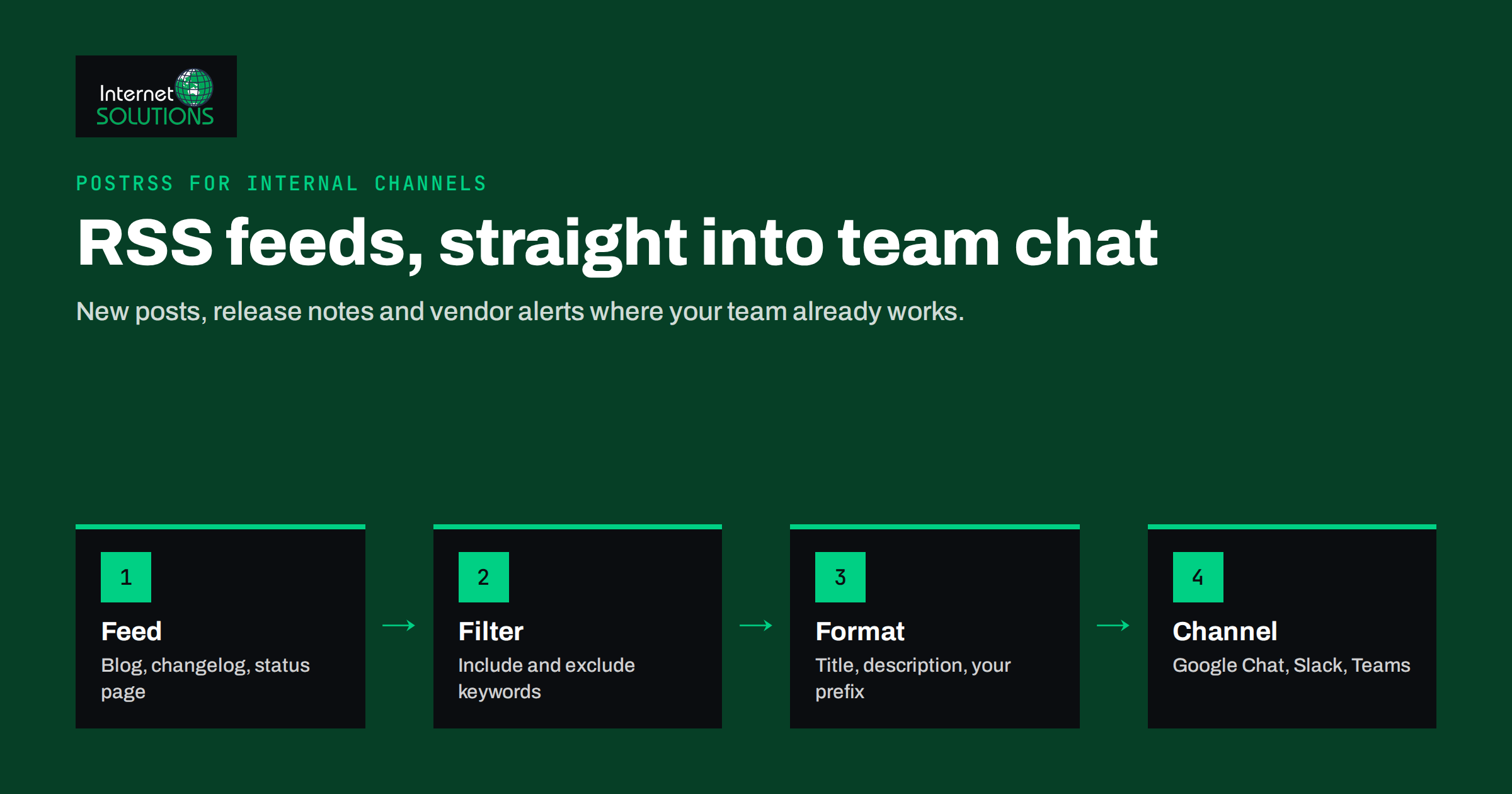
Most talk about RSS automation is about reaching the public: posting new articles to Facebook Pages, LinkedIn or X. But some of the most useful feeds never leave the company. Sending RSS to team chat puts new blog posts, product updates, competitor news, security advisories and customer reviews directly into the channels where your team already works, so nobody has to remember to check a dozen websites every morning.
This guide explains how to set up RSS to team chat with PostRSS, the social media automation service built by Internet Solutions. It covers which team chats are supported natively, how webhooks cover Slack and Microsoft Teams, which feeds are worth piping in, and how to keep the channels useful instead of noisy. The same principles apply whatever tool you use, so even if you only take the channel design ideas, the time will not be wasted.
Why Send RSS Feeds to Team Chat at All
Email newsletters and bookmarks rely on people remembering to look. Team chat is different: it is open all day, notifications are already tuned, and a message can be discussed in a thread right where it appears. When a feed lands in a channel, three things happen that do not happen with a browser tab.
- Shared awareness. The sales team sees the new case study the moment it goes live, and support sees the release notes before the first customer asks about them.
- Discussion in context. A competitor’s price change appears in the marketing channel and the conversation about how to respond starts in its thread, not in a meeting three days later.
- Less manual forwarding. Someone on the team usually acts as the human RSS reader, copying links into chat. Automation gives that person their time back and never forgets on a busy day.
Internal distribution is still distribution
Companies spend a lot of effort promoting new content externally and very little making sure their own staff know it exists. Yet employees are often the best amplifiers: account managers share articles with clients, and support agents link to guides in replies. Getting your own content into team chat is the cheapest distribution channel you have.
What PostRSS Supports for Team Chat
PostRSS checks each RSS or Atom feed every five minutes on all plans, and every minute on Enterprise plans, and publishes each new item to the targets you choose. According to the PostRSS features page, it supports 66 networks in total, and team chat is one of the largest groups. The networks available to you and the number of targets depend on your plan.
Native team chat targets
PostRSS lists 13 team chat platforms as native targets: Microsoft Viva Engage, Zoom Team Chat, Google Chat, Mattermost, Rocket.Chat, Zulip, Webex, Pumble, Flock, RingCentral, Zoho Cliq, Twist and Chatwork. Messaging and community platforms such as Telegram, Discord and Matrix are also supported, which is useful for teams that coordinate there instead of in a corporate chat tool.
Slack and Microsoft Teams through webhooks
Slack and Microsoft Teams are reached through PostRSS’s webhook target, which sends each new feed item to an address you provide. The same mechanism works with automation platforms such as Zapier, Make and n8n. Both Slack and Microsoft document how to create an incoming address for a channel: see Slack’s guide to sending messages using incoming webhooks and Microsoft’s instructions to create an incoming webhook in Teams. Microsoft has been moving customers toward Workflows for this, so follow the current version of its documentation rather than an old screenshot.
Feeds Worth Sending to Your Team
The value of RSS to team chat depends entirely on what you send. A good internal feed is relevant to one team, arrives at a manageable rate and usually needs someone to act or at least be aware. These are the feeds that tend to earn their place.
Your own content
Your company blog, news section, help centre updates and changelog. Most content management systems produce a feed automatically; WordPress, for example, publishes one at /feed/ and separate feeds per category. Sending the changelog to the support channel is one of the fastest wins: agents learn about new features from the channel, not from a confused customer.
Industry and competitor news
Competitor blogs, press rooms and pricing pages that offer feeds, industry publications and regulator announcements. Send these to a dedicated research or marketing channel rather than a general one, and use keyword filters so only relevant items appear.
Operational and security feeds
Status pages of the services you depend on, vendor security advisories and software release feeds. Many status pages publish RSS. For a development or IT team, a channel that shows when a hosting provider reports an incident or a plugin you use releases a security update is worth a great deal. It pairs well with the practices in our guide to patch management for servers and WordPress.
Reviews and mentions
Some review platforms, forums and monitoring tools provide feeds of new reviews or mentions. Routed into a customer success channel, they let the team respond quickly and see patterns without logging into another dashboard.
Setting It Up Step by Step
The setup takes minutes per channel once you know which feeds go where. The general steps are the same for native targets and webhooks.
- List feeds and channels. Write down each feed address and the channel that should receive it. One feed can go to several channels, and one channel can receive several feeds.
- Create the destination. For a native target, connect the team chat account in PostRSS. For Slack or Teams, create the incoming webhook address in the chat tool first and keep it private; anyone with that address can post to your channel.
- Add the feed as a source in PostRSS and choose how often it is checked. Every five minutes suits changelogs and status feeds; a slower interval is fine for industry news.
- Connect the source to the target and choose the message format. PostRSS offers nine combinations built from the item title, the item description, the page title and your own static text, so you can add a prefix such as “New release:” that tells readers at a glance what the message is.
- Set filters. Keyword include and exclude lists match the item title and description, so a competitor feed can be limited to posts that mention pricing or a product name.
- Test with one item and check how the message looks in the channel, including the link preview, before adding the rest.
If you are new to the tool, the PostRSS setup guide walks through adding a first source and target in more detail.
Designing Channels That Stay Useful
The most common failure is not technical. It is a channel so full of automated messages that everyone mutes it within a week. A few design rules prevent that.
One purpose per channel
Keep automated feeds in channels whose names say what they contain, such as a releases channel, a competitor-news channel or a vendor-status channel. Do not pour feeds into the general channel where people also talk to each other.
Match volume to attention
A feed that publishes forty items a day belongs in a channel people browse, not one that pings them. Use PostRSS’s maximum number of posts per update and, on paid plans, posting windows so a busy feed does not flood a channel at night and bury everything by morning.
Filter hard
Include and exclude keywords are the difference between signal and noise. For a security channel, include terms such as “security”, “vulnerability” or the names of your critical software, and exclude marketing announcements.
Give every channel an owner
Someone should review each automated channel once a month, remove dead feeds, adjust filters and ask whether the team still reads it. Automation without an owner slowly turns into clutter.
Native Target or Webhook: Which to Use
Both approaches deliver feed items into chat, but they suit different situations.
| Question | Native team chat target | Webhook target |
|---|---|---|
| Which tools | Viva Engage, Zoom Team Chat, Google Chat, Mattermost, Rocket.Chat, Zulip, Webex and others | Slack, Microsoft Teams, Zapier, Make, n8n or any system that accepts webhooks |
| Setup | Connect the account in PostRSS | Create an incoming address in the chat tool or automation platform |
| Message control | PostRSS message formats and filters | PostRSS formats plus any processing in the receiving system |
| Extra processing | Not needed | Possible, for example routing by keyword in n8n |
| Security point | Account permissions in the chat tool | Keep the webhook address secret and rotate it if it leaks |
| Best for | Teams on a supported platform who want the simplest setup | Slack and Teams users, or workflows that need extra steps |
Three Example Setups
Concrete examples make the planning easier. These three are common starting points for small and mid-sized companies.
A software company
The product changelog goes to the support and sales channels with a “New release:” prefix. Status feeds from the hosting provider, payment processor and email service go to an operations channel, filtered to incidents only. The company blog goes to a general announcements channel once a day, limited to one or two items per update, so staff can share new articles with customers.
An online store
Supplier news feeds and the shop platform’s release notes go to the operations channel. The store’s own blog and new product feed go to the marketing channel, where the team decides which items also deserve a paid promotion. Review feeds, where available, go to customer service.
A marketing agency
Each large client gets a channel that receives the client’s own blog and news feed, so account managers always know what the client just published. A shared research channel collects industry publications and platform announcements from Google and Meta, filtered to terms such as “update”, “policy” or “change”, because those are the posts that affect campaigns.
Measuring Whether It Helps
Internal feeds are harder to measure than public posts, but not impossible. PostRSS can add your own query parameters to every link, for example utm_source=postrss and utm_medium=teamchat, so your analytics can separate visits that came from internal channels. That shows whether staff actually open what is shared. Beyond clicks, the useful measures are practical: fewer “did you see this?” messages, support agents who know about releases before customers do, and faster responses to competitor moves or vendor incidents.
If feed items stop arriving, the cause is usually on the feed side: a changed feed address, items without unique identifiers, or a caching plugin serving an old version. Our guide to troubleshooting RSS feeds covers those causes, and they apply equally to team chat targets. For an overview of the product itself, see our PostRSS page.
Frequently Asked Questions
Can PostRSS post RSS feeds to Slack?
Yes, through the webhook target. You create an incoming webhook for the Slack channel and give PostRSS that address; each new feed item is then sent to the channel.
Does RSS to team chat work with Microsoft Teams?
Yes, also through a webhook. Create the incoming address in Teams following Microsoft’s current documentation, then add it as a webhook target in PostRSS.
Which team chat tools does PostRSS support natively?
The PostRSS features page lists 13 native team chat targets, including Google Chat, Microsoft Viva Engage, Zoom Team Chat, Mattermost, Rocket.Chat, Zulip and Webex. Availability depends on your plan.
How quickly do new items appear in the channel?
PostRSS checks feeds every five minutes on all plans and every minute on Enterprise plans, so a new item typically appears within minutes of being published in the feed.
Can I send only some items from a feed?
Yes. Keyword include and exclude filters match the item title and description, so only items that fit your rules are posted to the channel.
Is it safe to use webhooks for internal channels?
Webhooks are safe when the address is treated like a password. Store it only in the systems that need it, do not paste it into public documents, and create a new one if it is ever exposed.
The Bottom Line
RSS to team chat turns feeds that someone used to check by hand into a steady, filtered stream of updates inside the tools your team already uses. PostRSS covers the major team chat platforms natively and reaches Slack and Microsoft Teams through webhooks, with filters, message formats and posting limits to keep channels readable. Start with the feeds that clearly need action, such as your own changelog and vendor status pages, give each channel one purpose and one owner, and expand only when the first channels have proven they are read.