

 English
 Lietuvių
 Latviešu
 Eesti
Eesti Русский
 Polski
 Українська
 Deutsch
 Italiano
 Español
 Français
 Português
 Čeština
 Magyar
 Română
 Ελληνικά
 Türkçe
 日本語
日本語 العربية
 हिन्दी
 Bahasa Indonesia
 Bahasa Melayu
 ไทย
ไทย Tiếng Việt
 বাংলা
বাংলাSecurity Headers Explained: HSTS, CSP and Clickjacking Protection
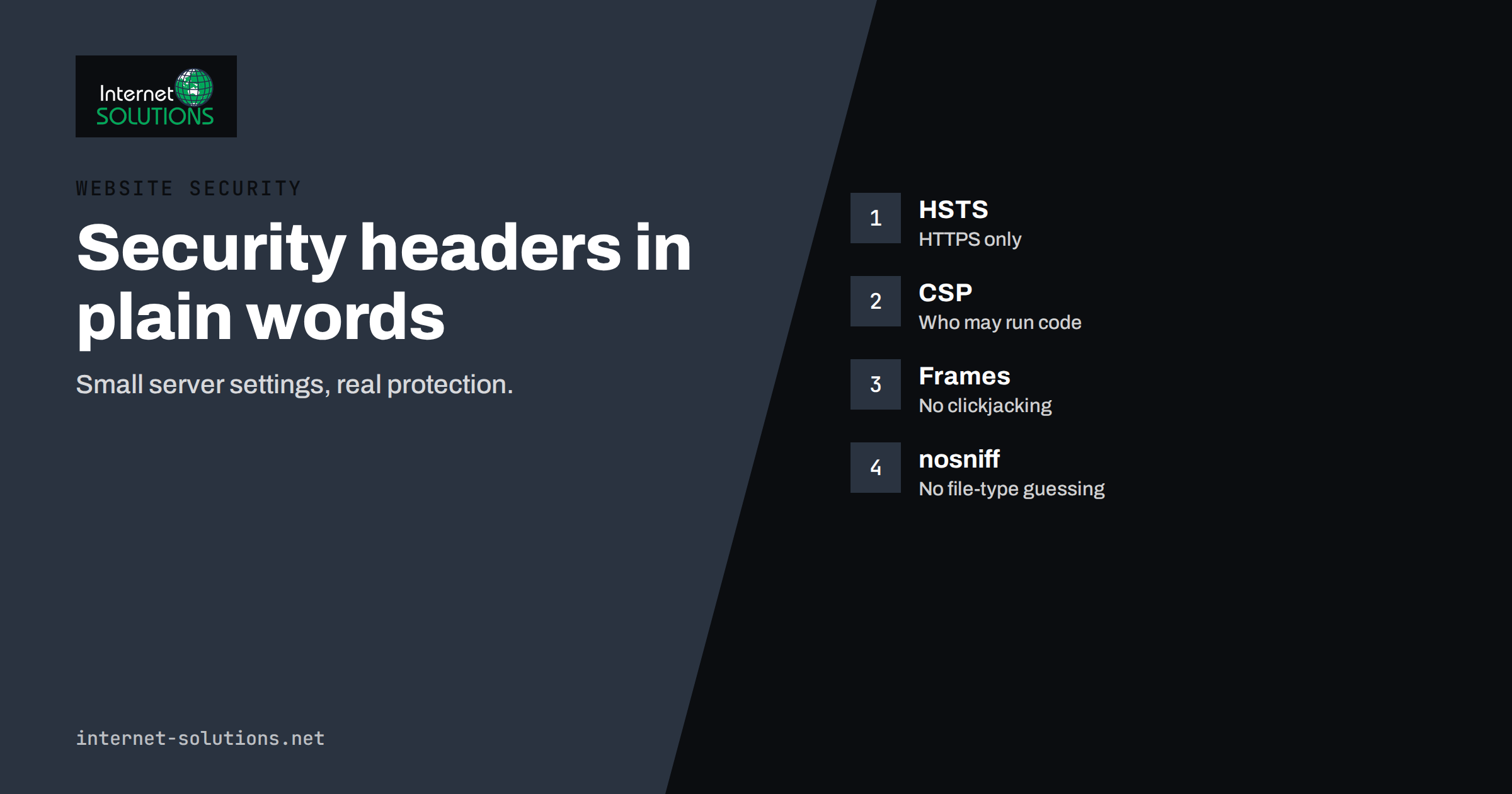
Every time a browser loads a page, the server sends back not only the page but also a set of instructions in the response headers. Some of those instructions are about security: use only encrypted connections, do not let other sites put this page in a frame, do not run scripts from unknown sources, do not guess file types. These security headers cost nothing to send, require no change to the visible design and close several of the most common ways in which websites are attacked. Yet many business sites still send none of them.
This guide explains the most important security headers, what each one protects against, how to introduce them without breaking your site and how to check that they work. It is aimed at business owners and the people who look after their websites, and it complements our overview of server security hardening and our server administration service.
What Security Headers Are and Why They Matter
An HTTP response has two parts: the headers, which describe the response, and the body, which is the page itself. Security headers are a group of headers that tell the browser how strictly to behave when it handles your page. They do not fix a vulnerable application, and they do not replace updates, strong passwords or a firewall. What they do is add a second layer of defence in the one place where you can influence the behaviour of every visitor’s browser.
That second layer matters because attackers rarely rely on a single weakness. A cross-site scripting flaw, a malicious advert, a compromised third-party script or a hostile page that frames yours can each be limited, sometimes completely blocked, by the right header. Security headers also reduce data leakage, for example by limiting what information is sent to other sites when a visitor clicks a link.
They have commercial value too. Browsers, security scanners, insurers and enterprise customers increasingly check them, and missing headers show up in audits as easy findings. Adding them is one of the cheapest ways to improve the security score of a website, and it signals that the site is looked after.
The Headers That Matter Most
There are many security-related headers, but a handful do most of the work. The table gives an overview before we look at each in detail.
| Header | What it does | Typical value | Risk of breakage |
|---|---|---|---|
| Strict-Transport-Security (HSTS) | Tells browsers to use only HTTPS for your domain | max-age of a year, often with includeSubDomains | Medium: affects every subdomain and is slow to undo |
| Content-Security-Policy (CSP) | Limits where scripts, styles, images and frames may come from | A policy tailored to your site | High: needs careful testing |
| X-Frame-Options or CSP frame-ancestors | Controls whether other sites may display your pages in frames | SAMEORIGIN or DENY | Low, unless you embed your own pages elsewhere |
| X-Content-Type-Options | Stops browsers from guessing file types | nosniff | Low |
| Referrer-Policy | Controls how much address information is sent to other sites | strict-origin-when-cross-origin | Low |
| Permissions-Policy | Switches off browser features you do not use, such as camera or location | A list of disabled features | Low to medium |
HSTS: Always Use HTTPS
HTTP Strict Transport Security tells a browser that your domain must only be accessed over HTTPS. After a visitor has seen the header once, the browser will upgrade any plain HTTP request to HTTPS by itself, before anything is sent over the network. This protects against downgrade attacks and against people being tricked onto an unencrypted version of the site, for example on public Wi-Fi. The MDN reference for Strict-Transport-Security describes each directive.
The header carries a lifetime in seconds, called max-age, and two optional directives. IncludeSubDomains applies the rule to every subdomain of your domain, and preload signals that you want the domain included in the preload lists that browsers ship, which makes even the very first visit secure. A common long-term value is one year, but you should not start there.
Roll out HSTS in stages. First make sure that the entire site, including images, scripts, forms and every subdomain you intend to cover, works properly over HTTPS and has valid certificates that renew automatically; our guide to SSL certificate renewal and management helps with that. Then send a short max-age, such as a few minutes, and raise it to a day, a week, a month and finally a year as you confirm nothing breaks. Be especially careful with includeSubDomains and preload: if some forgotten subdomain does not support HTTPS, it becomes unreachable for people whose browsers remember the rule, and preload is deliberately difficult to reverse.
Content Security Policy: Decide What May Run
Content Security Policy is the most powerful and the most demanding security header. It lets you list the sources from which a page may load scripts, stylesheets, images, fonts, frames and other resources, and it tells the browser to refuse everything else. If an attacker manages to inject a script into your page, a strict policy can stop it from running or from sending data to the attacker’s server. The MDN guide to Content Security Policy explains the directives in detail.
A policy is made of directives, each covering one kind of resource. Default-src sets the fallback, script-src controls scripts, style-src controls styles, img-src controls images, connect-src controls requests made by scripts, and frame-ancestors controls who may frame the page. Each directive lists allowed sources, such as your own domain, specific trusted domains, or keywords such as none. The more specific the list, the stronger the protection and the more likely something legitimate will be blocked.
Real websites make this hard. Analytics, advertising, chat widgets, fonts, maps and payment providers each load resources from their own domains, and many sites contain inline scripts and styles. Allowing everything inline through an unsafe keyword weakens the protection considerably, while removing inline code can mean changing the site. Modern approaches use nonces or hashes to allow specific inline scripts without opening the door to all of them.
The sensible way to adopt CSP is in report-only mode. In this mode the browser does not block anything but reports what it would have blocked, so you can see the real traffic of your site and refine the policy. Start with a broad policy, review the reports for a couple of weeks, tighten step by step and switch to enforcement only when the reports are quiet. Expect to revisit the policy whenever you add a new third-party tool.
Clickjacking Protection: Frame Control
Clickjacking is an attack in which a hostile page loads your site in an invisible frame and tricks visitors into clicking buttons they cannot see, such as a confirm payment or delete account button. The defence is to tell browsers which sites may display your pages in a frame. The older header for this is X-Frame-Options, which accepts DENY to forbid all framing and SAMEORIGIN to allow framing only by your own site.
The modern replacement is the frame-ancestors directive in the Content Security Policy, which is more flexible because it can list specific allowed sites. Many sites send both for compatibility. If your pages are not meant to be framed by anyone else, use DENY or the equivalent frame-ancestors none. If a partner legitimately embeds a page of yours, allow only that partner’s address rather than disabling protection.
Be sure to test legitimate uses of framing before you enforce the rule. Embedded payment pages, preview tools in editing systems and some single sign-on flows use frames, and a blanket ban can break them. Check administration areas in particular, since these are the pages attackers most want to frame.
The Smaller Headers That Add Up
X-Content-Type-Options with the value nosniff tells the browser to trust the declared file type and not to guess it from the content. This prevents certain attacks in which a file that looks harmless is interpreted as a script. It is simple, safe and recommended for virtually every site.
Referrer-Policy controls how much of the address of the current page is sent to other sites when a visitor follows a link or loads a resource. A value such as strict-origin-when-cross-origin sends the full address within your own site, only the domain to other sites and nothing when moving from a secure to an insecure page. This keeps private parts of addresses, such as tokens or internal paths, from leaking to third parties.
Permissions-Policy lets you switch off browser features that your site does not need, such as camera, microphone, geolocation and payment, or restrict them to your own pages. This reduces the harm if a third-party script is compromised. List only what your site does not use, and test pages that rely on features such as maps or video calls before enforcing.
You may also see cross-origin headers such as Cross-Origin-Opener-Policy and Cross-Origin-Resource-Policy. They help isolate your pages from other sites and are useful for advanced cases, but they can break integrations such as pop-up logins and embedded content, so introduce them later and carefully. Do not bother with the old X-XSS-Protection header, which modern browsers no longer rely on, and remove obsolete headers that scanners flag as deprecated.
Where to Set the Headers
You can add security headers at several levels: in the web server configuration, in the application, at a content delivery network or in a security plugin. The best place is usually the web server or the CDN, because the setting then applies to every response, including static files, error pages and responses the application never sees. Apache and Nginx both allow headers to be added with a simple directive, and most CDNs have a rules or transform section for the same purpose.
Avoid setting the same header in several places. Duplicate headers with different values confuse browsers and can lead to unpredictable results, so decide on one source of truth and document it. Make sure that headers are added to all responses, including errors, using the option that forces them even for error status codes. Our guide to CDN and web application firewall for small business websites explains how those services fit in.
For content management systems, check whether your hosting provider or a plugin already sends some headers, and avoid conflicts. Where you cannot control the server, a plugin or a rule at the CDN is better than nothing, but keep in mind that it may not cover every file. Remember to keep a copy of the configuration in your documentation and in version control, so that the next server move does not silently drop your protection.
Roll Out Safely Without Breaking the Site
Treat the introduction as a small project. Start by recording the headers your site sends today, using a browser’s developer tools or a command-line request that shows the response headers. Then add the low-risk headers first, nosniff, a sensible referrer policy and frame protection, test, and leave them for a few days. After that, introduce HSTS in stages and CSP in report-only mode.
Test on a staging copy before changing the live site, and use a checklist: home page, forms, login, checkout, search, embedded videos, maps, chat widget and the administration area. Test with several browsers, watch the console for blocked resources and ask a colleague to try typical journeys. Keep the previous configuration at hand so you can roll back within minutes if something breaks.
After rollout, monitor. Watch error rates, customer complaints and the CSP reports for unexpected blocks. Update the policy when you add or remove tools, and review the headers after every major change to the site or hosting. A short review each quarter keeps the configuration current and removes entries for services you no longer use.
How to Check Your Headers
Checking is easy. In a browser, open the developer tools, load a page and inspect the response headers in the network panel. From a command line, a request that shows only the headers lets you see exactly what the server sends. Online scanners grade the headers and point out what is missing, and an audit tool can include them in a wider report: the free check at Site AI Audit, for example, looks at security headers along with SEO, speed, SSL and email authentication.
Use the checks as a guide, not a score to maximise at any cost. A site that earns the top grade by blocking half its own features is worse off than one with a thoughtful policy. Read each finding, ask what risk it addresses and decide whether it applies to your site. The OWASP Secure Headers Project maintains recommendations and explanations that help with those decisions.
Check every important host name, not only the main one. The main site, the shop, the blog, the login area and API endpoints may be served by different systems with different headers. Pay particular attention to administration and login pages, which deserve the strictest settings.
Common Mistakes to Avoid
The first mistake is enabling HSTS with includeSubDomains and a long lifetime before checking every subdomain, which can lock visitors out of services that do not support HTTPS. The second is copying a strict CSP from another site, which usually blocks your own scripts and leads people to disable it entirely. The third is allowing unsafe inline scripts and eval everywhere to make errors disappear, which removes most of the benefit.
Other frequent problems include setting headers only on the home page, forgetting error pages and static files, duplicating headers across the server, CDN and application, and never reviewing the configuration after changes. Some teams treat headers as a one-off task and forget them when they move to new hosting, so the protection quietly disappears. Make the headers part of your standard server build and your launch checklist.
Finally, do not mistake headers for a complete security programme. They sit alongside updates, backups, access control, monitoring and a plan for incidents. If a site has already been compromised, headers will not clean it; see our guide to website malware and blacklisting for what to do then.
Frequently Asked Questions
Will security headers slow down my website?
No. They add a few short lines to each response, which is negligible. Their effect is on how the browser behaves, not on how fast the page loads.
Which security header should I add first?
Start with the low-risk ones: X-Content-Type-Options, a Referrer-Policy and frame protection. Then roll out HSTS in stages and introduce Content Security Policy in report-only mode.
Can a Content Security Policy break my site?
Yes, if it blocks resources your pages need. That is why you should begin in report-only mode, review the reports, test on a staging copy and tighten the policy gradually before you enforce it.
Is HSTS preload a good idea?
It can be, for sites that are fully on HTTPS including all subdomains and that will stay that way. It is hard to reverse, so use it only after the standard header has run safely for a long time.
Do I still need X-Frame-Options if I use CSP?
The frame-ancestors directive is the modern way to control framing, but many sites send both for compatibility with older browsers. Make sure the two settings agree with each other.
Does my WordPress site need these headers?
Yes, like any site. Set them at the web server or CDN where possible, or use a trusted plugin, and test the administration area, forms and any embedded tools before enforcing strict policies.
The Bottom Line
Security headers are one of the best returns on effort in website security: small settings, no visual change and real protection against common attacks. Add the simple headers first, introduce HSTS in stages, adopt a Content Security Policy through report-only mode and set the headers once at the server or CDN. Test before enforcing, check the result with proper tools and review the configuration whenever the site changes. Done carefully, they make a site harder to attack and easier to trust, without anyone noticing a thing.